Nothing disrupts a crucial meeting like Microsoft Teams video call freezing. That frustrating lag or complete freeze can leave you pixelated and silent mid-presentation. 😩 Don't worry—this guide delivers quick, effective troubleshooting steps to get your video flowing smoothly again. We've focused on the most common causes and latest fixes, so you can dive right in and resolve issues fast. Let's reclaim your seamless calls!
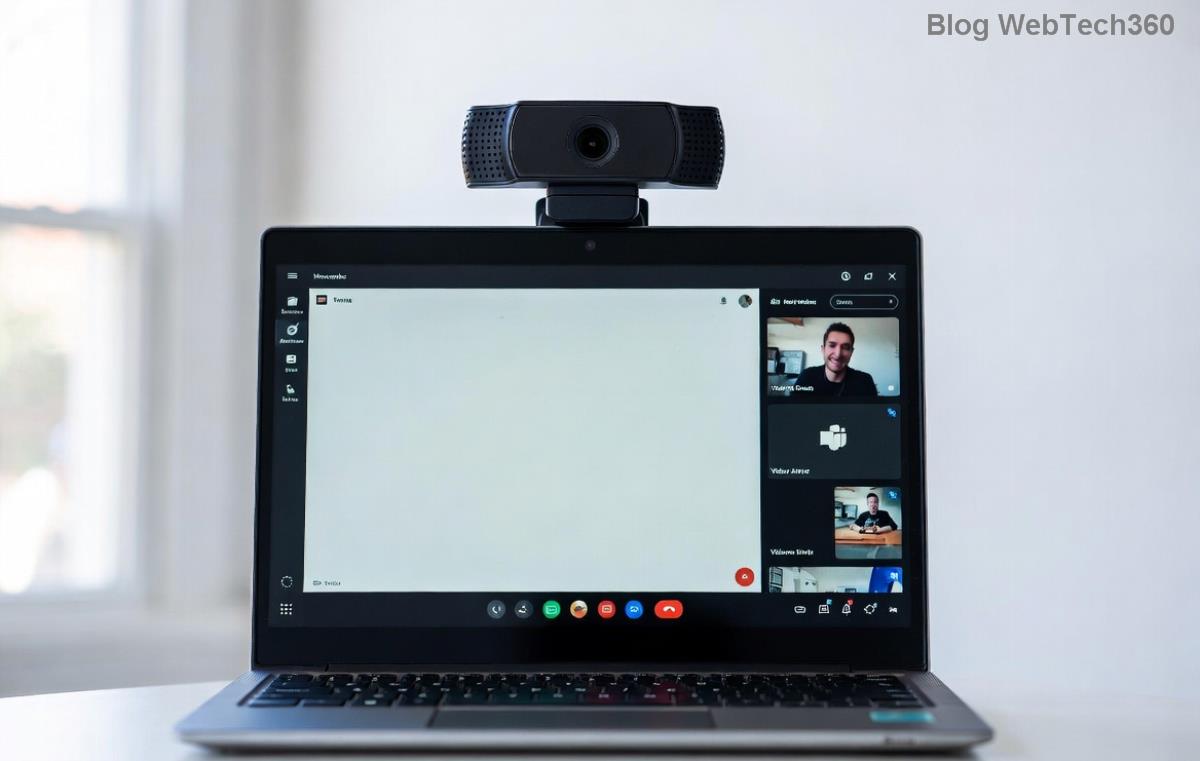
✅ Quick Wins: Start with These Basic Checks
Before diving deep, rule out simple culprits. These steps fix Microsoft Teams video call freezing for most users in under 5 minutes.
- Restart Everything: Close Teams completely (use Task Manager on Windows or Activity Monitor on Mac), restart your device, and relaunch. This clears temporary glitches.
- Check Your Internet: Run a speed test at Speedtest.net. Aim for at least 1.5 Mbps upload/download for HD video. Switch to wired Ethernet if on Wi-Fi—it's more stable! 🌐
- Test Audio/Video in Teams: In a new meeting, click your profile picture > Settings > Devices. Preview your camera and mic. If it freezes here, the issue is local.
📊 Common Causes and Fixes: At-a-Glance Table
Here's a handy table summarizing top triggers for Teams video freezing and instant remedies. Use it as your cheat sheet!
| Cause |
Symptoms |
Fix |
| Weak Network |
Choppy video, high latency |
Switch to 5GHz Wi-Fi or Ethernet; close bandwidth hogs like downloads. |
| Outdated Teams App |
Freezes during calls |
Update via Profile > Check for updates. |
| Hardware Acceleration |
Video stutters on GPU strain |
Disable in Settings > General. |
| Cache Buildup |
Sudden freezes after long use |
Clear cache (steps below). |
| Driver Issues |
Camera/mic dropouts |
Update graphics and USB drivers. |
🔍 Step-by-Step Troubleshooting Microsoft Teams Video Call Freezing
Now, let's tackle advanced fixes. Follow in order for best results.
1. Update Teams and Drivers
Outdated software is a top villain. Open Teams > Profile icon (three dots) > Check for updates. For drivers:
- Windows: Device Manager > Display adapters/Cameras > Right-click > Update driver.
- Mac: System Settings > Software Update.
Pro tip: Graphics drivers from NVIDIA/AMD/Intel sites ensure peak performance. 🚀
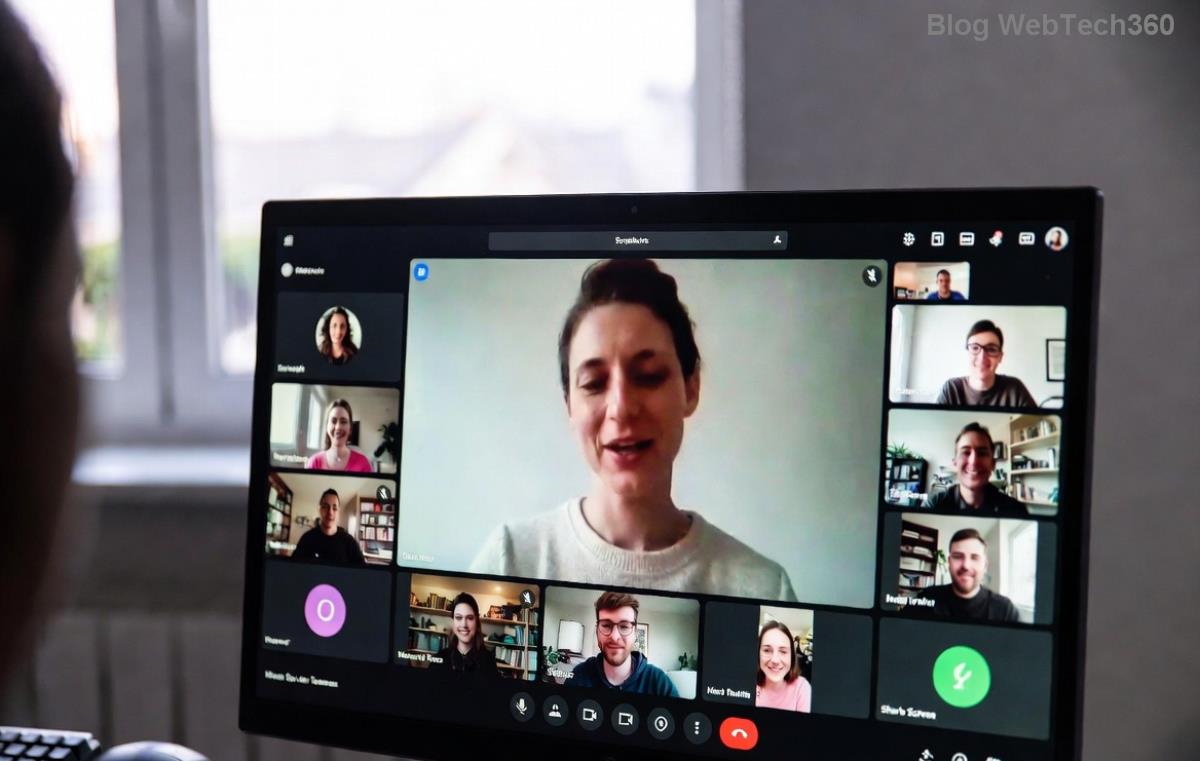
2. Disable Hardware Acceleration
This feature offloads video to your GPU but often causes Teams video call freezing on older hardware.
- Teams Settings > General.
- Uncheck Enable GPU hardware acceleration.
- Restart Teams. Test a call—smooth sailing! ⭐
3. Clear Teams Cache
Corrupted cache files bog down performance. Here's how:
- Windows: %appdata%\Microsoft\Teams > Delete contents of folders like Cache, GPUCache, IndexedDB.
- Mac: ~/Library/Application Support/Microsoft/Teams > Same deletion.
- Restart. Your app will rebuild fresh. 💨
4. Optimize Network Settings
For persistent Microsoft Teams video freezing:
- Disable VPN if active—Teams hates interference.
- In Teams: Settings > Network > Enable Reduce data usage or High quality media only on LAN.
- Router tweak: Prioritize Teams ports (UDP 3478-3481) via QoS settings.
Reference: Official guidance at Microsoft Teams Network Prep.
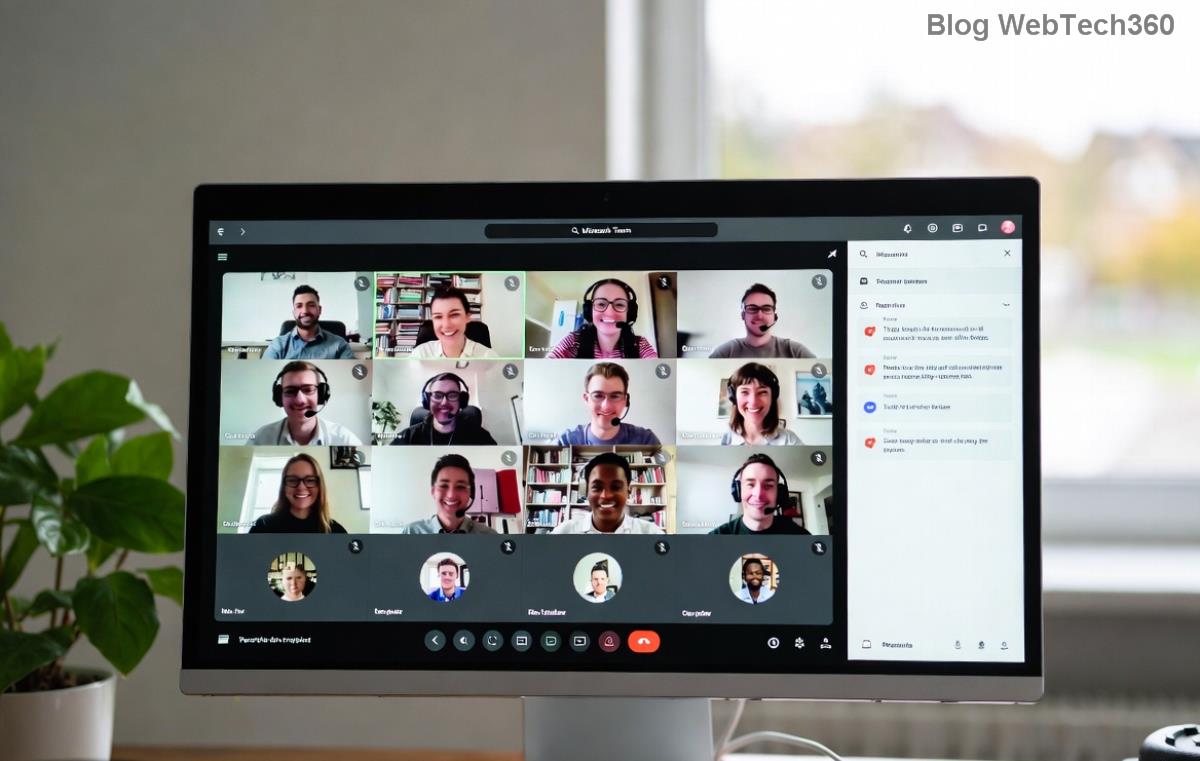
5. Hardware and Permissions Check
Ensure camera privacy settings allow Teams access:
- Windows: Settings > Privacy > Camera > Allow apps.
- Browser version: Check site permissions.
- Test external webcam? Swap USB ports or try another device.
🚀 Advanced Tips to Prevent Future Freezes
Once fixed, stay ahead:
- Join meetings early to preload video. ⏰
- Use Teams web version as backup.
- Monitor with Teams' built-in diagnostics: Help > Give feedback > Include logs for support.
If issues persist, check Microsoft Teams Support or your IT admin. You're now equipped to crush Microsoft Teams video call freezing—happy calling! 🎉