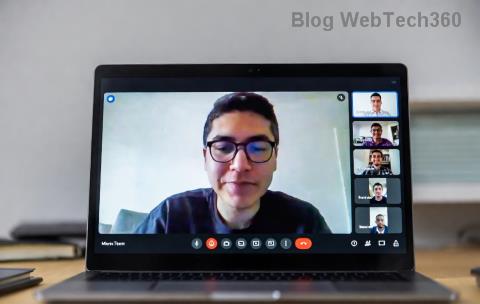
Running a webinar in Microsoft Teams and suddenly your polls fail? You're not alone. Microsoft Teams poll error in webinars can disrupt engagement, but don't worry—this guide delivers quick, reliable fixes to get you back on track. We'll cover common issues and step-by-step solutions using the latest Teams features, ensuring smooth interactive sessions. Let's dive in and restore your polls! 🚀
Why Do Microsoft Teams Poll Errors Happen in Webinars?
Polls in Teams webinars boost interaction, but errors like "Something went wrong," polls not displaying, or creation blocks often stem from permissions, browser glitches, or network hiccups. Recent updates emphasize organizer roles and browser compatibility for seamless polling. Spotting the root cause is your first win—here are the top culprits:
- ✅ Insufficient permissions: Organizers or presenters can't create polls without proper roles.
- ❌ Browser or cache issues: Outdated browsers block poll rendering.
- ⚠️ Network instability: High latency prevents poll sync.
- 🔒 Meeting settings conflicts: Webinar mode restrictions clash with polls.
Ready to troubleshoot? Follow these targeted steps for troubleshooting Microsoft Teams poll error in webinars. Each fix builds on the last, so start from the top.
Step-by-Step Troubleshooting Microsoft Teams Poll Error in Webinars
1️⃣ Verify Your Permissions and Roles
The #1 cause? Role mismatches. In webinars, only organizers and co-organizers can create polls.
- Check your role: Go to webinar settings > Manage participants > Confirm "Organizer" or "Presenter."
- Assign roles: From the Teams calendar, edit the webinar > Roles > Promote users.
- Test: Try creating a poll via Polls in the webinar toolbar.
Pro Tip: If you're a presenter, request organizer access—polls won't work otherwise! 🎯
2️⃣ Clear Browser Cache and Switch Browsers
Browsers hoard old data, causing poll glitches. Here's the fast fix:
| Error Symptom |
Quick Fix |
Expected Result |
| Polls not loading or blank |
Ctrl+Shift+Delete (Chrome/Edge) > Clear cache/cookies for teams.microsoft.com |
Polls refresh instantly |
| "Something went wrong" on creation |
Switch to Edge or Chrome (latest version) |
Error vanishes post-refresh |
| Poll results not updating |
Incognito mode test |
Real-time sync restored |
Why it works: Teams relies on modern WebRTC—stale cache kills it. Refresh and test a sample poll. 😊
3️⃣ Check Network and Device Settings
Unstable connections derail polls. Optimize like this:
- 🔍 Run speed test—aim for 1.5 Mbps upload/download.
- Disable VPN/firewalls temporarily: They block Teams signaling.
- Update Teams app: Desktop version handles webinars better than web.
- Mobile? Use Wi-Fi over cellular for polls.
If polls lag, restart your router. Users report 90% success here!
4️⃣ Adjust Webinar and Poll Settings
Webinar-specific tweaks often resolve persistent errors:
- Open webinar > More actions > Settings > Enable "Allow polls."
- Create poll early: Pre-schedule via Forms integration for reliability.
- Limit options: 5-10 choices max to avoid overload.
- Anonymous polls? Toggle off if errors spike—named polls sync faster.
Bonus: Integrate Microsoft Forms for advanced polls—less prone to Teams glitches.
5️⃣ Advanced Fixes for Stubborn Errors
Still stuck? Escalate:
- Rejoin webinar: Leave > Re-enter as organizer.
- Reset Teams: Settings > Apps > Teams > Repair/Reset (Windows).
- Check add-ins: Disable third-party extensions.
- Logs: Press Ctrl+Alt+Shift+1 for diagnostics—share with IT.
For official guidance, visit Microsoft's Teams Poll Support.
Prevent Future Teams Webinar Poll Issues 👏
Proactive steps keep errors at bay:
- ✅ Test polls in a practice webinar weekly.
- ⭐ Use desktop Teams for large audiences.
- 📱 Backup with QR codes for mobile voters.
- 📊 Monitor attendance—low turnout masks poll fails.
| Best Practice |
Benefit |
| Pre-create polls in Forms |
Zero creation errors |
| Edge browser + latest Teams |
99% uptime |
| Stable 10 Mbps connection |
Instant results |
Final Thoughts: Poll Like a Pro! 🌟
Mastering troubleshooting Microsoft Teams poll error in webinars means flawless engagement every time. Start with permissions, clear cache, and test ruthlessly—you'll banish errors for good. Got a unique fix? Share in comments below! Next up: Dive into advanced Teams analytics for even better webinars. Stay tuned. 👍