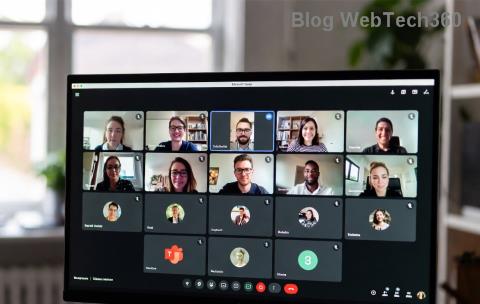
Ever finished a crucial Microsoft Teams meeting only to wonder, "Where does Microsoft Teams store recordings?" 😩 You're not alone! In 2026, Teams recordings are securely tucked away in Microsoft's cloud ecosystem, making them easy to access—if you know where to look. This guide cuts through the confusion with precise locations, quick steps, and pro tips to retrieve your files fast. Let's dive in and reclaim those recordings! ➡️
✅ Quick Answer: Core Storage Locations for Teams Recordings
Microsoft Teams intelligently routes recordings based on meeting type. Here's the breakdown:
| Meeting Type |
Where Does Microsoft Teams Store Recordings? |
Access Method |
| Non-channel (1:1, group, or scheduled meetings) |
OneDrive for Business (Recorder's account → Recordings folder) |
Teams app, OneDrive web/app |
| Channel meetings (Team channels) |
SharePoint (Team site → Recordings folder) |
Teams Files tab, SharePoint site |
| Live events or Town Halls |
Microsoft Stream (classic) or OneDrive/SharePoint (newer events) |
Stream portal or event page |
⭐ Pro Tip: Recordings auto-delete after 21 days for personal meetings (configurable by admins) but persist longer in channels. Check your org's retention policy!
Step-by-Step: How to Find Microsoft Teams Recordings in OneDrive (Non-Channel)
- Via Teams App: Open the meeting chat → Click More options (⋯) → Find the recording link. It points directly to OneDrive. 🎥
- Direct OneDrive Access:
- Go to OneDrive.
- Navigate to Recordings folder under My files.
- Spot your MP4 file—download, share, or transcribe! 📥
- Search Magic: Use OneDrive search bar: "Teams meeting recording" for instant results.
These files are private to the recorder but shareable with participants via links. No more digging through emails! 🚀

Channel Meetings: Locate Recordings in SharePoint
For team collaboration, Teams channel recordings land in SharePoint—perfect for group access. Here's how:
- In Teams, go to the channel → Files tab → Recordings folder. ✅
- Or, visit your Team's SharePoint site: Teams → Manage team → Files → Channel name → Recordings.
- Admin view? Check Teams Admin Center for site links.
Everyone in the team (or with permissions) sees these. Edit transcripts, add captions, or embed in posts effortlessly. 👏
📱 Mobile & Desktop Access: Everywhere You Need
- Teams Mobile: Chat → Recording thumbnail → Play/Download.
- Web Browser: teams.microsoft.com → Calendar/Chats → Find recording.
- Outlook Integration: Meetings sync to OneDrive/SharePoint seamlessly.
Sync issues? Ensure Teams is updated to the latest 2026 build. Force refresh your OneDrive/SharePoint cache for real-time visibility.

❌ Common Issues & Fixes: Why Can't I Find My Teams Recording?
Lost recordings? Don't panic—here's your troubleshoot toolkit:
| Problem |
Fix |
| Recording not starting |
Check policy: Admins enable via Microsoft Learn. Need Premium license? Verify. |
| File missing after 21 days |
Retention expired—download ASAP or extend policy in Compliance Center. |
| No permissions |
Recorder shares link or add guest access in SharePoint. |
| Large file won't download |
Use Stream for playback or OneDrive streaming. Compress if needed. |
🔥 Advanced Tips to Master Teams Recordings in 2026
- Auto-Transcripts: Enabled by default—access via recording details for searchable text. 🌟
- Download All: Bulk export from OneDrive/SharePoint.
- Integrate with Power Automate: Auto-save to custom folders.
- Storage Full? Monitor via Microsoft 365 Admin.
Ready to supercharge your workflow? Bookmark this guide and never lose a Microsoft Teams recording again. Share your tips in comments—what's your go-to method? 👇
For official details, visit Microsoft Support.