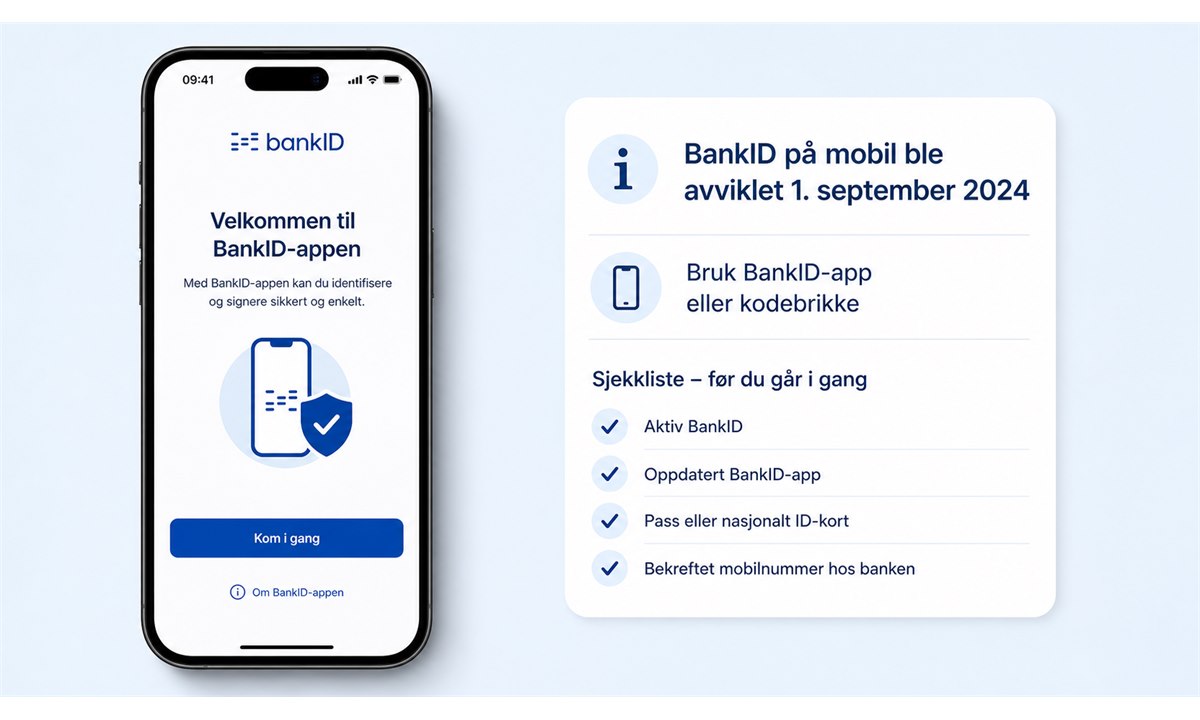
Bank ID funker ikke
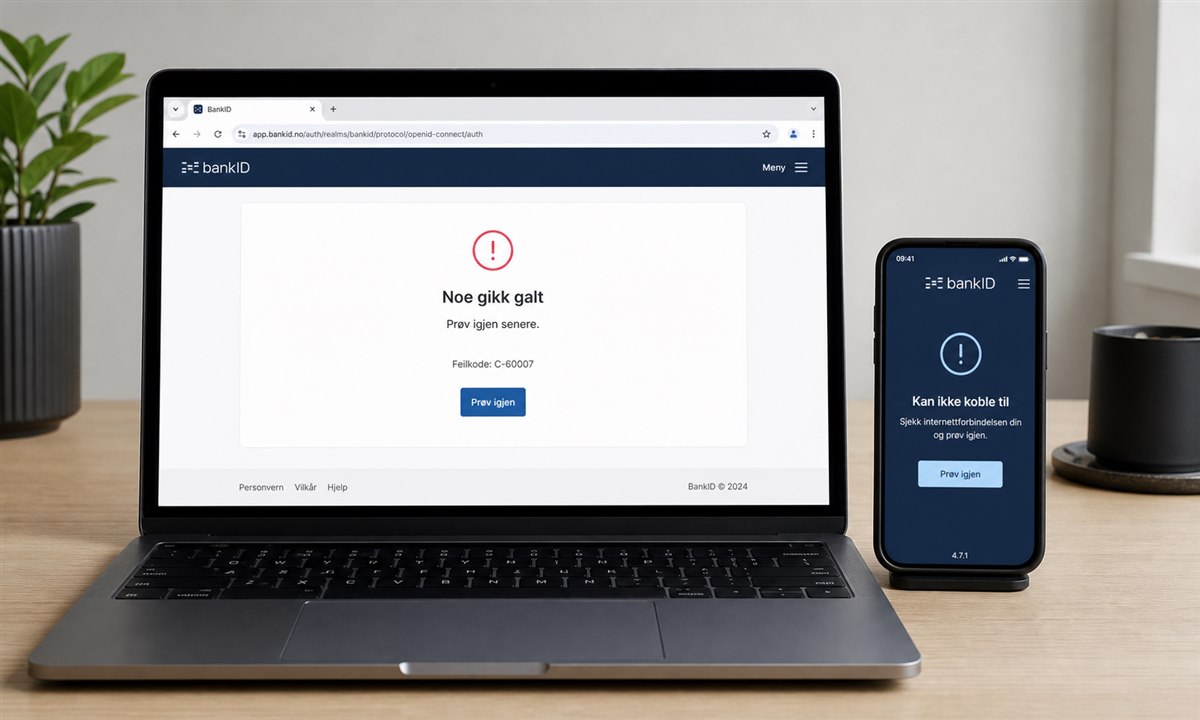
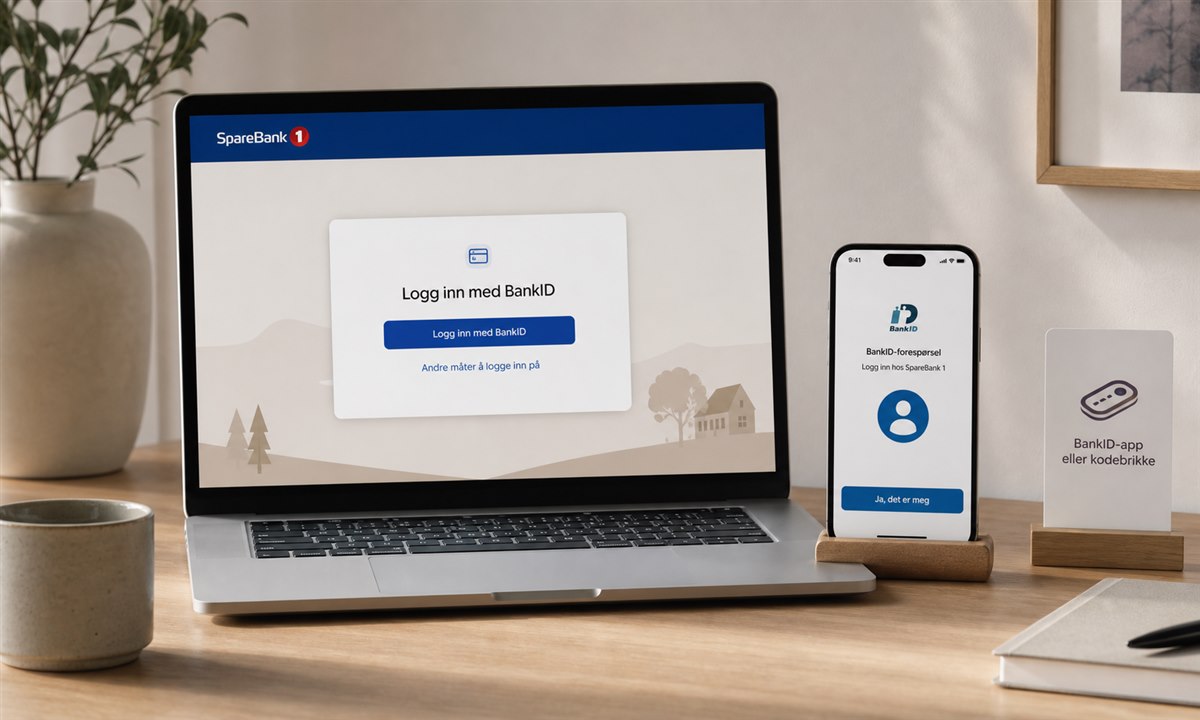
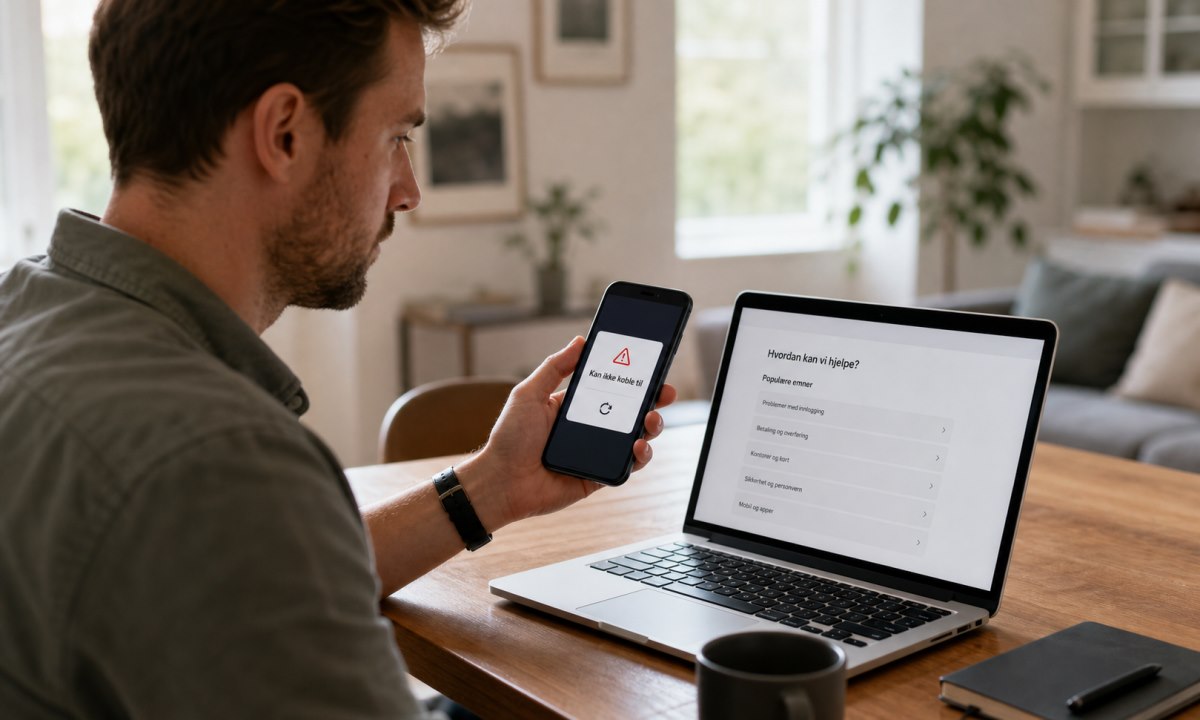
Bank ID funker ikke? Her er de mest effektive løsningene for å få BankID til å fungere igjen – for mobil, nettleser og kodebrikke.
To change your account profile picture in Windows 10:
Local accounts: Use the Settings app. Navigate to Accounts > Your Info and click the "Browse" button to choose a new picture.
Microsoft accounts: Login to account.microsoft.com and click "Your info." Click "Change picture," then "New picture" to choose a new picture.
Tired of seeing your current Windows 10 profile picture? Time to change it to something else. The steps required vary depending on whether you’re using a local account or a Microsoft account.
Continue reading for the local account steps, or skip forwards to the “Microsoft accounts” section if you use a cloud-connected account. If you’re not sure which describes you, start with the first steps below.
Local account profile pictures are controlled by the Settings app. Launch Settings from the Start menu and click the “Accounts” section. You’ll arrive at the “Your info” page.
Your current photo will be prominently displayed. Click the “Browse for one” button below to choose a new image for your account. Alternatively, press the “Camera” button (if your device has one attached) to capture a new selfie.

You can easily switch back to a previously used photo - your three most recently selected images will be displayed as thumbnails below your profile picture. Click any of the thumbnails to immediately revert to it.
When using a Microsoft account, you can still update your profile picture from the Settings app. Keep using the process detailed above. Alternatively, you can use the Microsoft account website to change your picture from wherever you are, even without access to your PC.
Irrespective of the method you use, the change will apply across all Microsoft services where your profile picture is displayed. It might be a little while before all sites and devices display the new picture.

To use the online process, login at account.microsoft.com and click the “Your info” button at the top of the page. Click the “Change picture” link to begin the selection process.
The image picker opens to a basic editor that lets you crop your current photo. Press the “New picture” button to select a different image from your filesystem. You can then crop and resize it as you see fit.

Once you save the changes, the new profile picture should be applied to all your Windows devices. It will also show up within Microsoft online services, such as Outlook.com and Office.com.
Bank ID funker ikke? Her er de mest effektive løsningene for å få BankID til å fungere igjen – for mobil, nettleser og kodebrikke.
Komplett guide til Bank ID Sparebank 1: slik aktiverer, bruker og feilsøker du BankID som Sparebank 1-kunde i 2026.
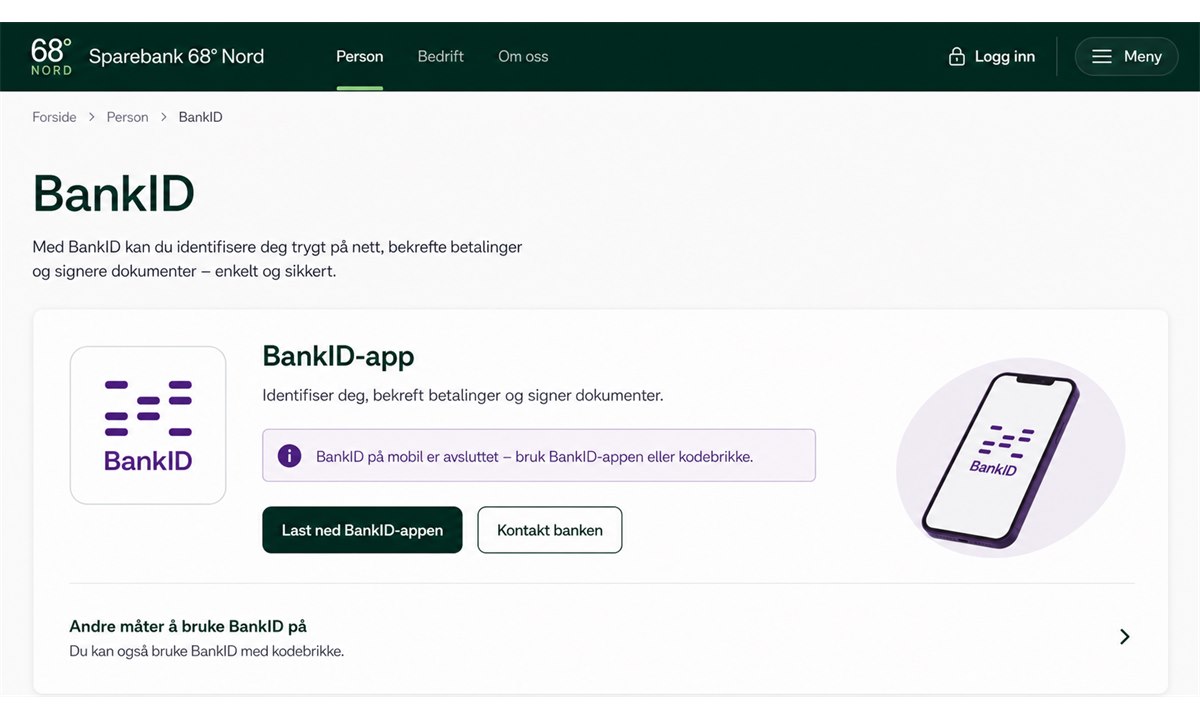
Komplett guide til BankID på mobil for Sparebank 68 grader nord-kunder. Aktiver, bruk og feilsøk BankID på mobil trygt og enkelt i 2026.
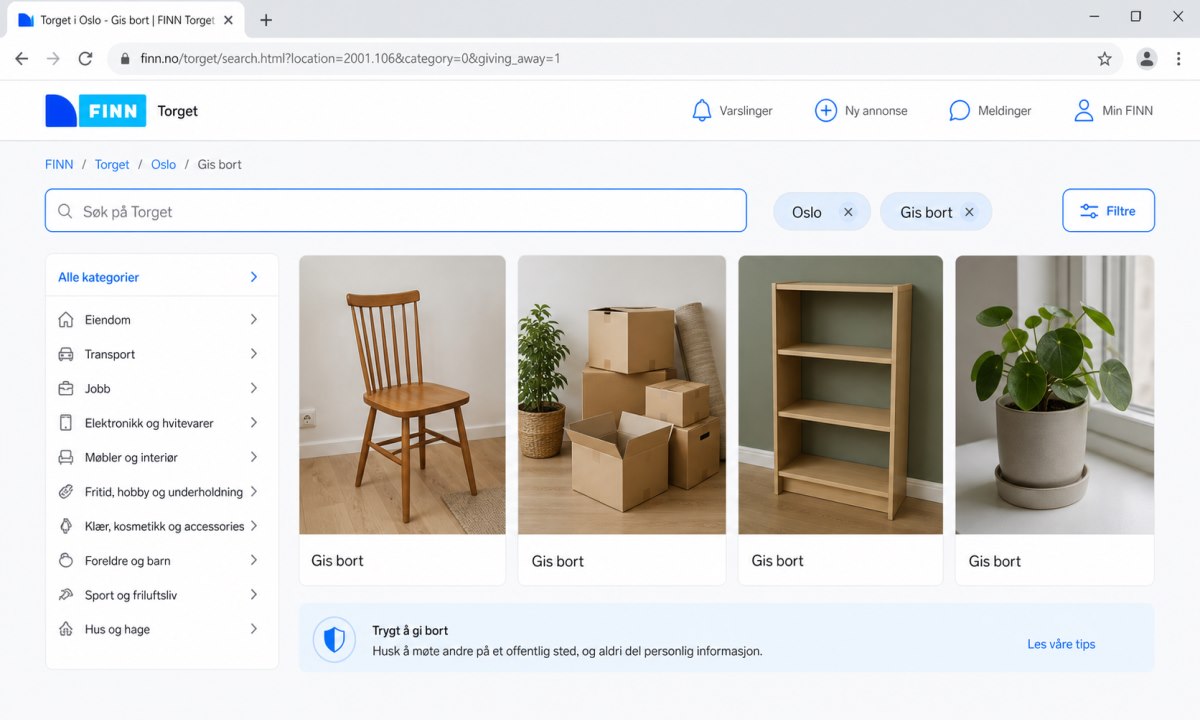
Finn.no gratis Oslo: Slik finner og legger du ut gratis annonser i Oslo. Tips for å finne de beste gratistilbudene og unngå svindel på Finn.no.
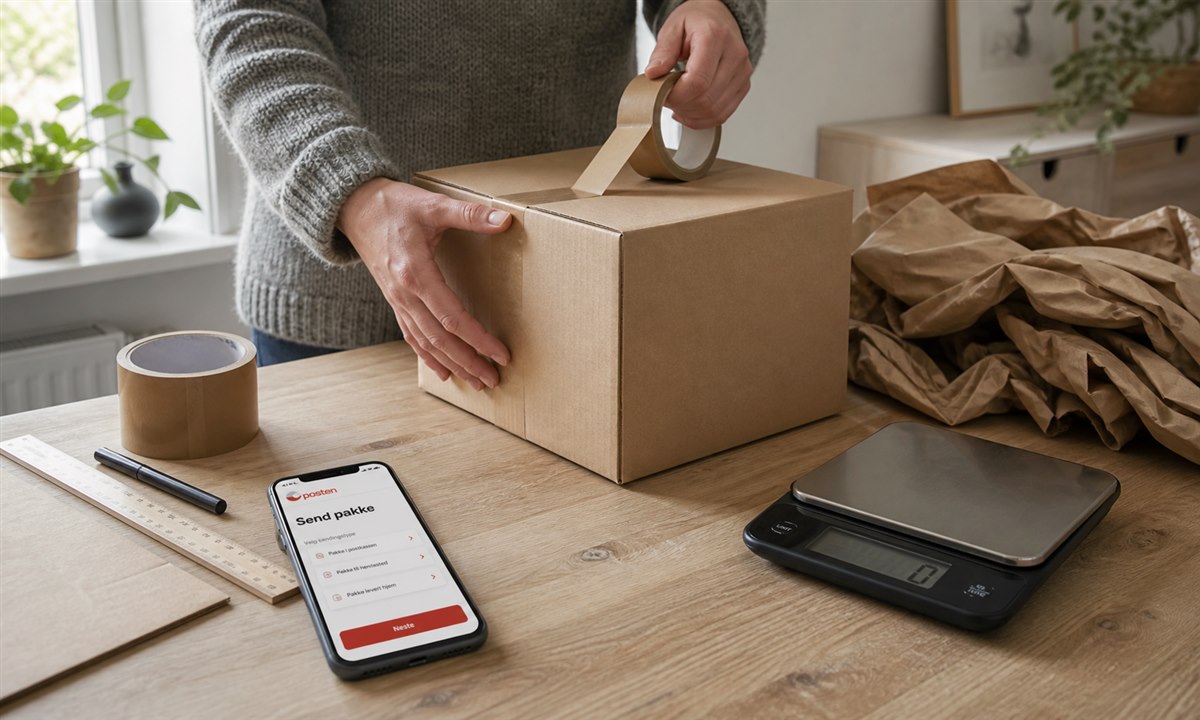
Lær hvordan du sender en pakke i posten steg for steg – fra pakking og prising til innlevering og sporing. Komplett guide for 2026.
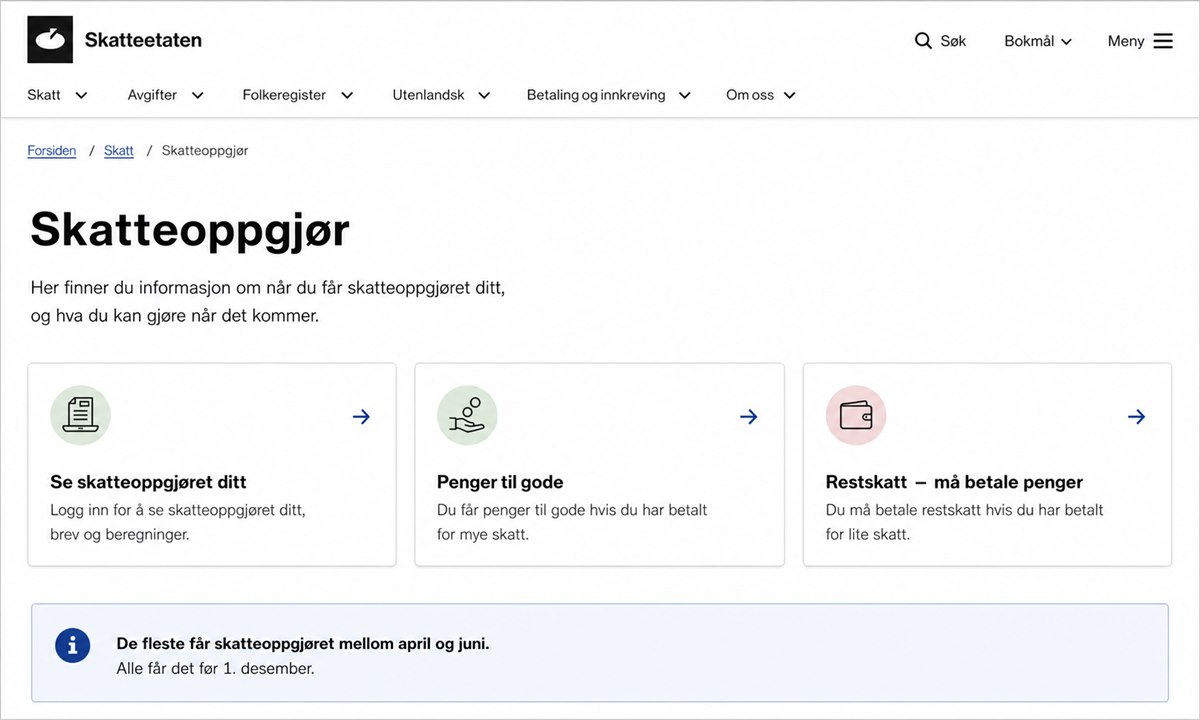
Les hvordan du bruker Altinn skatteetaten min side for å se skatteoppgjøret ditt, forstå beregningen og hva du gjør hvis du skylder penger.
Slik bruker lag og foreninger Vipps til innsamlinger, kontingent og betaling i 2026. Guide til Vipps for organisasjoner og frivillige lag.
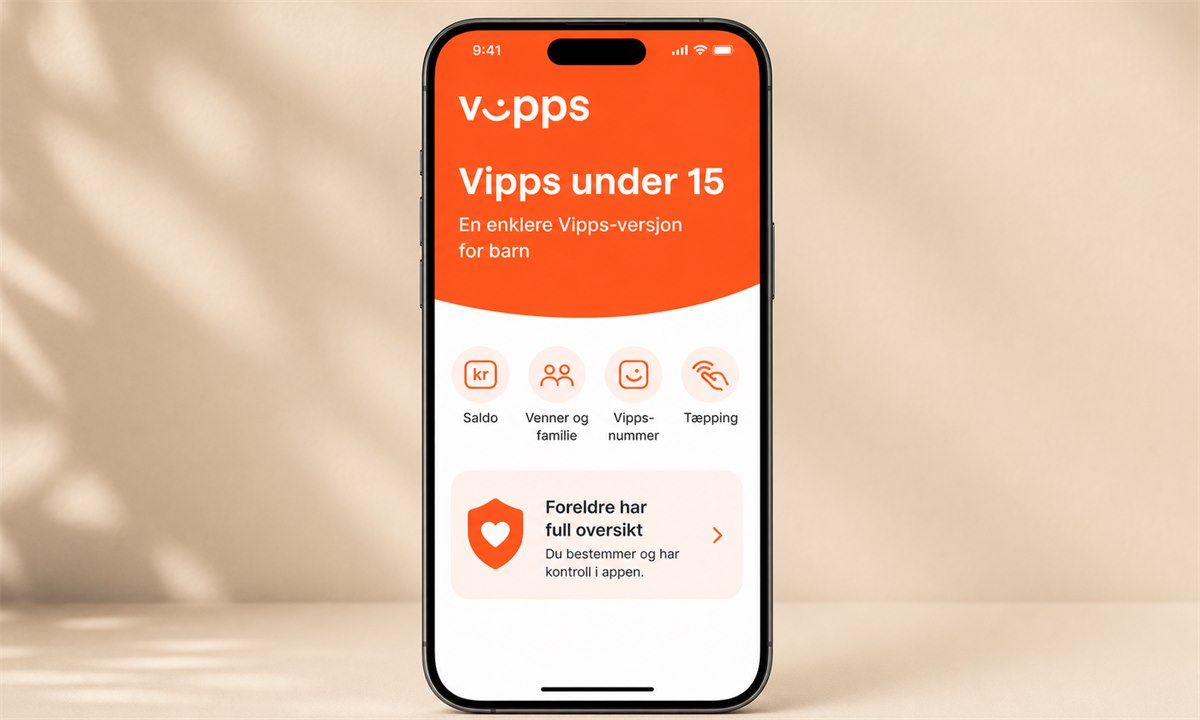
Alt du trenger å vite om Vipps til barn under 15 år – regler, alternativer og hvordan foreldre kan hjelpe barna med betaling i 2026.
Slik fikser du bank ID på mobil som ikke fungerer i 2026. Praktisk feilsøkingsguide med løsninger for de vanligste problemene med BankID på mobil.
Komplett guide til å aktivere BankID på mobil i 2026. Følg våre enkle steg og kom i gang med sikker digital identifikasjon fra telefonen din.