How to Fix the Missing Audio Button When Creating WhatsApp Stickers
Follow these 5 steps to find the right WhatsApp tool, restore sticker creation, and share audio separately when no audio button appears.
Want to send an animated WhatsApp sticker that also plays a sound? This guide explains how to check for the feature, make a sound sticker when the option is available, and play one someone sends you. Availability is limited: recent reporting found sound stickers rolling out to some Android beta testers, while WhatsApp’s Help Center documents regular sticker creation on Android and iOS. WhatsApp has not confirmed broad availability or an iPhone release. If you do not see the sound controls, use the standard sticker steps below and check again after updating WhatsApp.
Open the Google Play Store on Android or the App Store on iPhone, find WhatsApp, and install any available update. Then open a chat and tap the sticker button. Look for Create or Create sticker. Sound sticker features are account- and version-dependent; an update alone may not enable them. Current reporting describes a limited Android beta rollout, and does not establish general iPhone availability. If you do not see the creation or sound control, skip to Step 5 for the regular sticker method.
If Create sticker appears, tap it and choose a short video from your phone’s gallery or media picker. WhatsApp’s reported sound sticker flow converts a selected video into an animated sticker. Pick a clip with a clear subject and brief action so it remains recognizable at sticker size. Check that you have permission to share the clip and any audio it contains.
In the sticker editor, look for a sound or audio button. If it is present, open it and choose from the options shown in your version of WhatsApp. The reported beta flow includes keeping the video’s original sound, selecting an available sound effect, recording a voice clip, or choosing an audio file from the phone. Preview the result if that control is offered. If there is no sound button, your account likely does not have the feature yet; save or send the sticker as a regular animated sticker if WhatsApp offers that option.
Review the sticker and tap the send button. In a chat that supports sound stickers, the recipient can tap the sticker’s audio icon to play its sound; reports say audio does not play automatically. Keep the phone’s media volume up and check that audio is not routed to headphones or another Bluetooth device. On iPhone, use this playback method only if a received sticker actually displays an audio control; the existence of standard sticker support does not confirm sound sticker support there.
WhatsApp’s Help Center says custom photo stickers and sticker packs are available in its current Android and iOS apps. In a chat, open the sticker tray and choose Create if it appears, then select a photo and use the available editing controls before sending. To organize a sticker into a pack, press and hold a sticker, choose Add to sticker pack, and select an existing pack or create a new one when the option is offered. These regular stickers do not gain sound simply by being placed in a pack. For platform-specific controls, see WhatsApp’s guide to creating and sharing custom stickers. For the sound feature’s reported beta status and controls, see WABetaInfo’s Android rollout report.
Update WhatsApp, close and reopen the app, then check the sticker tray in a chat again. If the sound control is still absent, it may not have been enabled for your account or platform. Do not install unofficial app builds to force access; use regular stickers and wait for an official feature release.
Tap the small audio icon on the sticker, turn up media volume, and check your phone’s audio output. Confirm that the sender used a sound-enabled creation flow; an ordinary animated sticker will not contain audio. Recipients may also need a WhatsApp version that supports the feature.
Check WhatsApp’s photo and media permissions in Android or iPhone settings, then reopen the picker. If a file still does not appear, make a shorter clip or save a compatible copy in the phone’s gallery or Files app. Avoid repeated exports that reduce sound quality.
Standard custom stickers are supported on iOS. The sources checked for this guide confirm a limited Android beta sound sticker rollout but do not verify general iPhone availability. Look for the sound control in your own app before relying on it.
Recent reporting says recipients tap an audio icon to play the sound. If a sticker has no such icon, it may be a regular static or animated sticker.
The reported creation flow starts with a video and attaches audio in the editor. WhatsApp’s official sticker help describes editing and organizing regular stickers, but does not document adding audio to an existing saved sticker. Create a new one from a video if your app provides the sound option.
Follow these 5 steps to find the right WhatsApp tool, restore sticker creation, and share audio separately when no audio button appears.
Fix Microsoft Edge flickering with practical checks for graphics acceleration, extensions, display drivers, and Windows so you can isolate the cause safely.
Fix the Microsoft Edge SSL version or cipher mismatch error with safe checks for TLS settings, certificates, VPNs, Windows time, and site configuration.
Fix the WebView2 Runtime already installed error in Microsoft Edge with checks, official installers, and steps to distinguish runtime faults from app issues.
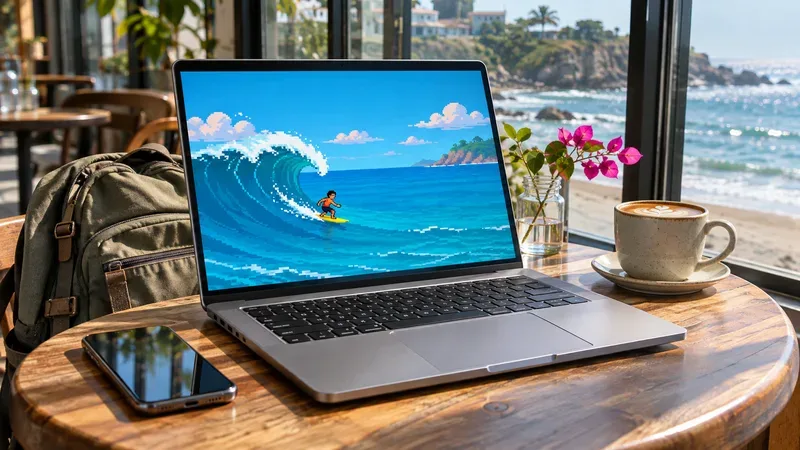
Discover Microsoft Edge Surf, learn how to launch it offline, explore its modes, and find out why many browser games still need an internet connection.
Fix Microsoft Edge video stuttering with practical checks for GPU acceleration, drivers, codecs, extensions, network buffering, and display settings.
Fix the Edge sync unavailable error by checking account access, browser policies, profile sign-in, and safe resync steps for personal or work accounts.
Learn how to capture full-page screenshots in Microsoft Edge, use DevTools when Screenshot is missing, and troubleshoot policy or menu changes.