How to Make WhatsApp Stickers With Sound on Android and iPhone
Follow these 5 steps to check sound sticker access, create and send one, and troubleshoot playback on Android or iPhone.
If you can create a photo sticker in WhatsApp but cannot find an audio button, the missing control may be expected: WhatsApp’s documented custom sticker workflow turns a photo into a sticker, and it does not list an option to attach audio to that sticker. This guide is for Android and iPhone users who want to confirm they are using the right feature, restore the sticker creator if it is missing, and share sound in a format that supports it.
WhatsApp’s Help Center says custom sticker packs are available on the latest Android and iOS versions and recommends updating WhatsApp if they do not appear. Its photo-sticker steps use the sticker tray, Create, and a photo selection; they do not describe adding audio to the created sticker. See WhatsApp’s custom sticker instructions.
Open a chat and tap the sticker icon by the message field. Start a new custom sticker with Create, then select a photo. If you are editing or sending a photo or video in the chat composer, that is a separate media-editing screen. WhatsApp documents audio controls for some motion photos or video media, but not as an audio attachment on a custom sticker. A missing audio button in the sticker creation preview is therefore not necessarily a fault.
Install any available WhatsApp update, then close and reopen the app. On Android, open Google Play, tap your profile icon, choose Manage apps & device, then See details under available updates and tap Update beside WhatsApp. On iPhone, open the App Store, tap your account photo, find WhatsApp under app updates, and tap Update. Menu wording may differ slightly by operating-system version.
WhatsApp specifically recommends using the latest version when custom sticker packs are missing. Google and Apple document these manual update routes in their support pages: Google Play app updates and Apple App Store updates.
Open a one-to-one or group chat, tap the sticker icon, and choose Create. On the photo selection screen, choose an image from Recents or Photos. On the preview screen, use the available sticker, emoji, text, or drawing controls, then tap send to try the sticker in the chat. The official workflow may look different across app versions; focus on whether the create and photo-selection options are present rather than looking for an audio button.
If you want recipients to hear something, send it separately as a voice message or audio file. To include sound alongside a visual, send a video or use a status feature that supports music where available. The sticker itself remains a visual sticker; sending audio in the same chat keeps both items together in the conversation without implying that sound is embedded in the sticker.
After updating, fully close WhatsApp and reopen it. If the Create option is still absent, restart the phone and check the sticker tray in another chat. Confirm that WhatsApp is installed from the phone’s official app store and that the app update completed. Avoid deleting app data as an early troubleshooting step; it can remove local information, and it will not add an audio feature that the documented sticker flow does not offer.
Update WhatsApp, reopen it, and check the sticker icon inside a chat rather than a photo-editing screen. Verify the installed app is the official WhatsApp app. Availability and interface labels can vary by version, so check the current Help Center guidance if the updated app still lacks the option.
Make sure the picture is saved in the phone’s photo library and try selecting it from Recents or Photos in the picker. On iPhone, check WhatsApp’s Photos access in iOS Settings; on Android, review WhatsApp’s photo and video permission in Settings. The exact permission path varies by phone model and operating-system version.
That is expected for a photo sticker. Send a voice message, audio file, or supported video separately. If you meant a video sticker or an animated sticker, check the exact media type and available controls in your version of WhatsApp; the photo-sticker instructions do not establish an audio attachment option.
WhatsApp’s current Help Center instructions for creating a custom sticker from a photo describe visual editing controls and sending the sticker. They do not document an audio button or a way to embed sound in a photo sticker. Use a voice message, audio file, or video when sound is required.
First update WhatsApp from Google Play or the App Store and reopen it. WhatsApp says custom sticker packs are available on the latest Android and iOS versions and advises updating when they are not visible. If it remains missing, availability or interface differences may apply to your app version.
A photo sticker is a still visual item; adding sound to a source photo does not make the sticker play audio. Send the sound separately or use a video/status format with audio support.
Follow these 5 steps to check sound sticker access, create and send one, and troubleshoot playback on Android or iPhone.
Fix Microsoft Edge flickering with practical checks for graphics acceleration, extensions, display drivers, and Windows so you can isolate the cause safely.
Fix the Microsoft Edge SSL version or cipher mismatch error with safe checks for TLS settings, certificates, VPNs, Windows time, and site configuration.
Fix the WebView2 Runtime already installed error in Microsoft Edge with checks, official installers, and steps to distinguish runtime faults from app issues.
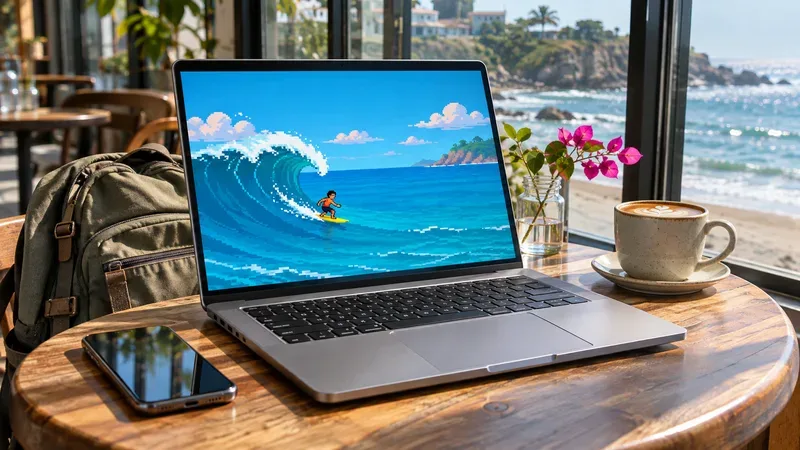
Discover Microsoft Edge Surf, learn how to launch it offline, explore its modes, and find out why many browser games still need an internet connection.
Fix Microsoft Edge video stuttering with practical checks for GPU acceleration, drivers, codecs, extensions, network buffering, and display settings.
Fix the Edge sync unavailable error by checking account access, browser policies, profile sign-in, and safe resync steps for personal or work accounts.
Learn how to capture full-page screenshots in Microsoft Edge, use DevTools when Screenshot is missing, and troubleshoot policy or menu changes.