Google Docs is an excellent way to write and edit all kinds of documents on the go. You can use it to create research papers, draft emails, and write articles – plus much more. In some cases, you might need to embed images into your document… but there might be occasions where the images are not showing in your Google Doc.
Related Reading:
This problem can arise for several reasons, but the problem is normally quite easy to fix. You can use one of many solutions, as we’ll discuss today.
Why Aren’t Images Showing In My Google Docs Document?
We’ll show you how to fix the image not showing in Google Docs problem shortly, but let’s first discuss why you’re experiencing this difficulty in the first place.
The File Is No Longer in the Same Place on Your Computer
The most common reason your images are not showing in a Google Doc is that the files are no longer in the same place on your computer. This might happen when you move them to a different folder on your device and when you move your pictures or screenshots to your computer’s bin folder.
It’s not a given that this problem will occur whenever you remove a picture from the same section, but it’s still worth considering. A better idea might be to store everything on an external hard drive.
Technical Issues
Sometimes, the problem might not have anything to do with you. Instead, it could be due to issues impacting Google Docs. You can easily check whether this is the case, as Google has a dashboard covering many of its services.
Problems With Your Browser
If you’re using Google Docs in a web browser on your computer, issues with your browser might impact how the program works. For example, you might need to perform a software update. You can often verify whether this is the problem by accessing Google Docs within another browser or going on your mobile device and see whether you’re encountering the same problem.
How to Fix Images Not Showing In Google Doc
Now that you know some of the main reasons why images might not be showing in your Google Doc, let’s identify how you can fix the issue. Below, you’ll find several steps that you can try.
Check Google Docs’ Server Status
To verify whether the problem is something to do with Google Docs or something on your end, the easiest place to start is by checking Google Docs’ server status. Doing this is quite easy, and you can follow the steps below:
- Go to this website: https://www.google.com/appsstatus/dashboard/.
- Scroll down to Google Docs.
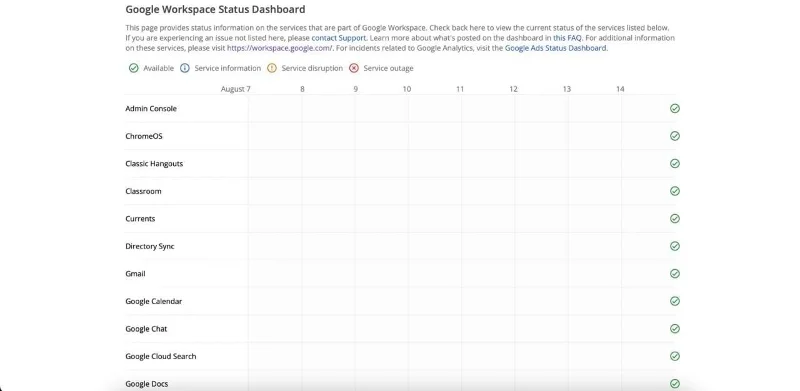
If you see a tick next to Google Docs, the servers work as they should. However, the orange i icon and red x symbol means you can expect problems to occur. In these situations, the only real thing you can do is wait for Google to fix the issue.
Retrieve the Photos From Your Computer’s Recycle Bin
If you’ve verified that Google Docs’ servers are working, it’s time to move on and check alternative solutions. The first place to start is by ensuring you haven’t moved the image in question to your computer’s trash folder.
You can check this by going to your recycle bin (the name will vary depending on your device and the language on your computer). If you see the image, you should see an option to reinstate it on your device. The name will, again, vary depending on the device you use.
Re-Upload the Picture to Google Docs
If you’re still having problems, you can always try re-uploading the photo or screenshot into your Google Doc. Here’s how to do that:
- Go to the part of your document where you want to insert the picture.
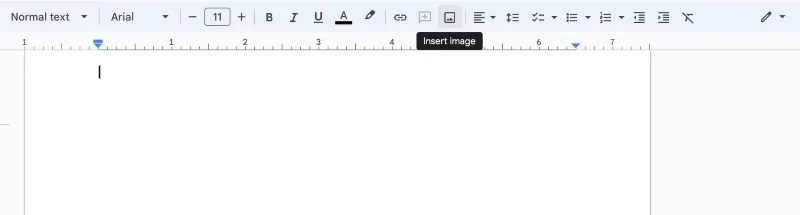
- Tap the image icon.

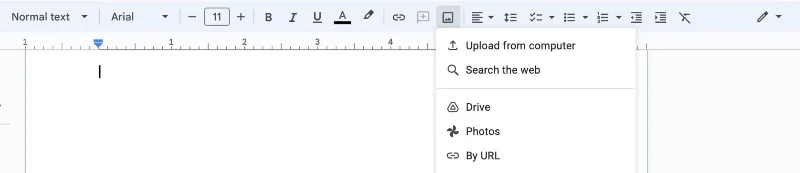
- When the dropdown menu appears, click on Upload from computer.

- Choose the file you want to upload to your device.
Close and Reopen Google Docs
Another solution you can try when images aren’t showing up in your Google Doc is to close and reopen the document. Doing so is simple; just click on the x button next to the tab in your browser. Then, go to your Google Drive and reopen the document.
Update Your Browser
In some cases, your web browser might need updating. This could be especially true if you’ve noticed that you can see the image in your Google Doc from another browser or device.
If you use Google Chrome, you can follow these instructions:
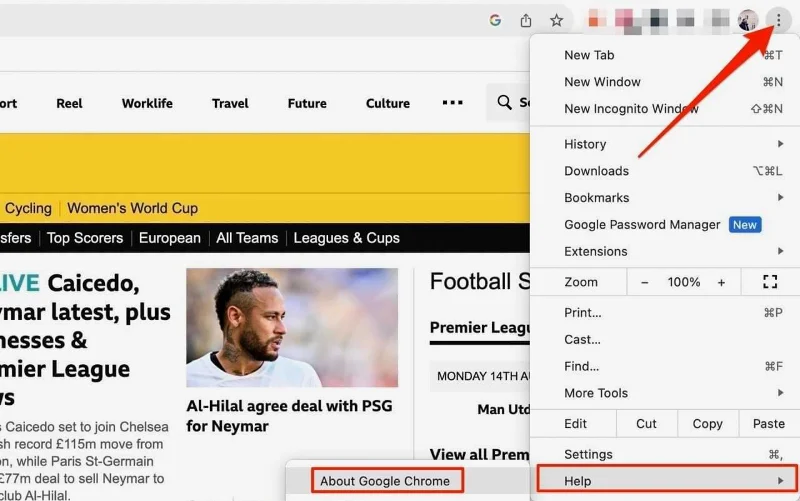
- Go to the horizontal three-dot icon in the top right-hand corner.
- Select Help > About Google Chrome.

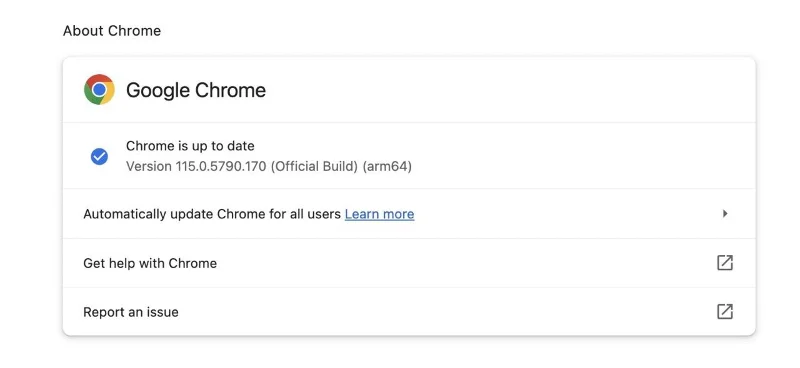
- Chrome will then look for an available update. You can do so from this window if you need to update your software.

- Try reaccessing your Google Doc after doing the above steps.
To update Firefox, the process varies depending on your device. Mac users can go to Firefox > About Firefox.
On Windows, go to the hamburger icon and select Help > About Firefox.
If you need to update Firefox, you’ll see an option called Restart to Update Firefox. Click on this and attempt to reaccess your Google Doc.

Mac users will need to update their macOS operating system to update Safari. Go to System Settings > General > Software Update to check for an update.
Sign Out and in Again
Another simple and possible solution if images are not showing up in your Google Doc is to sign out and back in. To do this:
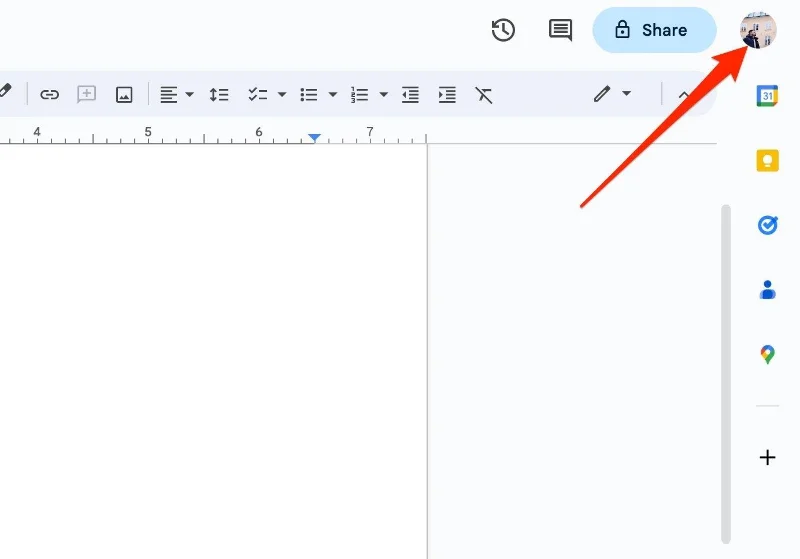
- Go to your profile picture in the top right-hand corner.

- Scroll down and select Sign out of all accounts.

- Sign back into your account.
Use These Tips to Fix the Problem With Images Not Showing Up in a Google Doc
If you notice that images are not showing up in a Google Doc you’re editing, you can try several different fixes for the issue. The easiest place to begin is by ensuring that the problem is something you can solve, as sometimes, it’s got something to do with Google’s servers instead.
Once you’ve verified whether you can fix the issue or not, you can try numerous things to get back on track. Reinstating the missing file is the ideal starting point in most situations, but updating your browser and re-uploading the picture can also help.