They say curiosity killed the cat, but sometimes you want to find out who’s been looking at your Facebook profile, photos, posts, and personal info. Want to know how to see who is stalking your Facebook profile? We’ll show you how to see who might have looked at your profile the most out of your Facebook friends.
How to See Who Is Stalking Your Facebook Profile on the Web
Although Facebook does allow you to see all your likes, you can’t actually see who’s been looking at your profile, or what they’ve been looking at. You might come across apps or sites claiming that they can show you this information, but there’s no way for them to do this. However, there are some steps you can take to find out who might be looking at your profile the most.
Table of Contents
See Who Interacts With Your Posts the Most
The easiest way to see who might be hanging around your Facebook profile is to post around five to six posts over a period of time, say, a week. By seeing who is liking, commenting, or interacting with your posts the most, you should have an idea of who is stalking your Facebook profile.
Find Your Top Viewers Using Your Profile’s Source Code
You can supposedly use your profile’s source code to check out who is stalking your Facebook profile, though take this with a pinch of salt as it hasn’t been confirmed these are the people actually visiting your profile.
- Sign into Facebook in your browser.
- At the top right, click your name to open your profile.
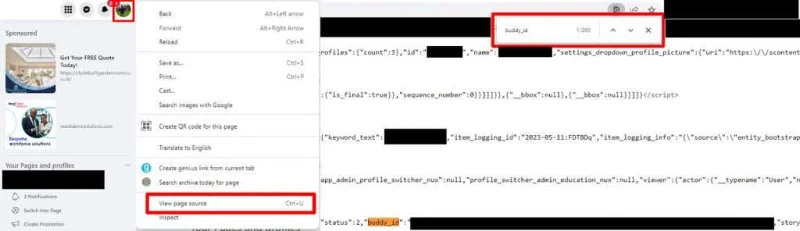
- Right-click, or Ctrl + click the page, then select View Page Source/Show Page Source.
- Press Control + F on your PC (or Command + F on your Mac) to open the search bar.
- Type buddy_id into the search bar.
- In the results, you should see a list of user IDs prefaced by buddy_id.
- The names on this list may well be those who look at your profile the most, but don’t take this too seriously — it’s also possible that these are simply the people you’ve interacted most with on Facebook recently.

How to See Who Is Stalking Your Facebook Profile with Tracking Links
You could consider using tracking links to log your friends’ IP addresses. This won’t work if all your friends live in your hometown as you won’t get people’s names, just their IP addresses and general locations.
- Choose a site to share on Facebook, ideally something funny or interesting your friends will want to click on.
- Copy the site URL.
- In a new tab, go to https://grabify.link.
- Paste the URL into the field and click Create URL.
- You’ll see a popup saying “This action requires your consent.” Select “I agree and create a URL.”
- Copy or take a note of the Access Link, which will enable you to track your results.

- Because people may not want to click the link if they see you’re using Grabify, select View other link shorteners and choose a less obvious URL shortener from the list to hide that you’re using Grabify.
- Copy the new shortened URL and share it on Facebook with an interesting post to entice people to click.
- Be patient and give it some time before visiting the Access Link.
- You’ll be able to see a list of all the IP addresses that clicked the link.
- By doing this a few times, you should get an idea of where the people viewing your posts most often are located, which may help you figure out which friends are stalking your Facebook profile.
- This doesn’t mean that these people necessarily visited your profile, just that they clicked on a link in your post.
Note: This won’t work if your friends are using a proxy or VPN.
What About Suggested Friends or Top Friends?
You might think that you can figure out how to see who is stalking your Facebook profile by looking at your list of top friends or suggested friends. Unfortunately, the People You May Know list isn’t based on people who have viewed your profile. Instead, it’s based on mutual friends in common, your networks, activity, any groups you’re a member of, and so on.
Your top friends list isn’t any help here, either. These are the people you chat with most, and whose posts you like and reply to most (and vice versa). It doesn’t necessarily mean that they clicked on your profile.
How to See Who Is Stalking Your Facebook Profile on the App (iOS/Android)
Things aren’t any different over on the Facebook app for iOS and Android devices either. There still isn’t a way to definitively see who’s stalking your Facebook profile, though this may be a feature that Facebook introduces one day in the future. One thing you can do on Facebook, though, is check if someone blocked you. Or you could always consider switching to one of the best social media alternatives, some of which will allow you to see who’s looking at your profile.
As you can see, if you’re wondering how to see who is stalking your Facebook profile, there’s no one solid answer or solution. Make sure you avoid any third-party apps or sites that promise they can provide you with this information — they could be fishing for your personal information or log in details, and they won’t actually be able to show you who’s stalking you on Facebook.