If you’re having issues such as freezing with your Roku streaming device, whether it’s a Roku TV, Roku Express, or Roku streaming stick, you may want to do some troubleshooting.
One option in these cases, especially if you’ve already tried other options that didn’t pan out, is to reset the device. This is the best choice if you’ve already counted out hardware issues, such as a faulty HDMI cable, or other issues such as your network connection.
Table of Contents
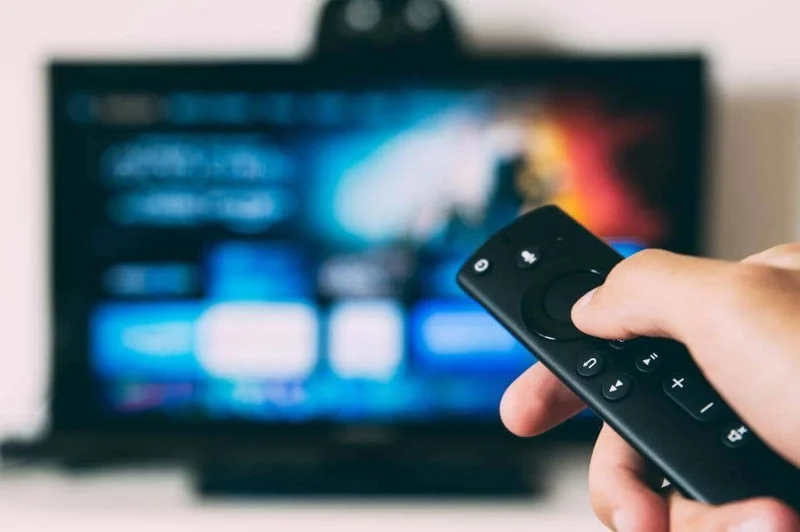
Once you’ve ruled out those options, you’ll want to figure out which kind of reset you should do. There are three types of resets you can do on your Roku devices, which are a system restart, a network reset, and a factory reset.
How to Do a System Restart on a Roku Device
A system restart isn’t the same as just turning your Roku device off with the remote. This method will allow the device to fully power off, and restart on (hopefully) a clean slate. This type of restart is very simple to complete.
If you’re unable to control your Roku device with a remote, either the physical remote or the Roku app remote, you can simply unplug the device. Then, wait 10 seconds before plugging it back in and turning it on.
If you can still control your device, follow the steps below to do a system start through your Roku.
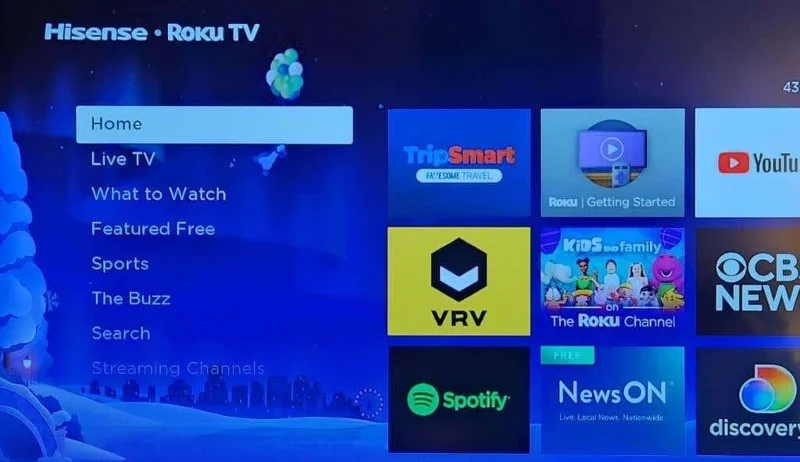
- Go to Home.

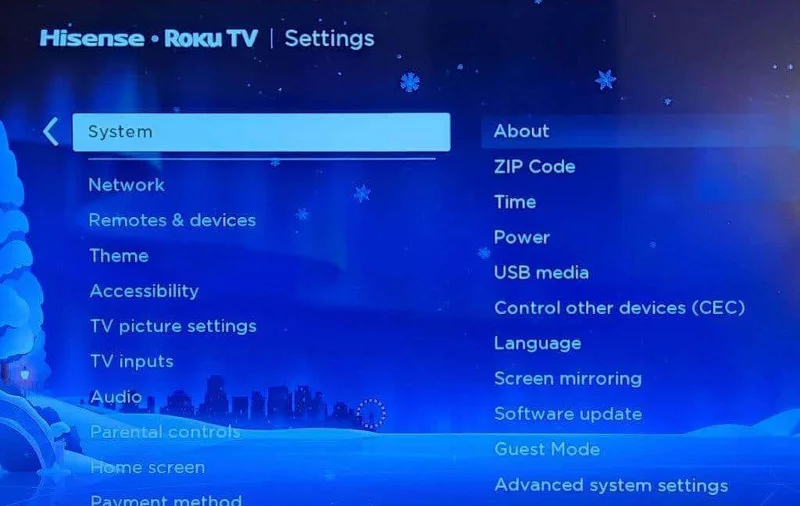
- Select Settings > System.

- Select Power > System Restart.
From here, your Roku device will perform a system restart automatically. Once the device is back on, you can see if it has returned to normal. Otherwise, you’ll want to move onto the next type of reset.
How to Do a Network Connection Reset on a Roku Device
A network reset may fix your issue if it seems to occur with multiple streaming apps. After you finish this reset, you’ll need to reconnect to your network. You’ll need to be able to use your Roku remote, or the app, to start a network reset. So, if that isn’t possible, you should move on to a factory reset.
Here’s how to perform a network connection reset on your Roku device:
- Go to Home.
- Go to Settings > System > Advanced system settings.
- Select Network connection reset.
- Select Reset connection.
Once you finish these steps, your Roku device will restart. You can then go back into the settings and reconnect to your network, the same way as when you first set up your Roku device.
How to Do a Factory Reset on a Roku Device
A factory reset is the hardest-hitting option of the three. This will erase nearly all data on your Roku device, including your personal preferences, connection to your Roku account, and any other settings. You’ll have to set up your Roku device entirely after completing this type of reset. However, if you’ve exhausted all other options, this would be your last resort to get your Roku working properly.
There are two options for performing a factory reset. The first option will apply if you can still operate your Roku device via a remote. Here’s how to do it this way:
- Go to Home.
- Go to Settings > System > Advanced system settings.
- Select Factory reset.
- On a Roku TV, select Factory reset everything. Otherwise, follow the instructions onscreen for your device.
If you don’t have any control over your Roku device, you can also perform a factory reset with the physical buttons on your device. To find the reset button, you’ll want to look on the back or bottom of your device. You may have either a tactile button type or a pinhole type, labeled reset.
Once located, with your Roku device powered on, you’ll want to press down on this button for 10 seconds before releasing it. Once the factory reset has occurred, your Roku device should flash a red indicator light.
Then, your Roku device can be turned on. From there you’ll need to set it up again, as if you had bought it new. This means re-activating your Roku, signing back into streaming apps, as well as your Roku account, and other settings you may have had.
Restore Your Roku Device With a Reset
Resetting your Roku can help immensely with issues you may run into on the device. Each of the methods above vary in how invasive it is with your device and data, so starting with a simpler system restart first and moving on from there is a good bet. By going through each one, hopefully you’ll quickly come to a resolution of your Roku’s issues.