Making your own playlists is a great way to have all your favorite songs in one place. It can also be useful for capturing certain moods or to have music for certain purposes, such as studying or working out. On Spotify, you can find hundreds of playlists available to save and listen to. But if you want to make your own customized playlist, it’s very easy.
There are many different features on Spotify to create the perfect playlist, both on the mobile app and your PC. In this article we’ll cover how to create a playlist from start to finish, as well as how to customize the name, description, and cover photo. You’ll also find explanations of different types of playlists you can create and other features. It won’t be long until you have created an amazing playlist personal to you.
Table of Contents

How to Make a Playlist on Mobile
While you can make playlists on both PC and mobile, the mobile app is the easiest for making your playlist no matter where you are. It also provides all the same options for customization as the desktop version. So, here’s how to get started with your playlist on the Spotify app.
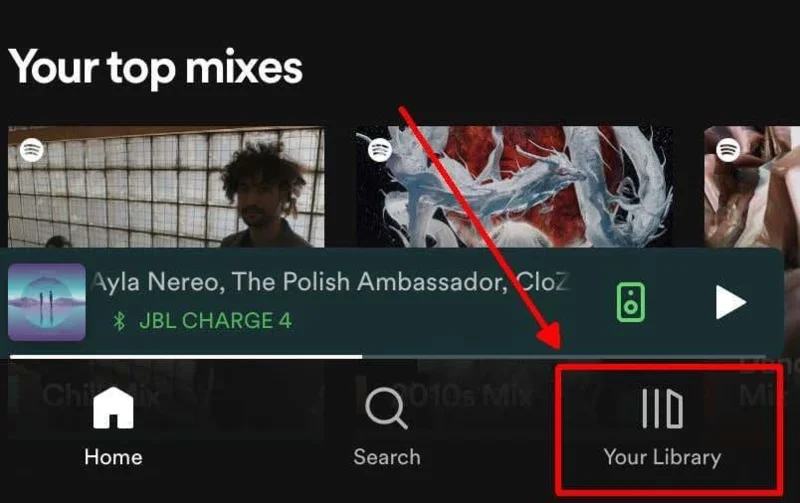
- On the Spotify app, head to the Your Library page.

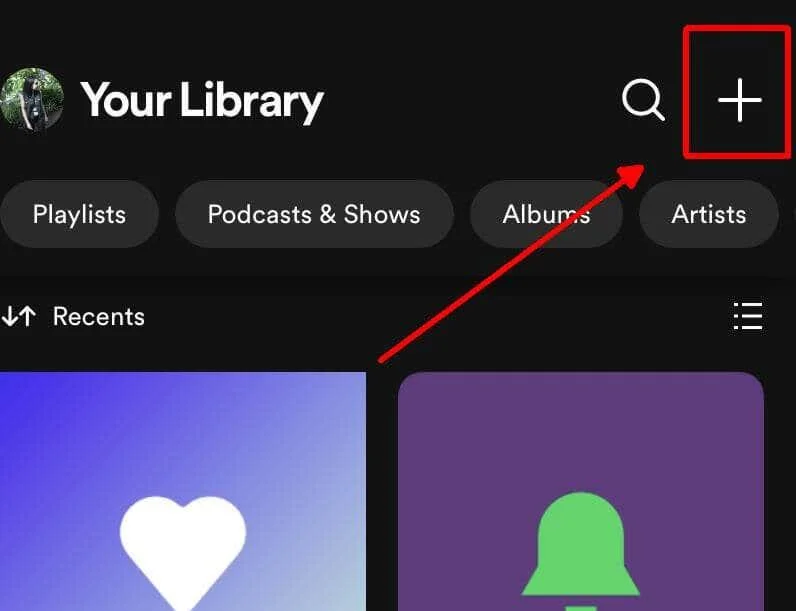
- Tap on the plus icon in the top right.

- Tap on Playlist in the menu that appears at the bottom.
- You’ll be prompted to name your new playlist. After you name it, tap Create.
You’ve now created a playlist, and can begin adding songs to it. Tap on the Add Songs button to start doing this by searching for songs you want and tapping the plus icon next to them.
You can also add songs by going to the Browse tab and searching for a song there, tapping on the ellipses next to it and then Add to Playlist in the menu. Then select the playlist you just created.
Another way to add music is from a song you’re currently playing. Tap on the banner at the bottom of the page which shows the song you’re listening to, then tap on the ellipses in the top right. Then select Add to playlist and choose your created playlist.
If you want to customize your playlist, such as adding a description or photo, at the top of the playlist you can select the ellipses icon and then tap on Edit. From here, you can change the cover image, edit the description, and arrange or delete songs. Tap Save in the top right once you’re done.
How to Make a Playlist on PC
If you’d rather create a playlist on the desktop Spotify program, you can do this as well. The process is slightly different than on mobile. Here’s how to do it.
- On Spotify, click on the Create Playlist button in the left sidebar.
- A playlist will be created. You can change the name by clicking on the title.
- Type the title you want in the Name textbox. You can also add a description and upload a cover picture here.
- Click Save when you’re done.
Adding songs to your new playlist via desktop isn’t much different than on mobile. To do this you can use the search bar under Let’s find something for your playlist to search for a song you want to add, and then click the Add button to the right of it.
You can also search for a song in Spotify’s search and then click on the ellipses, then go to Add to playlist and select which one you want it added to.
How to Make a Blend Playlist
Another type of playlist that can be made on Spotify is a Blend playlist. These are playlists which combine music from you as well as others you add to the playlist. The music added is based on what the user is currently listening to, and the Blend playlist gets updated daily.
A blend playlist can currently only be created on the mobile app. Here’s how to make one.
- Go to Your Library tab on the Spotify app.
- Tap on the plus icon in the top right, then select Blend.
- Tap on the Invite button, then use one of the sharing options to send the link to a friend.
- When the person joins your Blend, you’ll see their songs appear in the playlist.
You can add more people to the Blend by tapping on the add person icon at the top of the playlist, then selecting Invite more to send another link.
How to Make a Spotify Playlist Private
If for any reason you don’t want others to see your newly created playlist, you can set it so it won’t be shown on your public profile. Follow these steps to do this for both mobile and PC:
- In the Your Library tab, find the playlist you want private and select it.
- Tap on the ellipses.
- Tap on Make Private, then confirm by tapping Make Private again.
If you want to make your playlist public again, follow the same steps above but select Make public in the menu.
More Spotify Playlist Features to Use
When it comes to your playlists, Spotify has plenty of extra features to make your listening experience better. Below are some of these you may not know about, but are worth trying out to make for a better playlist.
Enhance
This feature, when turned on, will temporarily add more songs to your playlist which fit the current genre(s) within it. You can find this option at the top of the playlist, with a button labeled Enhance. Tap on it to turn it on, then tap again to turn it off.
Recommended Songs
If you’re having a hard time finding more music to put on your playlist, scroll to the very bottom to find recommended songs based off songs already in it. You can quickly add these by tapping on the icon to the right of the songs. If you don’t see anything you like, hit Refresh at the very bottom to see more.
Download to Listen Offline
There are many instances you may want to have your playlist available even when you can’t access the internet or data. To download a playlist for offline listening, you’ll need to do it in advance on Wi-Fi connection.
Once connected to Wi-Fi, head to the playlist you want downloaded and tap on the down arrow icon at the top of the playlist. It will immediately begin downloading. It may take a minute to finish, so be careful not to tap the stop button or they will not be saved.
Collaborative Playlist
You also have the ability to add others to a playlist, who can then add songs to the playlist as well. To do this, go to the playlist and tap on the add person icon at the top to open a new window. From here, you can copy the link, or send through social media to get others to join.
Use Spotify to Create a Great Playlist
Spotify is a great platform for listening to music, as well as organizing your favorite songs into playlists. It’s very easy to create new ones and plenty of features to make for an upgraded listening experience. There’s no limit to what kind of playlists you can create on Spotify, especially with its huge library of music available. So try it out for yourself and make a playlist for any occasion.