If you want to add audio to your Google Slides presentation, you can do so easily. You may want an instructional narration, soothing background music, or a sound effect to match an image. Whatever your pleasure, here’s how to add audio to Google Slides.
Add Audio to Google Slides on the Web
You can add an MP3 or WAV file to a slide on Google Slides on the web. To do so, you’ll need to upload the file to Google Drive first. Slides doesn’t offer a direct upload option from your computer at this time.
Table of Contents
Upload the Audio File to Google Drive on the Web
If you’re familiar with uploading files to Google Drive, you can skip this section but if it’s your first time, just follow these simple steps.
- Visit Google Drive and sign in with the same Google account you use for Google Slides.
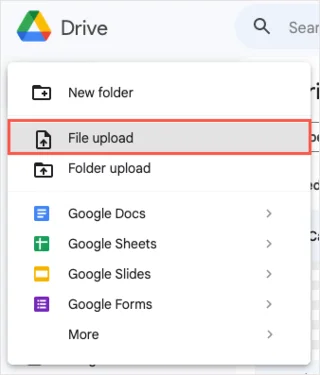
- Select New on the top left and pick File Upload.
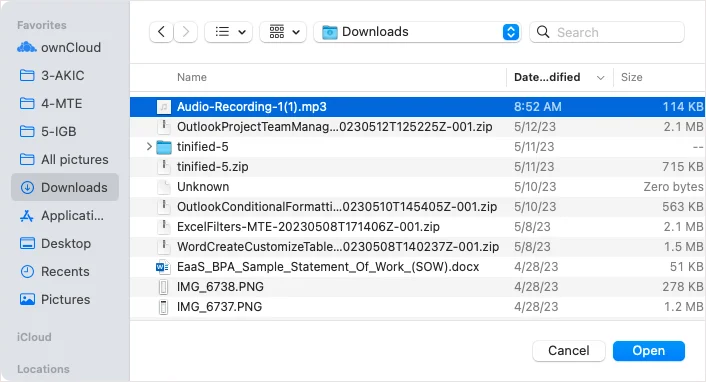
- Browse for, choose the audio file, and select Open.

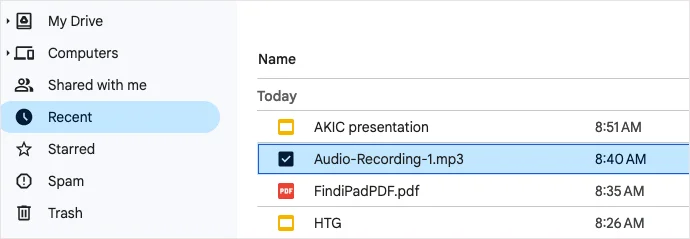
- Confirm that your file is uploaded to your Google Drive account. You can look in your My Drive, go to the Recent section using the link on the left, or use the Search at the top.

Next, you can head to Google Slides to insert the audio file.
Add the Audio File to Google Slides on the Web
Once your audio file is in your Google Drive, you can insert it on any slide in your presentation easily.
- Visit Google Slides and sign in with the same Google account you use for Google Drive.
- Go to the slide where you want the audio file and choose a spot to insert it.
- Open the Insert menu and choose Audio.
- In the Insert Audio pop-up window, use either the My Drive or Recent tab to locate your audio file.
- Select the file and choose Insert.
- You’ll see the file display on your slide as a speaker icon. You can select that icon and press the Play button to listen to the audio.
When you present your slideshow, simply select the icon to play your music or narration. You can also customize a few playback options first.
Customize the Audio File Playback
If you’d like to play the audio file automatically or loop it to repeat, you can adjust these playback options.
Select the audio icon and do one of the following:
- Choose Format > Format Options in the menu.
- Right-click and select Format Options.
- Pick Format Options in the toolbar at the top.
You’ll see the format sidebar open. Expand the Audio Playback section.
Below Start Playing, you can choose from On click or Automatically for how to play the audio. If you pick On click, you’ll need to select the icon to play the audio. If you pick Automatically, the audio will play as soon as you move to the slide.
Below Options, use the slider to adjust the volume of the audio during the presentation.
Next, if you choose Automatically in the Start Playing section, you’ll see that the Hide icon when presenting option becomes available. Check the box to hide the icon from your audience while presenting.
You can also check the boxes for Loop audio to automatically replay the audio when it ends and Stop on slide change if you want to stop playing the audio when you move to the next slide.
When you finish, you can use the X on the top right of the sidebar to close it.
Add Audio to Google Slides on iPhone, iPad, and Android
If you’re using Google Slides on your iPhone, iPad, or Android device you can insert an audio file but a bit differently. As of this writing, there isn’t an Audio option on the Insert menu; however, there is a workaround.
To add your audio, you’ll create a link to it using text, an image, or other object on your slide. When you select the linked item, you can play the audio.
Upload the Audio File to Google Drive on Mobile
To add the audio file to your presentation, you can upload it to the Google Drive mobile app easily.
- Open Google Drive and go to the Home tab (Android) or Files tab (iPhone and iPad).
- Select the plus sign on the bottom right and choose Upload.
- Pick Browse and then locate and select the audio file.
- Once you upload the file to Google Drive, select the More icon (three dots) next to it and pick Copy link. This places the link on your clipboard so that you can paste it in Google Slides.
Add the Audio File Link to Google Slides on Mobile
To add the link to Google Slides, head there and open the slide. If you don’t have the item you want to link such as text, an image, or object, go ahead and add it.
- Select the item you want to link. If you want to use text, tap or double-tap to select the word, phrase, or sentence.
- When the toolbar appears below the item, tap the arrow on the right until you see the Insert Link option and then select it.
- On the next screen, tap inside the Link field and tap again if necessary to display Paste and select it.
- Use the checkmark on the top right to attach the link to the item.
When you play your presentation, select the link or the linked item to open and play your audio.
Keep in mind that because this is a workaround, selecting the link won’t simply play the music, voiceover, or audio recording, but rather, open the audio file for you to press the Play button.
Before Google implemented the audio feature in Slides on the web, you had to use a different method to add music to Google Slides. Hopefully, Google will follow suit and introduce the audio option for its mobile app down the road as well.