Windows 11 Taskbar Glitch Buster: Fix Padding and Size Issues in Minutes!
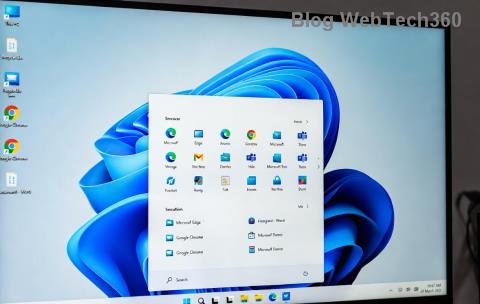
Struggling with Windows 11 taskbar padding and size glitches? Discover proven fixes to restore your taskbar
Are you staring at your Windows 11 taskbar and wondering why it looks bloated, with awkward taskbar padding or inconsistent sizing? You're not alone! These glitches can disrupt your workflow and make your desktop feel clunky. The good news? Fixing Windows 11 taskbar padding and size glitches is straightforward with the right steps. In this guide, we'll walk you through proven methods to get your taskbar back to its sharp, efficient self. Let's dive in and reclaim your smooth Windows experience! 🚀
The Windows 11 taskbar is designed for minimalism, but updates and settings tweaks can sometimes lead to taskbar padding—extra space around icons that makes everything feel oversized—or erratic sizing where the bar expands or shrinks unexpectedly. This taskbar size glitch often stems from registry hiccups, third-party apps, or display scaling mismatches.
Don't worry; these issues are common and fixable. By the end of this article, you'll have a glitch-free taskbar that enhances your productivity. We'll start with simple tweaks and escalate to advanced solutions, ensuring you find what works for your setup.

Before jumping into deep tech, try these easy wins to eliminate Windows 11 taskbar padding. They're quick and require no downloads.
If these don't resolve the taskbar padding, let's move to more targeted fixes. Stick around—these next steps are game-changers.
For stubborn Windows 11 taskbar size glitches, a registry tweak can restore default padding and sizing. ⚠️ Caution: Back up your registry first (search for "Registry Editor" in the Start menu, then File > Export).
Here's how to fine-tune it:
HKEY_CURRENT_USER\Software\Microsoft\Windows\CurrentVersion\Explorer\AdvancedPro Tip: If you're uncomfortable with registries, consider using free tools like ExplorerPatcher (available from reputable sources). It customizes the Windows 11 taskbar safely, mimicking classic layouts while fixing glitches.

Sometimes, taskbar size glitches aren't isolated. Here's a handy table of common culprits and fixes to keep things organized:
| Issue | Cause | Fix |
|---|---|---|
| Excessive Padding | Third-party themes or apps | Uninstall recent software via Settings > Apps, then restart. |
| Random Resizing | Multiple monitors setup | Go to Display settings, ensure consistent scaling across screens. |
| Glitch After Updates | Recent Windows patch | Run Windows Update troubleshooter: Settings > System > Troubleshoot > Other troubleshooters. |
| Icon Misalignment | Corrupted cache | Clear icon cache by deleting files in %userprofile%\AppData\Local\Microsoft\Windows\Explorer (restart after). |
This table should help you pinpoint and squash the problem fast. If your glitch persists, it might be worth checking for hardware conflicts, like outdated graphics drivers—update them via Device Manager for a full refresh.
Once you've fixed the Windows 11 taskbar padding and size glitches, why not enhance it? Windows 11 allows easy customization to match your style.
These tweaks not only prevent glitches but make your workflow smoother. Imagine a taskbar that's both functional and fun— you've earned it after fixing those annoyances!
To keep taskbar padding and size glitches at bay, adopt these habits:
By staying proactive, you'll enjoy a reliable Windows 11 taskbar that supports your daily tasks without interruptions. Feeling empowered? Great—your desktop is now optimized!
Fixing Windows 11 taskbar padding and size glitches doesn't have to be a headache. With these steps, you've got the tools to restore order and even elevate your setup. If a glitch sneaks back, revisit this guide—it's your go-to resource. Share your success in the comments below; let's build a community of glitch-free Windows users! 👏
For more deep dives into Windows tweaks, explore our other guides on optimizing your PC. Happy computing!
Information based on the latest Windows 11 builds as of 2026. For official support, visit Microsoft Support.
Discover proven methods to recover deleted photos in Windows 11. From Recycle Bin to advanced software, get your precious memories back quickly and safely. Step-by-step guide for beginners.
Learn how to disable startup apps in Windows 11 effortlessly. Boost your PC
Struggling with the Windows 11 "Boot Manager Missing" error? Discover step-by-step fixes to get your PC booting smoothly again. Easy, reliable solutions for all users.
Struggling with slow SSD performance on Windows 11? Discover proven troubleshooting steps to fix SSD speed throttling and restore peak performance. Easy, step-by-step guide for maximum speed gains.
Discover trusted sources to buy a legal Windows 11 Pro key in 2026. Get expert tips on avoiding fakes, securing genuine licenses, and enjoying hassle-free activation for ultimate productivity.
Discover how to effortlessly use Windows 11 Phone Link for Android 16. Get step-by-step guidance to sync your devices, access notifications, and boost productivity without missing a beat.
Struggling with the frustrating Windows 11 "Something Went Wrong" 0x80070002 error? Discover proven, step-by-step fixes to resolve update failures, missing files, and more. Get your PC back on track fast—no tech expertise needed!
Struggling with the frustrating Windows 11 Outlook password prompt loop? Discover proven, step-by-step fixes to regain control of your email without endless pop-ups. Updated with the latest solutions for seamless productivity.
Discover how to use the Windows 11 Quick Settings menu effortlessly. Learn to customize, access, and optimize this powerful tool for a smoother PC experience. Step-by-step guide with tips for beginners and pros.
Discover how to effortlessly enable and use Windows 11 Live Captions for real-time subtitles in videos, calls, and more. Boost accessibility and stay engaged with our step-by-step guide.








