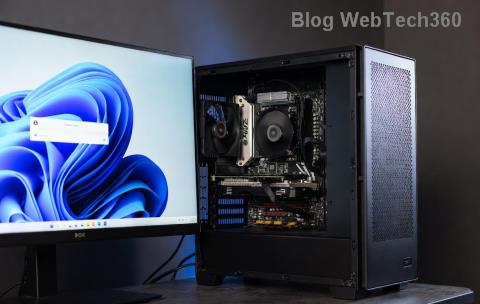
Imagine firing up your PC, only to be greeted by a stark black screen where your favorite wallpaper should be. It's frustrating, right? If you're dealing with a Windows 11 Desktop Background Black Screen issue, you're not alone. This common glitch can stem from settings mishaps, driver glitches, or even corrupted files. But don't worry – we've got your back with straightforward, up-to-date fixes that will have your desktop looking vibrant again in no time. Let's dive in and reclaim that personalized touch on your screen! 😊
Why Does the Windows 11 Desktop Background Turn Black?
Before we jump into solutions, understanding the root causes can help you prevent future headaches. A black screen on Windows 11 desktop background often occurs due to:
- Theme or Personalization Settings Glitch: Windows 11's personalization features might get stuck, failing to load the wallpaper.
- Graphics Driver Issues: Outdated or corrupted GPU drivers are a prime suspect, especially after updates.
- Corrupted System Files: Malware, incomplete updates, or file errors can disrupt how images render.
- Multiple Monitor Setups: If you're using dual screens, sync problems might black out the primary display's background.
- Power or Performance Settings: Battery-saving modes or high-performance tweaks can inadvertently hide wallpapers.
Spotting these triggers is the first step toward a smooth fix. Now, let's roll up our sleeves and tackle them head-on. Follow these steps in order – most users see results from the first few!
Quick Fixes to Restore Your Windows 11 Desktop Background
Start with the simplest solutions. These don't require advanced tech skills and can often resolve the Windows 11 black screen desktop without rebooting your entire system.
1. Restart Windows Explorer (The Easy Reset) 👆
Sometimes, the Explorer process that handles your desktop just needs a nudge. Here's how:
- Right-click the taskbar and select Task Manager.
- In the Processes tab, scroll to find Windows Explorer.
- Right-click it, choose Restart, and watch your desktop refresh.
This quick trick reloads the desktop shell without closing your apps. If your wallpaper pops back, great! If not, move on.
2. Check and Reset Personalization Settings
Windows 11's settings can sometimes go awry. Let's verify them:
- Press Windows + I to open Settings.
- Navigate to Personalization > Background.
- Ensure Picture or Slideshow is selected, and pick a new image to test.
- If it's set to Solid Color, switch it back – black might be the default culprit.
Pro tip: Try applying a built-in Windows wallpaper first. If it works, the issue might be with your custom image file. Feeling optimistic yet? Keep going for more robust solutions.

3. Update Your Graphics Drivers
Outdated drivers are a frequent villain in the black screen Windows 11 saga. Graphics cards from NVIDIA, AMD, or Intel need regular updates, especially with Windows 11's evolving features.
- Right-click the Start button and select Device Manager.
- Expand Display Adapters, right-click your GPU, and choose Update Driver.
- Select Search automatically for drivers. If nothing shows, visit the manufacturer's site for the latest version.
For NVIDIA users, download from NVIDIA's official site. AMD folks, head to AMD Support. Restart after installing – your desktop should light up!
Advanced Troubleshooting for Stubborn Black Screens
If the basics don't cut it, these deeper dives will target underlying issues. Think of them as your tech toolkit for persistent Windows 11 Desktop Background Black Screen Fix problems.
4. Run System File Checker and DISM Tools
Corrupted files can sabotage your wallpaper. Use built-in repair tools to scan and fix:
- Open Command Prompt as Administrator (search for it in the Start menu, right-click, and select Run as administrator).
- Type
sfc /scannow and press Enter. Let it run – this checks and repairs system files.
- If issues persist, run
DISM /Online /Cleanup-Image /RestoreHealth to fix the Windows image.
- Restart your PC afterward.
These commands are like a digital health check, ensuring your system's integrity. Many users report full recovery after this step. 👍
5. Adjust Registry Settings (For the Brave)
⚠️ Warning: Editing the registry can be risky – back up first! If comfortable, this targets wallpaper-specific glitches.
- Press Windows + R, type
regedit, and hit Enter.
- Navigate to
HKEY_CURRENT_USER\Control Panel\Desktop.
- Find Wallpaper – ensure it's set to your image path. If blank, add it.
- Double-click TileWallpaper and set to 0 for centering.
- Restart Explorer or reboot.
This tweak fine-tunes how Windows renders backgrounds. If you're unsure, skip to the next method or seek help from Microsoft Support.
6. Create a New User Profile
A corrupted profile might be the hidden foe. Testing with a fresh one can confirm:
- Go to Settings > Accounts > Family & other users.
- Click Add account and create a local or Microsoft account.
- Log in to the new profile and check the desktop background.
- If it works, migrate your files to the new profile and delete the old one.
This is a clean slate approach – often a game-changer for profile-related bugs.
Preventing Future Black Screen Issues on Windows 11
Now that your desktop is back in action, let's keep it that way. Prevention is key to avoiding the fix desktop background Windows 11 cycle.
| Prevention Tip |
How to Implement |
Why It Helps |
| Regular Driver Updates |
Use Device Manager or manufacturer apps for auto-updates. |
Keeps graphics rendering smooth and compatible. |
| Backup Custom Wallpapers |
Store images in a dedicated folder outside system paths. |
Prevents corruption from affecting your favorites. |
| Disable Fast Startup |
In Control Panel > Power Options > Choose what the power buttons do, uncheck it. |
Avoids hybrid shutdown glitches. |
| Run Antivirus Scans |
Use Windows Defender weekly. |
Blocks malware that tampers with display files. |
| Monitor Windows Updates |
Enable automatic updates in Settings. |
Patches known bugs in real-time. |
Implementing these habits will safeguard your setup. Remember, staying proactive means fewer surprises – and more time enjoying your customized desktop!
Still Stuck? When to Seek Professional Help
If none of these resolve your Windows 11 wallpaper not showing problem, it could point to hardware issues like a failing GPU. In that case:
- Run the Windows Memory Diagnostic tool (search in Start menu) to check RAM.
- Consider a system restore to a previous point via Settings > Update & Security > Recovery.
- For deeper woes, visit Microsoft Support or a trusted technician.
You're almost there – most fixes work wonders. Share your success in the comments below; we'd love to hear how you conquered the black screen beast! 🚀
By following this guide, you've armed yourself with the knowledge to tackle and prevent black desktop screen Windows 11 issues. Your desktop awaits – make it shine!