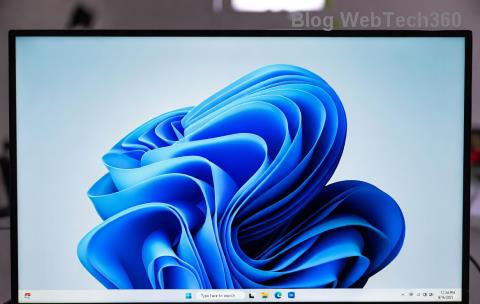
Imagine firing up your PC, excited to see a fresh, inspiring Windows 11 wallpaper that matches your mood—only to stare at the same old image day after day. Frustrating, right? 😩 If your Windows 11 wallpaper not changing, you're not alone. This common glitch can stem from simple settings mishaps to deeper system hiccups. But don't worry—I've got your back with straightforward solutions to bring back that desktop joy. Let's dive in and get your screen looking sharp again!
Common Reasons Why Your Windows 11 Wallpaper Gets Stuck
Before jumping into fixes, it's helpful to understand what's going wrong. Windows 11 is packed with personalization features, but sometimes they glitch out. Here are the top culprits behind a Windows 11 wallpaper not changing:
- 🖼️ Multiple Monitors Mess-Up: If you're using dual screens, settings might be locked to one display, preventing changes across all.
- 🔒 Sync or Focus Issues: Features like Windows Spotlight or cloud sync can override your choices if they're misconfigured.
- 📁 File Path Problems: Corrupted image files or invalid paths can halt the switcheroo.
- ⚙️ System Glitches: Outdated updates, third-party apps, or registry errors might be the sneaky villains.
- 👤 User Account Restrictions: Enterprise or managed accounts could limit customizations.
Spot any of these ringing a bell? Great—now let's roll up our sleeves and fix it. Follow these steps in order, and test your wallpaper after each one. You'll be back to customizing in minutes!
Step-by-Step Fixes for Windows 11 Wallpaper Not Changing
1. Check Your Basic Personalization Settings
Start simple—most issues resolve here. Right-click your desktop and select Personalize, or head to Settings > Personalization > Background.
- Ensure Background is set to Picture or Slideshow, not Solid color or Windows Spotlight if that's not what you want.
- Browse and select a new image from your files. If it's a slideshow, verify the folder path is correct and images aren't corrupted.
- For multiple monitors: Under Choose a fit, select Span or Fill to apply across all screens.
Pro Tip: If the change doesn't stick, restart Explorer via Task Manager (Ctrl + Shift + Esc > Processes > Windows Explorer > Restart). Boom—your Windows 11 wallpaper should refresh! 🎉

2. Troubleshoot Windows Spotlight and Sync Features
Windows Spotlight is awesome for dynamic backgrounds, but it can lock your choices. If you're using it:
- Go to Settings > Personalization > Background and switch to Picture.
- Disable Start > Settings > Accounts > Windows backup if sync is overriding locally stored images.
- Clear Spotlight cache: Search for Storage Sense in Settings and run it to free up temporary files.
This often fixes why wallpaper stuck in dynamic modes. Feeling empowered yet? Keep going!
3. Update Windows and Drivers for Smooth Operation
Outdated software is a frequent saboteur. Ensure your system is current:
- Navigate to Settings > Windows Update > Check for updates. Install any available patches—these often include fixes for personalization bugs in the latest Windows 11 builds.
- Update graphics drivers: Right-click Start > Device Manager > Display adapters > Right-click your GPU > Update driver.
Microsoft's ongoing updates in 2026 have ironed out many such quirks, so staying updated keeps things silky smooth. 👍
4. Run System File Checker and Reset Personalization
If basics don't cut it, time for some under-the-hood magic. Open Command Prompt as admin (search cmd, right-click > Run as administrator) and type:
sfc /scannow
Hit Enter and let it scan for corrupted files. Restart afterward.
For a deeper reset: In Settings, search for Reset this PC but choose Keep my files—this won't delete data but refreshes core components. Alternatively, use the Registry Editor (regedit) cautiously: Navigate to HKEY_CURRENT_USER\Control Panel\Desktop, find Wallpaper, and set it to your image path. (Backup your registry first!)
These steps tackle deeper fix desktop background Windows 11 issues without hassle.
5. Disable Third-Party Interference
Apps like antivirus or desktop enhancers (e.g., Wallpaper Engine) might hijack settings.
| App Type |
Quick Fix |
| Antivirus/Optimizer |
Temporarily disable and test wallpaper change. |
| Custom Themes |
Uninstall or revert to default Windows theme. |
| Remote Desktop Tools |
Check for background restrictions in settings. |
Once isolated, you can re-enable safely. This keeps your personalize Windows 11 experience interference-free.
6. Advanced: Check for Account or Policy Restrictions
If you're on a work PC, group policies might block changes. Press Win + R, type gpedit.msc, and navigate to Computer Configuration > Administrative Templates > Control Panel > Personalization. Ensure Prevent changing desktop background is Not Configured.
For home users, create a new local account to test: Settings > Accounts > Family & other users > Add account. If it works there, migrate your data.
For more on policies, check Microsoft's official guide: Group Policy Overview.
Prevent Future Wallpaper Woes in Windows 11
Now that your Windows 11 wallpaper not changing issue is sorted, let's keep it that way.
- ⭐ Regularly back up custom images in a dedicated folder.
- 👆 Stick to trusted sources for wallpapers to avoid corrupted files.
- 🔄 Enable automatic updates to catch the latest fixes from Microsoft.
Bonus: Explore Windows 11's built-in themes for endless variety without third-party risks. Your desktop is your canvas—make it pop! If these steps didn't work, drop a comment below; the community (and I) are here to help. You've got this—enjoy your refreshed screen! 🚀