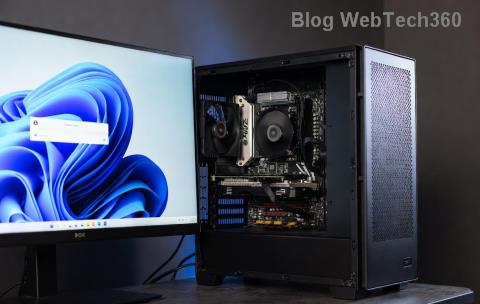
Are you excited to upgrade to Windows 11 but hitting roadblocks with your PC's compatibility? 😊 Don't worry—updating your BIOS (Basic Input/Output System) is often the key to unlocking that smooth transition. This essential firmware acts as the bridge between your hardware and operating system, and ensuring it's up to date can resolve issues like TPM 2.0 or Secure Boot requirements. In this concise guide, we'll walk you through the process step by step, helping you achieve Windows 11 compatibility without the hassle. Let's get your system ready for the future!
Why Update BIOS for Windows 11 Compatibility?
Microsoft's Windows 11 demands specific hardware specs to deliver its enhanced security, performance, and user interface. Key requirements include a compatible 64-bit processor, 4GB RAM, 64GB storage, UEFI firmware with Secure Boot, and TPM version 2.0. If your PC is older, it might lack these out of the box—but a BIOS update can enable them.
Updating BIOS not only boosts Windows 11 compatibility but also improves stability, fixes bugs, and enhances overall performance. Imagine booting into a faster, more secure OS without compatibility errors—it's worth the effort! According to Microsoft's latest guidelines, many legacy systems can be brought up to speed with a simple firmware refresh.

Before You Start: Preparation Checklist
Preparation is crucial to avoid bricking your motherboard. Follow these steps to set yourself up for success:
- ✋ Check Compatibility: Use Microsoft's PC Health Check tool to scan your system. Download it from the official site and run it to identify if a BIOS update is needed for Windows 11.
- 🔧 Backup Data: Save important files to an external drive or cloud storage. A power failure during update could cause issues.
- ⚡ Stable Power Source: Use a UPS or ensure uninterrupted power. Never update on battery if it's a laptop.
- 📋 Identify Your Motherboard: Note your motherboard model (e.g., via System Information in Windows or physically checking). This is vital for downloading the correct BIOS file.
Pro tip: If you're unsure about your hardware, tools like CPU-Z can help identify components quickly. Ready? Let's dive into the update process.
Step-by-Step Guide: How to Update BIOS for Windows 11
Updating BIOS varies slightly by manufacturer (ASUS, Gigabyte, MSI, etc.), but the core steps are universal. We'll focus on the safest method using manufacturer tools. Always visit your motherboard maker's official support page for the latest firmware.
-
Download the Latest BIOS File
Head to your manufacturer's website (e.g., ASUS Support or Gigabyte Support). Search for your motherboard model and navigate to the BIOS section.
Look for the most recent version that mentions Windows 11 compatibility, TPM 2.0, or Secure Boot enhancements. Download the .zip file and extract it to a FAT32-formatted USB drive. Why FAT32? Many BIOS utilities require it for bootable media.
-
Enter BIOS Setup
Restart your PC and press the key to enter setup (usually Delete, F2, or F10—check your manual). Once inside, verify current settings:
- Enable Secure Boot under Boot options.
- Check TPM status (it might be labeled as fTPM or PTT).
If these aren't available, the update will likely add them. Exit without saving for now.
-
Perform the BIOS Update
Most modern motherboards support EZ Flash, Q-Flash, or similar built-in tools. Insert the USB drive, re-enter BIOS, and select the update utility (e.g., "ASUS EZ Flash"). Browse to the BIOS file on the USB and start the process.
Warning: Do not interrupt this step—your system will restart multiple times. It typically takes 5-10 minutes.
-
Verify and Configure Post-Update
After rebooting, re-enter BIOS to confirm the new version. Enable any new features like TPM 2.0 and Secure Boot. Save and exit, then run the PC Health Check again to ensure Windows 11 compatibility.
-
Install Windows 11
With BIOS updated, proceed to upgrade via Windows Update or a clean install using the official ISO from Microsoft. Your PC should now pass all checks! 🎉

Common Issues and Troubleshooting
Even with precautions, things can go wrong. Here's a quick table of frequent pitfalls and fixes to keep you on track:
| Issue |
Symptom |
Solution |
| Update Fails |
Error message or freeze |
Ensure USB is FAT32; try a different USB port or re-download the file. Clear CMOS if needed (via jumper on motherboard). |
| PC Won't Boot After Update |
Black screen or no POST |
Reset BIOS defaults using the CLR_CMOS button or jumper. If persistent, consult manufacturer support. |
| TPM Not Detected |
Still fails PC Health Check |
Manually enable fTPM in BIOS under Advanced > AMD/Intel settings. Restart and recheck. |
| Compatibility Persists |
Other hardware issues |
Verify CPU is on Microsoft's supported list. Consider hardware upgrades if BIOS update isn't enough. |
If you're stuck, forums like Reddit's r/techsupport or official manufacturer communities are goldmines for specific advice. Remember, a successful BIOS update can breathe new life into your PC—making it fully Windows 11 ready.

Advanced Tips for Optimal Windows 11 Performance
Once updated, optimize further: Update your GPU drivers via NVIDIA/AMD sites, enable virtualization in BIOS for better multitasking, and tweak power settings in Windows for efficiency. These steps ensure your upgraded system runs like a dream.
Updating BIOS might seem intimidating, but it's a straightforward path to Windows 11 compatibility. By following this guide, you're not just fixing compatibility—you're future-proofing your setup. If you have questions, drop a comment below; we're here to help! Ready to upgrade? Your smoother, more secure Windows experience awaits. 🚀