Stop Windows 11 High Disk Usage (100% Disk) Now: Proven Fixes That Work
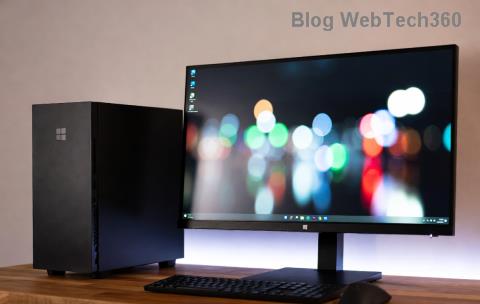
Struggling with Windows 11 high disk usage hitting 100%? Discover quick, effective fixes to boost performance and reclaim your PC
Is your Windows 11 PC constantly lagging, freezing, or showing 100% disk usage in Task Manager? You're not alone. This frustrating issue can turn your speedy machine into a sluggish nightmare, but the good news is it's often fixable with a few targeted steps. In this guide, we'll dive straight into the most effective solutions to tackle Windows 11 high disk usage, helping you restore smooth performance without the hassle. Let's get your system back on track—starting today!

Before we jump into fixes, understanding the root causes of high disk usage Windows 11 empowers you to prevent future slowdowns. Common culprits include:
Recognizing these helps you pinpoint the issue quickly. Now, let's roll up our sleeves and fix 100% disk usage with proven, up-to-date methods tailored for the latest Windows 11 builds.
Start with these fast actions to ease the load on your disk right away. They're simple, safe, and often deliver instant relief.
shutdown /r, and hit Enter. Many users report disk usage dropping below 10% post-restart.These steps should give you breathing room. If Windows 11 high disk usage persists, let's dig deeper with more robust solutions.
For stubborn cases, target system services and hardware optimizations. Follow these in order for the best results.
SysMain, formerly Superfetch, preloads apps to RAM but can backfire on slower disks, causing 100% disk usage. Here's how to disable it:
services.msc, and press Enter.Pro tip: If you have an SSD, this service is less beneficial anyway—disabling it often boosts overall speed.

Outdated components are a top cause of high disk usage Windows 11. Ensure everything's current:
Keeping drivers fresh prevents compatibility issues that spike disk activity. Always download from official sources to avoid fakes.
Junk files and fragmentation build up over time, forcing your disk to work overtime. Clean it up:
This frees space and organizes data, reducing Windows 11 high disk usage significantly. You'll feel the difference in load times!

Malware loves to chew through disk resources. Run a full scan with Windows Security: Settings > Privacy & security > Windows Security > Virus & threat protection > Scan options > Full scan.
For virtual memory tweaks (helpful if RAM is low):
These steps ensure no hidden threats or memory mismanagement are fueling 100% disk usage.
Search indexing can overload disks during file scans. To pause it:
services.msc.Re-enable if search speed matters more than disk performance. This fix is a game-changer for heavy indexers.
If high disk usage Windows 11 lingers after software tweaks, consider hardware. Upgrading to an SSD from an HDD dramatically cuts usage—SSDs handle I/O up to 10x faster. For low-RAM systems (under 8GB), adding more RAM reduces disk reliance as virtual memory.
Quick comparison:
| Option | Pros | Cons | Impact on Disk Usage |
|---|---|---|---|
| SSD Upgrade | Lightning-fast reads/writes, silent operation | Cost (around $50-100 for 500GB) | Reduces to <5% idle |
| RAM Upgrade | Less swapping to disk, smoother multitasking | Requires compatible slots | Drops usage by 20-50% |
These upgrades pay off long-term, making your Windows 11 experience snappier than ever. 😊
To keep 100% disk usage at bay, monitor with Task Manager (Ctrl + Shift + Esc > Performance tab). Set up regular maintenance via Task Scheduler for cleanups. Avoid filling your drive over 90%—aim for 20% free space.
For more tips, check Microsoft's official support on PC performance. If issues persist, it might be hardware failure—run chkdsk C: /f /r in an admin Command Prompt to scan for errors.
By following this guide, you've got the tools to conquer Windows 11 high disk usage. Your PC should feel revitalized—faster boots, quicker apps, and no more frustration. If one fix works wonders for you, share in the comments below! Ready to optimize further? Explore our guide on Windows 11 speed tweaks next.
Discover proven methods to recover deleted photos in Windows 11. From Recycle Bin to advanced software, get your precious memories back quickly and safely. Step-by-step guide for beginners.
Learn how to disable startup apps in Windows 11 effortlessly. Boost your PC
Struggling with the Windows 11 "Boot Manager Missing" error? Discover step-by-step fixes to get your PC booting smoothly again. Easy, reliable solutions for all users.
Struggling with slow SSD performance on Windows 11? Discover proven troubleshooting steps to fix SSD speed throttling and restore peak performance. Easy, step-by-step guide for maximum speed gains.
Discover trusted sources to buy a legal Windows 11 Pro key in 2026. Get expert tips on avoiding fakes, securing genuine licenses, and enjoying hassle-free activation for ultimate productivity.
Discover how to effortlessly use Windows 11 Phone Link for Android 16. Get step-by-step guidance to sync your devices, access notifications, and boost productivity without missing a beat.
Struggling with the frustrating Windows 11 "Something Went Wrong" 0x80070002 error? Discover proven, step-by-step fixes to resolve update failures, missing files, and more. Get your PC back on track fast—no tech expertise needed!
Struggling with the frustrating Windows 11 Outlook password prompt loop? Discover proven, step-by-step fixes to regain control of your email without endless pop-ups. Updated with the latest solutions for seamless productivity.
Discover how to use the Windows 11 Quick Settings menu effortlessly. Learn to customize, access, and optimize this powerful tool for a smoother PC experience. Step-by-step guide with tips for beginners and pros.
Discover how to effortlessly enable and use Windows 11 Live Captions for real-time subtitles in videos, calls, and more. Boost accessibility and stay engaged with our step-by-step guide.








