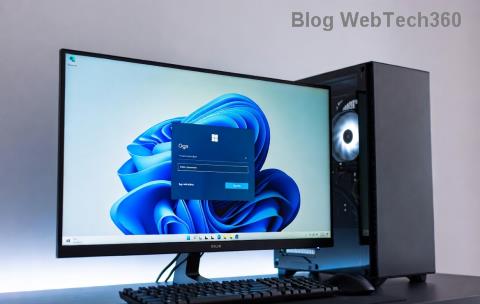
Imagine powering up your gaming rig after a quick nap, only to find your vibrant RGB lights stuck in a dull, unsynced state. Frustrating, right? 😔 If you're dealing with Windows 11 RGB not syncing after sleep, you're not alone. This common issue disrupts the immersive glow of your keyboard, mouse, and case fans, breaking the harmony of your setup. But don't worry— we've got your back with straightforward, effective solutions to get everything back in sync. In this guide, we'll dive into the root causes and walk you through fixes that work, keeping your lighting as dynamic as your gameplay.
Whether you're using Razer Synapse, Corsair iCUE, or open-source tools like OpenRGB, sleep mode can interrupt power delivery to USB ports, causing desync. The good news? These steps are simple, safe, and tailored for the latest Windows 11 updates. Let's light things up! ✨
Why Does RGB Not Sync After Sleep on Windows 11?
Before jumping into fixes, understanding the "why" helps you tackle it smarter. RGB sync issues after sleep often stem from how Windows 11 handles power states. When your PC enters sleep (S3 mode), USB devices like RGB peripherals lose power or reset, failing to reinitialize properly on wake-up. Drivers might not reload correctly, or software conflicts with Windows' Fast Startup feature exacerbate the problem.
Recent Windows 11 builds have improved power management, but quirks persist, especially with high-polling-rate RGB gear. No need to panic—these aren't hardware faults but software hiccups we can fix quickly.
Step-by-Step Fixes for Windows 11 RGB Not Syncing After Sleep
We'll start with the easiest tweaks and escalate to advanced ones. Follow along, and test after each step. Pro tip: Restart your PC after changes to ensure they stick.
1. Update Your RGB Software and Drivers 👆
Outdated software is a prime culprit for RGB not syncing after sleep. Ensure your peripherals' apps are current—manufacturers release patches for Windows 11 compatibility.
- Open your RGB app (e.g., Logitech G HUB, ASUS Aura Sync).
- Check for updates in the settings menu.
- Visit the manufacturer's site for the latest drivers. For example, download fresh installs from Razer or Corsair.
Why it works: Updated drivers better handle sleep/wake cycles, preventing desync. Many users report instant fixes after this—give it a shot first!

2. Adjust Windows Power Settings
Windows 11's default power plan can aggressively cut USB power during sleep, starving your RGB devices. Let's tweak it.
- Search for "Power & sleep settings" in the Start menu.
- Click "Additional power settings" > "Change plan settings" for your active plan.
- Select "Change advanced power settings."
- Expand "USB settings" > "USB selective suspend setting" and set it to "Disabled."
- Under "PCI Express" > "Link State Power Management," choose "Off."
This keeps USB ports alive, ensuring RGB peripherals stay powered and synced. It's a game-changer for setups with multiple devices.
3. Disable Fast Startup
Fast Startup is like a hybrid shutdown that confuses RGB software on resume. Disabling it often resolves Windows 11 RGB sync issues.
- Search for "Power Options" and open it.
- Click "Choose what the power buttons do."
- Select "Change settings that are currently unavailable."
- Uncheck "Turn on fast startup" and save.
Restart and test sleep mode. Your lights should wake up in perfect harmony. 👍
4. Use OpenRGB for Universal Control
If proprietary software fails, switch to OpenRGB—an open-source powerhouse for managing multiple brands without bloat. It's lightweight and excels at post-sleep recovery in Windows 11.
- Download from the official GitHub: OpenRGB.
- Install and detect your devices.
- Set profiles to auto-apply on startup.
- For sleep issues, enable the "Resume from Sleep" plugin if available in the latest version.
OpenRGB bypasses vendor locks, making RGB syncing reliable. Users love how it unifies setups—try it if you're mixing brands!

5. Check BIOS/UEFI Settings and Hardware
If software tweaks don't cut it, peek into your motherboard's BIOS. Ensure USB power delivery is optimized.
| BIOS Setting |
Recommended Value |
Why It Helps |
| ErP Ready (Power On By PCIe) |
Disabled |
Prevents deep power cuts during sleep |
| USB Legacy Support |
Enabled |
Ensures peripherals wake properly |
| Fast Boot |
Disabled |
Avoids rushed initialization that skips RGB |
Access BIOS by restarting and pressing Del/F2 (check your manual). Save and exit. Also, reseat USB cables—loose connections mimic sync failures.
6. Advanced Troubleshooting: Run SFC and Reset USB
For stubborn cases, let Windows self-diagnose.
- Open Command Prompt as admin (search "cmd").
- Run:
sfc /scannow to fix corrupted files.
- Then:
powercfg /devicequery wake_armed to list wake devices—ensure your RGB hub is there.
- Reset USB: In Device Manager, uninstall USB controllers under "Universal Serial Bus controllers," then restart.
These commands refresh system integrity, often curing RGB not syncing after sleep from the ground up. 🎉
Prevent Future RGB Sync Issues on Windows 11
To keep your setup glowing without interruptions, adopt these habits:
- Regular Updates: Enable auto-updates for Windows and RGB apps via Settings > Windows Update.
- Hibernation Over Sleep: If sync persists, switch to hibernation— it fully powers down without USB glitches (search "Power Options" to enable).
- Monitor Temps: Overheating can trigger odd power behaviors; use tools like HWMonitor.
- Community Tips: Join forums like Reddit's r/buildapc for user-tested workarounds.
By staying proactive, you'll minimize downtime and enjoy uninterrupted RGB magic.
Final Thoughts: Get Your RGB Back in Sync Today!
There you have it—a complete toolkit to fix Windows 11 RGB not syncing after sleep. Start with updates and power tweaks for quick wins, then layer in advanced steps if needed. Your gaming oasis deserves that flawless light show—restore it now and feel the difference! If these don't resolve it, consider hardware checks or reaching out to your peripheral's support. What's your go-to RGB setup? Drop a comment below—we'd love to hear how these tips worked for you. Happy gaming! 🚀