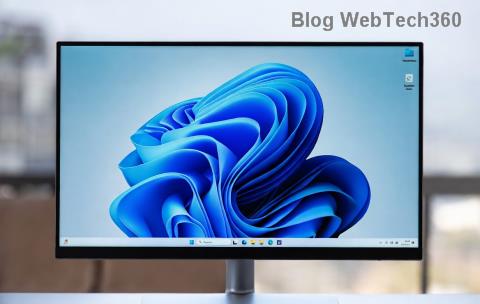
Are you tired of the centered Windows 11 taskbar feeling off-balance? 😊 If you're a fan of the classic left-aligned layout from older Windows versions, you're not alone. Customizing your taskbar alignment can make your desktop feel more intuitive and productive. In this guide, we'll walk you through how to change Windows 11 taskbar alignment with simple steps—no tech wizardry required. Let's dive in and transform your setup today!
Why Bother Changing Windows 11 Taskbar Alignment?
The default centered Windows 11 taskbar looks modern, but it can disrupt muscle memory if you're upgrading from Windows 10. Aligning it to the left brings back that familiar flow, making app access quicker and your workflow smoother. Plus, it's a quick tweak that personalizes your PC without any downloads. Ready to reclaim your desktop? Let's get started! 🚀

Step-by-Step Guide: How to Change Windows 11 Taskbar Alignment to the Left
Microsoft has made taskbar customization in Windows 11 straightforward through the Settings app. Follow these steps to switch from center to left Windows 11 taskbar alignment. We'll keep it concise so you can apply this in under five minutes.
- 👆 Open Settings: Right-click on an empty spot on your taskbar and select Taskbar settings. Alternatively, press Windows key + I to launch the full Settings menu.
- Navigate to Taskbar Options: In the Settings window, click on Personalization in the left sidebar, then select Taskbar from the right pane. This opens all your taskbar alignment controls.
- Toggle Alignment: Scroll down to the Taskbar behaviors section. Check the box next to Select the far left (or similar wording in your region) to align the taskbar to the left. Uncheck it if you want to revert to center.
- Apply and Admire: The change happens instantly—no restart needed! Your icons will snap to the left side, giving that classic vibe. 🎉
If you're on the latest Windows 11 update (as of 2026), this feature is built-in and stable. No more hunting through Registry edits or third-party tools—Microsoft listened to user feedback!

Troubleshooting Common Issues with Windows 11 Taskbar Alignment
Stuck? Don't worry—most hiccups are easy fixes. Here's a quick table of common problems and solutions to keep your taskbar customization hassle-free:
| Issue |
Solution |
| No Select the far left option visible |
Ensure your Windows 11 is updated via Settings > Windows Update. This feature rolled out in recent builds. |
| Alignment doesn't stick after restart |
Run the System File Checker: Open Command Prompt as admin and type sfc /scannow, then restart. |
| Taskbar looks glitchy post-change |
Lock and unlock the taskbar: Right-click it and toggle Lock the taskbar off and on. |
These tips should resolve 99% of issues. If you're still facing problems, consider checking Microsoft's official support for deeper diagnostics. For more on Windows troubleshooting, stick around—we've got related guides coming up!
Advanced Tips: Supercharge Your Windows 11 Taskbar Beyond Alignment
Once you've nailed how to change Windows 11 taskbar alignment, why stop there? Elevate your setup with these pro tweaks:
- ⭐ Hide the Taskbar Automatically: In the same Taskbar behaviors section, enable Automatically hide the taskbar for a cleaner screen when not in use.
- Resize Icons: Right-click the taskbar, go to Taskbar settings, and adjust icon size under Taskbar styles for small, medium, or large views.
- Pin Your Favorites: Drag apps from the Start menu to the left-aligned taskbar for one-click access. It's a game-changer for daily tasks!
- Multiple Monitors? Align Them All: In Settings, under Taskbar, choose which monitors show the bar and keep alignments consistent across screens.
These enhancements make your Windows 11 taskbar a productivity powerhouse. Imagine starting your day with everything at your fingertips—pure bliss! 😄

Comparing Taskbar Alignment: Center vs. Left in Windows 11
To help you decide, here's a side-by-side look at the two main Windows 11 taskbar alignment options:
| Alignment |
Pros |
Cons |
Best For |
| Center |
Modern, symmetrical look; Balances wide screens |
Less intuitive for left-handed workflows; Takes more horizontal space |
New users or aesthetic-focused setups |
| Left |
Familiar from past Windows; Faster app access; Saves space |
May feel cramped on ultrawide monitors |
Productivity pros and Windows veterans |
Ultimately, left alignment wins for efficiency, but test both to see what clicks for you. Your PC, your rules!
Final Thoughts: Take Control of Your Windows 11 Experience
Congratulations—you've just learned how to change Windows 11 taskbar alignment and unlocked a more tailored desktop. This small change can lead to big productivity gains, so experiment and make it yours. If you loved this guide, explore our other Windows 11 tips, like optimizing Start menu or enhancing notifications, to keep your setup top-notch. What's your go-to taskbar tweak? Share in the comments below—we'd love to hear! 👏
For official details, visit Microsoft's Taskbar Support Page.