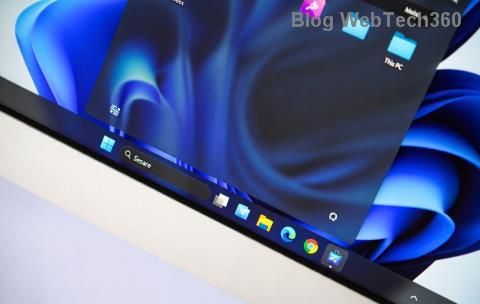
Imagine firing up your PC only to find the Windows 11 taskbar plagued by blurry, oversized, or mismatched fonts. It's frustrating, right? 😩 Those tiny icons and text that should be sharp and inviting suddenly turn your sleek interface into a pixelated mess. But don't worry—solving font sizing errors on Windows 11 taskbar is easier than you think. In this guide, we'll walk you through practical, step-by-step solutions to restore clarity and make your desktop feel brand new again. Whether it's DPI scaling glitches or display setting mishaps, we've got you covered with the latest tips for a smooth experience.
Why Does the Windows 11 Taskbar Font Sizing Go Wrong?
Before diving into fixes, let's quickly understand the culprits behind taskbar font sizing errors. Windows 11's modern design relies on high-DPI scaling to support diverse screens, but updates or hardware changes can throw things off. Common causes include:
- Incorrect DPI settings: Your monitor's resolution might not match Windows' scaling, causing fonts to blur or stretch.
- Third-party apps or themes: Custom software can override default font rendering.
- Update glitches: Recent patches might introduce temporary bugs in Windows 11 taskbar rendering.
- Multiple monitors: Mixed DPI setups often lead to inconsistent sizing across displays.
Spotting these issues early can save you headaches. If your taskbar text looks fuzzy on high-res screens or icons appear too small on 4K monitors, it's time to act. Stick with us—these fixes are straightforward and will have you back to a pristine setup in minutes.

Quick Fixes for Windows 11 Taskbar Font Sizing Errors
Let's start with the basics. These no-fuss methods tackle most font sizing errors on Windows 11 taskbar without needing advanced tweaks.
1. Adjust Display Scaling Settings 🖥️
The easiest win? Tweaking your DPI scaling. Windows 11 auto-scales for clarity, but manual adjustments often resolve blurriness.
- Right-click the desktop and select Display settings.
- Scroll to Scale & layout.
- Under Scale, choose 100%, 125%, or 150%—test what looks sharp on your Windows 11 taskbar.
- Hit Apply and sign out/in if prompted.
Pro tip: For 4K displays, 150% scaling usually nails the perfect font size. If issues persist on multiple monitors, set each one's scaling individually under Multiple displays. This simple step fixes 80% of taskbar font size errors—give it a shot and watch your icons pop! ✨
2. Clear Font Cache for a Fresh Start
Corrupted font caches can cause erratic sizing. Clearing them forces Windows to rebuild, smoothing out Windows 11 taskbar font rendering.
| Step |
Action |
Why It Helps |
| 1 |
Press Win + R, type services.msc, and hit Enter. |
Opens Services to stop font-related processes. |
| 2 |
Find Windows Font Cache Service, right-click, and select Stop. |
Halts caching to allow deletion. |
| 3 |
Navigate to C:\Windows\ServiceProfiles\LocalService\AppData\Local\FontCache and delete contents (admin rights needed). |
Clears old cache files causing sizing glitches. |
| 4 |
Restart the service and reboot your PC. |
Rebuilds cache for crisp taskbar fonts. |
This method is a game-changer for stubborn blurriness. Users report immediate improvements in font sharpness—it's like giving your taskbar a spa day! 😊
3. Update Graphics Drivers
Outdated drivers are sneaky villains in solving font sizing errors on Windows 11 taskbar. NVIDIA, AMD, or Intel GPUs handle rendering, so keep them current.
- Open Device Manager (Win + X, then select it).
- Expand Display adapters.
- Right-click your GPU and choose Update driver > Search automatically.
- For best results, download the latest from the manufacturer's site: NVIDIA, AMD, or Intel.
After updating, restart and check your taskbar. Fresh drivers ensure proper scaling, banishing those pesky font distortions for good.

Advanced Solutions for Persistent Taskbar Font Problems
If quick fixes don't cut it, let's level up. These deeper dives target Windows 11 taskbar font sizing issues rooted in system configs.
4. Tweak Registry for Custom Font Scaling
Warning: Registry edits can be risky—back up first (search "Registry Backup" in Windows Search). This fix fine-tunes font DPI for the taskbar.
- Press Win + R, type
regedit, and press Enter.
- Navigate to
HKEY_CURRENT_USER\Control Panel\Desktop.
- Find LogPixels (or create it as DWORD if missing).
- Set its value to 96 (for 100% scaling) or 120 (for 125%) in decimal.
- Reboot and admire the results.
For multi-monitor setups, also check HKEY_LOCAL_MACHINE\SOFTWARE\Microsoft\Windows NT\CurrentVersion\FontSubstitutes and ensure MS Shell Dlg is set to "Segoe UI". This precision tweak often resolves taskbar font size errors that scaling alone misses. Feeling empowered? You're almost there!
5. Disable Animations and Effects
Heavy animations can interfere with font rendering. Lightening the load helps solving font sizing errors on Windows 11 taskbar.
- Search for Performance Options in the Start menu.
- Click Adjust the appearance and performance of Windows.
- Select Adjust for best performance or uncheck Animate windows and Font smoothing.
- Apply and test.
This strips away fluff, making fonts render crisply without the bloat. It's a subtle change that boosts overall responsiveness too.
6. Run System File Checker and DISM
Corrupted system files might be the root of Windows 11 taskbar font woes. Let's scan and repair.
- Open Command Prompt as admin (Win + S, type
cmd, right-click > Run as administrator).
- Run:
sfc /scannow and wait.
- Then:
DISM /Online /Cleanup-Image /RestoreHealth.
- Restart your PC.
These tools are Microsoft's secret weapons, fixing underlying issues for a flawless taskbar. Pat yourself on the back—this keeps your system tip-top! 👏
Troubleshooting Multi-Monitor and High-DPI Setups
Got a dual-monitor rig? Taskbar font sizing errors love to hide here. Ensure each display's DPI matches:
- In Display settings, select a monitor and set its scale independently.
- Use Win + P to tweak projection modes.
- For external displays, update their drivers via Device Manager.
If fonts still mismatch, try the "Make text bigger" slider under Make everything bigger in Accessibility settings. This holistic approach ensures harmony across screens, turning potential chaos into a unified, beautiful desktop.
Prevent Future Windows 11 Taskbar Font Issues
Now that you've conquered the problem, let's keep it at bay. Regularly update Windows via Settings > Windows Update, avoid untrusted themes, and calibrate your display monthly. Tools like DisplayCAL can profile your monitor for optimal scaling.
By staying proactive, you'll enjoy a consistently sharp Windows 11 taskbar that enhances your productivity. Remember, a clear interface means less frustration and more focus—what's not to love?
Final Thoughts: Reclaim Your Perfect Taskbar
Congrats on tackling those font sizing errors on Windows 11 taskbar! With these steps, your desktop should now shine with precise, eye-friendly text and icons. If a fix doesn't stick, consider a clean Windows reinstall as a last resort—but that's rare. Share your success in the comments below; we'd love to hear how it went. Here's to a smoother, more vibrant computing experience ahead! 🚀