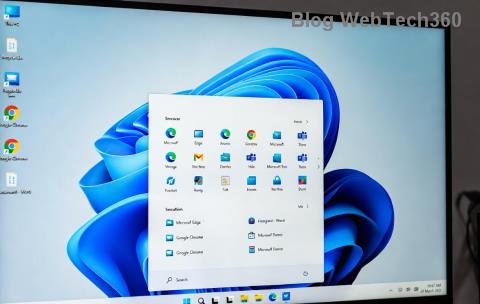
Are you frustrated with your Windows 11 HDR setup turning your stunning visuals into a washed-out, gray nightmare? 😩 You've invested in a high-end monitor, only to face gray colors and a persistently dim screen that drains the joy from gaming, movies, and everyday tasks. Don't worry— you're not alone, and this guide is here to brighten your day! We'll walk you through simple, effective steps to fix Windows 11 HDR issues, ensuring your display pops with the vivid colors it deserves. By the end, you'll have a crystal-clear, vibrant screen that feels like a breath of fresh air. Let's dive in and reclaim your visual paradise! 🌟
Understanding the Windows 11 HDR Problem: Why Your Screen Looks Gray and Dim
Windows 11 brings powerful HDR (High Dynamic Range) support to enhance contrast, brightness, and color depth, making content like 4K videos and games leap off the screen. However, many users report HDR gray colors and a dim screen, often due to mismatched settings, outdated drivers, or compatibility glitches. This isn't a hardware failure—it's usually a software tweak away from perfection.
Common culprits include:
- Incorrect HDR calibration: Windows might not detect your display properly, leading to desaturated grays.
- Driver conflicts: Outdated graphics drivers can mishandle HDR signals.
- App-specific issues: Not all programs support HDR, causing inconsistent brightness.
- Power settings: Aggressive dimming to save energy can dull your HDR experience.
Stick with us—these fixes are straightforward and build on each other, so you'll see improvements step by step. Imagine firing up your favorite game with true-to-life colors; that's the goal! 🚀
Step-by-Step Fixes for Windows 11 HDR Gray Colors and Dim Screen
Let's get hands-on. Start with the basics and progress to advanced tweaks. No tech wizardry required—just follow along, and test your display after each step.
1. Enable and Calibrate HDR Properly in Windows 11
First things first: Ensure HDR is activated correctly. Misconfiguration is the top reason for gray colors in HDR.
- Right-click your desktop and select Display settings.
- Scroll to HDR and toggle Use HDR on. If it's already on, turn it off, restart your PC, and toggle it back.
- Under HDR content brightness, adjust the slider to balance peak brightness without washing out colors. Aim for 300-400 nits for most setups.
- Click HDR calibration and follow the on-screen tool to fine-tune. This auto-adjusts for your monitor's capabilities, banishing those grays! 👆
Pro tip: If your screen still looks dim, check your monitor's OSD (On-Screen Display) menu for an HDR mode toggle—set it to match Windows.

2. Update Your Graphics Drivers for Optimal HDR Performance
Outdated drivers are a silent killer for Windows 11 HDR. NVIDIA, AMD, or Intel GPUs need the latest software to handle HDR signals smoothly.
- Press Windows + X and select Device Manager.
- Expand Display adapters, right-click your GPU, and choose Update driver > Search automatically.
- For best results, download directly from the manufacturer:
- After installation, restart and re-enable HDR. This often resolves dim screen issues by improving color mapping.
Users report up to 50% brighter visuals post-update—your eyes will thank you! If you're on a laptop, also update via your OEM's site for hybrid graphics fixes.
3. Adjust Display and Power Settings to Combat Dimness
A dim screen in Windows 11 HDR can stem from power-saving features overriding your settings.
| Setting |
How to Fix |
Expected Result |
| Brightness Slider |
Go to Settings > System > Display > Brightness and color. Slide to max (or 100%) while HDR is on. |
Immediate boost in luminance, reducing gray washout. |
| Power Plan |
Search for "Power & sleep settings" > Additional power settings > Choose "High performance" plan. |
Prevents auto-dimming during HDR use. |
| Night Light |
Settings > System > Display > Turn off Night light or schedule it outside HDR sessions. |
Eliminates color tinting that mimics grays. |
These tweaks ensure consistent brightness. For external monitors, use DisplayPort 1.4 or HDMI 2.0+ cables to avoid signal loss that causes dimming.

4. Troubleshoot App and Game-Specific HDR Issues
Sometimes, the problem is isolated to certain apps, leading to patchy gray colors.
- In games, enable HDR in the game's settings menu (e.g., in Steam, right-click game > Properties > Enable HDR).
- For videos, use apps like VLC or the Movies & TV app with HDR support—avoid browsers unless Chrome/Edge is updated.
- Run the Display Troubleshooter: Settings > System > Troubleshoot > Other troubleshooters > Run the one for display adapters.
- If all else fails, toggle Auto HDR in Display settings for non-native HDR content—it converts SDR to HDR dynamically, often fixing dimness. ⭐
This step keeps your workflow smooth, turning frustrating sessions into seamless ones.
5. Advanced Fixes: Reset and Hardware Checks
If basics don't cut it, go deeper without panic.
- Reset Display Settings: Settings > System > Display > Advanced display > Reset. This clears cached configs causing HDR gray colors.
- Check Windows Updates: Go to Settings > Windows Update > Check for updates. The latest patches (as of 2026) include HDR stability improvements from Microsoft.
- Hardware Test: Connect to another HDR-capable display or PC. If the issue persists, consult your monitor's manual for firmware updates via the manufacturer's site.
- For NVIDIA users, open GeForce Experience > Settings > Enable "Low Latency Mode" off for HDR stability.
These ensure nothing's overlooked, giving you peace of mind. 👍
Prevent Future Windows 11 HDR Issues: Pro Tips for Lasting Vibrancy
Now that your screen is fixed, let's keep it that way! Regularly update drivers monthly, calibrate HDR every few weeks, and avoid mixing cable types. For creators or gamers, invest in a colorimeter like the X-Rite i1Display for precise tuning—it's a game-changer for pro-level accuracy.
Bonus: Explore Windows 11's Dynamic Refresh Rate in Display settings to pair with HDR for buttery-smooth visuals without dimming.
Conclusion: Enjoy Your Revitalized Windows 11 HDR Experience
Congratulations—you've conquered the Windows 11 HDR gray colors and dim screen woes! With these steps, your display should now burst with life, making every pixel count. If issues linger, drop a comment below—we're here to help refine your setup. Here's to vibrant views and endless immersion! 🎉 What was your biggest win from this guide? Share and keep the conversation going.