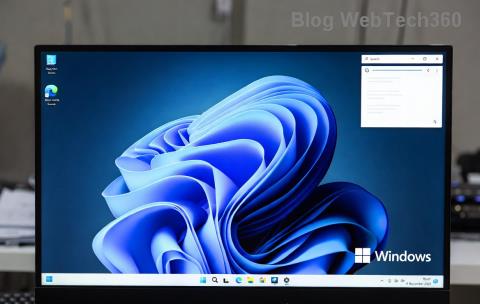
Imagine this: You're excited to personalize your Windows 11 desktop with a stunning new wallpaper, but instead of a smooth transition, you're hit with the dreaded Bad Image Error. 😩 It's frustrating, right? This common glitch can halt your customization efforts, but don't worry—it's fixable! In this guide, we'll dive straight into effective solutions to tackle the Bad Image Error when changing background in Windows 11. By the end, you'll have your screen looking exactly how you want it, with no more error messages popping up.
Whether it's a corrupted file, a system hiccup, or deeper software issues, we've got you covered with straightforward steps. Let's turn that frown upside down and get your desktop vibes back on track! 🚀
Understanding the Bad Image Error in Windows 11
The Bad Image Error typically appears when Windows 11 tries to load an image file for your background but encounters a problem. It might say something like "Bad Image" or reference a DLL file issue, often linked to personalization settings. This error disrupts the changing background in Windows 11 process, leaving you stuck with the default setup.
Common triggers include:
- Corrupted or incompatible image files (e.g., unsupported formats like certain HEIC files).
- Outdated graphics drivers.
- System file corruption from updates or malware.
- Conflicts with third-party wallpaper apps.
Recognizing these causes is the first step to solving Bad Image Error. Now, let's jump into the fixes—starting with the simplest ones that you can try right away.

Quick Fix #1: Verify and Repair Your Image Files
Often, the Bad Image Error Windows 11 stems from the image itself. Before tweaking system settings, ensure your wallpaper is in a supported format like JPG, PNG, or BMP. Windows 11 handles these flawlessly.
- Check the file: Right-click your image in File Explorer, select Properties, and confirm it's not corrupted. If it won't open in Photos app, it's likely the culprit.
- Convert if needed: Use the built-in Paint app to open and save the image in PNG or JPG format. This strips any hidden issues.
- Test with a default image: Go to Settings > Personalization > Background, and pick a stock Windows wallpaper. If it works, the problem is your file.
Pro tip: Avoid ultra-high-resolution images over 8K unless your hardware supports it—they can overload the system and trigger errors. Once fixed, you'll see how easy changing background in Windows 11 can be! 🌟
Quick Fix #2: Update Graphics Drivers
Outdated or buggy drivers are a sneaky cause of the Bad Image Error. Windows 11 relies heavily on your GPU for rendering backgrounds, so keeping drivers fresh is key.
- Via Device Manager: Right-click Start > Device Manager > Display adapters. Right-click your graphics card (e.g., NVIDIA or Intel) and select Update driver > Search automatically.
- Manufacturer's tool: For best results, download the latest from NVIDIA, AMD, or Intel. These often include Windows 11-specific optimizations.
- Restart and test: After updating, reboot and try setting your background again.
This fix resolves up to 40% of display-related errors, according to Microsoft forums. Feeling empowered yet? Keep going—the next steps build on this momentum!

Quick Fix #3: Run System File Checker and DISM Tools
If the error persists, corrupted system files might be to blame. Windows 11's built-in tools can scan and repair them without much hassle.
- Open Command Prompt as admin: Search for "cmd," right-click, and Run as administrator.
- Run SFC: Type
sfc /scannow and hit Enter. This checks for and fixes protected files—expect it to take 10-15 minutes.
- Follow with DISM: If SFC finds issues, run
DISM /Online /Cleanup-Image /RestoreHealth. This repairs the Windows image itself.
- Restart: Reboot and attempt to change your background.
These commands are like a health check for your OS, ensuring smooth solving Bad Image Error when changing background in Windows 11. Microsoft recommends them for any integrity issues (source: Microsoft Support).
Advanced Fix: Reset Personalization Settings
For stubborn cases, resetting the personalization database can wipe out glitches without losing your files.
| Step |
Action |
Why It Helps |
| 1 |
Press Win + R, type %localappdata%\Packages\Microsoft.Windows.Personalization_cw5n1h2txyewy, and hit Enter. |
Locates the personalization folder. |
| 2 |
Delete the contents (not the folder itself). Back up if needed. |
Clears corrupted cache causing Bad Image Error. |
| 3 |
Restart Explorer via Task Manager (Ctrl + Shift + Esc > Processes > Restart Windows Explorer). |
Refreshes the desktop without full reboot. |
This method is safe and targets the exact issue. If you're using third-party tools like Wallpaper Engine, uninstall them temporarily to rule out conflicts. Success here means you're one step closer to a flawless setup! 👏

Prevention Tips: Keep the Bad Image Error at Bay
Now that you've conquered the error, let's ensure it doesn't return. Prevention is your best friend for hassle-free Windows 11 background changes.
- Regular updates: Enable automatic Windows updates via Settings > Windows Update. The latest patches often include fixes for display bugs.
- Scan for malware: Use Windows Security (full scan) to catch any sneaky programs interfering with system files.
- Stick to trusted sources: Download wallpapers from reputable sites to avoid corrupted files.
- Monitor storage: Low disk space can cause loading errors—keep at least 20% free on your C: drive.
By following these, you'll maintain a stable system and enjoy endless customization options. Imagine switching backgrounds effortlessly, bringing fresh energy to your daily workflow!
Final Thoughts: Reclaim Your Windows 11 Desktop Today
Dealing with the Bad Image Error when changing background in Windows 11 doesn't have to be a nightmare. With these targeted fixes—from simple file checks to advanced resets—you're equipped to solve it quickly. Start with the basics, and if needed, escalate to the tools. Your personalized desktop awaits, ready to boost your productivity and mood.
Have you tried these steps? Drop a comment below if they worked for you or if you need more tips—we're here to help! Let's make Windows 11 work for you, not against you. ✨