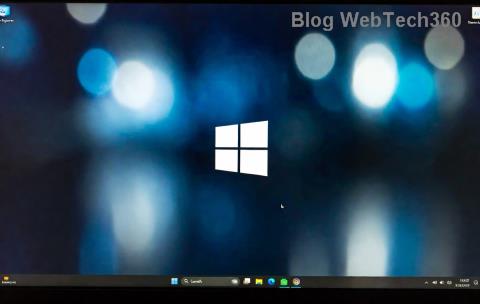
Have you ever booted up your Windows PC only to find your desktop background mysteriously vanished, replaced by a plain black screen? If you're seeing the frustrating message "Background is Turned Off by Ease of Access," you're not alone. This common issue stems from accessibility settings designed to simplify the interface for users with visual impairments, but it can accidentally disrupt your personalized setup. The good news? It's usually a quick fix that restores your vibrant wallpaper in minutes. In this guide, we'll walk you through straightforward, effective solutions to get your desktop looking great again. Let's dive in and reclaim your screen! 😊
Understanding the "Background is Turned Off by Ease of Access" Error
The "Background is Turned Off by Ease of Access" error typically appears on Windows 10 and 11, where the Ease of Access (now called Accessibility) features override your desktop customization. These tools, like High Contrast mode, are meant to enhance visibility but can disable backgrounds to reduce visual clutter. Whether triggered by an accidental toggle, a third-party app, or a system glitch, it leaves your screen bland and uninviting.
Why does this happen? Accessibility settings prioritize simplicity—think bold text and minimal distractions. If enabled without your knowledge, they black out images, including your cherished family photo or scenic landscape. But don't worry; resolving it is as simple as tweaking a few settings. By the end of this article, you'll not only fix the problem but also learn how to prevent it from recurring, keeping your PC feeling fresh and personalized. Ready to troubleshoot? Let's start with the basics.

Step-by-Step Solutions to Resolve the Error
We'll begin with the simplest methods and progress to more advanced ones. Follow these steps in order, and test your background after each to see if the issue is resolved. Most users find success in the first or second approach. Pro tip: Restart your PC after changes to ensure they stick.
1. Disable High Contrast Mode in Accessibility Settings
The most common culprit is High Contrast mode. Here's how to turn it off:
- 👆 Press Windows key + U to open the Accessibility settings, or search for "Ease of Access" in the Start menu.
- Navigate to Display or High contrast section.
- Toggle off Turn on high contrast or any active high contrast themes.
- Click Apply and restart your computer.
This simple tweak often brings your background back instantly. If it doesn't, no sweat—move to the next step. Imagine the relief of seeing your favorite image pop up again; it's a small victory that brightens your day!
2. Check and Reset Filter Keys or Other Accessibility Options
Sometimes, related features like Filter Keys or Sticky Keys interfere. Disable them via:
- Go to Settings > Ease of Access > Keyboard.
- Turn off Filter keys, Sticky keys, and Toggle keys.
- Under Display, ensure Simplify and personalize Windows is off.
These options can subtly affect visuals. Resetting them clears the path for your background to reappear. Users report this fixes lingering issues without needing deeper dives.
3. Run System File Checker (SFC) and DISM Tools
If settings tweaks aren't enough, corrupted system files might be at play. Use built-in Windows tools to scan and repair:
- Right-click the Start button and select Windows Terminal (Admin) or Command Prompt (Admin).
- Type
sfc /scannow and press Enter. Wait for the scan to complete—it repairs damaged files automatically.
- If issues persist, run
DISM /Online /Cleanup-Image /RestoreHealth followed by another SFC scan.
These commands are like a digital tune-up for your OS, ensuring everything runs smoothly. For the latest Windows updates, this method is highly effective as it addresses underlying glitches without third-party software.

4. Edit the Registry for Advanced Fixes (Use with Caution)
For stubborn cases, a registry edit can override the Ease of Access restriction. ⚠️ Warning: Back up your registry first (search "regedit backup" for instructions) to avoid mishaps.
- Press Windows + R, type
regedit, and hit Enter.
- Navigate to
HKEY_CURRENT_USER\Control Panel\Desktop.
- Find Wallpaper (or create it as a String value). Set its value to your desired image path, e.g.,
C:\Windows\Web\Wallpaper\Windows\img0.jpg.
- Restart Explorer.exe via Task Manager (Ctrl + Shift + Esc > Processes > right-click Windows Explorer > Restart).
This directly enforces your background, bypassing Ease of Access. It's a powerful tool, but handle it gently—success here means a customized desktop that's all yours.
Preventing the "Background is Turned Off by Ease of Access" Issue in the Future
Once fixed, keep it that way! Enable automatic updates in Settings > Update & Security to patch known bugs. Avoid suspicious apps that might alter accessibility settings, and consider creating a system restore point after customizations. For extra peace of mind, use Windows' built-in troubleshooter: Search for "Troubleshoot settings" and run the Hardware and Devices option.
Staying proactive ensures your PC remains user-friendly and visually appealing. Think of it as maintaining a tidy workspace—small habits lead to big rewards.
Common Myths and What Not to Do
Don't waste time on unverified hacks like deleting random files or using outdated software. Stick to official methods to avoid further errors. If you're on a work PC, check with IT support, as group policies might enforce these settings.
| Myth |
Reality |
| Reinstalling Windows fixes it instantly. |
Overkill—try settings first; reinstall only as a last resort. |
| It's a virus. |
Rarely; scan with Windows Defender, but it's usually a feature misconfiguration. |
| Third-party wallpaper apps always work. |
They might conflict—use native tools for reliability. |
This table debunks quick misconceptions, saving you time and frustration. Armed with facts, you're set to tackle any desktop dilemma.
When to Seek Professional Help
If these steps don't resolve the "Background is Turned Off by Ease of Access" error, it could indicate deeper issues like hardware conflicts or malware. Run a full scan with Windows Security or consult Microsoft's support forums. For enterprise users, reach out to your admin. Remember, most fixes are DIY, empowering you to handle it confidently.
Wrapping up, resolving this error is about reclaiming control over your digital space. Follow these steps, and you'll have a personalized desktop in no time. Got a unique twist on your setup? Share in the comments below—we'd love to hear how you fixed it! Your feedback helps others, so let's build a community of smooth-sailing Windows users. 🎉