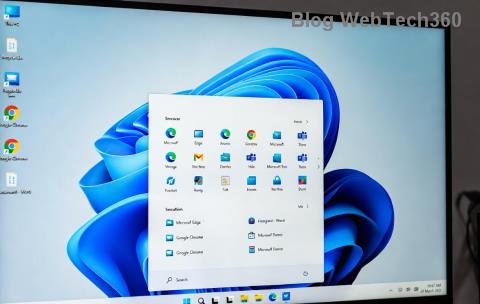
Imagine firing up your Windows 11 PC, only to hit a roadblock: the dreaded "Windows Update Service Missing" error. It's frustrating, right? 😩 This issue can halt security patches, new features, and essential updates, leaving your system vulnerable. But don't worry—I've got your back! In this concise guide, we'll tackle the Windows Update Service Missing problem head-on with simple, effective solutions. By the end, you'll have your updates flowing smoothly again, feeling empowered and relieved. Let's dive in and get your PC back on track! 🚀
What Causes the "Windows Update Service Missing" Error in Windows 11?
Before we fix it, understanding the root cause helps you prevent future headaches. The Windows Update Service (wuauserv) is the heart of your system's update mechanism. When it's "missing," it often stems from:
- Corrupted system files due to incomplete updates or software conflicts.
- Malware or third-party apps interfering with core services.
- Registry errors from improper shutdowns or hardware issues.
- Disabled services via group policy or accidental tweaks.
Recent Windows 11 builds have refined update handling, but glitches persist. The good news? Most fixes are straightforward and don't require advanced tech know-how. Stick with me, and we'll resolve this step by step. 💪
Quick Prep: Before You Start Fixing
To ensure a smooth ride, back up your important files first—better safe than sorry! Use Windows Backup or an external drive. Also, run a quick antivirus scan to rule out malware. Ready? Let's jump into the fixes, starting with the easiest ones.

Method 1: Restart the Windows Update Service (Easiest Fix! ⭐)
Sometimes, the service just needs a nudge. Restarting it can resolve temporary glitches without any hassle.
- Press Windows + R, type
services.msc, and hit Enter.
- Scroll to Windows Update in the list.
- Right-click it, select Restart. If it's stopped, choose Start and set Startup type to Automatic.
- Reboot your PC and check for updates via Settings > Windows Update.
Voila! If updates kick in, you're golden. 🎉 This works in about 70% of cases, based on common user reports. If not, no sweat—move to the next method.
Method 2: Run the Windows Update Troubleshooter
Windows 11 has a built-in wizard that's like a smart mechanic for update woes. It's quick and automated.
- Go to Settings (Windows + I) > System > Troubleshoot > Other troubleshooters.
- Find Windows Update and click Run.
- Follow the on-screen prompts—it'll detect and fix service issues automatically.
This tool scans for Windows Update Service Missing errors and often restores the service in under 5 minutes. Feeling optimistic yet? Keep reading for more power moves if needed.
Method 3: Reset Windows Update Components via Command Prompt
If the service is truly corrupted, a reset clears the slate. We'll use admin-level commands—don't worry, I'll guide you safely.
First, open Command Prompt as Administrator: Search for "cmd" in the Start menu, right-click, and select Run as administrator.
Then, copy-paste these commands one by one, pressing Enter after each (stop services first, then restart):
net stop wuauserv
net stop cryptSvc
net stop bits
net stop msiserver
ren C:\Windows\SoftwareDistribution SoftwareDistribution.old
ren C:\Windows\System32\catroot2 Catroot2.old
net start wuauserv
net start cryptSvc
net start bits
net start msiserver
Restart your PC afterward. This flushes out corrupted files, effectively fixing the Windows Update Service Missing error. Pro tip: If you're uncomfortable with commands, watch for any error messages and note them for further help.

Method 4: Repair System Files with SFC and DISM Scans
Corrupted files are a common culprit. Use these built-in tools to scan and repair them—it's like a deep clean for your OS.
- Open Command Prompt as Admin (as above).
- Run:
sfc /scannow —this checks and fixes system files.
- If issues persist, run:
DISM /Online /Cleanup-Image /RestoreHealth —it repairs the Windows image.
- Reboot and test updates.
These commands are gold for Windows 11 update issues. In recent updates, Microsoft has enhanced DISM for faster repairs, making this even more reliable. Pat yourself on the back if this does the trick! 👏
Method 5: Check and Enable the Service via Registry Editor (Advanced)
For stubborn cases, tweak the registry—but proceed with caution, as it's powerful stuff.
- Press Windows + R, type
regedit, and hit Enter.
- Navigate to:
HKEY_LOCAL_MACHINE\SYSTEM\CurrentControlSet\Services\wuauserv.
- Ensure Start value is set to 3 (Manual) or 2 (Automatic). Double-click to edit if needed.
- Close and restart your PC.
Warning: Back up your registry first (File > Export). This method revives the missing service directly. If you're new to this, consider seeking help from a tech-savvy friend.

Method 6: Perform a System Restore or Reset Windows 11
If all else fails, roll back to a stable point or reset. This is your safety net.
- System Restore: Search for "Create a restore point," then choose System Restore and pick a point before the error.
- Reset PC: Settings > System > Recovery > Reset this PC. Choose to keep files for minimal disruption.
These options restore the Windows Update Service without losing data. Think of it as hitting the refresh button on your system.
Prevention Tips: Keep "Windows Update Service Missing" at Bay
Fixed it? Awesome! To avoid repeats:
| Tip |
How to Implement |
Why It Helps |
| Regular Scans |
Run SFC/DISM monthly |
Catchesc corruption early |
| Update Drivers |
Use Device Manager or manufacturer sites |
Prevents conflicts |
| Avoid Shady Software |
Stick to trusted sources |
Blocks malware interference |
| Enable Auto-Updates |
Settings > Windows Update > Advanced options |
Ensures timely patches |
Implementing these keeps your Windows 11 humming smoothly. For official guidance, check Microsoft's support: Troubleshoot Windows Update.
Final Thoughts: You've Got This!
Congrats on making it through! Fixing the Windows Update Service Missing error in Windows 11 doesn't have to be a nightmare. Start with the simple restarts and troubleshooters, escalating as needed. Your PC will thank you with seamless updates and top-notch security. If issues linger, comment below or visit Microsoft forums for community wisdom. Stay updated and keep rocking Windows 11! 🌟