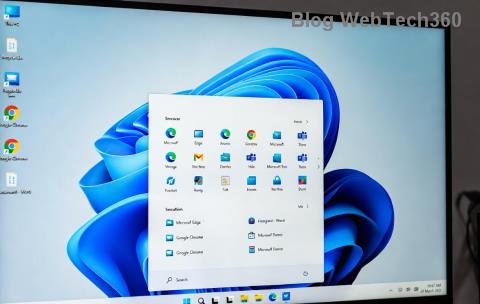
Imagine this: You're deep into a system tweak or troubleshooting session on your shiny new Windows 11 machine, but every time you try to launch Command Prompt, it refuses to run with admin rights. Frustrating, right? 😤 That nagging "Command Prompt Not Admin" issue can halt your workflow, preventing essential commands from executing properly. But don't worry – we've got your back! In this guide, we'll walk you through straightforward, effective solutions to fix the Windows 11 "Command Prompt" Not Admin problem. By the end, you'll have your CMD firing on all cylinders with full privileges, saving you time and headaches.
Whether it's a permissions glitch, a corrupted shortcut, or a deeper system hiccup, these methods are battle-tested and drawn from the latest Windows 11 updates. Let's dive in and reclaim control – your tech-savvy self will thank you! ⭐
Why Does "Command Prompt Not Admin" Happen in Windows 11?
Before we jump into fixes, a quick understanding of the root causes can make troubleshooting feel empowering. The Command Prompt Not Admin error often stems from:
- User Account Control (UAC) restrictions blocking elevated access.
- Corrupted or modified CMD.exe shortcuts lacking admin flags.
- Third-party software interfering with system permissions.
- Outdated Windows 11 builds missing recent security patches.
- Rarely, malware or registry issues tampering with admin privileges.
Spotting these early means faster resolutions. If your Command Prompt prompts for admin but fails, or simply runs in standard mode, it's time to act. Ready to fix it? Let's start with the simplest methods and escalate as needed. Follow along – each step builds on the last for maximum efficiency.
Quick Fix #1: Run Command Prompt as Administrator the Easy Way
The most common oversight? Not explicitly requesting admin mode. Here's how to launch Command Prompt with full admin rights in Windows 11:
- 👆 Press the Windows key + S to open Search.
- Type "cmd" or "Command Prompt".
- Right-click the result and select "Run as administrator".
- If prompted by UAC, hit "Yes" to grant permissions.
Pro tip: For one-click access, pin it to your taskbar. Right-click the pinned icon, go to Properties > Shortcut tab, and check "Run as administrator" under Advanced. Boom – instant admin fix every time! If this doesn't stick, move to the next fix. You're already one step closer to smooth sailing. 😊

Quick Fix #2: Reset Command Prompt Shortcut Permissions
Sometimes, the shortcut itself is the culprit in the Command Prompt Not Admin saga. Let's reset it properly:
- Navigate to C:\Windows\System32 via File Explorer.
- Find cmd.exe, right-click, and select "Create shortcut".
- Move the new shortcut to your Desktop.
- Right-click the shortcut > Properties > Shortcut tab.
- Click "Advanced" and enable "Run as administrator".
- Apply changes and test by double-clicking.
This recreates a clean path, bypassing any corrupted settings. If you're dealing with multiple user accounts, ensure your profile has admin privileges by checking in Settings > Accounts > Your info. Feeling empowered yet? Keep reading – we've got more tools in our kit if this doesn't fully resolve the Windows 11 Command Prompt admin woes.
Advanced Fix #3: Troubleshoot via System File Checker (SFC) and DISM
For deeper issues, Windows 11's built-in repair tools are your best friends. These scan and restore corrupted system files that might be blocking admin access to Command Prompt. (Note: You'll need to run these in a temporary admin session or Safe Mode.)
| Step |
Command |
Purpose |
| 1. Open PowerShell as Admin |
Search for PowerShell, right-click > Run as admin |
Bypass CMD issue temporarily |
| 2. Run DISM First |
DISM /Online /Cleanup-Image /RestoreHealth |
Repairs Windows image components |
| 3. Run SFC Scan |
sfc /scannow |
Fixes corrupted system files like cmd.exe |
| 4. Restart |
Reboot your PC |
Applies changes fully |
These commands work wonders for Command Prompt administrator errors caused by file corruption. Run them patiently – DISM might take 10-20 minutes. Once done, test CMD again. If success! 🎉 But if not, don't fret; our next fix targets permissions head-on.

Advanced Fix #4: Adjust User Account Control (UAC) and Registry Tweaks
UAC is Windows 11's gatekeeper, but it can overzealously block Command Prompt. Let's fine-tune it:
- Search for "UAC" in the Start menu and open "Change User Account Control settings".
- Slide the bar to a middle or lower level (not off – security first!).
- Click OK and restart.
For stubborn cases, a registry edit can enforce admin mode. Warning: Back up your registry first (via regedit > File > Export). Then:
- Press Windows + R, type "regedit", and hit Enter.
- Navigate to
HKEY_CURRENT_USER\Software\Microsoft\Windows NT\CurrentVersion\AppCompatFlags\Layers.
- Right-click > New > String Value, name it "C:\Windows\System32\cmd.exe".
- Set its value to "RUNASADMIN".
- Restart and test.
This tweak tells Windows to always run CMD as admin. It's a game-changer for persistent Command Prompt Not Admin fixes. If you're uncomfortable with the registry, consider Microsoft's official troubleshooter: Download it from Microsoft Support for automated help.
Bonus Tips: Prevent Future "Command Prompt Not Admin" Issues in Windows 11
Now that you've fixed it, let's keep Windows 11 Command Prompt running smoothly:
- ⭐ Keep Windows updated via Settings > Windows Update – latest patches often resolve permission bugs.
- Run antivirus scans regularly to nix malware meddling with admin rights.
- Use PowerShell as an alternative for advanced tasks; it inherits similar admin controls.
- For developers, integrate admin flags into scripts with
Start-Process -Verb RunAs in PowerShell.
These habits ensure your Command Prompt administrator access stays rock-solid. If you're still stuck, check Event Viewer (search for it and look under Windows Logs > System) for error codes – they often point to specific culprits.
Wrapping Up: You've Got the Power!
Congratulations – you've just conquered the Windows 11 "Command Prompt" Not Admin Fix! From quick shortcuts to advanced scans, these steps empower you to handle it like a pro. No more stalled sessions or permission pop-ups derailing your day. If this guide helped, share it with a friend facing the same issue – tech triumphs are better together! 👏 Got questions or a unique twist on this error? Drop a comment below; we're here to help refine your Windows 11 experience.
Stay tuned for more troubleshooting gems. Your command line awaits – go forth and conquer! 🚀