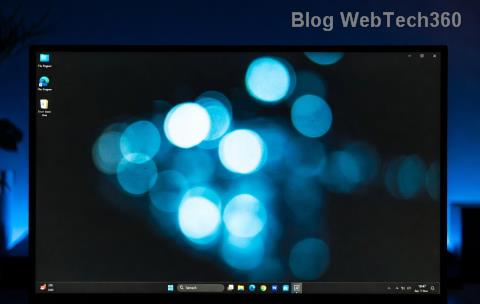
Imagine firing up your PC, only to be greeted by a Windows 11 taskbar transparency background error that turns your sleek, modern interface into a frustrating eyesore. That hazy, non-transparent taskbar can disrupt your workflow and dampen your enthusiasm for the latest OS features. But don't worry—I've been there, and fixing it is simpler than you think. In this guide, we'll dive straight into effective solutions to restore your transparent taskbar and get your desktop back to its stunning best. Let's turn that frown upside down! 😊
Why Does the Windows 11 Taskbar Transparency Background Error Happen?
The Windows 11 taskbar transparency is a hallmark of its elegant design, powered by Mica and Acrylic effects for that subtle blur and depth. However, glitches like opacity issues or background mismatches can arise from:
- Graphics Driver Conflicts: Outdated or incompatible drivers often block transparency rendering.
- Third-Party Apps: Overlays from tools like Discord or antivirus software can interfere.
- System Updates: Recent patches might introduce temporary bugs, though Microsoft rolls out fixes quickly.
- Corrupted Settings: Tweaks to personalization options can misalign the taskbar background.
Understanding these culprits empowers you to tackle the issue head-on. Stick with me, and we'll fix it step by step—no tech jargon overload, just actionable advice.
Quick Wins: Basic Troubleshooting for Taskbar Transparency Error
Before diving into advanced fixes, try these easy steps. They resolve the Windows 11 taskbar transparency background error for most users in under 5 minutes. 👆
- Restart Windows Explorer:
Right-click the taskbar (if it responds) or press Ctrl + Shift + Esc to open Task Manager. Under Processes, find "Windows Explorer," right-click, and select Restart. Watch as your taskbar refreshes—transparency often snaps back!
- Toggle Transparency Effects:
Head to Settings > Personalization > Colors. Ensure "Transparency effects" is toggled ON. If it's already on, switch it off, restart your PC, then toggle it back. This resets the taskbar background rendering.
- Check for Windows Updates:
Go to Settings > Windows Update > Check for updates. Install any available patches—these often include refinements for visual effects like taskbar transparency.
If these don't do the trick, don't sweat it. We're just warming up. []
Advanced Fix #1: Update Graphics Drivers to Restore Transparent Taskbar
Graphics drivers are the backbone of Windows 11's visual flair. A mismatched driver can cause the taskbar transparency background error by failing to support modern effects. Here's how to update them properly:
- Identify Your GPU: Press Win + R, type
dxdiag, and hit Enter. Note your graphics card under the Display tab (e.g., NVIDIA GeForce, AMD Radeon, or Intel UHD).
- Download Latest Drivers:
- Install and Restart: Run the installer, choose "Clean Install" if available to wipe old files, then reboot. Your Windows 11 taskbar should now gleam with proper transparency.
Pro Tip: Set drivers to update automatically via Device Manager for ongoing smoothness. Feeling empowered yet? Keep reading for more tailored solutions. ⭐
Advanced Fix #2: Use Registry Tweaks for Stubborn Taskbar Glitches
If drivers aren't the issue, a registry edit can force taskbar transparency back online. ⚠️ Caution: Back up your registry first (search "regedit backup" in Settings). This method targets the Windows 11 taskbar transparency background error directly.
- Press Win + R, type
regedit, and press Enter.
- Navigate to:
HKEY_CURRENT_USER\Software\Microsoft\Windows\CurrentVersion\Themes\Personalize
- Find or create a DWORD (32-bit) value named
EnableTransparency. Set its value to 1.
- Close Registry Editor and restart your PC. Voilà—transparency restored!
For extra polish, also check ColorPrevalence and set it to 1 for Mica effects. This tweak has saved countless setups from visual woes.
Fix #3: Eliminate Third-Party Interference Causing Taskbar Background Error
Sometimes, the culprit is software meddling with your transparent taskbar. Let's clean house:
| Common Culprits |
How to Disable |
Why It Helps |
| Wallpaper Engines or Rainmeter |
Uninstall via Settings > Apps, or pause overlays in their settings |
These tools override Windows visuals, blocking transparency |
| Antivirus Overlays (e.g., Norton) |
Disable real-time protection temporarily and test |
Security scans can hook into the taskbar rendering pipeline |
| Custom Themes from Microsoft Store |
Revert to default in Personalization > Themes |
Non-native themes disrupt Acrylic effects |
After disabling suspects, run System File Checker: Open Command Prompt as admin and type sfc /scannow. This repairs corrupted files tied to the taskbar transparency error. High-five for progress! 👏
Bonus: Enhance Your Windows 11 Taskbar Post-Fix
With the Windows 11 taskbar transparency background error conquered, why stop there? Amp up your setup:
- Enable Aero Peek: In Settings > Personalization > Taskbar, turn on "Show desktop on hover." It pairs perfectly with transparency for quick multitasking.
- Customize Alignment: Center your icons for a modern vibe—transparency shines brighter this way.
- Monitor for Recurrence: If the glitch returns, boot in Safe Mode (hold Shift during restart) to isolate issues.
These tweaks ensure your desktop not only works but wows. You're now equipped to maintain that crystal-clear look effortlessly.
Final Thoughts: Reclaim Your Transparent Taskbar Today
Fixing the Windows 11 taskbar transparency background error doesn't have to be a headache—it's a quick path to a more enjoyable computing experience. Whether it's a driver update, registry nudge, or app purge, one of these methods will likely do the trick. If problems persist, consider reaching out to Microsoft Support for personalized help. Your feedback matters—drop a comment below if this guide saved your day! Let's keep our Windows 11 setups glitch-free together. 😄
Ready to dive deeper into Windows optimization? Explore our guides on boosting performance or customizing Start menus next. Stay tuned!