Requisits previs
Instal·leu les dependències de Python
Instal·leu PostgreSQL
Instal·leu Buildbot
Configura Buildbot Master
Configura Buildbot Worker
Configuració del servei Systemd
Habilitació de l'autenticació
Protecció de Buildbot amb Let's Encrypt SSL
Buildbot és una eina d'integració contínua de codi obert, basada en Python, per automatitzar la creació, les proves i el desplegament de programari. Buildbot consta d'un o més mestres de Buildbot i un nombre de treballadors. Buildbot master o Buildmaster té el comandament central del sistema. És responsable de gestionar l'entorn de construcció, els treballadors i pren totes les decisions sobre l'enviament de llocs de treball als treballadors. Buildmaster detecta canvis al dipòsit de codi i envia les ordres o els treballs als treballadors perquè els executin. Els treballadors executen els treballs i tornen el resultat al Buildmaster. Aleshores, Buildmaster notifica als desenvolupadors a través de diversos canals compatibles. En aquest tutorial, instal·larem Buildbot master and worker a CentOS 7. També configurarem l'autenticació i Nginx com a servidor intermediari invers segur.
Requisits previs
- Una instància del servidor Vultr CentOS 7 amb almenys 1 GB de RAM.
- Un usuari de sudo .
- Un nom de domini registrat apuntat cap al servidor.
Per a aquest tutorial, utilitzarem 192.168.1.1com a adreça IP pública i ci.example.comcom a nom de domini apuntat cap a la instància Vultr. Assegureu-vos de substituir totes les ocurrències del nom de domini d'exemple i l'adreça IP per l'actual.
Actualitzeu el vostre sistema base mitjançant la guia Com actualitzar CentOS 7 . Un cop actualitzat el vostre sistema, procediu a instal·lar PostgreSQL.
Instal·leu les dependències de Python
Instal·leu Pip, que és un gestor de paquets per a Python.
sudo yum -y install epel-release
sudo yum -y install python-pip gcc python-devel git
sudo pip install --upgrade pip
Instal·leu PostgreSQL
Buildbot admet diversos tipus de servidors de bases de dades com MySQL, PostgreSQL i SQLite. En aquest tutorial, utilitzarem PostgreSQL per allotjar el servidor de bases de dades Buildbot.
PostgreSQL és un sistema de bases de dades relacional objecte, conegut per la seva estabilitat i velocitat. El yumdipòsit predeterminat conté una versió antiga de PostgreSQL, així que afegiu el dipòsit de PostgreSQL.
sudo yum -y install https://download.postgresql.org/pub/repos/yum/10/redhat/rhel-7-x86_64/pgdg-centos10-10-1.noarch.rpm
Instal·leu el servidor de bases de dades PostgreSQL.
sudo yum -y install postgresql10-server postgresql10-contrib postgresql10
Inicialitzar la base de dades.
sudo /usr/pgsql-10/bin/postgresql-10-setup initdb
Inicieu el servidor PostgreSQL i activeu-lo perquè s'iniciï automàticament en el moment de l'arrencada.
sudo systemctl start postgresql-10
sudo systemctl enable postgresql-10
Canvieu la contrasenya de l'usuari PostgreSQL predeterminat.
sudo passwd postgres
Inicieu sessió com a usuari de PostgreSQL.
sudo su - postgres
Creeu un nou usuari de PostgreSQL per a Buildbot.
createuser bb_user
Podeu utilitzar qualsevol nom d'usuari en lloc de bb_user, si ho preferiu. PostgreSQL proporciona l' psqlintèrpret d'ordres per executar consultes a la base de dades. Canvia a l'intèrpret d'ordres PostgreSQL.
psql
Establiu una contrasenya per a l'usuari acabat de crear.
ALTER USER bb_user WITH ENCRYPTED password 'DBPassword';
Substituïu-la DBPasswordper una contrasenya segura.
Creeu una nova base de dades per a la instal·lació de Buildbot.
CREATE DATABASE buildbot OWNER bb_user;
Sortida de la psqlclosca.
\q
Canvia a l' sudousuari.
exit
Editeu el pg_hba.conffitxer per habilitar l'autenticació basada en MD5.
sudo nano /var/lib/pgsql/10/data/pg_hba.conf
Cerqueu les línies següents i canvieu els valors peeri ident, a la METHODcolumna, per trusti md5, respectivament.
# TYPE  DATABASE        USER            ADDRESS                 METHOD

# "local" is for Unix domain socket connections only
local   all             all                                     peer
# IPv4 local connections:
host    all             all             127.0.0.1/32            ident
# IPv6 local connections:
host    all             all             ::1/128                 ident
Un cop actualitzada, la configuració es veurà com el text següent.
# TYPE  DATABASE        USER            ADDRESS                 METHOD

# "local" is for Unix domain socket connections only
local   all             all                                     trust
# IPv4 local connections:
host    all             all             127.0.0.1/32            md5
# IPv6 local connections:
host    all             all             ::1/128                 md5
Deseu el fitxer i sortiu de l'editor. Instal·leu l'adaptador de base de dades PostgreSQL per a Python.
sudo pip install psycopg2
Reinicieu PostgreSQL perquè els canvis tinguin efecte.
sudo systemctl restart postgresql-10
Instal·leu Buildbot
Instal·leu Buildbot amb Pip.
sudo pip install 'buildbot[bundle]' pyopenssl service_identity
La comanda anterior s'instal·larà juntament amb Buildbot buildbot-www, buildbot-workeri diversos plugins web com buildbot-waterfall-view.
Per assegurar-vos que Buildbot s'ha instal·lat correctament, podeu verificar-lo comprovant la versió de Buildbot.
buildbot --version
La sortida hauria de semblar-se al text següent.
[user@vultr ~]$ buildbot --version
Buildbot version: 0.9.15.post1
Twisted version: 17.9.0
Modifiqueu les regles del tallafoc per permetre el port 8010. Buildbot utilitza aquest port per escoltar les sol·licituds web.
sudo firewall-cmd --zone=public --add-port=8010/tcp --permanent
sudo firewall-cmd --reload
Creeu un nou usuari sense privilegis per executar els processos mestres i de treball de Buildbot. No es recomana executar els serveis mestres de Buildbot com a rootusuari.
sudo adduser buildbot
sudo passwd buildbot
Inicieu sessió com a buildbotusuari recent creat .
sudo su - buildbot
Configureu el mestre Buildbot al /home/buildbot/masterdirectori. Aquest directori contindrà la configuració, l'estat i els fitxers de registre de cada compilació.
buildbot create-master --db 'postgresql://bb_user:DBPassword@localhost/buildbot' ~/master
Assegureu-vos de substituir les credencials de l'usuari de la base de dades a l'ordre anterior.
Nota: si voleu utilitzar la base de dades SQLite en lloc de PostgreSQL, simplement ometeu l' --db 'postgresql://bb_user:DBpassword@localhost/buildbot'opció. La base de dades SQLite es crearà al mateix directori.
L'ordre anterior crearà el ~/masterdirectori per emmagatzemar els fitxers Buildmaster. També escriurà les dades a la base de dades PostgreSQL. Obtindreu la següent sortida.
[buildbot@vultr ~]$ buildbot create-master --db 'postgresql://bb_user:DBPassword@localhost/buildbot' ~/master
mkdir /home/buildbot/master
creating /home/buildbot/master/master.cfg.sample
creating database (postgresql://bb_user:DBPassword@localhost/buildbot)
buildmaster configured in /home/buildbot/master
Copieu el fitxer de configuració de mostra a un fitxer de configuració en directe.
cp ~/master/master.cfg.sample ~/master/master.cfg
Editeu el fitxer de configuració.
nano ~/master/master.cfg
Busca les línies següents.
c['workers'] = [worker.Worker("example-worker", "pass")]
...

c['builders'].append(
    util.BuilderConfig(name="runtests",
      workernames=["example-worker"],
      factory=factory))
...

c['title'] = "Hello World CI"
c['titleURL'] = "https://buildbot.github.io/hello-world/"
...

c['buildbotURL'] = "http://localhost:8010/"
...

c['db'] = {
    'db_url' : "postgresql://bb_user:DBpassword@localhost/buildbot",
}
La configuració anterior té una entrada per a un treballador de mostra. Modificarem l'entrada de mostra per al treballador amb el qual ens executarem localhost. Canvieu-lo example-workera qualsevol nom adequat per al localhosttreballador i canvieu-lo passa una altra contrasenya. Anoteu el nom i la contrasenya del treballador, ja que ho demanarem més endavant al tutorial. Canviar el nom del treballador a la llista de constructors. Canvieu el nom de l'aplicació i l'URL del projecte segons les vostres necessitats.
Change the Buildbot URL from localhost to your actual domain name or public IP address. Also, verify that the database information in the configuration file matches your actual database credentials.
At the end of the file, add c['buildbotNetUsageData'] = None. This parameter will disable sending the software version information and plugin usage details to the developers. However, to enable sending the uses information, change the option to Full.
The configuration should look like the following text.
c['workers'] = [worker.Worker("localhost-worker", "Password123")]
...

c['builders'].append(
    util.BuilderConfig(name="runtests",
      workernames=["localhost-worker"],
      factory=factory))
...

c['title'] = "My Application CI"
c['titleURL'] = "https://example.com/my-app"
...

c['buildbotURL'] = "http://192.168.1.1:8010/"
...

c['db'] = {
    'db_url' : "postgresql://bb_user:DBpassword@localhost/buildbot",
}
...

c['buildbotNetUsageData'] = None
Save the file and exit the editor. Check the configuration file for errors.
buildbot checkconfig ~/master
If the configuration file has no errors, you will see following output.
[buildbot@vultr ~]$ buildbot checkconfig ~/master
Config file is good!
Now that everything is configured correctly, you can start the Buildbot master.
buildbot start ~/master
You will see the following output.
[buildbot@vultr ~]$ buildbot start ~/master
Following twistd.log until startup finished..
The buildmaster appears to have (re)started correctly.
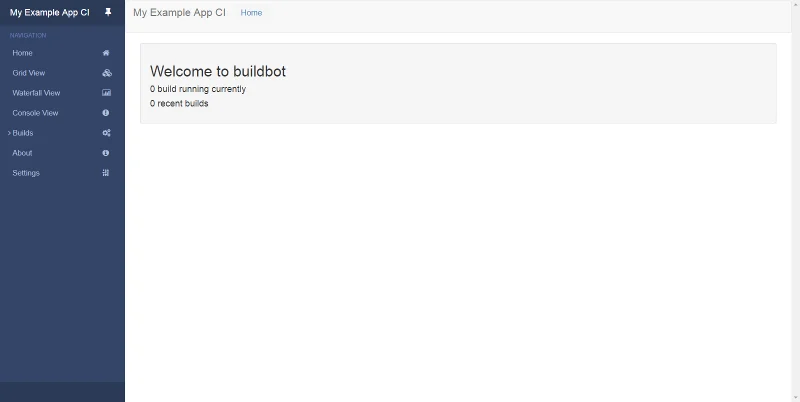
Now that the Buildbot master has started correctly, the web user interface is accessible at http://192.168.1.1:8010. You should see the following Buildbot interface.
Since we have already modified the worker configuration in ~/master/master.cfg, we can proceed to create a new worker.
buildbot-worker create-worker ~/worker localhost localhost-worker Password123
Make sure that you use the exact same worker name and password as mentioned in ~/master/master.cfg file. If there's a mismatch in worker name or password, the worker will not be able to connect to the Buildbot master. You will see the following output upon successful execution.
[buildbot@vultr ~]$ buildbot-worker create-worker ~/worker localhost example-worker pass
mkdir /home/buildbot/worker
mkdir /home/buildbot/worker/info
Creating info/admin, you need to edit it appropriately.
Creating info/host, you need to edit it appropriately.
Not creating info/access_uri - add it if you wish
Please edit the files in /home/buildbot/worker/info appropriately.
worker configured in /home/buildbot/worker
Information about the worker is stored in the /info directory. Edit the administrative information about the developer.
nano ~/worker/info/admin
Replace the example name with your actual name and email.
Your Name <mail@example.com>
Now, open the file containing information about the host.
nano ~/worker/info/host
Replace the example instruction with the actual information about the host system.
Localhost, CentOS 7
The worker admin and host information is only used to tell the users about the system. You can also add additional information about the system such as Buildbot version and Twisted version.
Start the worker.
buildbot-worker start ~/worker
The output will look like the following text.
[buildbot@vultr ~]$ buildbot-worker start ~/worker
Following twistd.log until startup finished..
The buildbot-worker appears to have (re)started correctly.
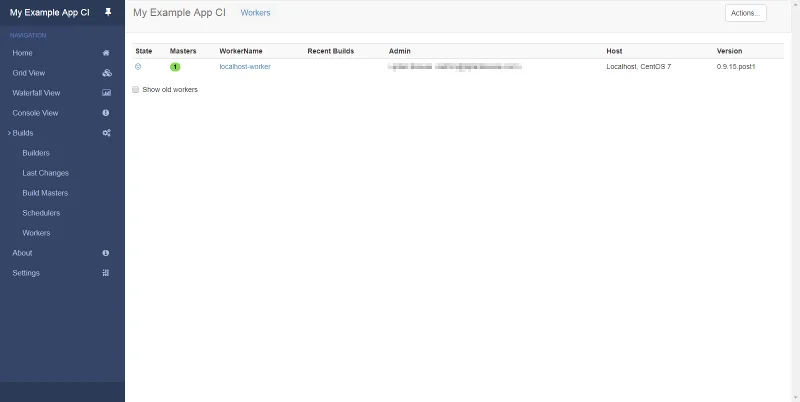
To check if the worker is registered, head to the web interface of Buildbot and navigate to Builds >> Workers from the left navigation. You should see that the worker is up and ready to build.

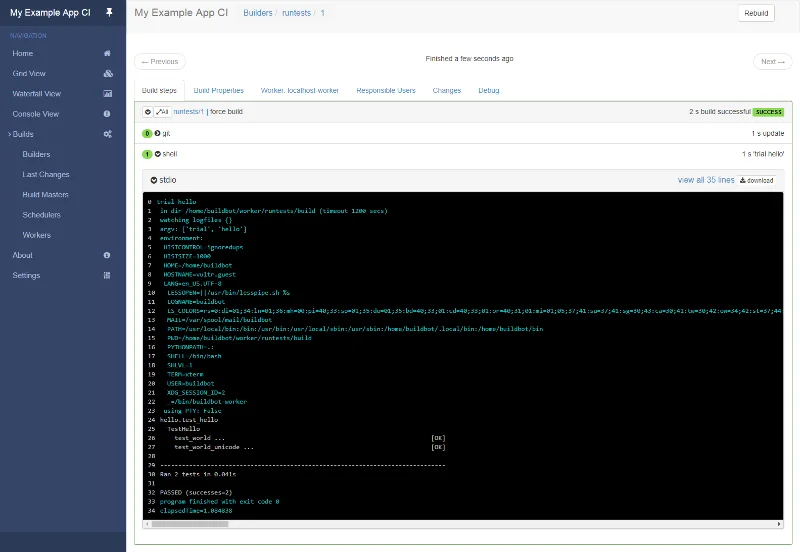
To run a sample build, to check if the Buildbot worker is running successfully, navigate to Builds >> Builders. Click on the runtests builder name to open the builder interface and click on the Force button to force a build. Provide your name and click on the Start Build button to start the build. Since it is a sample build test to check the Buildbot environment, it will finish in a couple of seconds. You will get a success message and the build result.

Setting up Systemd Service
Although the Buildbot master and worker can be easily started using the commands above, it is recommended to use Systemd units to run and manage the Buildbot services. This will ensure that they are automatically started on system restart and failures.
Note: Switch to the sudo user again by running either exit or su <username>. From now on all the commands need to be executed by the sudo user.
Stop the running Buildbot worker and master service.
sudo su buildbot -c "buildbot stop /home/buildbot/master"
sudo su buildbot -c "buildbot-worker stop ~/worker"
Create a new Systemd unit file for the Buildbot master.
sudo nano /etc/systemd/system/buildbot.service
Populate the file.
[Unit]
Description=BuildBot master service
After=network.target

[Service]
Type=forking
User=buildbot
Group=buildbot
WorkingDirectory=/home/buildbot/master
ExecStart=/usr/bin/buildbot start
ExecStop=/usr/bin/buildbot stop
ExecReload=/usr/bin/buildbot restart

[Install]
WantedBy=multi-user.target
Start the Buildbot master and enable it to automatically start at boot time.
sudo systemctl start buildbot
sudo systemctl enable buildbot
Create a new Systemd unit file for the Buildbot worker.
sudo nano /etc/systemd/system/buildbot-worker.service
Populate the file.
[Unit]
Description=BuildBot worker service
After=network.target

[Service]
Type=forking
User=buildbot
Group=buildbot
WorkingDirectory=/home/buildbot/worker
ExecStart=/usr/bin/buildbot-worker start
ExecStop=/usr/bin/buildbot-worker stop
ExecReload=/usr/bin/buildbot-worker restart

[Install]
WantedBy=multi-user.target
Start the Buildbot worker and enable it to automatically start at boot time.
sudo systemctl start buildbot-worker
sudo systemctl enable buildbot-worker
You can check the status of the services.
sudo systemctl status buildbot buildbot-worker
If the services are running smoothly, you will see that in the output.
[user@vultr ~]$ sudo systemctl status buildbot buildbot-worker
● buildbot.service - BuildBot master service
...
Active: active (running) since Fri 2018-01-12 16:00:59 UTC; 1min 25s ago
...
Jan 12 16:00:59 vultr.guest systemd[1]: Started BuildBot master service.

● buildbot-worker.service - BuildBot worker service
...
Active: active (running) since Fri 2018-01-12 16:02:00 UTC; 24s ago
...
Jan 12 16:02:00 vultr.guest systemd[1]: Started BuildBot worker service.
Enabling Authentication
By default, authentication is not enabled in the Buildbot web interface. For internet facing sites, it is strongly recommended to setup authentication so that only the authorized users can have the ability to perform administrative tasks. To set up authentication, reopen the Buildbot master configuration file.
sudo su buildbot -c "nano /home/buildbot/master/master.cfg"
Add the following lines to the end of the file.
c['www']['authz'] = util.Authz(
       allowRules = [
           util.AnyEndpointMatcher(role="admins")
       ],
       roleMatchers = [
           util.RolesFromUsername(roles=['admins'], usernames=['admin_user'])
       ]
)
c['www']['auth'] = util.UserPasswordAuth({'admin_user': 'AdminPassword'})
Replace both occurrences of admin_user with the actual username you want to use and AdminPassword with a strong password.
Check for errors in the configuration file.
sudo su buildbot -c "buildbot checkconfig /home/buildbot/master"
Restart Buildbot master service so that the changes can take effect.
sudo systemctl restart buildbot
Browse the web interface again to see that the anonymous users can only view the basic details about the build server. Now, log in using the credentials set in the master.cfg file and you will see that all other administrative functions are only available to the logged in admin user.
Securing Buildbot with Let's Encrypt SSL
By default, Buildbot listens to the port 8010 on unsecured connections. Securing the web interface with HTTPS is recommended to ensure that the data is safe during transportation from the browser to the server. In this section of the tutorial, we will install and secure Nginx with Let's Encrypt free SSL certificates. The Nginx web server will work as a reverse proxy to forward the incoming requests to Buildbot's HTTP endpoint.
Install Nginx.
sudo yum -y install nginx
Start Nginx and enable it to automatically start at boot time.
sudo systemctl start nginx
sudo systemctl enable nginx
Install Certbot, which is the client application for Let's Encrypt CA.
sudo yum -y install certbot
Before you can request the certificates, you will need to allow ports 80 and 443 or standard HTTP and HTTPS services through the firewall. Also, remove port 8010, which listens to the unsecured connections.
sudo firewall-cmd --zone=public --add-service=http --permanent
sudo firewall-cmd --zone=public --add-service=https --permanent
sudo firewall-cmd --zone=public --remove-port=8010/tcp --permanent
sudo firewall-cmd --reload
Note: To obtain certificates from Let's Encrypt CA, the domain for which the certificates are to be generated must be pointed towards the server. If not, make the necessary changes to the DNS records of the domain and wait for the DNS to propagate before making the certificate request again. Certbot checks the domain authority before providing the certificates.
Generate the SSL certificates.
sudo certbot certonly --webroot -w /usr/share/nginx/html -d ci.example.com
És probable que els certificats generats s'emmagatzemin al /etc/letsencrypt/live/ci.example.com/directori. El certificat SSL s'emmagatzemarà com a fullchain.pemi la clau privada com a privkey.pem.
Els certificats de Let's Encrypt caduquen en 90 dies, per tant, es recomana configurar la renovació automàtica dels certificats mitjançant treballs de Cron.
Obriu el fitxer de treball cron per a l' rootusuari.
sudo crontab -e
Afegiu la línia següent al final del fitxer.
30 5 * * * /usr/bin/certbot renew --quiet
El treball cron anterior s'executarà cada dia a les 5:30 del matí. Si el certificat ha de caducar, el renovarà automàticament.
Ara, canvieu el fitxer de configuració predeterminat de Nginx per treure la default_serverlínia.
sudo sed -i 's/default_server//g' /etc/nginx/nginx.conf
Creeu un fitxer de configuració nou per a la interfície web de Buildbot.
sudo nano /etc/nginx/conf.d/buildbot.conf
Omple el fitxer.
upstream buildbot {
server 127.0.0.1:8010;
}

server {
    listen 80 default_server;
    server_name ci.example.com;
    return 301 https://$host$request_uri;
}

server {
    listen 443 ssl http2 default_server;
    server_name ci.example.com;

    root html;
    index index.html index.htm;

    ssl on;
    ssl_certificate         /etc/letsencrypt/live/ci.example.com/fullchain.pem;
    ssl_certificate_key     /etc/letsencrypt/live/ci.example.com/privkey.pem;

    ssl_session_cache      shared:SSL:10m;
    ssl_session_timeout  1440m;
    ssl_protocols  TLSv1 TLSv1.1 TLSv1.2;
    ssl_ciphers HIGH:!aNULL:!eNULL:!EXPORT:!CAMELLIA:!DES:!MD5:!PSK:!RC4;
    ssl_prefer_server_ciphers on;

    add_header Strict-Transport-Security "max-age=31536000; includeSubdomains;";

    access_log  /var/log/nginx/buildbot.access.log;

    proxy_set_header HOST $host;
    proxy_set_header X-Real-IP $remote_addr;
    proxy_set_header X-Forwarded-For $proxy_add_x_forwarded_for;
    proxy_set_header X-Forwarded-Proto  $scheme;
    proxy_set_header X-Forwarded-Server  $host;
    proxy_set_header X-Forwarded-Host  $host;

    location / {
        proxy_pass http://buildbot;
    }
    location /sse/ {
        proxy_buffering off;
        proxy_pass http://buildbot/sse/;
    }
    location /ws {
        proxy_http_version 1.1;
        proxy_set_header Upgrade $http_upgrade;
        proxy_set_header Connection "upgrade";
        proxy_pass http://buildbot/ws;
        proxy_read_timeout 6000s;
    }
}
Comproveu si hi ha errors al nou fitxer de configuració.
sudo nginx -t
Si veieu la sortida següent, la configuració està lliure d'errors.
[user@vultr ~]$ sudo nginx -t
nginx: the configuration file /etc/nginx/nginx.conf syntax is ok
nginx: configuration file /etc/nginx/nginx.conf test is successful
Si heu rebut algun tipus d'error, assegureu-vos de comprovar el camí als certificats SSL. Reinicieu el servidor web Nginx per implementar el canvi de configuració.
sudo systemctl restart nginx
Obriu el fitxer de configuració de Buildmaster.
sudo su buildbot -c "nano /home/buildbot/master/master.cfg"
Localitza la línia següent.
c['buildbotURL'] = "http://192.168.1.1:8010/"
Canvieu l'URL segons el nom de domini que feu servir.
c['buildbotURL'] = "https://ci.example.com/"
Reinicieu el servei mestre Buildbot.
sudo systemctl restart buildbot
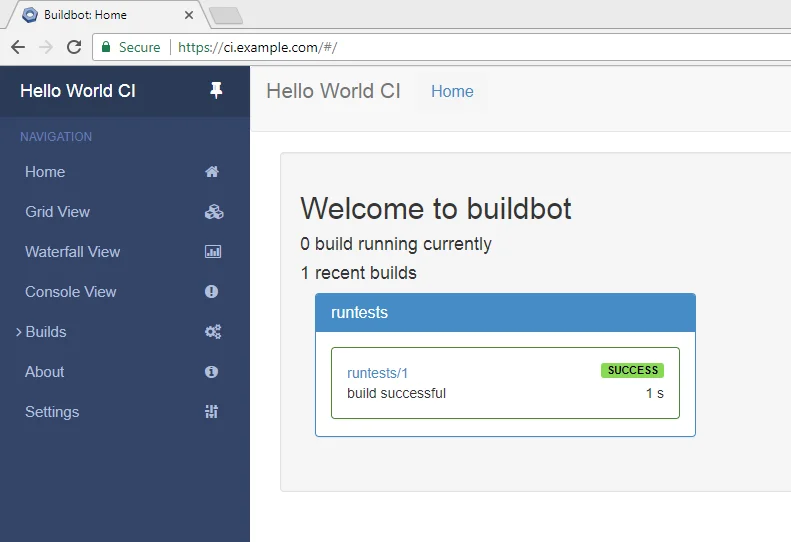
Ara podeu accedir al tauler de control de Buildbot a https://ci.example.com. Veureu que les connexions a Buildbot ara estan protegides amb SSL.

Inicieu sessió amb les credencials d'administrador i afegiu el vostre primer pipeline per començar a crear la vostra aplicació.