Parakushtet
Instaloni Varësitë e Python
Instaloni PostgreSQL
Instaloni Buildbot
Konfiguro Master Buildbot
Konfiguro Buildbot Worker
Konfigurimi i Shërbimit të Sistemit
Aktivizimi i Autentifikimit
Sigurimi i Buildbot me Let's Encrypt SSL
Buildbot është një mjet i integruar me burim të hapur, i bazuar në Python, për të automatizuar ndërtimin, testimin dhe vendosjen e softuerit. Buildbot përbëhet nga një ose më shumë master Buildbot dhe një numër punëtorësh. Buildbot master ose Buildmaster ka komandën qendrore të sistemit. Ai është përgjegjës për menaxhimin e mjedisit të ndërtimit, punëtorëve dhe merr të gjitha vendimet për dërgimin e vendeve të punës për punëtorët. Buildmaster zbulon ndryshimet në depon e kodit dhe dërgon komandat ose punët te punëtorët për t'i ekzekutuar. Punëtorët ekzekutojnë punët dhe ia kthejnë rezultatin Buildmaster. Buildmaster më pas njofton zhvilluesit përmes kanaleve të shumta të mbështetura. Në këtë tutorial, ne do të instalojmë master dhe punëtor Buildbot në CentOS 7. Ne gjithashtu do të konfigurojmë vërtetimin dhe Nginx si një përfaqësues të sigurt të kundërt.
Parakushtet
- Një shembull i serverit Vultr CentOS 7 me të paktën 1 GB RAM.
- Një përdorues sudo .
- Një emër domaini i regjistruar i drejtuar drejt serverit.
Për këtë tutorial, ne do të përdorim 192.168.1.1si adresën IP publike dhe ci.example.comsi emrin e domenit të drejtuar drejt shembullit Vultr. Ju lutemi sigurohuni që të zëvendësoni të gjitha rastet e emrit të domenit shembull dhe adresës IP me atë aktuale.
Përditësoni sistemin tuaj bazë duke përdorur udhëzuesin Si të përditësoni CentOS 7 . Pasi sistemi juaj të jetë përditësuar, vazhdoni të instaloni PostgreSQL.
Instaloni Varësitë e Python
Instaloni Pip, i cili është një menaxher paketash për Python.
sudo yum -y install epel-release
sudo yum -y install python-pip gcc python-devel git
sudo pip install --upgrade pip
Instaloni PostgreSQL
Buildbot mbështet lloje të shumta të serverëve të bazës së të dhënave si MySQL, PostgreSQL dhe SQLite. Në këtë tutorial, ne do të përdorim PostgreSQL për të pritur serverin e bazës së të dhënave Buildbot.
PostgreSQL është një sistem bazë të dhënash relacionale objekt, i njohur për qëndrueshmërinë dhe shpejtësinë e tij. yumDepoja e paracaktuar përmban një version të vjetër të PostgreSQL, kështu që shtoni depon e PostgreSQL.
sudo yum -y install https://download.postgresql.org/pub/repos/yum/10/redhat/rhel-7-x86_64/pgdg-centos10-10-1.noarch.rpm
Instaloni serverin e bazës së të dhënave PostgreSQL.
sudo yum -y install postgresql10-server postgresql10-contrib postgresql10
Inicializoni bazën e të dhënave.
sudo /usr/pgsql-10/bin/postgresql-10-setup initdb
Nisni serverin PostgreSQL dhe aktivizoni atë të fillojë automatikisht në kohën e nisjes.
sudo systemctl start postgresql-10
sudo systemctl enable postgresql-10
Ndryshoni fjalëkalimin për përdoruesin e paracaktuar të PostgreSQL.
sudo passwd postgres
Identifikohu si përdorues i PostgreSQL.
sudo su - postgres
Krijo një përdorues të ri PostgreSQL për Buildbot.
createuser bb_user
Ju mund të përdorni çdo emër përdoruesi në vend të bb_user, nëse preferoni. PostgreSQL siguron psqlshell për të ekzekutuar pyetje në bazën e të dhënave. Kalo në shell PostgreSQL.
psql
Vendosni një fjalëkalim për përdoruesin e krijuar rishtazi.
ALTER USER bb_user WITH ENCRYPTED password 'DBPassword';
Zëvendësoni DBPasswordme një fjalëkalim të sigurt.
Krijoni një bazë të dhënash të re për instalimin e Buildbot.
CREATE DATABASE buildbot OWNER bb_user;
Dalje nga psqlguaska.
\q
Kalo te sudopërdoruesi.
exit
Ndryshoni pg_hba.confskedarin për të aktivizuar vërtetimin e bazuar në MD5.
sudo nano /var/lib/pgsql/10/data/pg_hba.conf
Gjeni rreshtat e mëposhtëm dhe ndryshoni vlerat peerdhe ident, në METHODkolonën, në trustdhe md5, respektivisht.
# TYPE  DATABASE        USER            ADDRESS                 METHOD

# "local" is for Unix domain socket connections only
local   all             all                                     peer
# IPv4 local connections:
host    all             all             127.0.0.1/32            ident
# IPv6 local connections:
host    all             all             ::1/128                 ident
Pasi të përditësohet, konfigurimi do të duket si teksti i mëposhtëm.
# TYPE  DATABASE        USER            ADDRESS                 METHOD

# "local" is for Unix domain socket connections only
local   all             all                                     trust
# IPv4 local connections:
host    all             all             127.0.0.1/32            md5
# IPv6 local connections:
host    all             all             ::1/128                 md5
Ruani skedarin dhe dilni nga redaktori. Instaloni përshtatësin e bazës së të dhënave PostgreSQL për Python.
sudo pip install psycopg2
Rinisni PostgreSQL në mënyrë që ndryshimet të hyjnë në fuqi.
sudo systemctl restart postgresql-10
Instaloni Buildbot
Instaloni Buildbot duke përdorur Pip.
sudo pip install 'buildbot[bundle]' pyopenssl service_identity
Komanda e mësipërme do të instalojë Buildbot së bashku me të buildbot-www, buildbot-workerdhe disa web plugins të tilla si buildbot-waterfall-view.
Për t'u siguruar që Buildbot është instaluar me sukses, mund të verifikoni duke kontrolluar versionin e Buildbot.
buildbot --version
Prodhimi duhet të ngjajë me tekstin e mëposhtëm.
[user@vultr ~]$ buildbot --version
Buildbot version: 0.9.15.post1
Twisted version: 17.9.0
Ndryshoni rregullat e murit tuaj të zjarrit për të lejuar portin 8010. Buildbot përdor këtë port për të dëgjuar kërkesat në ueb.
sudo firewall-cmd --zone=public --add-port=8010/tcp --permanent
sudo firewall-cmd --reload
Krijo një përdorues të ri të paprivilegjuar për të ekzekutuar proceset master dhe punonjës të Buildbot. Nuk rekomandohet të ekzekutoni shërbimet master Buildbot si rootpërdorues.
sudo adduser buildbot
sudo passwd buildbot
Identifikohu si buildbotpërdoruesi i sapokrijuar .
sudo su - buildbot
Vendosni masterin Buildbot në /home/buildbot/masterdrejtori. Kjo direktori do të përmbajë skedarët e konfigurimit, statusit dhe regjistrit të çdo ndërtimi.
buildbot create-master --db 'postgresql://bb_user:DBPassword@localhost/buildbot' ~/master
Sigurohuni që të zëvendësoni kredencialet e përdoruesit të bazës së të dhënave në komandën e mësipërme.
Shënim: Nëse dëshironi të përdorni bazën e të dhënave SQLite në vend të PostgreSQL, thjesht hiqni --db 'postgresql://bb_user:DBpassword@localhost/buildbot'opsionin. Baza e të dhënave SQLite do të krijohet në të njëjtën direktori.
The above command will create the ~/master directory to store the Buildmaster files. It will also write the data into the PostgreSQL database. You will get the following output.
[buildbot@vultr ~]$ buildbot create-master --db 'postgresql://bb_user:DBPassword@localhost/buildbot' ~/master
mkdir /home/buildbot/master
creating /home/buildbot/master/master.cfg.sample
creating database (postgresql://bb_user:DBPassword@localhost/buildbot)
buildmaster configured in /home/buildbot/master
Copy the sample configuration file to a live configuration file.
cp ~/master/master.cfg.sample ~/master/master.cfg
Edit the configuration file.
nano ~/master/master.cfg
Find the following lines.
c['workers'] = [worker.Worker("example-worker", "pass")]
...

c['builders'].append(
    util.BuilderConfig(name="runtests",
      workernames=["example-worker"],
      factory=factory))
...

c['title'] = "Hello World CI"
c['titleURL'] = "https://buildbot.github.io/hello-world/"
...

c['buildbotURL'] = "http://localhost:8010/"
...

c['db'] = {
    'db_url' : "postgresql://bb_user:DBpassword@localhost/buildbot",
}
The above configuration has an entry for a sample worker. We will modify the sample entry for the worker we will be running on localhost. Change the example-worker to any suitable name for the localhost worker and change the pass to some other password. Make a note of the worker name and password as we will require that later in the tutorial. Change the name of the worker in the list of builders. Change the name of the application and project URL according to your needs.
Change the Buildbot URL from localhost to your actual domain name or public IP address. Also, verify that the database information in the configuration file matches your actual database credentials.
At the end of the file, add c['buildbotNetUsageData'] = None. This parameter will disable sending the software version information and plugin usage details to the developers. However, to enable sending the uses information, change the option to Full.
The configuration should look like the following text.
c['workers'] = [worker.Worker("localhost-worker", "Password123")]
...

c['builders'].append(
    util.BuilderConfig(name="runtests",
      workernames=["localhost-worker"],
      factory=factory))
...

c['title'] = "My Application CI"
c['titleURL'] = "https://example.com/my-app"
...

c['buildbotURL'] = "http://192.168.1.1:8010/"
...

c['db'] = {
    'db_url' : "postgresql://bb_user:DBpassword@localhost/buildbot",
}
...

c['buildbotNetUsageData'] = None
Save the file and exit the editor. Check the configuration file for errors.
buildbot checkconfig ~/master
If the configuration file has no errors, you will see following output.
[buildbot@vultr ~]$ buildbot checkconfig ~/master
Config file is good!
Now that everything is configured correctly, you can start the Buildbot master.
buildbot start ~/master
You will see the following output.
[buildbot@vultr ~]$ buildbot start ~/master
Following twistd.log until startup finished..
The buildmaster appears to have (re)started correctly.
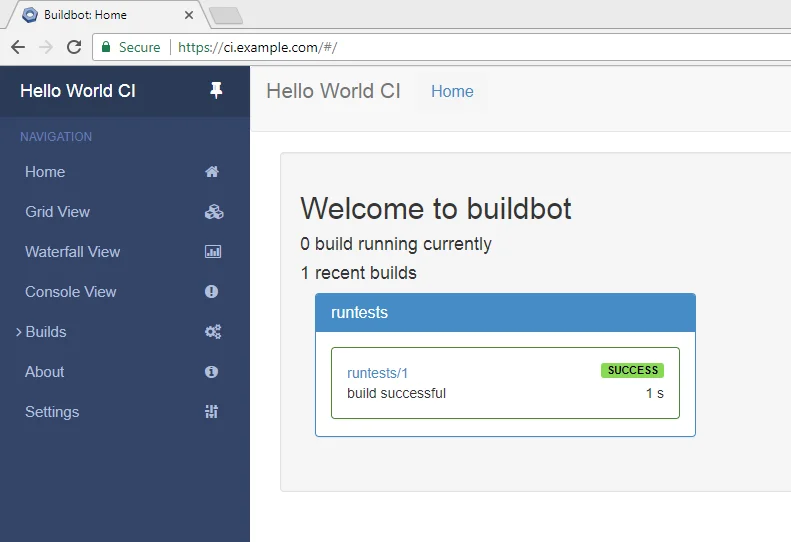
Now that the Buildbot master has started correctly, the web user interface is accessible at http://192.168.1.1:8010. You should see the following Buildbot interface.
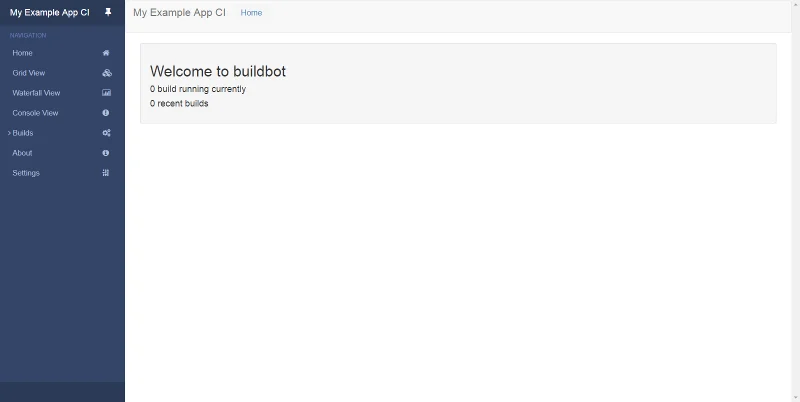
Since we have already modified the worker configuration in ~/master/master.cfg, we can proceed to create a new worker.
buildbot-worker create-worker ~/worker localhost localhost-worker Password123
Make sure that you use the exact same worker name and password as mentioned in ~/master/master.cfg file. If there's a mismatch in worker name or password, the worker will not be able to connect to the Buildbot master. You will see the following output upon successful execution.
[buildbot@vultr ~]$ buildbot-worker create-worker ~/worker localhost example-worker pass
mkdir /home/buildbot/worker
mkdir /home/buildbot/worker/info
Creating info/admin, you need to edit it appropriately.
Creating info/host, you need to edit it appropriately.
Not creating info/access_uri - add it if you wish
Please edit the files in /home/buildbot/worker/info appropriately.
worker configured in /home/buildbot/worker
Information about the worker is stored in the /info directory. Edit the administrative information about the developer.
nano ~/worker/info/admin
Replace the example name with your actual name and email.
Your Name <mail@example.com>
Now, open the file containing information about the host.
nano ~/worker/info/host
Replace the example instruction with the actual information about the host system.
Localhost, CentOS 7
The worker admin and host information is only used to tell the users about the system. You can also add additional information about the system such as Buildbot version and Twisted version.
Start the worker.
buildbot-worker start ~/worker
The output will look like the following text.
[buildbot@vultr ~]$ buildbot-worker start ~/worker
Following twistd.log until startup finished..
The buildbot-worker appears to have (re)started correctly.
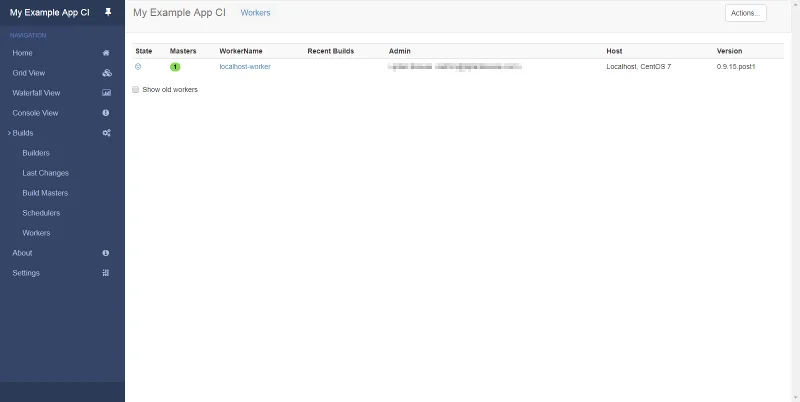
To check if the worker is registered, head to the web interface of Buildbot and navigate to Builds >> Workers from the left navigation. You should see that the worker is up and ready to build.

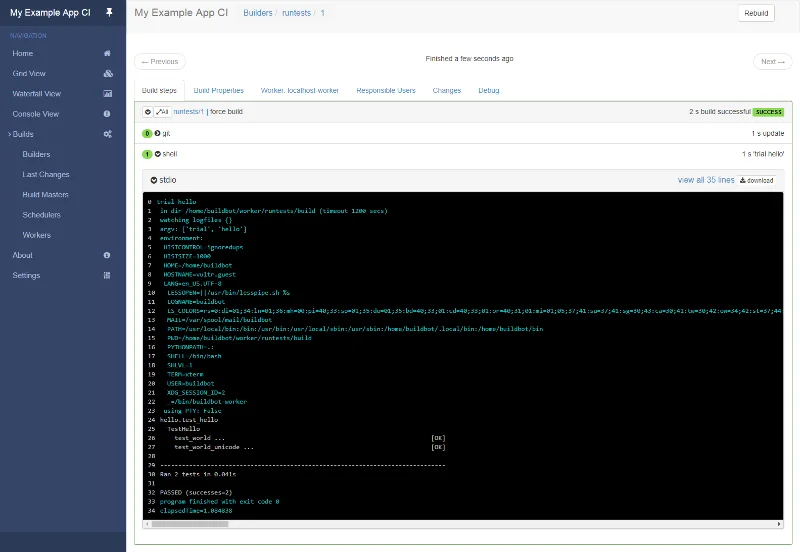
To run a sample build, to check if the Buildbot worker is running successfully, navigate to Builds >> Builders. Click on the runtests builder name to open the builder interface and click on the Force button to force a build. Provide your name and click on the Start Build button to start the build. Since it is a sample build test to check the Buildbot environment, it will finish in a couple of seconds. You will get a success message and the build result.

Setting up Systemd Service
Although the Buildbot master and worker can be easily started using the commands above, it is recommended to use Systemd units to run and manage the Buildbot services. This will ensure that they are automatically started on system restart and failures.
Note: Switch to the sudo user again by running either exit or su <username>. From now on all the commands need to be executed by the sudo user.
Stop the running Buildbot worker and master service.
sudo su buildbot -c "buildbot stop /home/buildbot/master"
sudo su buildbot -c "buildbot-worker stop ~/worker"
Create a new Systemd unit file for the Buildbot master.
sudo nano /etc/systemd/system/buildbot.service
Populate the file.
[Unit]
Description=BuildBot master service
After=network.target

[Service]
Type=forking
User=buildbot
Group=buildbot
WorkingDirectory=/home/buildbot/master
ExecStart=/usr/bin/buildbot start
ExecStop=/usr/bin/buildbot stop
ExecReload=/usr/bin/buildbot restart

[Install]
WantedBy=multi-user.target
Start the Buildbot master and enable it to automatically start at boot time.
sudo systemctl start buildbot
sudo systemctl enable buildbot
Create a new Systemd unit file for the Buildbot worker.
sudo nano /etc/systemd/system/buildbot-worker.service
Populate the file.
[Unit]
Description=BuildBot worker service
After=network.target

[Service]
Type=forking
User=buildbot
Group=buildbot
WorkingDirectory=/home/buildbot/worker
ExecStart=/usr/bin/buildbot-worker start
ExecStop=/usr/bin/buildbot-worker stop
ExecReload=/usr/bin/buildbot-worker restart

[Install]
WantedBy=multi-user.target
Start the Buildbot worker and enable it to automatically start at boot time.
sudo systemctl start buildbot-worker
sudo systemctl enable buildbot-worker
You can check the status of the services.
sudo systemctl status buildbot buildbot-worker
If the services are running smoothly, you will see that in the output.
[user@vultr ~]$ sudo systemctl status buildbot buildbot-worker
● buildbot.service - BuildBot master service
...
Active: active (running) since Fri 2018-01-12 16:00:59 UTC; 1min 25s ago
...
Jan 12 16:00:59 vultr.guest systemd[1]: Started BuildBot master service.

● buildbot-worker.service - BuildBot worker service
...
Active: active (running) since Fri 2018-01-12 16:02:00 UTC; 24s ago
...
Jan 12 16:02:00 vultr.guest systemd[1]: Started BuildBot worker service.
Enabling Authentication
By default, authentication is not enabled in the Buildbot web interface. For internet facing sites, it is strongly recommended to setup authentication so that only the authorized users can have the ability to perform administrative tasks. To set up authentication, reopen the Buildbot master configuration file.
sudo su buildbot -c "nano /home/buildbot/master/master.cfg"
Add the following lines to the end of the file.
c['www']['authz'] = util.Authz(
       allowRules = [
           util.AnyEndpointMatcher(role="admins")
       ],
       roleMatchers = [
           util.RolesFromUsername(roles=['admins'], usernames=['admin_user'])
       ]
)
c['www']['auth'] = util.UserPasswordAuth({'admin_user': 'AdminPassword'})
Replace both occurrences of admin_user with the actual username you want to use and AdminPassword with a strong password.
Check for errors in the configuration file.
sudo su buildbot -c "buildbot checkconfig /home/buildbot/master"
Restart Buildbot master service so that the changes can take effect.
sudo systemctl restart buildbot
Browse the web interface again to see that the anonymous users can only view the basic details about the build server. Now, log in using the credentials set in the master.cfg file and you will see that all other administrative functions are only available to the logged in admin user.
Securing Buildbot with Let's Encrypt SSL
By default, Buildbot listens to the port 8010 on unsecured connections. Securing the web interface with HTTPS is recommended to ensure that the data is safe during transportation from the browser to the server. In this section of the tutorial, we will install and secure Nginx with Let's Encrypt free SSL certificates. The Nginx web server will work as a reverse proxy to forward the incoming requests to Buildbot's HTTP endpoint.
Install Nginx.
sudo yum -y install nginx
Start Nginx and enable it to automatically start at boot time.
sudo systemctl start nginx
sudo systemctl enable nginx
Install Certbot, which is the client application for Let's Encrypt CA.
sudo yum -y install certbot
Before you can request the certificates, you will need to allow ports 80 and 443 or standard HTTP and HTTPS services through the firewall. Also, remove port 8010, which listens to the unsecured connections.
sudo firewall-cmd --zone=public --add-service=http --permanent
sudo firewall-cmd --zone=public --add-service=https --permanent
sudo firewall-cmd --zone=public --remove-port=8010/tcp --permanent
sudo firewall-cmd --reload
Note: To obtain certificates from Let's Encrypt CA, the domain for which the certificates are to be generated must be pointed towards the server. If not, make the necessary changes to the DNS records of the domain and wait for the DNS to propagate before making the certificate request again. Certbot checks the domain authority before providing the certificates.
Generate the SSL certificates.
sudo certbot certonly --webroot -w /usr/share/nginx/html -d ci.example.com
Certifikatat e krijuara ka të ngjarë të ruhen në /etc/letsencrypt/live/ci.example.com/drejtori. Certifikata SSL do të ruhet si fullchain.pemdhe çelësi privat do të ruhet si privkey.pem.
Le të Enkriptojmë certifikatat skadojnë për 90 ditë, prandaj rekomandohet të konfiguroni rinovimin automatik të certifikatave duke përdorur Cron jobs.
Hapni skedarin e punës cron për rootpërdoruesin.
sudo crontab -e
Shtoni rreshtin e mëposhtëm në fund të skedarit.
30 5 * * * /usr/bin/certbot renew --quiet
Puna e mësipërme e cron do të funksionojë çdo ditë në orën 5:30 të mëngjesit. Nëse certifikata duhet të skadojë, ajo do t'i rinovojë ato automatikisht.
Tani, ndryshoni skedarin e konfigurimit të paracaktuar Nginx për të hequr default_serverrreshtin.
sudo sed -i 's/default_server//g' /etc/nginx/nginx.conf
Krijo një skedar të ri konfigurimi për ndërfaqen në internet Buildbot.
sudo nano /etc/nginx/conf.d/buildbot.conf
Plotësoni skedarin.
upstream buildbot {
server 127.0.0.1:8010;
}

server {
    listen 80 default_server;
    server_name ci.example.com;
    return 301 https://$host$request_uri;
}

server {
    listen 443 ssl http2 default_server;
    server_name ci.example.com;

    root html;
    index index.html index.htm;

    ssl on;
    ssl_certificate         /etc/letsencrypt/live/ci.example.com/fullchain.pem;
    ssl_certificate_key     /etc/letsencrypt/live/ci.example.com/privkey.pem;

    ssl_session_cache      shared:SSL:10m;
    ssl_session_timeout  1440m;
    ssl_protocols  TLSv1 TLSv1.1 TLSv1.2;
    ssl_ciphers HIGH:!aNULL:!eNULL:!EXPORT:!CAMELLIA:!DES:!MD5:!PSK:!RC4;
    ssl_prefer_server_ciphers on;

    add_header Strict-Transport-Security "max-age=31536000; includeSubdomains;";

    access_log  /var/log/nginx/buildbot.access.log;

    proxy_set_header HOST $host;
    proxy_set_header X-Real-IP $remote_addr;
    proxy_set_header X-Forwarded-For $proxy_add_x_forwarded_for;
    proxy_set_header X-Forwarded-Proto  $scheme;
    proxy_set_header X-Forwarded-Server  $host;
    proxy_set_header X-Forwarded-Host  $host;

    location / {
        proxy_pass http://buildbot;
    }
    location /sse/ {
        proxy_buffering off;
        proxy_pass http://buildbot/sse/;
    }
    location /ws {
        proxy_http_version 1.1;
        proxy_set_header Upgrade $http_upgrade;
        proxy_set_header Connection "upgrade";
        proxy_pass http://buildbot/ws;
        proxy_read_timeout 6000s;
    }
}
Kontrolloni për gabimet në skedarin e ri të konfigurimit.
sudo nginx -t
Nëse shihni daljen e mëposhtme, konfigurimi është pa gabime.
[user@vultr ~]$ sudo nginx -t
nginx: the configuration file /etc/nginx/nginx.conf syntax is ok
nginx: configuration file /etc/nginx/nginx.conf test is successful
Nëse keni marrë një lloj gabimi, sigurohuni që të kontrolloni dy herë rrugën drejt certifikatave SSL. Rinisni serverin në internet Nginx për të zbatuar ndryshimin në konfigurim.
sudo systemctl restart nginx
Hapni skedarin e konfigurimit Buildmaster.
sudo su buildbot -c "nano /home/buildbot/master/master.cfg"
Gjeni rreshtin e mëposhtëm.
c['buildbotURL'] = "http://192.168.1.1:8010/"
Ndryshoni URL-në sipas emrit të domenit që po përdorni.
c['buildbotURL'] = "https://ci.example.com/"
Rinisni shërbimin master Buildbot.
sudo systemctl restart buildbot
Tani mund të përdorni pultin e Buildbot në https://ci.example.com. Do të shihni që lidhjet me Buildbot tani janë të siguruara me SSL.

Hyni duke përdorur kredencialet e administratorit dhe shtoni linjën tuaj të parë për të filluar ndërtimin e aplikacionit tuaj.