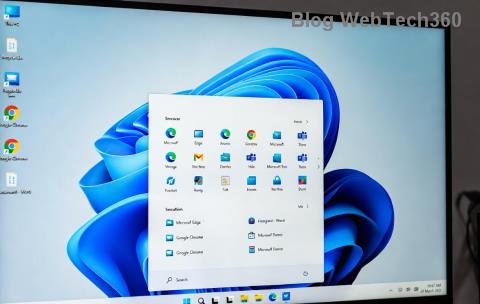
Imagine firing up your Windows 11 PC, only to be greeted by blurry text, distorted letters, or fonts that refuse to load properly. Windows 11 font glitches can turn a smooth experience into a frustrating headache, making everything from emails to documents hard to read. But don't worry—whether it's pixelated icons or mismatched typefaces, these issues are often fixable with the right steps. In this guide, we'll walk you through practical, up-to-date troubleshooting methods to eliminate system font glitches and bring back that crisp, clear display you deserve. Let's dive in and get your fonts looking flawless! 😊
Understanding Common Windows 11 Font Glitches
Before jumping into fixes, it's helpful to know what you're dealing with. Windows 11 font glitches typically stem from updates, driver conflicts, or corrupted files. Here's a quick breakdown of the most frequent culprits:
- Blurry or Fuzzy Fonts: Often caused by scaling issues or incompatible ClearType settings, especially on high-DPI screens.
- Missing or Corrupted Fonts: Third-party apps or botched updates can delete or damage system fonts like Segoe UI.
- Irregular Rendering: Fonts appearing bold, thin, or jagged due to graphics driver problems.
- App-Specific Glitches: Certain programs like browsers or office suites showing distorted text while the desktop looks fine.
These problems aren't rare—many users report them after major Windows updates. The good news? Most can be resolved without advanced tech skills. Stick with us, and you'll be back to seamless reading in no time. Ready to troubleshoot? Let's start with the basics.

Step-by-Step Troubleshooting for Windows 11 Font Glitches
We'll tackle this systematically, starting with simple checks and escalating to deeper fixes. Follow along, and test your display after each step to see if the troubleshooting Windows 11 fonts has worked its magic.
1. Restart and Basic Checks 👆
Sometimes, a simple reboot clears temporary glitches. But go further:
- Press Windows + I to open Settings, then navigate to System > Display. Ensure your resolution and scaling are set correctly (e.g., 100% or 125% for most setups).
- Check for Windows updates: Go to Settings > Windows Update > Check for updates. Install any available patches, as recent ones often address font rendering bugs.
- Log out and back in, or restart your PC. This refreshes font caches without hassle.
If fonts still look off, it's time for targeted tweaks. Pro tip: Keep a notepad handy to jot down changes— you'll feel empowered seeing progress! 🌟
2. Adjust ClearType for Sharp Fonts
ClearType is Windows' secret weapon for smooth text on LCD screens. If blurry fonts Windows 11 plague your setup, recalibrating it can work wonders.
- Search for "ClearType" in the Windows search bar and select Adjust ClearType text.
- Follow the on-screen wizard: Choose "Turn on ClearType," then pick the clearest text samples from five options per screen.
- Finish and test—your system font issues Windows 11 should sharpen up immediately.
This built-in tool is a game-changer for high-resolution displays. Users often report instant clarity, turning frustration into relief. If it doesn't stick, move on—we've got more tricks up our sleeve.
3. Reset Font Cache to Banish Corruption
A corrupted font cache is a common villain behind font rendering problems. Resetting it rebuilds the index without losing your custom fonts.
- Stop the Font Cache service: Press Windows + R, type
services.msc, and hit Enter. Find Windows Font Cache Service, right-click, and select Stop.
- Delete cache files: Navigate to
C:\Windows\ServiceProfiles\LocalService\AppData\Local\FontCache (you may need to show hidden files). Delete all contents in the folders (e.g., FontCache*.dat).
- Restart the service: Back in Services, right-click Windows Font Cache Service and select Start. Reboot your PC.
Voila! This often resolves missing fonts or irregular rendering. It's safe and reversible—give yourself a pat on the back for handling it like a pro. 👏

4. Update Graphics Drivers
Outdated GPU drivers are notorious for Windows 11 font glitches. NVIDIA, AMD, or Intel cards need the latest software for proper text handling.
| GPU Brand |
Update Method |
Why It Helps |
| NVIDIA |
Download GeForce Experience or visit NVIDIA's site |
Optimizes DirectX for smooth font scaling |
| AMD |
Use AMD Software: Adrenalin Edition from AMD's support page |
Fixes rendering artifacts on high-DPI |
| Intel |
Intel Driver & Support Assistant from Intel's tool |
Resolves integrated graphics font bugs |
After updating, restart and check your fonts. This step has saved countless setups from persistent blurriness—your screen will thank you!
5. Advanced Fixes: SFC, DISM, and More
If basics fail, dive into system repairs. Run these in an elevated Command Prompt (search for cmd, right-click, Run as administrator).
- SFC Scan: Type
sfc /scannow and press Enter. This repairs corrupted system files, including font-related ones.
- DISM Tool: If SFC flags issues, run
DISM /Online /Cleanup-Image /RestoreHealth. It pulls fresh files from Microsoft servers.
- Reset Windows Fonts: For stubborn cases, download official Segoe UI from Microsoft's font pack (search in Settings > Personalization > Fonts).
These commands are powerful yet user-friendly. Imagine the satisfaction of a clean bill of health for your OS—worth the few minutes!
6. When to Seek Extra Help
Persistent troubleshooting Windows 11 fonts might point to hardware (e.g., monitor cable issues) or malware. Run a full scan with Windows Defender, and if needed, use the Reset this PC option in Settings (keep files). For community wisdom, check forums like Microsoft's official support—real users share tailored advice there.
One last tip: Customize fonts via Settings > Personalization > Fonts to preview and manage them safely. This keeps glitches at bay long-term.
Prevent Future Windows 11 Font Glitches
To avoid repeats, enable automatic updates, avoid shady font downloads, and calibrate your display yearly. By staying proactive, you'll enjoy a glitch-free Windows 11 experience that feels fresh and reliable.
There you have it—a complete roadmap to conquer system font glitches. Your PC should now display text with the clarity it was meant to. If a step worked for you, share in the comments below—we love hearing success stories! Keep your system sharp, and happy computing! 🚀