Home
» Linux
»
How Do You Install Linux on a Chromebook? A Practical Setup and Verification Guide
How Do You Install Linux on a Chromebook? A Practical Setup and Verification Guide
If your goal is to run Linux tools on a Chromebook without giving up ChromeOS, the best result is usually not a traditional dual-boot installation. On supported Chromebooks, Google provides a built-in Linux development environment, commonly called Crostini. It runs a Debian-based Linux container inside a virtual machine alongside ChromeOS, so you can use a Terminal, command-line tools, code editors, IDEs, and many graphical Linux applications while keeping the normal Chromebook experience.
As of September 2026, Google still documents this as the first-party Linux path for ChromeOS. The important question is not only whether the installer finishes. A good setup should leave you with a Linux environment that starts reliably, can update packages, can access the files and hardware you actually need, and can be backed up before you depend on it for real work.
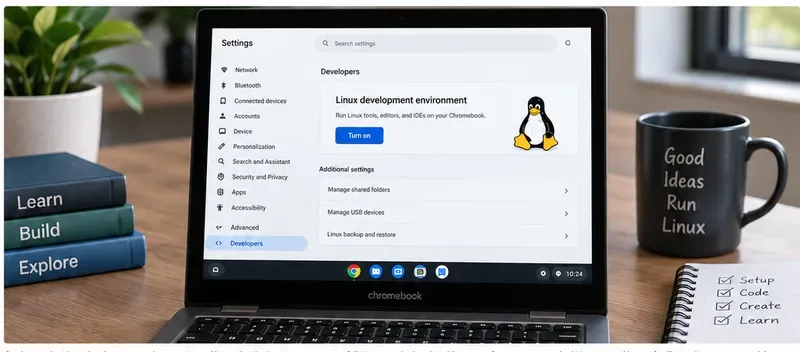
AI-generated illustration of the Linux development environment on a Chromebook. It is not a real screenshot; labels and layout can vary by ChromeOS version.
What should you expect when the installation is successful?
A successful Crostini setup should produce a usable Linux workspace, not replace ChromeOS. Google describes Linux on ChromeOS as a development environment that installs a Terminal and lets Linux applications appear alongside ChromeOS apps. You do not need to enable Chromebook Developer Mode for the normal Crostini setup.
Check
Good result
If it fails
Linux setup
A Terminal opens after installation
Check device support, policy restrictions, storage, and network access
Package management
sudo apt update completes without repository errors
Check internet access, system time, and repository errors before installing more software
Linux apps
Installed GUI apps can launch from the ChromeOS Launcher
Confirm the package supports your Chromebook's CPU architecture and has all dependencies
Files
Linux can see files copied to Linux files or folders shared from ChromeOS
Use the Files app's Share with Linux option and check /mnt/chromeos
Development servers
A server started in Linux is reachable from Chrome at localhost:PORT
Verify the server is listening on the expected port and has not exited
Recovery
You can create a Linux backup before major changes
Free storage and resolve backup errors before relying on the environment
How to install Linux on a Chromebook
1. Confirm that the built-in Linux option is available
Open Settings and look for the Developers section and the Linux development environment option. Google documentation may show slightly different navigation wording depending on the ChromeOS release, but the feature is exposed through ChromeOS Settings. If you do not see the Linux option, do not immediately enable Developer Mode or follow firmware-modification guides. The absence of the setting can mean the model is unsupported, the Chromebook is managed by an organization, or a policy is preventing Linux from being enabled.
Select the option to turn on or set up Linux. ChromeOS downloads the components it needs and creates the Linux environment. During setup, ChromeOS may ask for a Linux username and the amount of disk space to allocate. Choose a disk size based on what you plan to install rather than trying to minimize it automatically. Source code and command-line tools can be modest; IDEs, SDKs, container images, language caches, and local databases can consume much more space.
The setup has reached its first meaningful success point when ChromeOS finishes creating the environment and opens a Terminal window. If the process repeatedly fails before that point, adding more Linux commands will not help; fix the ChromeOS-level setup issue first.
3. Update the package index before installing tools
In the new Terminal, run:
sudo apt update
Google recommends updating the APT repository index as an early step. APT is Debian's package-management system. If the command finishes normally, the container can reach its configured software repositories and is ready for package installation. If it reports network or repository errors, resolve those before building your development environment; otherwise, later package failures become harder to diagnose.
You can install packages with commands such as:
sudo apt install PACKAGE_NAME
For development languages, Google's ChromeOS documentation also recommends considering language-specific version managers when they fit your workflow. They can make it easier to keep multiple project versions separate instead of relying only on the distribution's default package versions.
How do you verify that Linux is actually usable for your work?
Do not judge the setup only by seeing a Terminal prompt. Test the workflows that matter to you. A programmer who only needs Git and Python has different success criteria from someone using Android Studio, Docker, USB hardware, audio capture, or a local database.
Test a command-line workflow
Run sudo apt update, install one small package you actually need, and confirm that it launches. This checks package management, networking, permissions inside the container, and basic persistence.
Test a graphical Linux app
Google says graphical Linux applications can appear in the ChromeOS Launcher. If your intended app provides a Debian-compatible package, install it using the publisher's documented Linux method and then launch it from ChromeOS. A successful launch is a better signal than simply completing a package installation because it also checks ChromeOS integration.
Test your real files, not just sample files
ChromeOS exposes a Linux files area in the Files app. You can also right-click a ChromeOS folder and choose Share with Linux. Google documents shared folders inside the container under /mnt/chromeos. Test opening, editing, saving, and reopening a disposable project file before moving important work into your new workflow.
If you only need a few files in Linux, copying them into Linux files is simple. If you want one project to remain accessible from both ChromeOS and Linux, sharing a folder can be more convenient. The tradeoff is that broader sharing increases how much host data Linux applications can reach, so share only what you need.
Test localhost if you are doing web development
ChromeOS automatically forwards Linux development web servers to the main Chrome browser in normal use. Start your development server, then open localhost:PORT in Chrome. Google's web-development documentation also notes penguin.linux.test as a fallback hostname in relevant cases. This makes a simple local web server a useful end-to-end test of the environment.
What are the practical limits of Linux on a Chromebook?
Crostini is intentionally integrated and isolated. That is a strength for everyday development, but it also means it is not identical to booting a conventional Linux laptop directly on the hardware.
It runs through a VM and container. The default Linux environment is isolated from ChromeOS rather than replacing its kernel and desktop.
Hardware access is controlled. Google notes that permissions such as USB and microphone access are not simply shared by default. Enable only the permissions your application needs in ChromeOS Settings.
CPU architecture matters. An x86_64 Chromebook runs software built for Intel/AMD architectures, while ARM-based Chromebooks need ARM-compatible binaries. Google does not provide transparent integrated execution of arbitrary packages built for another architecture.
Linux processes stop when you log out. Google states that Crostini VMs and containers are tied to the login session. This makes the feature unsuitable for workloads that must continue running after logout.
Alternative Linux distributions are possible but not Google's tested default. The ChromeOS Linux FAQ notes that other containers can be used, but Google tests the default environment. Integration may be less predictable when you depart from it.
Not every peripheral or specialized workflow is guaranteed. A Linux application that expects unrestricted kernel, GPU, USB, Bluetooth, or low-level device access may behave differently than it would on a conventional Linux machine.
These limits do not mean Crostini is a poor Linux environment. They tell you what to validate before investing time in a large setup.
When should you change your approach?
Stay with the built-in Linux environment when your required tools install cleanly, your files and development servers work, and the performance is comfortable for your projects. That is the lowest-risk path because you keep ChromeOS security and integration while gaining a Debian-based development environment.
Consider a different device or a more advanced Linux strategy when your success criteria depend on capabilities Crostini does not provide reliably. Examples include a custom kernel, persistent server workloads that must survive logout, unrestricted access to specialized hardware, software available only for an incompatible CPU architecture, or performance-sensitive workloads that require direct control of the machine.
Replacing ChromeOS with a standalone Linux distribution is a very different project. Support varies significantly by Chromebook model, and such procedures can require Developer Mode, firmware changes, data erasure, or unsupported hardware workarounds. Google's standard Crostini instructions do not cover that path. If your goal is simply coding, command-line utilities, Linux desktop apps, or local web development, replacing ChromeOS is usually unnecessary complexity.
How should you handle files, permissions, and security?
Linux on ChromeOS is sandboxed, but applications inside the same Linux container share that container's security boundary. Treat Linux packages with the same caution you would on any other computer: prefer trusted repositories or the software publisher's official packages, review installation commands before running them, and avoid granting access to more host folders or devices than needed.
For USB or microphone-dependent applications, open the Linux settings in ChromeOS and enable the relevant permission only when needed. If an application fails to detect a device, do not assume the app is broken until you have checked the ChromeOS-side permission.
Back up the Linux environment before it becomes important
Once you have installed tools, configured shells, created SSH keys, or set up project dependencies, a working Linux environment may take substantial time to recreate. ChromeOS provides a built-in backup and restore feature for Linux files and applications. Google's official backup and restore instructions explain how to create a backup from Linux settings and restore a .tini backup later.
There is an important compatibility limit: Google says restoring a complete Linux backup to a different Chromebook requires the same CPU architecture, such as x86 to x86 or ARM to ARM. If the architectures differ, you may still be able to recover files, but you should not assume the complete environment will restore normally.
Common problems and the fastest useful check
Problem
First useful check
When to escalate
Linux option is missing
Check whether the Chromebook is managed and whether the model supports the Linux development environment
If the feature is unavailable by design, use another supported machine instead of forcing Developer Mode
If repeated setup attempts fail, use Google's Chromebook Help rather than troubleshooting inside a container that was never created
APT fails
Read the exact repository or network error from sudo apt update
Fix repository/network issues before installing larger toolchains
App installs but does not start
Confirm CPU architecture and package dependencies
If the publisher does not support your architecture or environment, choose a supported build or different device
Linux cannot see a ChromeOS folder
Use Share with Linux in the Files app
If access is still unavailable, re-check Linux sharing settings and the path under /mnt/chromeos
USB or microphone is unavailable
Check Linux permissions in ChromeOS Settings
If the device class is not supported, a conventional Linux system may be a better fit
Linux feels stuck
Shut down Linux from the Terminal app and start it again
If the problem returns, back up important data before deeper changes
A practical completion checklist
The Linux development environment installs without enabling Developer Mode.
The Terminal opens and sudo apt update succeeds.
At least one tool or Linux app you genuinely need installs and launches.
Your test project can read and write files in the location you intend to use.
If you develop web apps, your local server opens from Chrome.
Any required USB or microphone access has been tested, not merely assumed.
Your application packages match the Chromebook's CPU architecture.
You have created a Linux backup before making the environment business-critical.
If all of those checks match your needs, you have more than “Linux installed”: you have a Chromebook Linux setup that is demonstrably usable for your workflow. If one of the checks fails because of a structural Crostini limitation rather than a temporary configuration problem, that is the point to reconsider the approach instead of spending hours trying to make the wrong environment behave like a full bare-metal Linux machine.