๐Ÿš€ Quick Fix: Restore Microsoft Edge Favorites After Sync Error in Minutes!

Imagine opening Microsoft Edge only to find your cherished favorites vanished after a sync error. ๐Ÿ˜ฉ Don't panic! This common glitch happens due to account hiccups, network issues, or updates, but it's fully recoverable. In this guide, we'll walk you through how to restore Microsoft Edge favorites after a sync error with simple, tested steps. You'll be back to browsing in no timeโ€”let's dive in!

Why Do Microsoft Edge Favorites Sync Errors Happen?

Understanding the root cause helps prevent future headaches:

  • Account conflicts: Multiple devices syncing simultaneously.
  • Network glitches: Unstable internet during sync.
  • Corrupted data: Browser crashes or forced updates.
  • Quota limits: Overloaded Microsoft account storage.

Pro tip: Always enable automatic backups in Edge settings to stay safe. โญ Now, let's restore those Microsoft Edge favorites!
Microsoft Edge favorites sync settings screen showing error prompt

Step 1: Check and Pause Sync to Stop Further Issues

First, halt the problematic sync:

  1. Launch Microsoft Edge and click the profile icon (top-right) ๐Ÿ‘†.
  2. Select Sync > Manage sync settings.
  3. Toggle off Favorites sync. This prevents overwriting your data.

If you see a sync error notification, note the codeโ€”it'll help later. Ready for recovery? Keep reading!

Step 2: Recover from Local Backup or Import File

Microsoft Edge auto-saves favorites locally. Here's the magic:

Step Action Expected Outcome
1 Press Ctrl + Shift + O to open Favorites manager. View any remaining or cached items.
2 Go to edge://favorites/ and export as HTML (three dots > Export favorites). Creates a backup file for import.
3 Navigate to %LocalAppData%\Microsoft\Edge\User Data\Default\ and copy "Bookmarks" & "Bookmarks.bak" files. Restores from backupโ€”paste into a safe folder first!

Close Edge completely (use Task Manager: Ctrl + Shift + Esc, end all Edge processes). Replace the files and relaunch. Boomโ€”favorites restored! If no backup, proceed to sync reset.
Step-by-step Microsoft Edge favorites export and import interface

Step 3: Reset Sync and Re-Sync Microsoft Edge Favorites

For stubborn sync errors, reset from the cloud:

  1. Sign into account.microsoft.com on any device.
  2. Go to Devices > Microsoft Edge > Sync management.
  3. Choose Reset sync (this clears cloud dataโ€”ensure local backup first!).
  4. Back in Edge: Profiles > Sync > Turn on Favorites sync.

Wait 5-10 minutes for re-sync. Your Microsoft Edge favorites should populate across devices. Still missing some? Import the HTML file:

  1. Favorites manager > three dots > Import favorites.
  2. Select your exported HTMLโ€”done! ๐ŸŽ‰

Advanced Fix: Use Edge Recovery Tools

If basics fail, leverage built-in tools:

  • edge://settings/reset: Restore settings to default (favorites safe).
  • Reinstall Edge via microsoft.com/edgeโ€”your profile stays intact.
  • Third-party? Stick to official for safety.
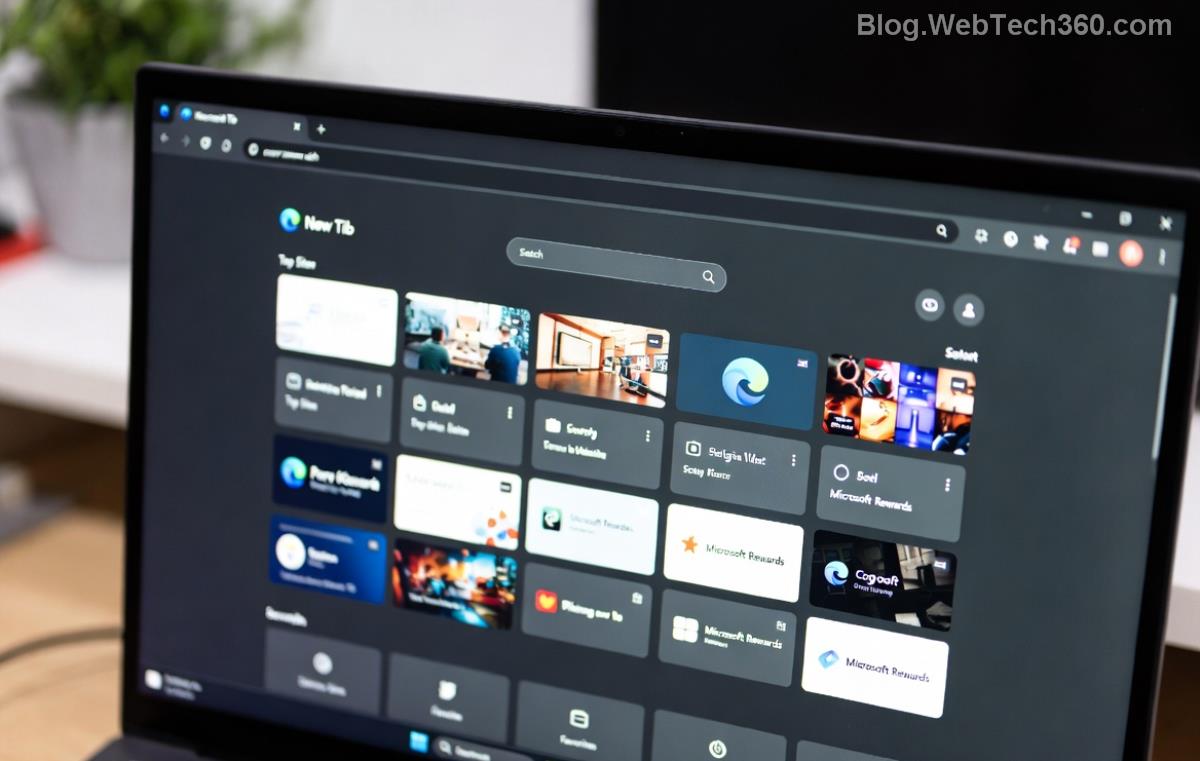
Microsoft Edge reset sync and recovery options screen

Prevention Tips: Never Lose Favorites Again

Lock in your wins:

  • โญ Export favorites weekly (Favorites > Export).
  • Enable Enhanced sync in settings for better reliability.
  • Use multiple profiles for work/personal separation.
  • Monitor sync status daily via profile menu.

These habits make Microsoft Edge favorites sync errors a thing of the past. Feeling empowered? Share your success story in comments!

FAQ: Common Restore Microsoft Edge Favorites Questions

Does resetting sync delete everything?
Noโ€”local data persists; cloud syncs back up.
Works on mobile too?
Yes! Sync is cross-platform (PC, Android, iOS).
Error code 9? What now?
Clear cache: edge://settings/clearBrowserData.

There you have itโ€”a complete blueprint to restore Microsoft Edge favorites after a sync error. Follow these steps, and you'll smile next time Edge syncs perfectly. Happy browsing! ๐Ÿ‘


Leave a Comment

๐Ÿš€ Fix Microsoft Edge Sidebar Not Opening Glitch: 10 Proven Steps That Work Instantly

๐Ÿš€ Fix Microsoft Edge Sidebar Not Opening Glitch: 10 Proven Steps That Work Instantly

Tired of the Microsoft Edge "Sidebar Not Opening" glitch ruining your workflow? Get instant fixes with our step-by-step troubleshooting guide. Updated for the latest Edge versions โ€“ no tech skills needed!

๐Ÿš€ Supercharge Your Browsing: How to Update Microsoft Edge to the Latest 2026 Version in Minutes!

๐Ÿš€ Supercharge Your Browsing: How to Update Microsoft Edge to the Latest 2026 Version in Minutes!

Master how to update Microsoft Edge to the latest 2026 version with easy, step-by-step guides. Unlock faster speeds, top security, and new AI features on Windows, Mac, Android, and more โ€“ no tech skills needed!

๐Ÿš€ Ultimate 2026 Fix: How to Fix Microsoft Edge Winaero Tweaker Issues in Minutes!

๐Ÿš€ Ultimate 2026 Fix: How to Fix Microsoft Edge Winaero Tweaker Issues in Minutes!

Discover the ultimate guide on How to Fix Microsoft Edge "Winaero Tweaker" Fix 2026. Step-by-step solutions for crashes, slowdowns, and tweaks gone wrong โ€“ restore your browser fast!

Unlock Your Browser Data: How to Export Microsoft Edge Passwords and Settings in Minutes

Unlock Your Browser Data: How to Export Microsoft Edge Passwords and Settings in Minutes

Discover the easiest ways on how to export Microsoft Edge passwords and settings. Step-by-step guide with tips to securely backup your data and switch browsers effortlessly. Save time and stay secure!

๐Ÿš€ Fix Microsoft Edge Installer Error 514 Instantly: Proven 2026 Solutions

๐Ÿš€ Fix Microsoft Edge Installer Error 514 Instantly: Proven 2026 Solutions

Struggling with Microsoft Edge Installer Error 514? Discover step-by-step fixes to resolve this frustrating issue quickly. Run as admin, SFC scans, and more for seamless installation. Updated with latest tips!

๐Ÿš€ Ultimate Fix: How to Fix Microsoft Edge 404 Not Found Error in Minutes!

๐Ÿš€ Ultimate Fix: How to Fix Microsoft Edge 404 Not Found Error in Minutes!

Struggling with Microsoft Edge "404 Not Found" error? Discover proven, step-by-step fixes to resolve it quickly. Clear cache, reset settings, and more for seamless browsing. Updated with the latest tips!

๐Ÿš€ Unlock Ultimate Privacy: How to Use Microsoft Edge Built-in VPN for Bulletproof Secure Browsing

๐Ÿš€ Unlock Ultimate Privacy: How to Use Microsoft Edge Built-in VPN for Bulletproof Secure Browsing

Discover step-by-step how to activate and master the Microsoft Edge built-in VPN for secure browsing. Enjoy free 1GB/month data, block trackers, and browse safely with Edge's latest VPN features. Perfect for beginners!

๐Ÿš€ Instant Fix: Banish Microsoft Edge Result_Code_Killed_Bad_Message Error Forever!

๐Ÿš€ Instant Fix: Banish Microsoft Edge Result_Code_Killed_Bad_Message Error Forever!

Tired of Microsoft Edge crashing with "Result_Code_Killed_Bad_Message"? Follow our expert, step-by-step guide to fix this renderer error quickly and restore smooth browsing. Proven solutions for all users.

๐Ÿš€ Fix Microsoft Edge Startup Boost High Disk Usage Instantly โ€“ Proven 2026 Guide!

๐Ÿš€ Fix Microsoft Edge Startup Boost High Disk Usage Instantly โ€“ Proven 2026 Guide!

Tired of Microsoft Edge Startup Boost causing sky-high disk usage? Get step-by-step fixes to reclaim your PC speed. Disable it now and boost performance effortlessly!

๐Ÿš€ Fix Microsoft Edge DNS Probe Finished No Internet Error โ€“ Ultimate 2026 Guide!

๐Ÿš€ Fix Microsoft Edge DNS Probe Finished No Internet Error โ€“ Ultimate 2026 Guide!

Tired of Microsoft Edge showing "DNS Probe Finished No Internet"? Get instant fixes with step-by-step solutions. Restore your browsing in minutes โ€“ no tech skills needed!