Imagine opening Microsoft Edge only to find your cherished favorites vanished after a sync error. 😩 Don't panic! This common glitch happens due to account hiccups, network issues, or updates, but it's fully recoverable. In this guide, we'll walk you through how to restore Microsoft Edge favorites after a sync error with simple, tested steps. You'll be back to browsing in no time—let's dive in!
Why Do Microsoft Edge Favorites Sync Errors Happen?
Understanding the root cause helps prevent future headaches:
- Account conflicts: Multiple devices syncing simultaneously.
- Network glitches: Unstable internet during sync.
- Corrupted data: Browser crashes or forced updates.
- Quota limits: Overloaded Microsoft account storage.
Pro tip: Always enable automatic backups in Edge settings to stay safe. ⭐ Now, let's restore those Microsoft Edge favorites!
Step 1: Check and Pause Sync to Stop Further Issues
First, halt the problematic sync:
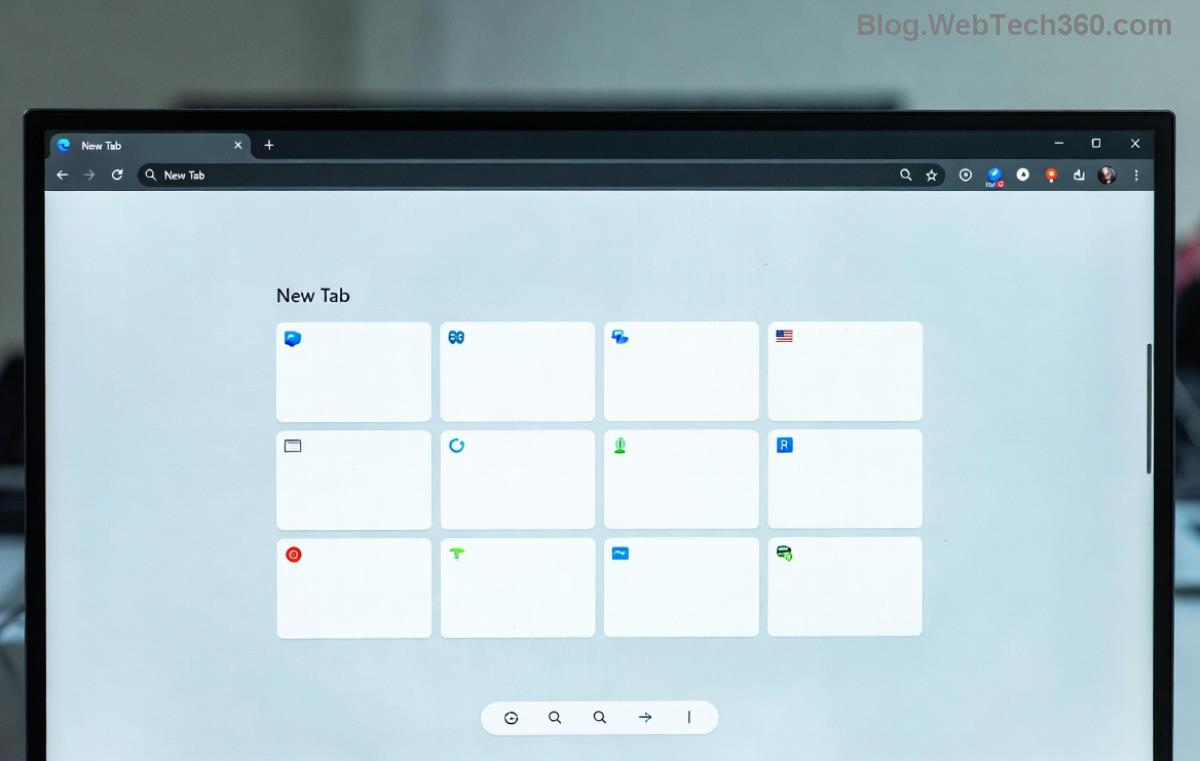
- Launch Microsoft Edge and click the profile icon (top-right) 👆.
- Select Sync > Manage sync settings.
- Toggle off Favorites sync. This prevents overwriting your data.
If you see a sync error notification, note the code—it'll help later. Ready for recovery? Keep reading!
Step 2: Recover from Local Backup or Import File
Microsoft Edge auto-saves favorites locally. Here's the magic:
| Step |
Action |
Expected Outcome |
| 1 |
Press Ctrl + Shift + O to open Favorites manager. |
View any remaining or cached items. |
| 2 |
Go to edge://favorites/ and export as HTML (three dots > Export favorites). |
Creates a backup file for import. |
| 3 |
Navigate to %LocalAppData%\Microsoft\Edge\User Data\Default\ and copy "Bookmarks" & "Bookmarks.bak" files. |
Restores from backup—paste into a safe folder first! |
Close Edge completely (use Task Manager: Ctrl + Shift + Esc, end all Edge processes). Replace the files and relaunch. Boom—favorites restored! If no backup, proceed to sync reset.
Step 3: Reset Sync and Re-Sync Microsoft Edge Favorites
For stubborn sync errors, reset from the cloud:
- Sign into account.microsoft.com on any device.
- Go to Devices > Microsoft Edge > Sync management.
- Choose Reset sync (this clears cloud data—ensure local backup first!).
- Back in Edge: Profiles > Sync > Turn on Favorites sync.
Wait 5-10 minutes for re-sync. Your Microsoft Edge favorites should populate across devices. Still missing some? Import the HTML file:
- Favorites manager > three dots > Import favorites.
- Select your exported HTML—done! 🎉
Advanced Fix: Use Edge Recovery Tools
If basics fail, leverage built-in tools:
- edge://settings/reset: Restore settings to default (favorites safe).
- Reinstall Edge via microsoft.com/edge—your profile stays intact.
- Third-party? Stick to official for safety.
Prevention Tips: Never Lose Favorites Again
Lock in your wins:
- ⭐ Export favorites weekly (Favorites > Export).
- Enable Enhanced sync in settings for better reliability.
- Use multiple profiles for work/personal separation.
- Monitor sync status daily via profile menu.
These habits make Microsoft Edge favorites sync errors a thing of the past. Feeling empowered? Share your success story in comments!
FAQ: Common Restore Microsoft Edge Favorites Questions
- Does resetting sync delete everything?
- No—local data persists; cloud syncs back up.
- Works on mobile too?
- Yes! Sync is cross-platform (PC, Android, iOS).
- Error code 9? What now?
- Clear cache: edge://settings/clearBrowserData.
There you have it—a complete blueprint to restore Microsoft Edge favorites after a sync error. Follow these steps, and you'll smile next time Edge syncs perfectly. Happy browsing! 👏