🚀 Imagine browsing with silky-smooth scrolling, crystal-clear video playback, and webpages that load in a flash. That's the power of hardware acceleration in Microsoft Edge. By offloading graphics tasks to your GPU, it transforms your experience from sluggish to stellar. Ready to unlock this? Let's dive right in!
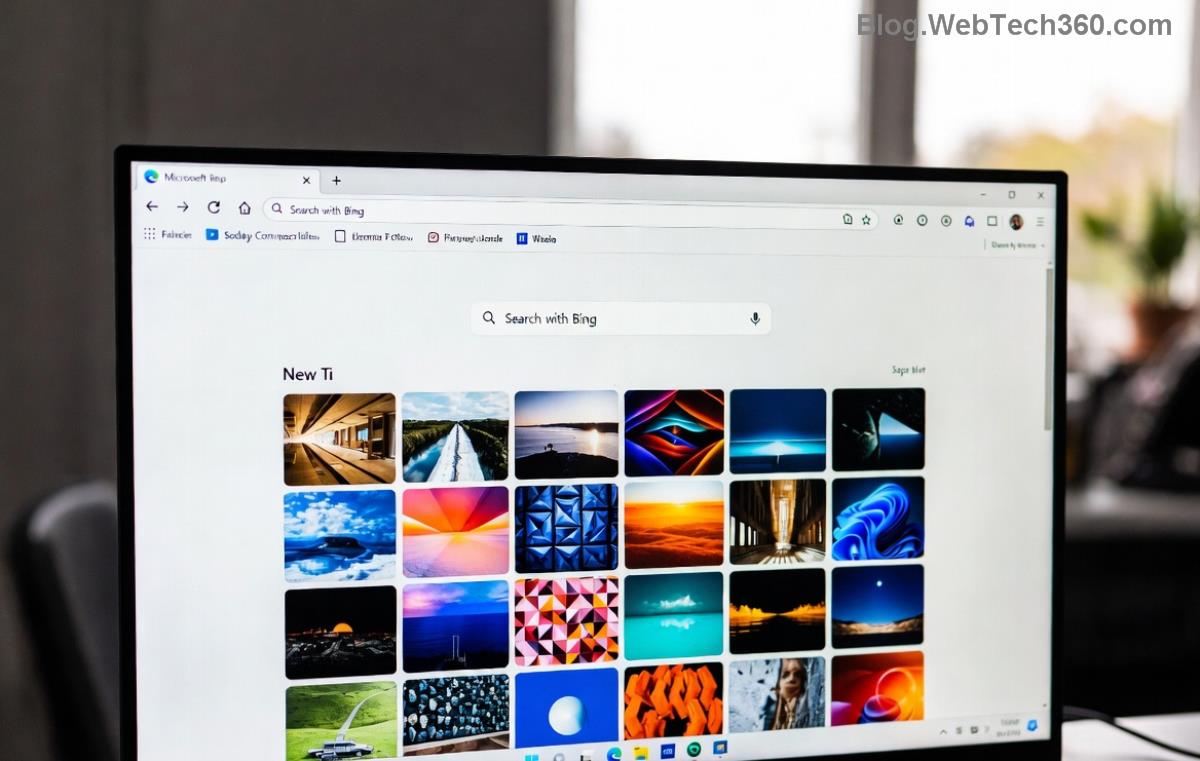
What is Hardware Acceleration in Microsoft Edge?
Hardware acceleration lets Microsoft Edge use your computer's GPU for rendering graphics, animations, and video decoding instead of relying solely on the CPU. Benefits include:
- ⭐ Faster page rendering and reduced lag
- 👍 Smoother 4K video streaming on sites like YouTube
- 🔋 Better battery life on laptops
- 🎮 Enhanced WebGL for games and interactive sites
Most modern PCs support it out-of-the-box, but it's often disabled by default for compatibility. Enabling it is a game-changer—users report up to 30% faster performance in benchmarks.
Step-by-Step Guide: How to Enable Hardware Acceleration in Microsoft Edge
It's easier than you think! Follow these simple steps on Windows, macOS, or Linux. We'll use the latest Microsoft Edge interface.
- 1️⃣ Open Settings: Launch Microsoft Edge, click the three-dot menu (⋮) in the top-right, and select Settings.
- 2️⃣ Navigate to System: In the left sidebar, click System and performance. Scroll down to find Use hardware acceleration when available.
- 3️⃣ Toggle It On: Flip the switch to On. Edge will prompt a restart—click Restart to apply changes.
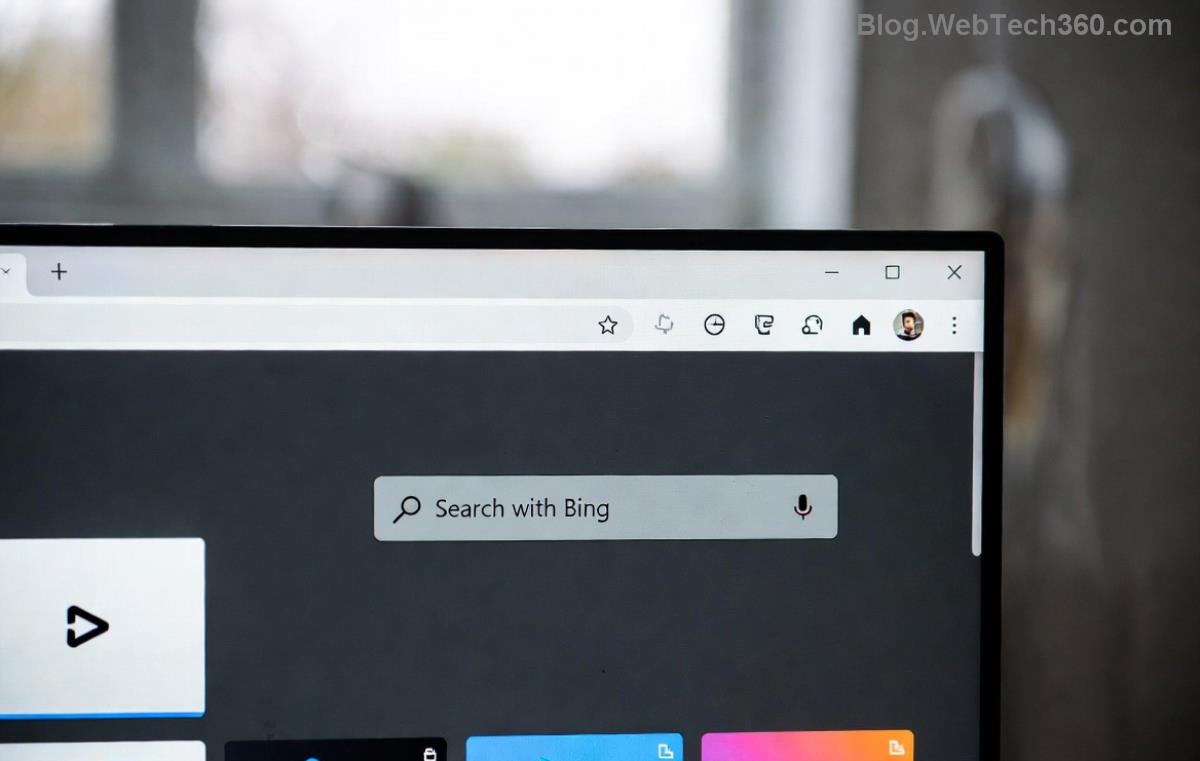
Done! Your browser now harnesses GPU power. But wait—want to verify it's working? Head to edge://gpu/ in the address bar. Look for "Graphics Feature Status"—green checks mean success! 👏
Troubleshooting: What If Hardware Acceleration Doesn't Work?
Encounter issues? No sweat. Here's a quick diagnostic table:
| Issue |
Solution |
Quick Check |
| Toggle grayed out |
Update Edge via Help and feedback > About Microsoft Edge |
edge://settings/help |
| Performance no better |
Clear cache: Settings > Privacy > Clear browsing data |
Restart PC |
| GPU errors in edge://gpu |
Update GPU drivers from NVIDIA/AMD/Intel site |
Device Manager (Windows) |
| Crashes after enabling |
Disable via flags: edge://flags/#ignore-gpu-blocklist |
Set to Disabled, relaunch |
For advanced tweaks, visit edge://flags and search "hardware". Enable experiments like #enable-accelerated-2d-canvas for extra oomph. Pro tip: If you're on an older GPU, it might be blocked—check Microsoft's GPU compatibility list via official support.
Pro Tips to Maximize Microsoft Edge Performance Post-Enable
Don't stop here—supercharge further:
- Sleep Tabs: Auto-pauses inactive tabs to free GPU resources (Settings > System > Save resources).
- Efficiency Mode: Toggle on for battery savings without sacrificing speed.
- Vertical Tabs: Organize for less visual clutter, smoother scrolling.
- ⭐ Benchmark it: Use Speedtest.net before/after to see gains!
Users rave about these combos: "Videos play buttery smooth now!" Ready to test? Reload a heavy site like a 4K demo—feel the difference!
Is Hardware Acceleration Safe for Microsoft Edge?
Absolutely. Microsoft rigorously tests it across hardware. Rare crashes? Just toggle off. It's reversible in seconds, with no data loss. For enterprises, Group Policy controls it seamlessly.
Final Thoughts: Level Up Your Edge Experience Today
Enabling hardware acceleration in Microsoft Edge is your ticket to browsing bliss—faster, smoother, and more efficient. Followed the steps? Share your before/after in the comments! Still tweaking? Our troubleshooting table has your back. Dive deeper into Edge mastery with our next guide on startup boosts. Happy browsing! 🌟