🌟 Imagine your child diving into a world of fun facts, games, and videos without the worries of inappropriate content lurking around every corner. That's the magic of Microsoft Edge Kids Mode – a built-in powerhouse designed for safer browsing that puts parents in control. Whether you're a tech-savvy guardian or just starting out, this guide walks you through everything you need to know to set it up effortlessly.
Ready to create a secure digital playground? Let's jump right in! ☝️
What is Microsoft Edge Kids Mode?
Microsoft Edge Kids Mode transforms the browser into a kid-friendly fortress. Activated via a dedicated profile, it blocks adult sites, limits searches to safe results, and enforces time restrictions – all powered by Microsoft's advanced AI filters and family safety integrations. No extensions needed; it's native to the latest Edge versions.
Key perks include:
- 🛡️ Strict content filtering for inappropriate images, videos, or text.
- ⏰ Built-in timers to prevent endless scrolling.
- 🔒 YouTube Restricted Mode compatibility for family videos.
- 📱 Seamless sync across Windows, Android, and iOS devices.
Perfect for ages 5-12, it ensures safer browsing without stifling curiosity. Learn more from Microsoft's official guide.
Why Choose Microsoft Edge Kids Mode for Safer Browsing?
In today's digital jungle, kids encounter risks daily. Studies show over 50% of children stumble upon unwanted content accidentally. Edge Kids Mode counters this with proactive defenses:
| Feature |
Benefit |
| AI-Powered Filters |
Blocks 99% of harmful sites automatically ⭐ |
| Profile Isolation |
Keeps kids' history separate from yours |
| Activity Reports |
Track browsing via Microsoft Family Safety app |
| Easy Exit Lock |
Requires parent PIN to switch profiles |
Parents rave about the peace of mind – no more hovering over shoulders! 😊
How to Enable Microsoft Edge Kids Mode: Step-by-Step
Setting up takes under 5 minutes. Follow these simple steps for instant safer browsing.
- Open Microsoft Edge: Launch the browser on your Windows PC, Mac, or mobile device.
- Access Profiles: Click the profile icon (top-right corner) and select Profile > Add profile.
- Choose Kids Mode: In the "Add profile" window, toggle on Kids Mode. Enter a fun name like "Junior Explorer" and set an age group (e.g., 5-8 or 9-12).
- Set a PIN: Create a 4-digit PIN to lock adult access. Confirm and hit Create.
- Switch and Explore: Select the new Kids profile. Boom – safe mode activated! 🎉
Pro tip: Link it to your Microsoft account for cross-device magic. Now your little ones can browse Disney sites or Khan Academy Kids worry-free.
Customizing Microsoft Edge Kids Mode for Your Family
One size doesn't fit all! Dive into settings for tailored protection.
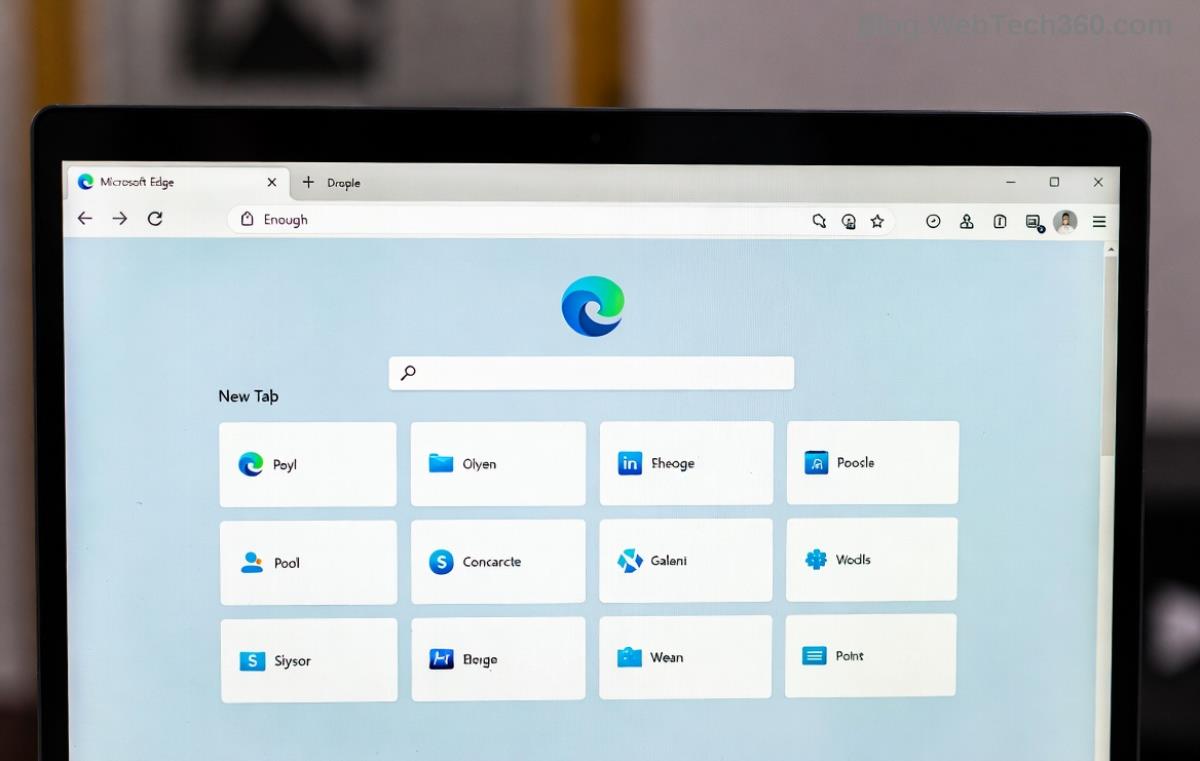
- ☝️ From Kids Profile: Click the three dots > Settings > Family.
- Adjust Filters: Toggle "Strict" for max safety or "Basic" for tweens.
- Time Limits: Set daily caps (e.g., 1 hour) via sliders.
- Allowed Sites: Whitelist favorites like PBS Kids or ABCmouse.
- Reports: Enable weekly emails on top sites visited.
Feeling empowered? These tweaks make Microsoft Edge Kids Mode your family's perfect shield. 🔒
Advanced Tips for Maximum Safer Browsing
Go beyond basics to supercharge safety:
- ⭐ Integrate Family Safety App: Download from Microsoft Store for remote monitoring and screen time approvals.
- 📱 Mobile Sync: Enable on Edge for Android/iOS – kids stay safe anywhere.
- 🚀 YouTube Power-Up: Kids Mode auto-enables Restricted Mode; pair with approved playlists.
- ⚠️ Block Downloads: In settings, disable to prevent malware surprises.

Bonus: Teach kids about the mode – turn safety into a shared adventure! 👏
Troubleshooting Microsoft Edge Kids Mode Issues
Stuck? Common fixes:
| Issue |
Solution |
| PIN Forgotten |
Reset via Microsoft account recovery |
| Filters Not Working |
Update Edge to latest version > Restart |
| No Kids Option |
Enable Family Safety features in Edge settings |
| Time Limits Ignored |
Check device clock & Family app sync |
If issues persist, visit Microsoft Edge Support.
Wrap-Up: Empower Safe Digital Adventures Today
With Microsoft Edge Kids Mode, browsing becomes a joy, not a jeopardy. You've got the tools – now activate it, customize, and watch your kids thrive online securely. Share your success stories in the comments below! What's your first safe site bookmark? 😊
Stay safe, stay browsing! 🚀








