Picture this: You're browsing the Xbox store, hit "buy" too quickly, and boom—an accidental Game Pass charge hits your account. Heart sinking? Don't panic! Microsoft makes it straightforward to request a refund for Game Pass purchases, especially if you acted fast and haven't dived deep into playing. This guide walks you through every step, with insider tips to boost your approval chances. By the end, you'll have your money back and peace of mind. Let's fix this now! 👍
Why You Can Get a Game Pass Refund – Quick Eligibility Check ⭐
Microsoft's refund policy is user-friendly for genuine mistakes. Key points:
- Accidental charges qualify if you haven't downloaded or played much.
- Requests work best soon after purchase—act promptly!
- Applies to Xbox Game Pass, PC Game Pass, or Ultimate tiers.
- No heavy usage? Higher success rate. 🎯
Pro Tip: Check your email for the purchase confirmation first—it has your order ID for faster processing.
Step-by-Step: How to Request a Refund via Microsoft Account (Easiest Method) 1️⃣
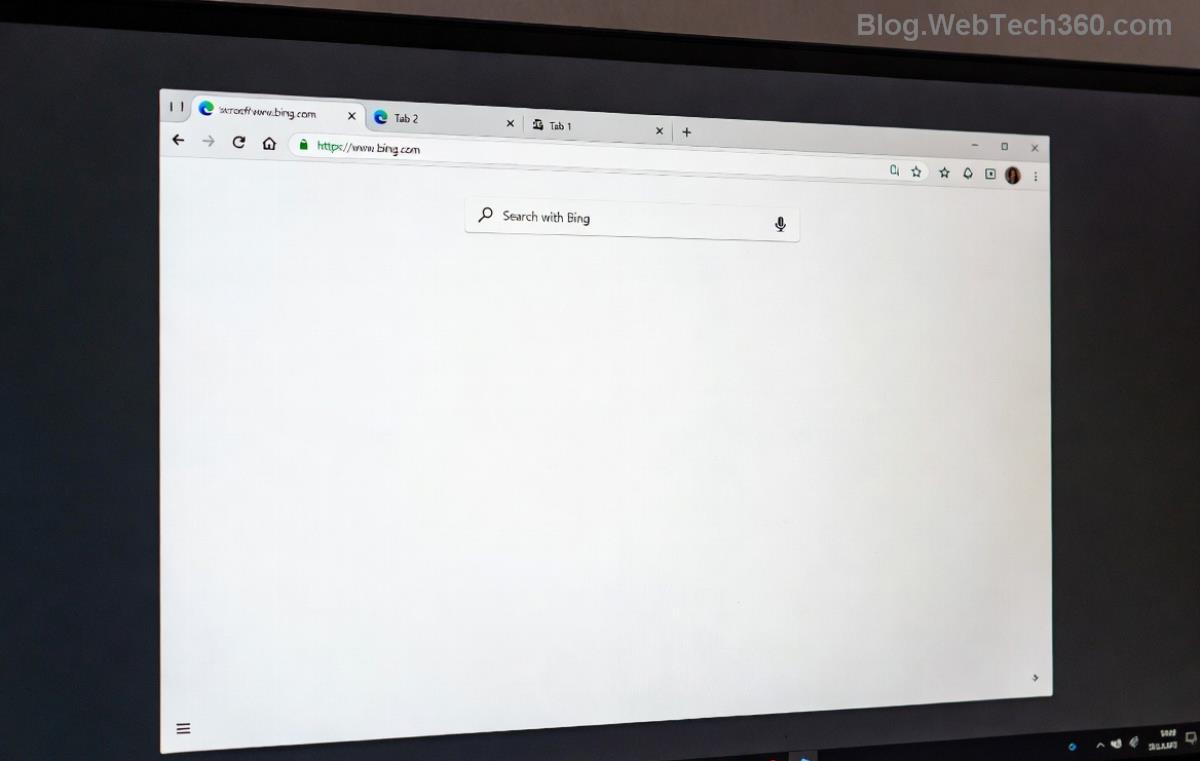
The most reliable way? Use your Microsoft account dashboard. No app needed—just a browser. Here's how:
- Log in to your Microsoft Account: Head to account.microsoft.com. Sign in with the account tied to the charge.
- Go to Order History: Click "Services & subscriptions" or "Payment & billing" > "Order history." Search for "Game Pass."
- Find the Charge: Locate the recent Game Pass purchase. Click it for details.
- Report a Problem: Select "I was charged without purchase" or "Request a refund." Explain it was accidental—keep it honest and brief.
- Submit & Wait: Microsoft reviews in 1-3 business days. You'll get an email update. 😊
Success rate? High for first-time mistakes. If denied, don't worry—there's a backup plan below.
Alternative: Refund via Xbox Support Portal 2️⃣
If the account method stalls, Xbox support is your next stop. They handle Xbox Game Pass refunds like pros.
| Method | Best For | Time | Success Tips |
|---|---|---|---|
| Microsoft Account | PC & Quick Digital Buys | 1-3 Days | Minimal Usage Proof |
| Xbox Support | Xbox Console Charges | Same Day Chat | Live Agent Help |
| Store App | Mobile Purchases | Instant Option | App-Only |
- Visit Xbox Support: Go to support.xbox.com and search "refund Game Pass."
- Select Contact Options: Choose "Subscriptions & billing" > "Request refund."
- Chat or Ticket: Use live chat for instant help (available most hours). Share order ID and say "accidental purchase."
- Follow Up: They'll guide you—often approve on the spot! 🎉
PC Game Pass Users: Microsoft Store App Method 🖥️
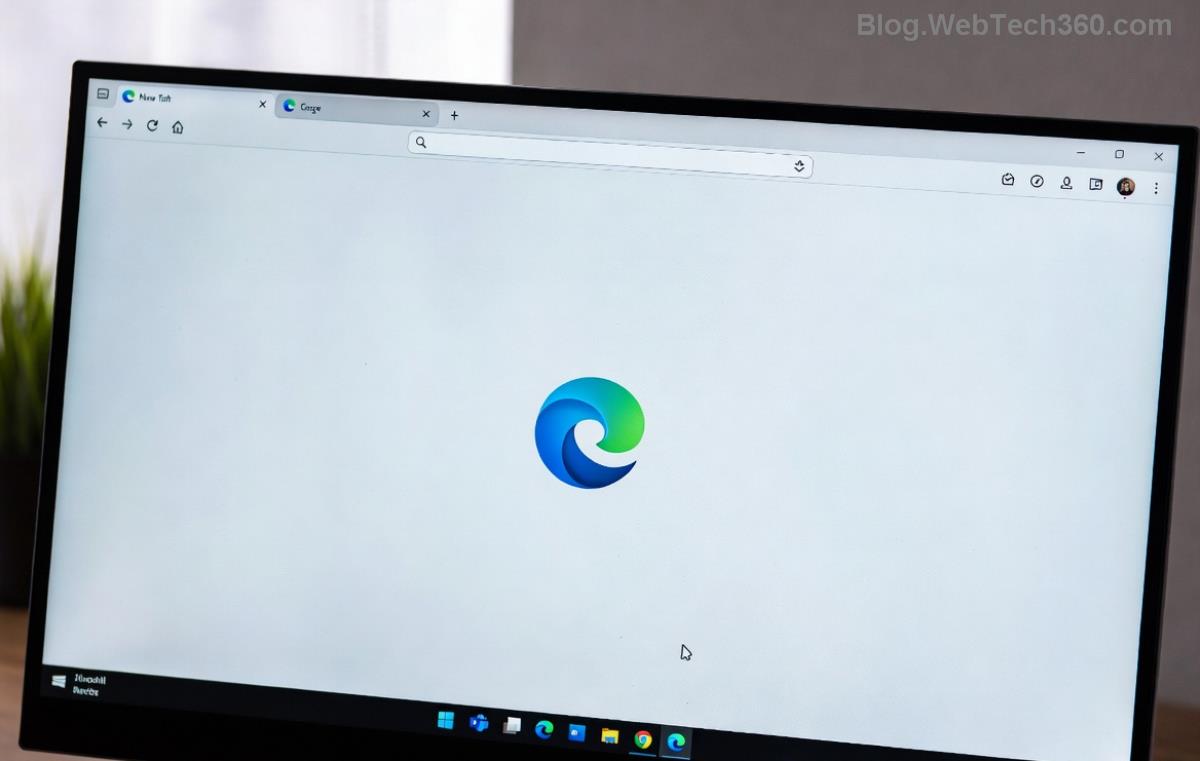
For Windows folks:
- Open Microsoft Store app.
- Click your profile > "Payment options" > "Purchase history."
- Select the Game Pass charge > "Request a refund."
- Confirm details—done!
Bonus: If charged via Steam or third-party, contact them directly, but Microsoft handles core Game Pass.
Common Pitfalls & How to Avoid Them ❌
Steer clear of these to ensure your refund Game Pass goes smoothly:
- Don't play extensively first—uninstall if needed.
- Avoid multiple requests; one strong case wins.
- Multiple accounts? Use the exact billing one.
- Charged on console? Power cycle and try web first.
If denied? Appeal politely with more details, or check billing disputes via your bank (last resort).
What Happens After Approval? Next Steps ✅
Congrats! Funds return to your original payment method in 3-10 days. Your Game Pass cancels automatically. Want to resubscribe later? No hard feelings—Microsoft remembers goodwill gestures.
Extra Value: Enable purchase confirmations in settings to prevent future oops moments. Go to account.microsoft.com > Privacy > "Make a purchase" notifications. Smart move! 💡
Still Stuck? Final Rescue Tips
For edge cases like family sharing or gift cards:
- Family account? Parent/admin requests it.
- Gift card charge? Same process—mention it.
- International? Policy same worldwide.
Microsoft's team is helpful—persistence pays off. You've got this! Questions? Drop a comment below. 👇
Refund secured? Share your win story and help others. Thanks for reading—happy gaming ahead! 🎮