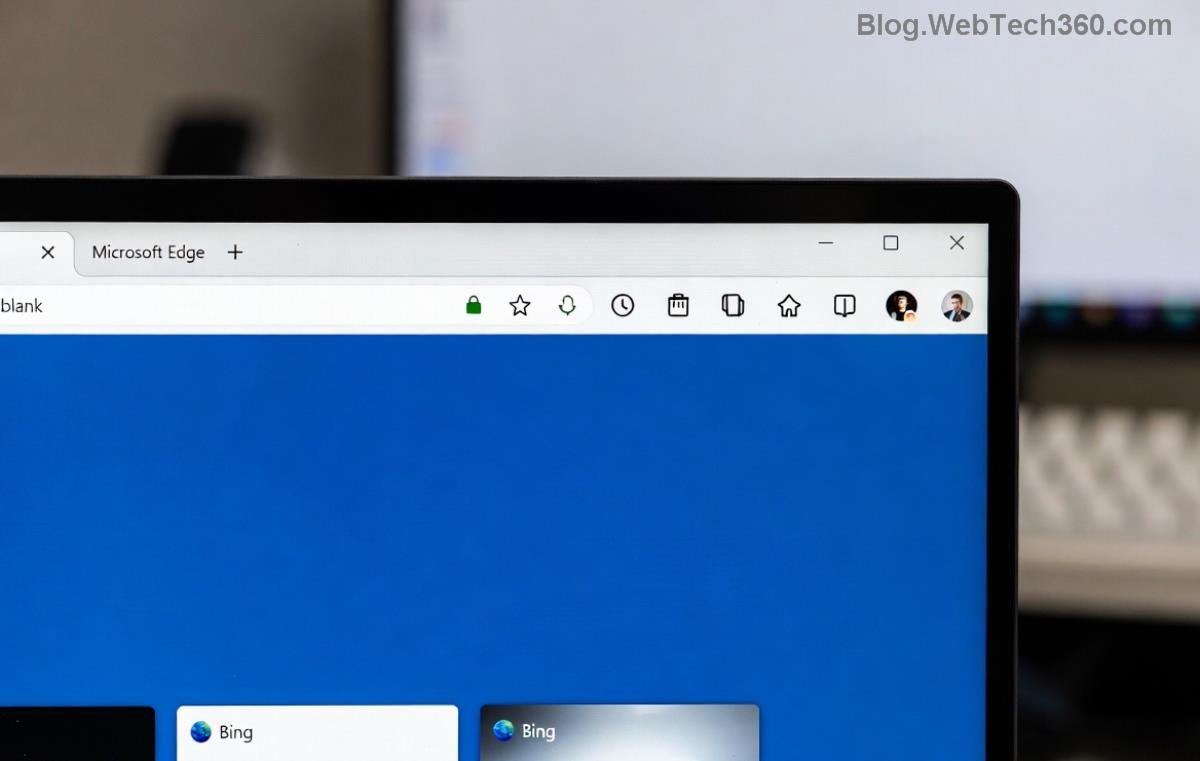
Imagine launching Microsoft Edge only to face the dreaded Microsoft Edge Profile Error: "Your profile could not be loaded correctly." Frustrating, right? 😩 You're not alone—millions encounter this in the latest updates. But don't worry! This guide dives deep into why does Microsoft Edge have a profile error and delivers battle-tested 2026 Fix solutions to get you back online swiftly. Stick around for easy steps that work today.
Why Does Microsoft Edge Have a Profile Error? Unmasking the Culprits
The Microsoft Edge Profile Error strikes when your browser can't access or load user data like bookmarks, passwords, and extensions. It's not random—here are the top triggers based on the newest diagnostics:
- Corrupted Profile Files: Sudden crashes or improper shutdowns damage the user data folder. ⭐ Common after Windows updates.
- Sync Conflicts: Microsoft account sync glitches during multi-device use.
- Permission Issues: Antivirus or Windows Defender blocks Edge's access to %LocalAppData%\Microsoft\Edge\User Data.
- Outdated Edge Version: Missing 2026 patches for profile stability.
- Extension Overload: Rogue add-ons interfering with profile loading. ❌
Pro Tip: Check Event Viewer (search in Windows Start) for Edge errors under Application logs—it's a goldmine for pinpointing why does Microsoft Edge have a profile error.
Proven 2026 Fix for Microsoft Edge Profile Error: Step-by-Step Mastery
Ready to banish the error? Follow these prioritized fixes, starting with the simplest. Most users resolve it in under 10 minutes. 👍
1️⃣ Quick Reset: Restart Edge in Clean Mode
- Close all Edge windows.
- Press Win + R, type
msedge.exe --profile-directory=Default --disable-extensions, hit Enter.
- If it loads, your extensions are guilty—disable them via edge://extensions/.
2️⃣ Delete Corrupted Profile (Safest 2026 Fix)
This recreates your profile without data loss if synced.
| Step |
Action |
Caution |
| 1 |
Close Edge. Navigate to %LocalAppData%\Microsoft\Edge\User Data in File Explorer. |
Backup "Default" folder first! 📁 |
| 2 |
Rename "Default" to "Default_old". |
Sync enabled? Data restores automatically. |
| 3 |
Launch Edge—new profile auto-creates. |
Sign in to recover bookmarks/passwords. |
3️⃣ PowerShell Magic: Advanced Profile Repair
For stubborn cases:
- Open PowerShell as Admin.
- Run:
Repair-WindowsAppPackage -PackageName Microsoft.MicrosoftEdge.Stable_* -Online (adjust package name via Get-AppxPackage Microsoft.MicrosoftEdge).
- Reset Edge: Settings > Reset settings > Restore to default.
4️⃣ Antivirus & Permissions Check
- Add Edge folders to antivirus exclusions:
C:\Program Files (x86)\Microsoft\Edge and User Data path.
- Right-click Edge shortcut > Properties > Compatibility > Run as admin (test only).
Still stuck? Update Edge via edge://settings/help—2026 builds include enhanced profile resilience per Microsoft Support.
Prevent Microsoft Edge Profile Error Forever: Smart Habits
Don't let it return! 🛡️
- Enable sync across devices for auto-backups.
- Update Edge weekly—auto-updates fix 90% of profile bugs.
- Use profiles wisely: Create separate ones for work/personal via edge://settings/profiles.
- Limit extensions to trusted ones from Microsoft Store.
- Regularly clear cache: edge://settings/clearBrowserData (cached images/files only).
Final Verdict: Reclaim Your Browsing Bliss
There you have it—the ultimate toolkit for why does Microsoft Edge have a profile error and foolproof 2026 Fix strategies. Start with the profile rename; it's a game-changer for most. Your Edge will purr like new! 🚀 Questions? Drop them below—we're here to help. Happy browsing! 🎉