Imagine opening a new tab in Microsoft Edge and being greeted by your favorite wallpaper, quick links to daily tasks, and motivational widgets—all tailored just for you. ⭐ That's the power of customizing the Microsoft Edge new tab page. Whether you're a productivity enthusiast or just want a cleaner browsing experience, these tweaks make Edge feel like home.
In this guide, we'll walk you through Microsoft Edge new tab customization from basics to advanced tips. No tech expertise needed—just follow along and watch your browser transform. Ready? Let's dive in! 👆
1. Access New Tab Page Settings in Edge
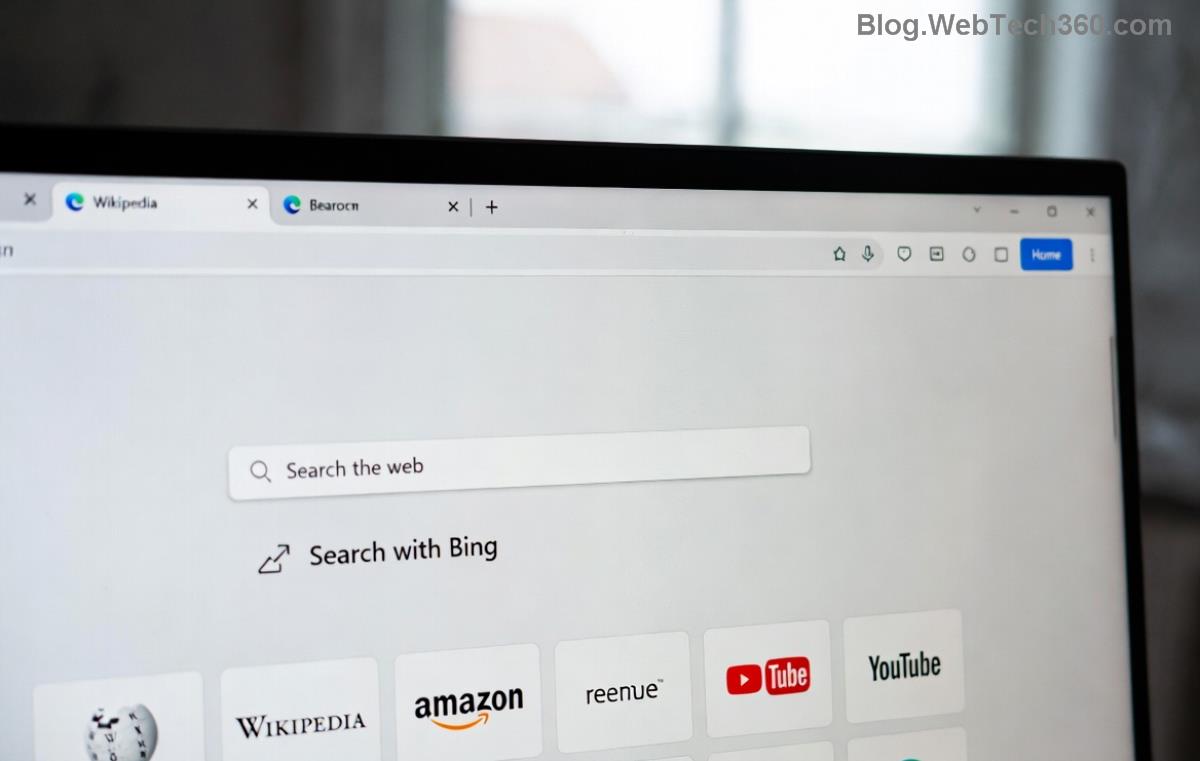
Start with Edge's built-in tools for quick wins. Open Microsoft Edge, click the new tab button (+ icon), then look for the pencil icon or gear ⚙️ in the top-right corner of the page.
- Click the Customize button (pencil icon).
- Select New tab page from the dropdown.
- Toggle options like Show today card, Favorites, or Weather.
This unlocks core features. Pro tip: Enable Focus mode to declutter and boost concentration. 😊
2. Change the New Tab Background Effortlessly
Personalize with stunning visuals! Edge offers daily images, solid colors, or your uploads.
| Method |
Steps |
Best For |
| Daily Images |
1. Open new tab > Customize > Background.
2. Choose Picture > Daily images. |
Dynamic, nature-inspired vibes |
| Solid Colors/Gradients |
1. Select Solid color.
2. Pick from palette or enter hex code. |
Minimalist setups |
| Custom Upload |
1. Choose Picture > Upload. 2. Select your image (JPG/PNG, under 8MB). |
Personal photos/art |
Result? A breathtaking backdrop every time you open a tab. For iOS/Android sync, ensure Edge is signed in with your Microsoft account.
3. Customize Shortcuts and Widgets on Your Start Page
Edge's new tab shines with draggable shortcuts. Here's how to supercharge it:
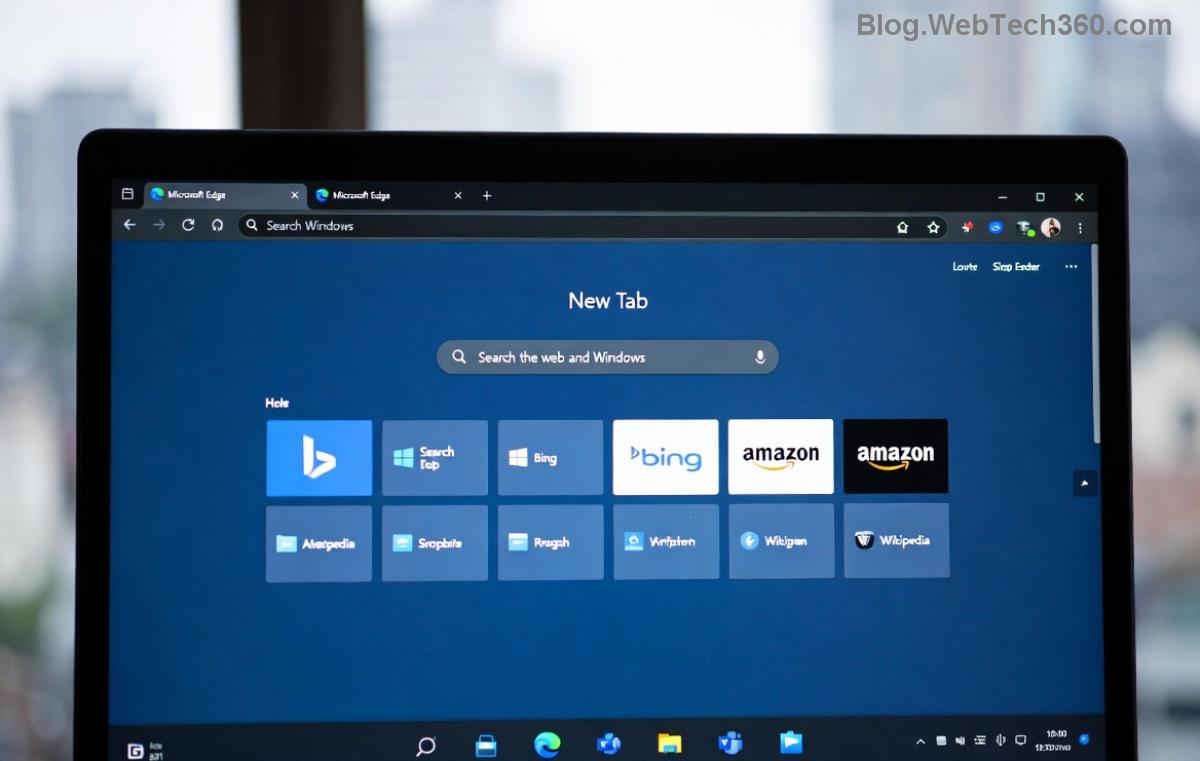
- Edit Shortcuts: Hover over icons > Click pencil > Add/remove sites like Gmail or YouTube.
- Add Widgets: Toggle News, Weather, or Stocks via settings. Drag to reorder!
- Quick Links Bar: Pin top sites for one-click access. ⭐ Limit to 8 for a tidy look.
Want more? Use Collections (Ctrl+Shift+Y) to curate boards right on your tab—perfect for projects or shopping lists.
4. Level Up with Edge Extensions for Ultimate Customization
Built-in options are great, but extensions take Microsoft Edge new tab page to pro levels. Head to the Edge Add-ons store (edge://extensions/ or search "new tab").
Top picks:
- New Tab Redirect: Set any URL (e.g., Google Discover) as your default tab. Install > Configure in settings.
- Momentum Dash: Adds focus quotes, to-dos, and weather. Syncs across devices! 🌟
- Tab Wrangler: Auto-closes idle tabs for a fresh start.
- Custom New Tab: HTML/CSS wizardry—upload backgrounds or embed widgets.
Install safely: Check ratings (4+ stars) and permissions. Revoke anytime via edge://extensions/.
5. Advanced Tweaks: Edge Flags and Policies
For power users, enable experimental features:
- Type
edge://flags/ in address bar.
- Search "new tab" or "start page".
- Enable flags like Redesigned new tab page or Custom feeds. Restart Edge.
Group Policy pros (Windows Pro+): Use gpedit.msc for enterprise locks. Always test changes! ⚠️
Sync everything via your profile: Settings > Profiles > Sync. Your customizations follow you everywhere.
Pro Tips to Keep Your Edge New Tab Page Fresh
- Daily Refresh: Set rotating backgrounds for motivation. 😎
- Privacy First: Disable personalized ads in Settings > Privacy.
- Performance Boost: Limit shortcuts/widgets to essentials—faster loads!
- Troubleshoot: Reset via Settings > Reset settings if glitches occur.
For official guidance, check Microsoft Edge Support.
Wrap Up: Your Personalized Edge Awaits!
Congratulations—you've mastered how to customize the Microsoft Edge new tab page! From serene backgrounds to powerhouse extensions, your browser is now a productivity beast. Experiment, iterate, and share your setups in the comments. What’s your favorite tweak? 👏 Start customizing now and elevate your daily browse.
Stay tuned for more Edge hacks. Happy browsing! 🚀









Việt Hà Nội -
Anyone tried this on mobile Edge? Does new tab page customization work there too? Need help pls
Kim Chi -
ngon quá! mình làm theo và đẹp lung linh luôn. cảm ơn bạn
Hoàng Dev -
Quick question: how to reset if I mess up? great article btw. dev approved.
John Pro -
step 3 was tricky but got it. now my new tab page has crypto tracker and stock prices. perfect for traders
Huyền Lizzie -
Super helpful guide. I customized mine with dark theme and quick links to my sites. Looks pro now! Question: can i add custom css?
Quang vn -
hay quá! my browser feels brand new. edge customization level up 🚀
Nga Cute -
too many ads in default edge tabs. this fixes it perfectly. bye bye clutter
EdgeMaster 99 -
I followed your instructions and turned my Edge into a productivity beast. Customized sections for news, weather, and tasks – no more distractions from random sites. Been using it for a week, and my focus is way better. Also, tip: pin your most-used extensions there too for quick access. Thanks for the pro guide! (85 words)
Linh Mèo -
thanks a lot! finally i can add my favorite widgets without hassle. edge customization made easy 😺
Bảo 007 -
After reading this, I spent an hour tweaking everything: custom image from Unsplash, rearranged widgets for news and YouTube shortcuts, even set up focus mode. It's transformed how I start my day – no more chaos. Pro level achieved! Anyone else add Spotify controls? Share your setups below. (68 words)
Mike 456 -
my turn: I added a custom HTML snippet for notes. works great with browser widgets. thx for inspiring!
Alex Tech -
what about shortcuts to local files? can we add that to new tab page?
Sarah VN -
Finally a solution to boring tabs. Added motivational quotes widget. Feels inspiring every time I open Edge
Hương Đà Nẵng -
I've been using Edge for years but never knew about these tweaks. Changed my new tab page completely, added to-do list and calendar. Awesome stuff, thanks author
Tom Jerry -
Love it! shared this with my team. everyone should master their browser like this
Hương KT -
Pro tips here. Just followed step by step and now my new tab page has all my work shortcuts. Saved me time every morning
Mèo con -
OMG this is perfect! been struggling with the default new tab page forever. you're a lifesaver!