Ever juggled work tabs, personal browsing, and family accounts on one browser? Microsoft Edge multiple profiles are your secret weapon for organized, clutter-free browsing. 😊 This guide dives straight into creating, managing, and syncing profiles to keep everything in perfect harmony across devices. Whether you're a pro multitasker or just starting, you'll master it in minutes and wonder how you lived without it!
What Are Microsoft Edge Profiles and Why Use Them?
Microsoft Edge profiles let you maintain separate browsing environments – think bookmarks, history, extensions, and settings tailored for different needs. No more logging in/out or mixing personal emails with work passwords. Perfect for:
- ✅ Work vs. personal life
- ✅ Family sharing
- ⭐ Testing sites without interference
Plus, Edge profiles sync pushes your data (passwords, tabs, themes) to all signed-in devices via your Microsoft account. Ready to set it up? Let's go! 🚀
How to Create Multiple Profiles in Microsoft Edge – Step-by-Step
Creating a new profile takes seconds. Here's the foolproof way:
- 1️⃣ Open Microsoft Edge and click your profile icon (top-right corner, next to the three dots).
- 2️⃣ Select Add profile.
- 3️⃣ Choose Add as guest for temporary use or Create a new profile for full features.
- 4️⃣ Sign in with a different Microsoft account (or use a local profile) and customize name/color.
- 5️⃣ Hit Done – your new profile launches instantly!
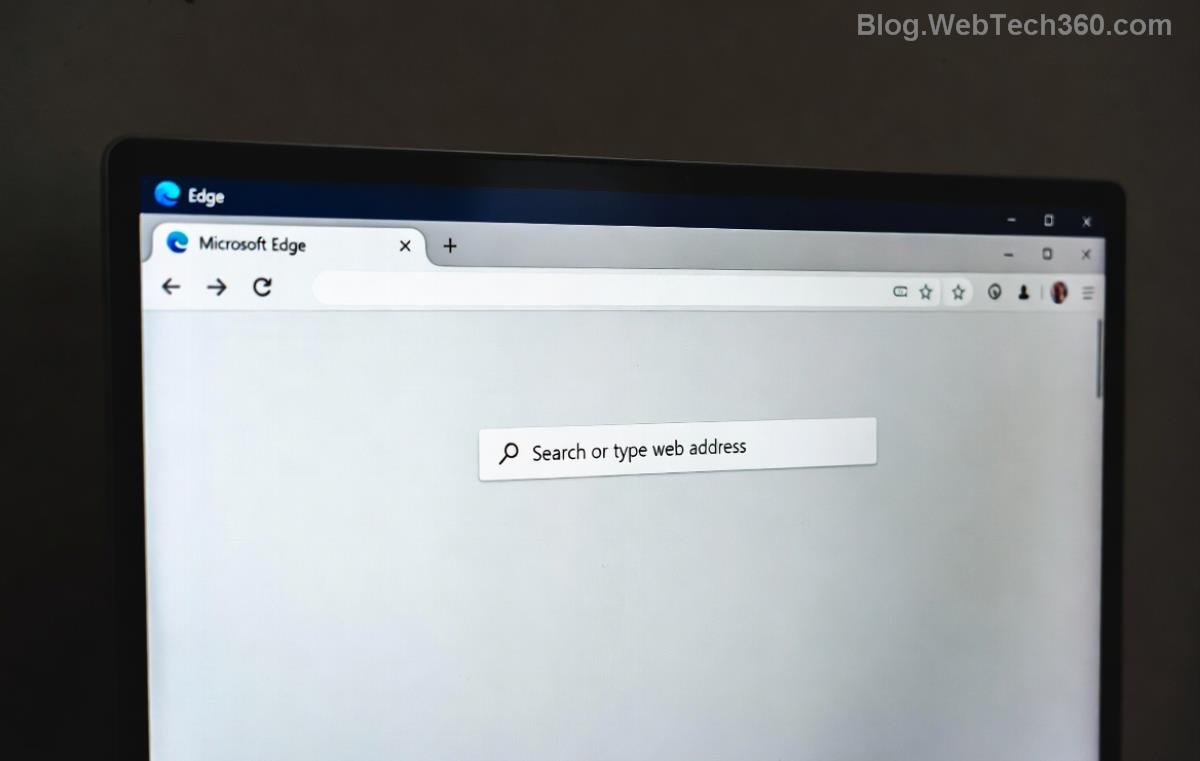
Pro tip: Name profiles descriptively like "Work 🚀" or "Personal 😎" for quick spotting. Now you have Microsoft Edge multiple profiles ready to rock!
Switching Between Microsoft Edge Profiles Effortlessly
Switching is smoother than butter:
- 👆 Click the profile icon anytime.
- Select your desired profile from the dropdown.
- Edge reloads with that profile's tabs, extensions, and settings – zero data crossover.
Pin favorites to the toolbar for one-click access. Say goodbye to tab chaos! ✨
Managing Your Microsoft Edge Profiles: Edit, Delete, and Organize
Keep things tidy with these management tools:
| Action | Steps | Icon Tip |
|---|
| Edit Profile | Profile icon → Select profile → Edit → Update name/photo | ✏️ |
| Delete Profile | Profile icon → Three dots on profile → Delete (data lost unless synced) | 🗑️ Careful! |
| Set Default | Profile icon → Make default | ⭐ |
| Import Data | Edge Settings → Profiles → Import browser data | 📥 |
Edge limits you to 5 profiles per device, but that's plenty for most. Bulk-manage via Microsoft's official docs.
Unlock Edge Profiles Sync: Stay in Sync Across Devices
Syncing Microsoft Edge profiles is game-changing – access passwords, favorites, and open tabs everywhere. Enable it like this:
- 🔗 In any profile, go to edge://settings/profiles/sync.
- 2️⃣ Turn on Sync and sign in with your Microsoft account.
- 3️⃣ Customize: Toggle favorites, passwords, tabs, history, etc.
- 4️⃣ On another device? Sign in – data flows automatically!
Want granular control? Check this sync options table:
| Sync Feature | What It Does | Best For |
|---|
| Passwords | Autofill logins securely | Multi-device logins |
| Favorites | Bookmarks everywhere | Research warriors |
| Open Tabs | Resume sessions | Tab hoarders 😅 |
| Settings | Theme/extensions match | Consistent look |
| History | Search past visits | Privacy-conscious (toggle off) |
For enterprise? Use work/school profiles with Azure AD sync. Learn more at Microsoft Learn.
Best Practices & Pro Tips for Microsoft Edge Multiple Profiles
- ⭐ Use distinct accounts for max privacy.
- 🔒 Enable two-factor on Microsoft accounts.
- 📱 Sync mobile Edge app profiles too for phone-desktop magic.
- ⚡ Install profile-specific extensions (e.g., ad-blocker for personal).
- 🛡️ Regularly review edge://settings/profiles/sync for security.
Troubleshooting Microsoft Edge Profiles Sync Issues
Stuck? Quick fixes:
- ❌ Sync not working? Sign out/in or check internet.
- 🔄 Profile missing? Restart Edge or update to latest version.
- 🚫 Too many profiles? Delete unused via management menu.
- 💡 Still issues? Reset sync at edge://settings/reset.
These steps cover 99% of glitches – you're back browsing in no time! 👏
Wrap-Up: Elevate Your Browsing with Microsoft Edge Multiple Profiles
Mastering Microsoft Edge multiple profiles and sync transforms chaos into control. Create profiles today, sync effortlessly, and browse like a boss. What's your first profile name? Drop it in comments – happy browsing! 🌟









Việt Hà Nội -
Any tips for syncing extensions between profiles? Mine aren't transferring
Hương Đà Nẵng -
This is gold! Been searching for how to manage multiple profiles properly. Bookmarked! 😍
Cún con -
thanks author, this helped me a ton with work-life balance in browsing
Bình Dev -
Pro tip: Use Edge Profiles with Windows Hello for quick profile switching. Makes dev work smoother. Thanks for the inspo
Minh Anh -
haha edge profiles like having multiple personalities lol. works great tho
Mèo con -
Super helpful! Sync is seamless now across my laptop and phone
Kim Programmer -
As a programmer, multiple profiles are essential for testing sites without cache issues. Your section on seamless sync across devices was spot-on—bookmarks, passwords, even themes sync instantly. Saved me from manual exports. One suggestion: add how to migrate from Chrome profiles. Excellent work overall! (52 words)
Quang vn -
Does Edge Profiles sync passwords too? Need to know before switching from Chrome.
Hoàng Eagle -
Question: Can I export profiles? Might need backup.
Huyền Lizzie -
Awesome post! Just set up 3 profiles: one for family, work, and gaming. Perfect
Thuy Linh -
Great guide on Edge Profiles! Finally got my work and personal profiles separated. Thanks
Duy Sinh 6789 -
I've been using Microsoft Edge Profiles for months, and this ultimate guide helped me optimize sync even better. No more login hassles!
Ngọc Pearl -
For those asking, yes, Edge Profiles handle bookmarks and settings sync perfectly. Tried on 2 PCs already. Great job on the guide
Long Gamer -
Best guide ever. Now my gaming profile doesn't leak to work tabs. Cheers! Now, how about similar for Brave browser
Lan ITer -
Love it! Switched from Firefox because of better profile management here
Mai Sài Gòn -
I've been dealing with profile chaos for weeks—mixing personal shopping with office docs. This guide fixed it all in 10 mins: created separate profiles, enabled sync, and boom, everything mirrors on my tablet too. No more headaches! Will share with friends. Ultimate indeed. (58 words)
Linh Mèo -
thanks a lot! multiple profiles changed my life, no more mixing tabs 😂
Tuấn 2023 -
OMG finally a solution! My profiles were a mess until this guide. Seamless sync FTW! 🎉
Hương KT -
I followed your steps and now everything syncs flawlessly. Shared this with my team at the accounting firm. You're a hero
Phúc IT -
This ultimate guide on managing multiple profiles and seamless sync in Microsoft Edge is fantastic. As an IT guy, I often juggle client projects, personal stuff, and testing browsers. Setting up separate profiles prevented cross-contamination of cookies and history. The sync feature across Windows, Android, and iOS devices is buttery smooth—no data loss or delays. If you're on Edge, must-read! Highly recommend adding shortcuts to taskbar for quick switching. (72 words)