Imagine hitting that dreaded system reset button only to realize your precious Microsoft Edge data—bookmarks, saved passwords, extensions, and browsing history—is gone forever. 😢 Don't let that happen! Whether you're troubleshooting a sluggish PC or starting fresh, backing up Microsoft Edge data before a system reset is your safety net.
In this concise guide, we'll walk you through proven, up-to-date methods to safeguard everything. From effortless cloud sync to manual backups, you'll be protected in minutes. Ready to dive in? Let's ensure your digital life stays intact! 🚀
Why Backup Microsoft Edge Data Before Resetting?
A system reset wipes your drive clean, erasing local browser files. Microsoft Edge, built on Chromium, stores most data in your user profile folder. Lose it, and poof—hours of curation vanish. But fear not: with these steps, recovery is seamless.
- ✅ Bookmarks: Your curated links.
- ✅ Passwords: Auto-fill magic.
- ✅ History & Settings: Personalized experience.
- ✅ Extensions: Productivity boosters.
Pro tip: Always start with sync—it's the fastest way. But we'll cover manual options too. Keep reading for step-by-step bliss!

Method 1: Enable Microsoft Edge Sync (Easiest & Recommended) ⭐
The smartest move? Use Microsoft Edge sync with your Microsoft account. It mirrors data to the cloud automatically—no files to copy!
- Sign in to Edge: Open Edge, click your profile icon (top-right) → Sign in with a Microsoft account.
- Turn on Sync: Go to
edge://settings/profiles/sync or Settings → Profiles → Sync. Toggle Sync on for all items: bookmarks, passwords, tabs, history, extensions, and more.
- Verify Sync Status: Check the sync icon in your profile menu. Green means go!
After reset, reinstall Edge, sign in, and sync restores everything. Works across devices too. Genius, right?
⚠️ Important: Use a strong password and enable two-factor authentication on your Microsoft account for security.
Method 2: Manual Backup Microsoft Edge Data (For Full Control) 🔧
Sync not enough? Manually copy your profile. Edge stores data in %LocalAppData%\Microsoft\Edge\User Data\. Close Edge first!
| Folder/File |
What It Backs Up |
Backup Tip |
| Bookmarks (bookmarks.bak) |
Bookmarks & favorites |
Export as HTML via edge://favorites/ for portability |
| Login Data |
Saved passwords |
Export via Settings → Passwords → Saved passwords → Export (CSV, encrypted) |
| History |
Browsing history |
Copy entire folder |
| Extensions folder |
Installed extensions |
Reinstall post-reset; sync handles most |
| Preferences |
Settings & themes |
Copy for exact restore |
- Locate Profile: Press Win+R, type
%LocalAppData%\Microsoft\Edge\User Data\Default (or your profile name). Copy the entire folder to external drive/OneDrive.
- Export Bookmarks Separately: Menu → Favorites → More options → Export favorites. Save as HTML.
- Backup Passwords: Settings → Autofill → Passwords → three dots → Export passwords.

Store on USB, external HDD, or cloud like OneDrive. Size? Typically 100MB-1GB per profile.
Method 3: Quick Exports for Essentials 🛡️
Short on time? Target must-haves:
- Bookmarks: Export HTML as above. Import anywhere!
- Passwords: Use built-in export; store securely.
- Extensions: Note IDs from edge://extensions/, reinstall later.
- Tabs & History: Print to PDF if urgent.
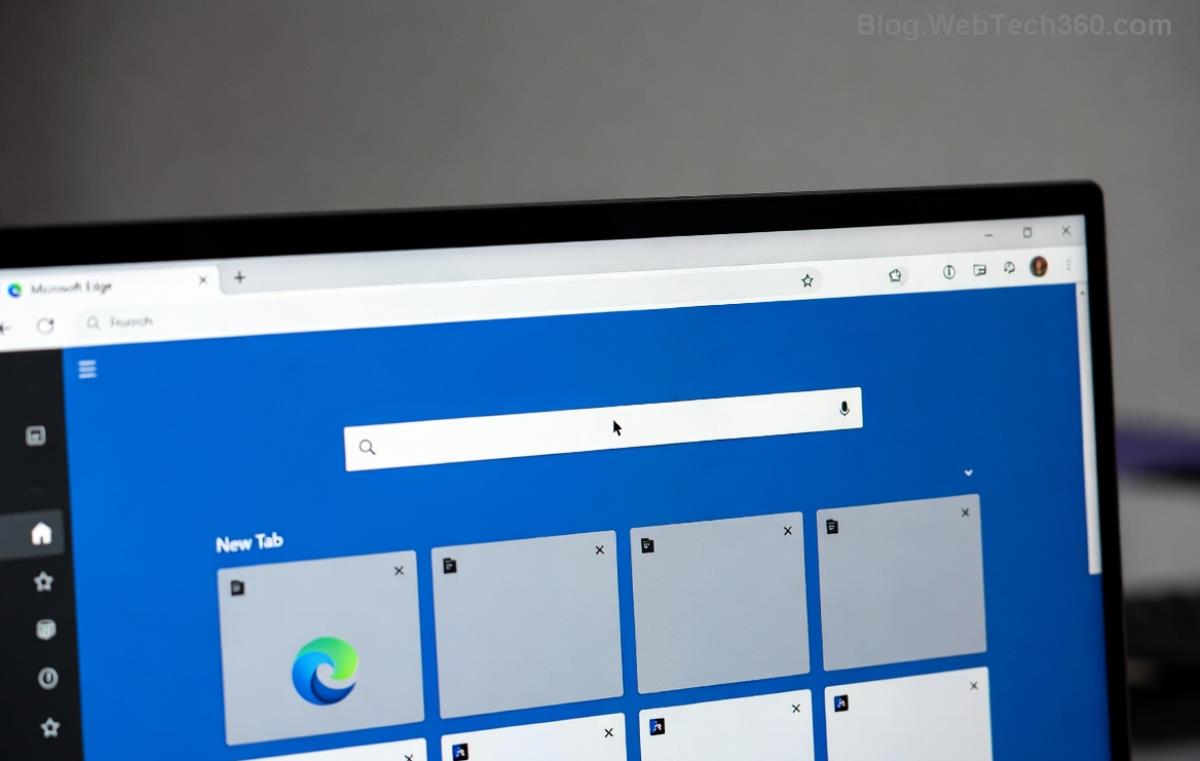
Bonus: For collections, use Edge's "Collections" feature—export as list or image.
Restoring Microsoft Edge Data After Reset
Post-reset magic:
- Install fresh Microsoft Edge from Microsoft Edge official site.
- Sign in for sync—data flows back instantly.
- Manual restore: Close Edge, replace
User Data\Default with backup. Relaunch!
- Import bookmarks: Menu → Favorites → Import → Browse HTML file.
- Passwords: Settings → Import passwords from file.
Troubleshoot? Run Edge in compatibility mode or check profile path matches.
💡 Pro Tip: Test backup on another PC first. Peace of mind!
Common Pitfalls & Best Practices ⚠️
- ❌ Never backup while Edge is open—data corruption risk.
- ❌ Avoid third-party tools unless trusted (e.g., Edge Backup apps from Microsoft Store).
- ✅ Combine sync + manual for ultimate redundancy.
- ✅ Schedule weekly backups via Task Scheduler for ongoing protection.
For advanced users: Script it with PowerShell—copy profile on demand.
Wrap-Up: Secure Your Edge Today! 👏
Backing up Microsoft Edge data before a system reset takes minutes but saves sanity. Sync for simplicity, manual for control—pick your path. Your bookmarks, logins, and setups await safe return.
Done right? You'll reset confidently. Share your success in comments! What's your go-to backup hack? Stay tuned for more browser tips. 🔒
Official reference: Detailed Edge sync info at Microsoft Support.