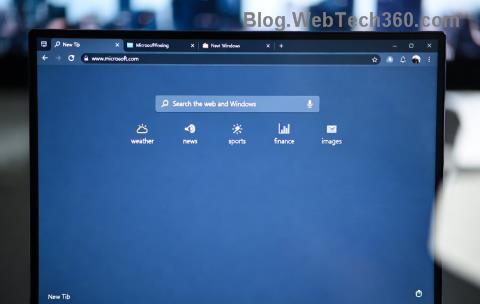
Are you tired of sluggish PDF readers slowing you down? Imagine opening every PDF instantly with built-in tools like annotations, reading mode, and seamless printing—all powered by Microsoft Edge. Setting it as your default PDF viewer is a game-changer for productivity. This guide walks you through every step, ensuring you nail it on the first try. Let's dive in and supercharge your PDF experience! 👍
Why Microsoft Edge is the Best Default PDF Viewer Choice ⭐
- Lightning-Fast Performance: Edge renders PDFs quicker than traditional apps like Adobe Reader, thanks to its Chromium engine.
- Built-in Features: Highlight text, add notes, fill forms, and even read aloud—without extra downloads.
- Top Security: Automatic updates block vulnerabilities, keeping your files safe.
- Seamless Integration: Perfect for Windows users, syncing with OneDrive and Microsoft 365.
Ready to switch? Follow these proven steps for the latest Windows versions. It'll take just 2 minutes!
Step-by-Step: How to Set Microsoft Edge as Your Default PDF Viewer on Windows
Windows makes it straightforward via Settings. Here's the exact process:
- 1️⃣ Open Settings: Hit Windows + I or search "Settings" in the Start menu. Navigate to Apps > Default apps.
- 2️⃣ Find PDF Apps: Scroll to "Set defaults for file types" or click Choose defaults by file type. Type ".pdf" in the search bar.
- 3️⃣ Select Microsoft Edge: Click the current app next to .pdf (like Adobe or Chrome). Choose Microsoft Edge from the list.
- 4️⃣ Confirm and Test: Hit OK. Right-click a PDF file, select Open with > Microsoft Edge to verify. Done! 🎉
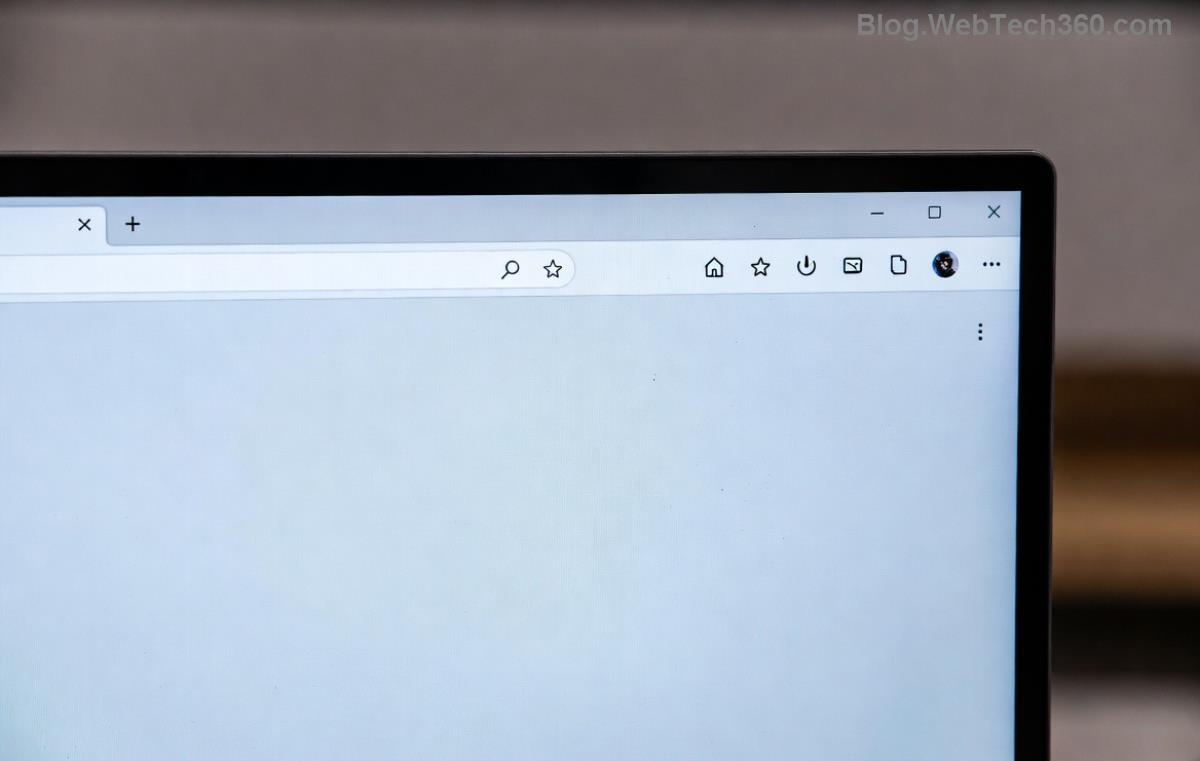
If you're on Windows 11, you might see a modern interface—same steps apply, but look for the Default apps tile directly.
Alternative Method: Set via Microsoft Edge Settings
For a browser-centric approach:
- Open Microsoft Edge.
- Click the three dots (...) > Settings > Cookies and site permissions > PDF documents.
- Toggle Always download PDF files OFF—this prompts Edge to handle PDFs natively.
- Combine with Windows defaults for full control.
Quick Comparison: Edge vs. Other PDF Viewers
| Feature |
Microsoft Edge |
Adobe Reader |
Chrome |
| Speed |
⭐⭐⭐⭐⭐ |
⭐⭐⭐ |
⭐⭐⭐⭐ |
| Security Updates |
⭐⭐⭐⭐⭐ |
⭐⭐⭐⭐ |
⭐⭐⭐⭐⭐ |
| Annotation Tools |
⭐⭐⭐⭐ |
⭐⭐⭐⭐⭐ |
⭐⭐ |
| Resource Usage |
Low |
High |
Medium |
Edge wins for everyday use—lightweight and feature-packed!
Troubleshooting Common Issues 😎
Stuck? Try these fixes:
- Edge Not Listed? Ensure Edge is updated: Settings > About Microsoft Edge.
- Changes Don't Stick? Run as admin or reset defaults via Apps > Advanced app settings.
- Multiple Monitors? Set per-user via Registry (advanced): Search for official tweaks on Microsoft Support.
- macOS Users: Right-click PDF > Get Info > Open with: Microsoft Edge > Change All. (Limited native support, but works!)
Pro Tips to Maximize Your Edge PDF Experience 🔥
- Enable Immersive Reader for distraction-free viewing: Right-click PDF > Immersive Reader.
- Sync across devices: Sign in with Microsoft account.
- Print to PDF effortlessly or convert to images in one click.
- Keyboard shortcuts: Ctrl + O to open, Ctrl + + to zoom.
These tweaks make Edge feel custom-built for you. What's your favorite PDF hack? Keep reading for FAQs!
Frequently Asked Questions (FAQ)
- How do I revert if I change my mind?
- Follow the same steps and pick another app. Easy peasy! 🔄
- Does this work on Windows 10/11?
- Yes, identical process on both—fully supported in the latest builds.
- Can Edge handle encrypted PDFs?
- Absolutely, with password prompts and secure decryption.
- Is there a mobile version?
- Yes! Edge app on Android/iOS sets as default via device settings.
Wrap-Up: Enjoy Faster PDFs Today! 🎊
Congrats—you've mastered how to set Microsoft Edge as your default PDF viewer! Experience blazing speed, smart tools, and zero hassle. Share this guide with friends and bookmark for quick reference. Got questions? Drop a comment below. Happy reading! 📖