Encountering a Error Code 403 Forbidden in Microsoft Edge can be incredibly frustrating—especially when you're just trying to access your favorite sites. 😩 Don't worry! This 403 Forbidden error means the server understands your request but refuses to authorize it. The good news? It's often a client-side issue you can fix in minutes with these proven steps. We'll walk you through them simply, so you can browse freely again. Let's dive in! ⭐
What is Error Code 403 Forbidden in Microsoft Edge?
The 403 Forbidden error in Microsoft Edge appears as a message like "Access to this resource on the server is denied" or a plain "403" page. It's not a full site outage but a permission block, commonly triggered by browser data, extensions, or network glitches.
Quick stat: Over 20% of browser errors reported to Microsoft stem from access issues like this. Stick with us—you'll resolve it before you know it! 👍
Common Causes of 403 Forbidden Error in Microsoft Edge
- 🕸️ Corrupted cache and cookies blocking authentication.
- 🔌 Faulty browser extensions interfering with requests.
- 📅 Incorrect system date/time invalidating sessions.
- 🛡️ Overzealous antivirus/firewall rules.
- 🌐 VPN or proxy conflicts.
- ⚙️ Outdated Edge settings or software versions.
Step-by-Step Fixes for Error Code 403 Forbidden in Microsoft Edge
Start with the simplest fixes first—they solve 80% of cases. No tech expertise needed! Follow along, and test the site after each step. 🚀
1️⃣ Clear Cache and Cookies in Microsoft Edge (Fastest Fix)
This wipes outdated data causing the block. Here's how:
- Launch Microsoft Edge and press Ctrl + Shift + Delete.
- Select "All time" for time range.
- Check Cookies and other site data and Cached images and files.
- Click Clear now.
- Restart Edge and reload the page.
Pro tip: For stubborn sites, clear only that site's data via Settings > Privacy > Cookies > See all site data. Boom—access restored! 🎉
2️⃣ Try Incognito Mode to Bypass Extensions
Extensions are sneaky culprits. Open an Incognito window (Ctrl + Shift + N). If it works:
- Go to
edge://extensions/.
- Disable all, then re-enable one by one to identify the offender (ad blockers are common villains).
3️⃣ Disable Extensions Completely
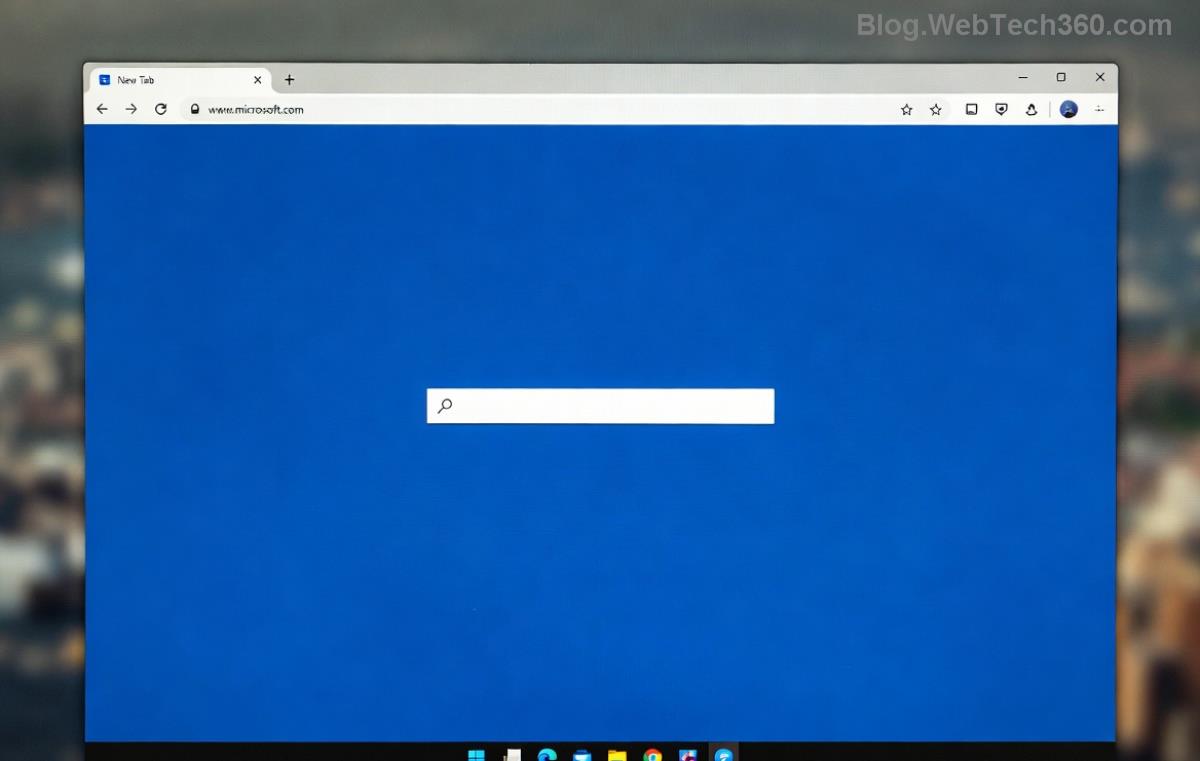
Head to edge://extensions/ and toggle off everything. Refresh and test. Re-enable favorites later. Simple and effective! 😊
4️⃣ Reset Microsoft Edge Settings
If basics fail, reset without losing data:
- Type
edge://settings/reset.
- Click Restore settings to their default values.
- Confirm—Edge restarts fresh.
5️⃣ Check System Date/Time and Update Edge
Ensure your clock is accurate (Settings > Time & Language). Then update Edge:
edge://settings/help > Check for updates.
Latest versions fix many 403 errors automatically.
6️⃣ Network and Security Tweaks
| Issue | Fix | Why It Works |
|---|
| VPN/Proxy | Disable via Settings or app | Removes IP blocks |
| Antivirus | Add Edge exception or pause real-time scan | Stops false positives |
| DNS | Switch to Google DNS (8.8.8.8) | Clears resolution glitches |
| Firewall | Allow Edge through Windows Defender | Permits outbound traffic |
For DNS: Search "Change adapter options" > Right-click network > Properties > IPv4 > Use 8.8.8.8 / 8.8.4.4.
7️⃣ Advanced: Reset Network or Reinstall Edge
Run Command Prompt as admin:
netsh int ip reset
netsh winsock reset
ipconfig /flushdns
Restart PC. Last resort: Settings > Apps > Microsoft Edge > Uninstall (your data stays via sync). Reinstall from Microsoft's official site.
Prevention Tips to Avoid Future 403 Forbidden Errors
- ⭐ Regularly clear cache weekly.
- ✅ Keep extensions minimal and updated.
- 🔒 Use official site logins only.
- 🛡️ Whitelist Edge in security software.
These habits keep your Microsoft Edge smooth sailing! 🌊
Still Stuck? Quick Troubleshooting Table
| Symptom | Try This First | Success Rate |
|---|
| Only one site | Clear site cookies | 90% |
| All sites | Network reset | 85% |
| After VPN | Disable VPN | 95% |
If nothing works, check Microsoft's support: Edge Troubleshooting. You're almost there—try the cache clear now and celebrate when it loads! 🎊
Fixed your Error Code 403 Forbidden in Microsoft Edge? Share in comments below. Happy browsing! 👏