Най-добрият калъф за Galaxy Z Fold 3 с S Pen
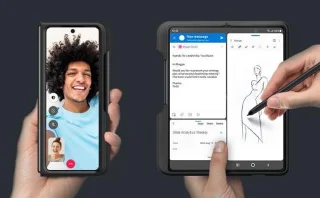
Уверете се, че сте избрали най-добрия калъф с S pen за Galaxy Z Fold. Ето някои модели, които не бива да пропускате.
Smartphones have come a long way since they were introduced to the world but sadly making calls without a cellular network had always been a pipedream.
Thankfully, the new introduction of Wi-Fi calling now manages to fix this issue allowing you to make voice calls over a strong Wi-Fi network. Here’s all you need to know about it.
What is Wi-Fi calling?
Wi-Fi calling is a new feature in LTE-enabled Smartphones that allows you to make voice calls over a Wi-Fi network. This feature has been introduced for more connectivity but is also highly essential when focusing on privacy and emergencies.
Wi-Fi calling will ensure that you have maximum connectivity when connected to a Wi-Fi network regardless of the number of signal bars currently on your device.
Related: Android 12: How to Change Lock Screen Clock
How to disable Wi-Fi calling on Android phones
You can follow one of the guides below depending on your manufacturer.
If your manufacturer is not listed below, then you can use the common guide at the end of this section. Let’s get started.
1. On Google Devices & Devices using Stock Android
Open the Settings app and tap on ‘Network & Internet’.
![How to Turn Off WiFi Calling on Android [Samsung, Oneplus, and More]](https://blog-cdn.webtech360.com/resources3/r1/image-4900-0914203527474.webp "How to Turn Off WiFi Calling on Android [Samsung, Oneplus, and More]")
Now tap on ‘Mobile Network’.
![How to Turn Off WiFi Calling on Android [Samsung, Oneplus, and More]](https://blog-cdn.webtech360.com/resources3/r1/image-5592-0914203528150.webp "How to Turn Off WiFi Calling on Android [Samsung, Oneplus, and More]")
Ensure that the toggle for VOLTE has been enabled at the top.
![How to Turn Off WiFi Calling on Android [Samsung, Oneplus, and More]](https://blog-cdn.webtech360.com/resources3/r1/image-6045-0914203530179.webp "How to Turn Off WiFi Calling on Android [Samsung, Oneplus, and More]")
Now tap on ‘Advanced’.
![How to Turn Off WiFi Calling on Android [Samsung, Oneplus, and More]](https://blog-cdn.webtech360.com/resources3/r1/image-2633-0914203530946.webp "How to Turn Off WiFi Calling on Android [Samsung, Oneplus, and More]")
Tap on ‘Wi-Fi calling’.
![How to Turn Off WiFi Calling on Android [Samsung, Oneplus, and More]](https://blog-cdn.webtech360.com/resources3/r1/image-7363-0914203533349.webp "How to Turn Off WiFi Calling on Android [Samsung, Oneplus, and More]")
Turn off the toggle at the top to turn off Wi-Fi Calling on your device.
![How to Turn Off WiFi Calling on Android [Samsung, Oneplus, and More]](https://blog-cdn.webtech360.com/resources3/r1/image-6780-0914203534985.webp "How to Turn Off WiFi Calling on Android [Samsung, Oneplus, and More]")
And that’s it! Wi-Fi calling will now be disabled on your Pixel device.
Related: How To Turn off VPN on Android
2. On Samsung
Open the Phone app and tap on the 3-dot menu icon in the top right corner of your screen and select ‘Settings’.
![How to Turn Off WiFi Calling on Android [Samsung, Oneplus, and More]](https://blog-cdn.webtech360.com/resources3/r1/image-335-0914203537137.webp "How to Turn Off WiFi Calling on Android [Samsung, Oneplus, and More]")
Now tap and disable the toggle for Wi-Fi calling.
![How to Turn Off WiFi Calling on Android [Samsung, Oneplus, and More]](https://blog-cdn.webtech360.com/resources3/r1/image-8993-0914203537769.webp "How to Turn Off WiFi Calling on Android [Samsung, Oneplus, and More]")
And that’s it! Wi-Fi calling should now be disabled on your Samsung device.
Related: How to turn off Google sign in using your phone
3. On OnePlus
Open the Settings app and tap on ‘Wi-Fi & Internet’. Tap on ‘Wi-Fi calling’. Select ‘Sim & Network’. Tap and select your current Sim.
Disable the toggle for ‘Wi-Fi calling’.
Once disabled tap on ‘Calling Preference’. Select ‘Call over mobile network’. And that’s it! Wi-Fi calling should now be disabled on your OnePlus device.
4. On Other devices
Wi-Fi calling can be easily found in your Settings app. If your manufacturer was not covered above, simply open the Settings app and look for Wi-Fi calling in your Sim card options.
You will usually find it in the same place where you can edit your Sim settings like VOLTE, APN settings, and more. Once found, disable the toggle for Wi-Fi calling and it should be disabled on your device.
In case your device is unable to make calls, you should look for an option called ‘Calling Preferences’. This option would allow you to manually force calls over your mobile network.
Related: How to Disable Chat in Gmail
Troubleshoot Wi-Fi calling
You can end up facing a few issues when using Wi-Fi calling depending on your device, region, and network provider.
Here are a few common problems faced when using Wi-Fi calling and they should help you get it working on your device. Let’s get started.
If you are unable to make calls
If you are unable to make calls then we recommend you try the following fixes.
In case you are still unable to make calls we recommend you get in touch with your network provider as this could be a restriction to your current billing plan or an issue with your SIM card.
If the option is missing from your device
This means that your device does not support Wi-Fi calling. It could be due to the chipset being used by your device or its Wi-Fi specifications.
There is no way to enable Wi-Fi calling on unsupported devices as this is a hardware-specific feature. In such cases, you can rest assured that Wi-Fi calling is already disabled on your device.
If you get poor call quality
Poor call quality is usually a sign of connectivity issues with your cellular network. We recommend you try the following fixes to fix your mobile network issues.
However, if connectivity issues still plague your device then we recommend you get in touch with your network provider to fix this issue.
You might need to update your APN settings or need a new SIM altogether.
FAQs
Here are some commonly asked questions about Wi-Fi calling that should help you get up to speed.
Advantages to Wi-Fi calling
There are tons of advantages to Wi-Fi calling but mostly you get improved call quality and connectivity. You no longer have to rely on the number of bars your SIM is getting to make calls as long as you are connected to a Wi-Fi network.
Here are some other advantages that you can enjoy when using Wi-Fi calling on your device.
Will I be charged by my network provider?
This solely depends on your network provider and ideally, you shouldn’t be charged for Wi-Fi calling as an add-on feature.
However, in some regions, remote places, and exclusive networks you might have to pay a one-time charge to enable Wi-Fi calling.
Additionally, some networks may require additional information and permission to get Wi-Fi calling set up on your device. Hence it is recommended that you get in touch with your network provider before enabling Wi-Fi calling on your device.
Is Wi-Fi calling better than normal calls?
In certain cases yes, it gives you superior call quality, better audio bitrates, and more. It can also work in regions without a signal as long as you have a Wi-Fi network.
However, you are required to have a high bandwidth Wi-Fi connection to make Wi-Fi calls without any issues which might not be possible for every user.
We hope this post helped you easily turn off Wi-Fi calling on your Android device. If you face any issues or have any questions, feel free to reach out to us using the comments section below.
RELATED
Уверете се, че сте избрали най-добрия калъф с S pen за Galaxy Z Fold. Ето някои модели, които не бива да пропускате.
Вижте как можете да го използвате и какво предлага Android 12. Ето информация, която не бива да пропускате.
Smartphones have come a long way since they were introduced to the world but sadly making calls without a cellular network had always been a pipedream. Thankfully, the new introduction of Wi-Fi cal…
Нулирането на началния екран на вашия телефон с Android може да ви помогне да изглеждате като нов. Също така може да ви помогне да разрешите проблем, който сте имали с началния екран.
В епоха, в която разчитаме до голяма степен на стрийминг платформи за забавление и информация, безпроблемното потребителско изживяване е абсолютният минимум, който можете да очаквате. За съжаление, дори приложения като YouTube не са имунизирани срещу сривове или проблеми с функционалността.
Вашият телефон с Android получава общо име от производителя си. Много смартфони обикновено имат името или номера на модела си като име на устройство по подразбиране.
Забелязали ли сте, че екранът на вашия Android потъмнява с времето? Става ли по-трудно да използвате смартфона си, тъй като едва виждате какво се случва на екрана?
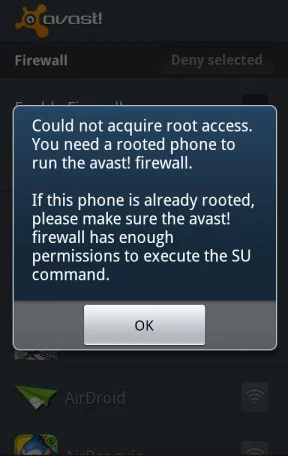
След като руутнете телефона си с Android, имате пълен достъп до системата и можете да стартирате много видове приложения, които изискват root достъп.
Ако сте забравили лаптопа си на работа и имате спешен доклад, който да изпратите на шефа си, какво трябва да направите? Да използвате смартфона си. Още по-сложно е да превърнете телефона си в компютър, за да вършите много задачи едновременно по-лесно.
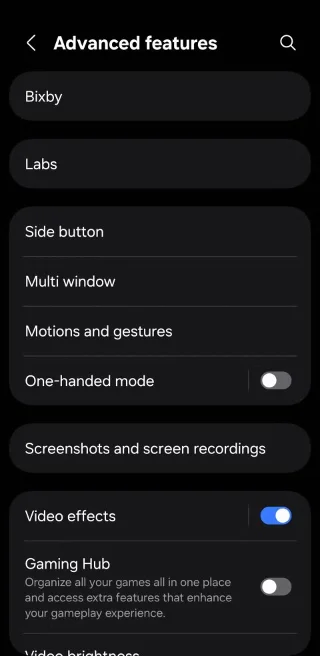
Бутоните на вашия телефон с Android не са само за регулиране на силата на звука или събуждане на екрана. С няколко прости настройки те могат да се превърнат в преки пътища за бързо заснемане на снимки, прескачане на песни, стартиране на приложения или дори активиране на функции за спешни случаи.
![How to Turn Off WiFi Calling on Android [Samsung, Oneplus, and More]](https://blog-cdn.webtech360.com/resources3/r1/image-1068-0914203525907.webp "How to Turn Off WiFi Calling on Android [Samsung, Oneplus, and More]")