When it comes to tracking your health, the Apple Watch is considered to be as reliable and accurate as medical-grade devices. The wearable can not only track your heart rate and sleep cycles but you can also use it to determine your blood oxygen level throughout the day.
This is made possible with the help of red and near-infrared (IR) LED lights that detect light photo signals from your blood-perfused tissues and translates them into SpO2 values using conventional pulse oximetry methods. This value, represented in percentage, tells you the amount of oxygen your red blood cells carry from your lungs to the rest of your body.
In this post, we’ll explain what you’ll need to measure Blood Oxygen measurement on your Apple Watch, and how to take these readings and view them from your wrist or on your iPhone.
Which Apple Watch models support Blood Oxygen measurement?
Blood Oxygen measurement isn’t available on all Apple Watch models out there. To take a blood oxygen measurement, an Apple Watch requires an optical system comprising Green, Red, and Infrared LEDs and Photodiode sensors that is capable of measuring the oxygen saturation of arterial hemoglobin in your body. This system is only available on the following Apple Watch models:
- Watch Series 6
- Watch Series 7
- Watch Series 8
- Watch Ultra
If you own an Apple Watch Series 5 or an older model, you won’t be able to measure your blood oxygen level with your device.
Related: Turn off notifications on Apple Watch: Step-by-step guide
What do you need to measure Blood Oxygen?
In addition to a compatible Apple Watch, you need to have the following requirements before you can set up and measure your blood oxygen levels using the watch:
- You live in a country/region where Apple’s Blood Oxygen feature is supported. The feature is currently available in a bunch of countries and you can check out whether the country you reside in supports it using this link. When the linked page loads up, look for your region in the “Branded Services: Blood Oxygen app” section.
- Your Apple Watch is running on the latest version of watchOS.
- You’re using an iPhone 6s or later to pair with your Apple Watch.
- The connected iPhone runs on the latest version of iOS.
- Make sure your Apple Watch has the Blood Oxygen app; if not download it from the App Store on watchOS.
- You’re are at least 18 years old for the watch to accurately measure your blood oxygen levels.
How to enable Blood Oxygen measurement on Apple Watch
Before you can take blood oxygen measurements on your Apple Watch, you first need to enable the feature. You can enable Blood Oxygen measurements directly on your Apple Watch or from the iPhone that you paired it with. When you turn on Blood oxygen, you will not just be able to take readings on-demand, but the Blood Oxygen app on your Apple Watch will be able to record readings in the background throughout the day without you needing to open the app manually.
On Apple Watch
To enable blood oxygen measurements, press the Digital Crown on the right side of your Apple Watch. From the list/grid of apps that appear, select the Settings app on the screen.
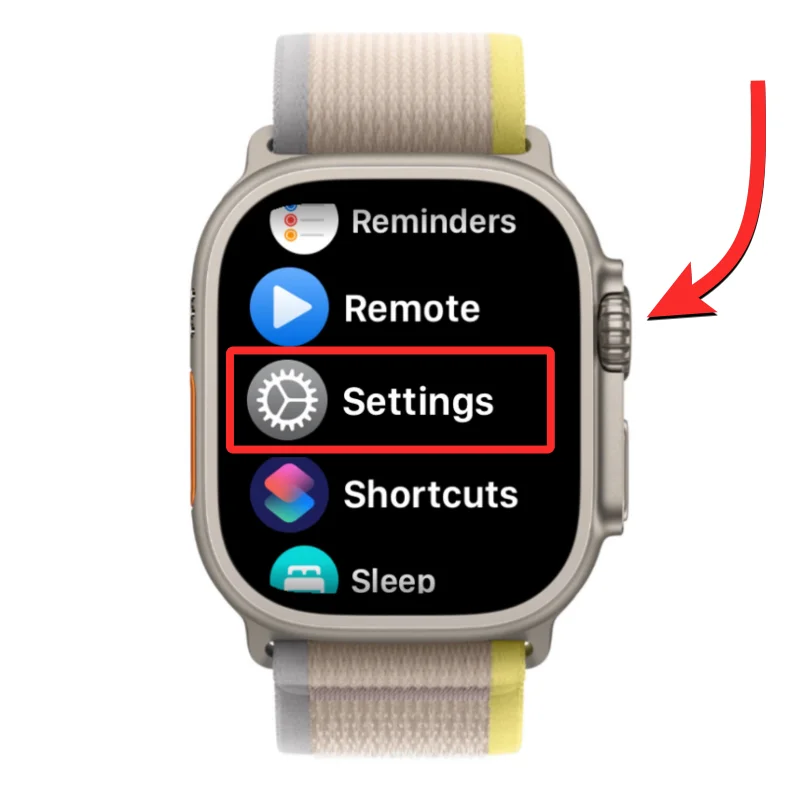
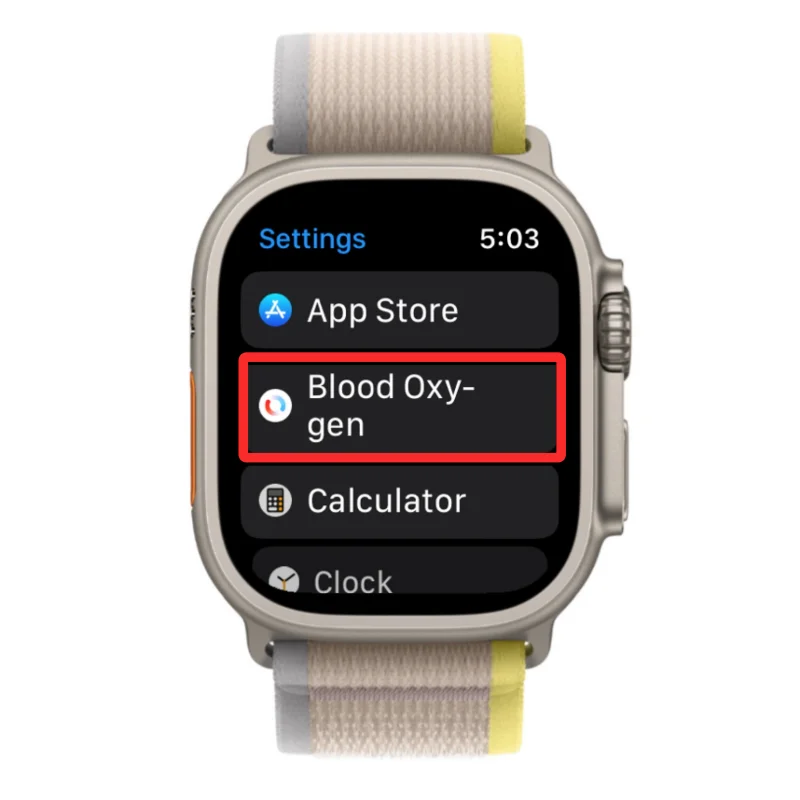
Inside Settings, use the Digital Crown to scroll downwards or touch to swipe up and select Blood Oxygen.

On the next screen, turn on the Blood Oxygen Measurements toggle at the top.

This will enable the Blood Oxygen app on your Apple Watch and you’ll now be able to take SpO2 readings directly from your watch.
On iPhone
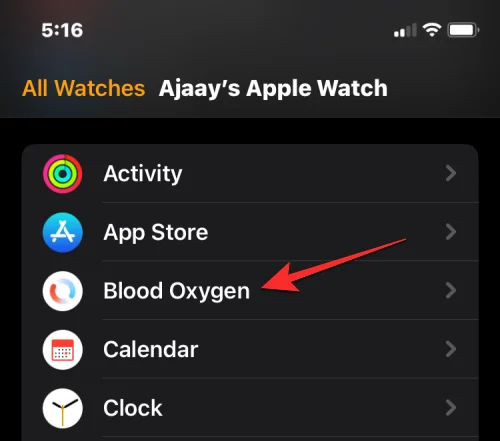
To enable blood oxygen measurements, open the Watch app on your iPhone.

Inside the Watch app, tap on the My Watches tab at the bottom left corner.

On this screen, scroll down and select Blood Oxygen.

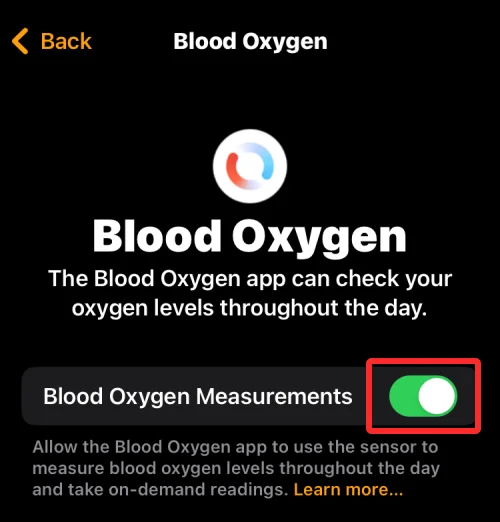
In the Blood Oxygen screen that appears, turn on the Blood Oxygen Measurements toggle to enable the Blood Oxygen app on your Apple Watch.

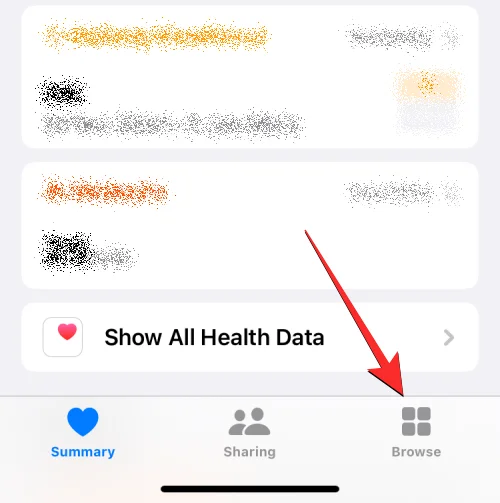
Alternatively, you can also turn on Blood Oxygen on your iPhone by first opening the Health app.

Inside Health, tap on the Browse tab at the bottom right corner.

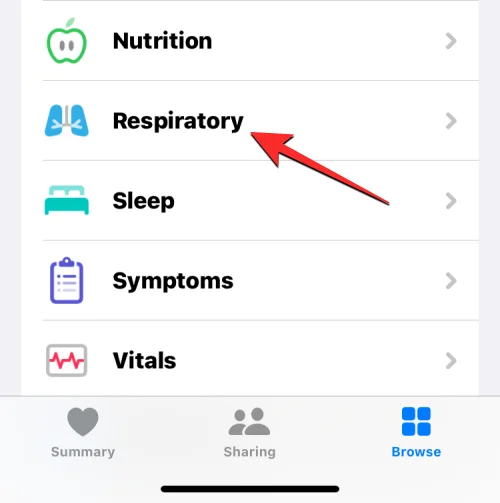
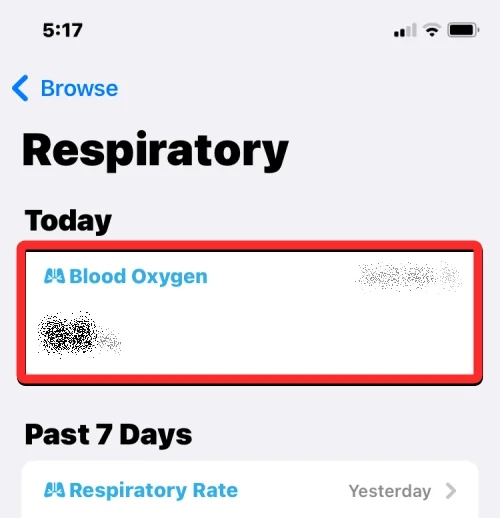
On the Browse screen, scroll down and select Respiratory under “Health Categories”.

Inside the Respiratory screen, tap on Blood Oxygen.

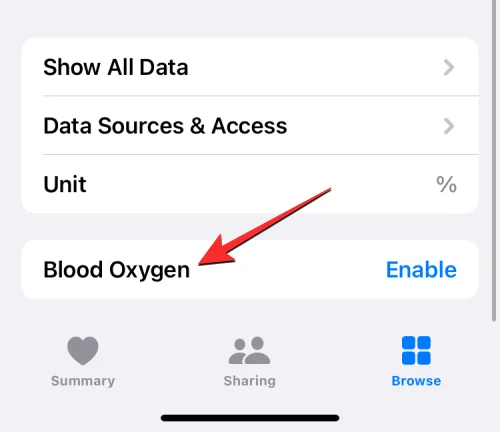
On the next screen, scroll down and tap on Blood Oxygen.

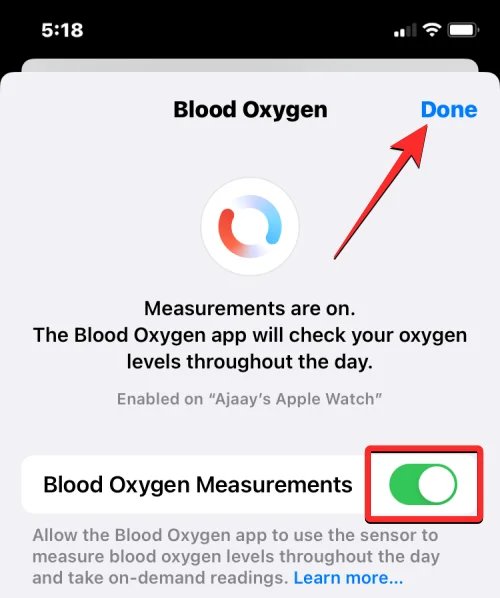
Here, turn on the Blood Oxygen Measurements toggle to enable the Blood Oxygen app on your Apple Watch. When Blood Oxygen is enabled, tap on Done at the top right corner to save changes.

Related: Apple Watch Family Setup limitations explained
How to prepare yourself for a Blood Oxygen measurement
Although measuring your blood oxygen level is pretty easy, there are certain factors that contribute towards getting accurate measurements of SpO2 level from your wrist.
- When wearing your Apple Watch, make sure it snugly fits your wrist and isn’t loose in any way. The watch should be worn in a way that the back ceramic touches your wrist with no gaps in between. At the same time, you need to make sure that the watch isn’t too tight on your wrist and that there’s enough room for your skin to breathe.
- The back of your Apple Watch sits flush with the top of your wrist.
- Move your watch further up from your wrists if your wrist bones prevent the watch from being placed on your wrist without a gap.
- When taking a blood oxygen reading, make sure your arms are rested on a table or your lap. Measurements will only be accurate when you hold your wrists in one place, preferably with your palm facing downwards and flat on the resting surface.
- Avoid moving around, especially your arms while taking a blood oxygen reading.
How to measure your Blood Oxygen level on Apple Watch
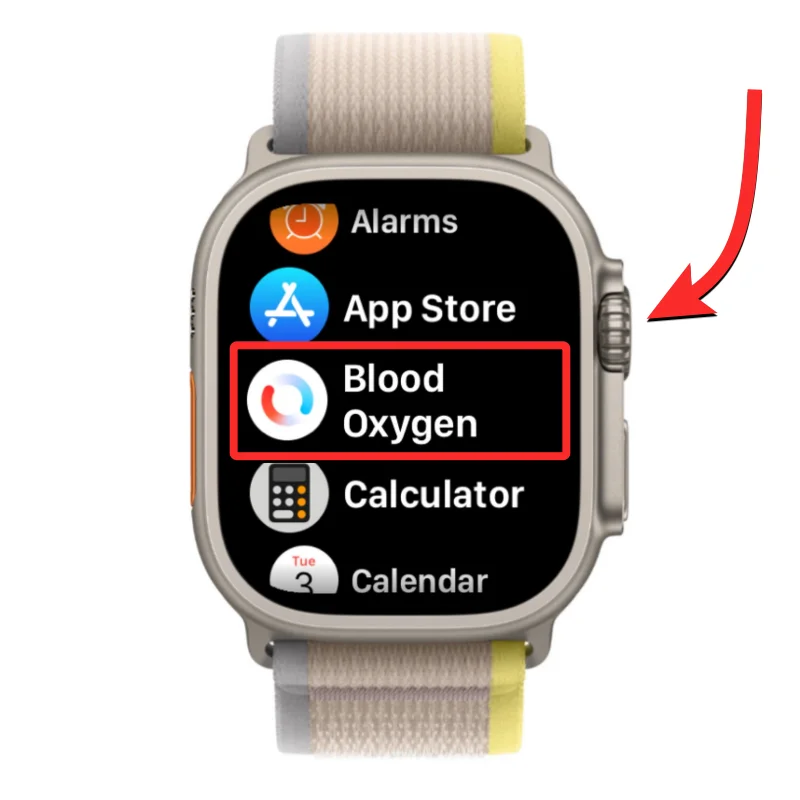
Once you’ve enabled and made all the preparations to measure your blood oxygen levels, you can go ahead and take a reading using your Apple Watch. To get started press the Digital Crown on the right side of your Apple Watch and select the Blood Oxygen app from the list/grid of apps that show up on the watch’s screen.

Note: If the Blood Oxygen app cannot be found, you may have uninstalled the app or the feature is disabled on your watch. You can re-enable the feature using the guide above or install the app directly from the App Store on your Apple Watch.
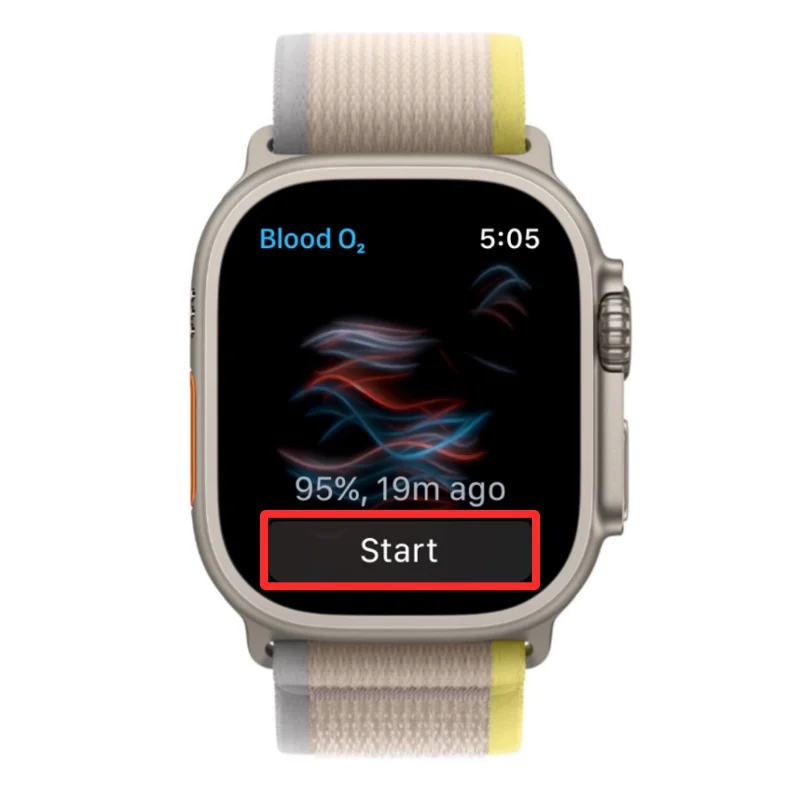
When the Blood Oxygen app opens, prepare yourself for the measurement as explained above. Once ready, tap on Start on the screen.

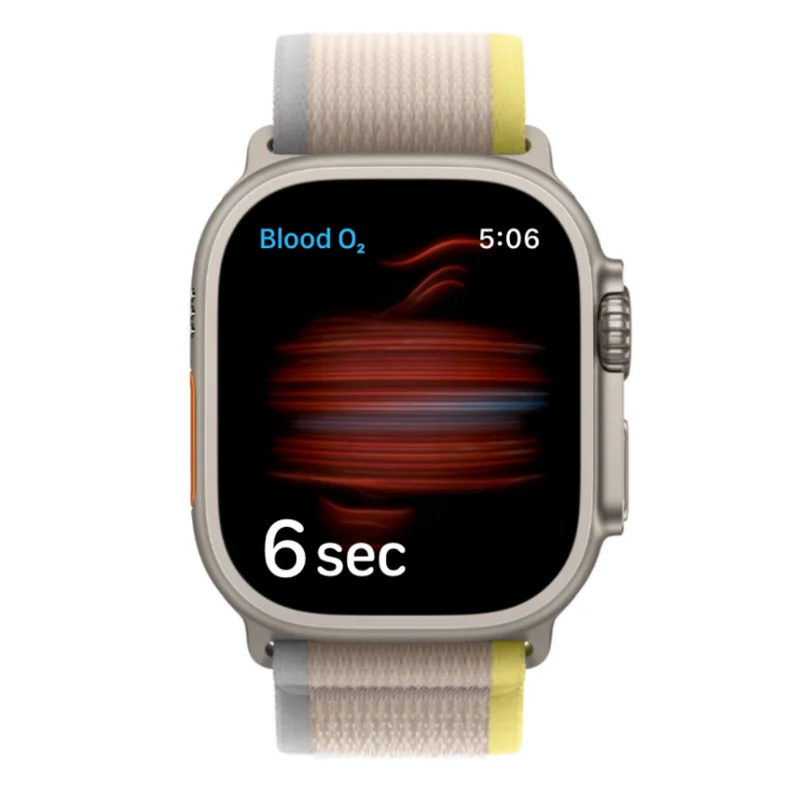
The app will now start recording the measurement and this should last for 15 seconds. Make sure your hands are steady and resting on a flat surface during the period.

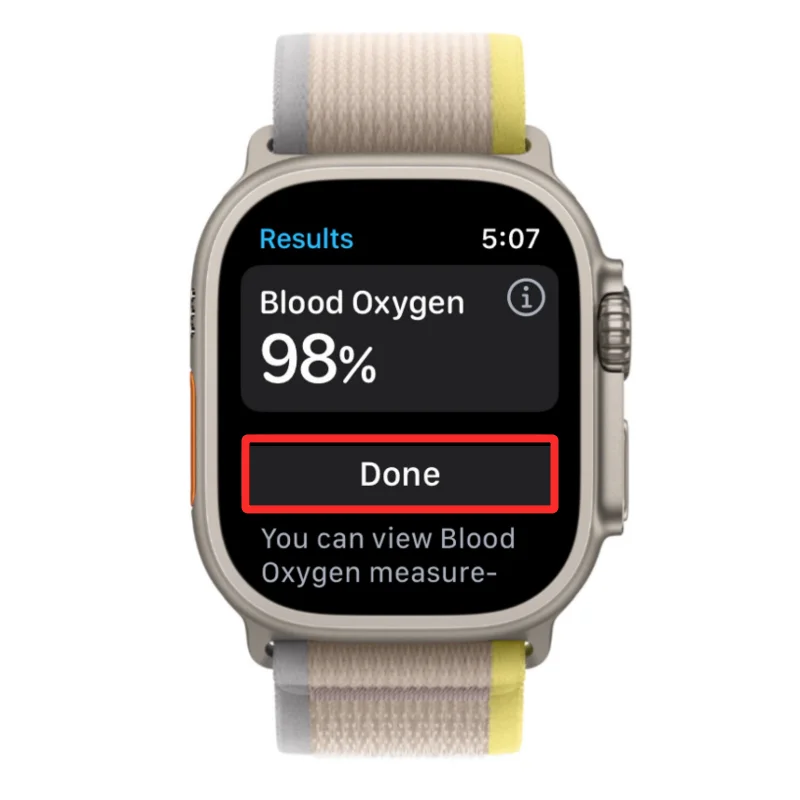
At the end of these 15 seconds, you should see your blood oxygen measurement on the screen. The measure will be indicated in percentage and indicates how much oxygen your red blood cells carry from your lungs to the rest of your body. Once you’ve viewed your current reading, you can close it by tapping on Done to take another reading.

For the majority of people, this reading should be anywhere between 95% and 100%. For some people, this reading will be slightly lower but that doesn’t denote any problems in your overall well-being. If your blood oxygen levels constantly show values much lower than 95%, you should consider consulting a doctor to get a detailed reading of your oxygen levels and check your overall health.
Related: Contacts not syncing to Apple Watch? How to fix
How to view your blood oxygen measurements
Although you can view your current measurement on your Apple Watch when taking a blood oxygen reading, you won’t be able to view your previous readings from inside this app. When you take a blood oxygen reading, the recorded value is sent to the Health app on your iPhone and this is where you’ll see all of your blood oxygen readings from the past.
To view all of your previous blood oxygen measurements, open the Health app on your iPhone.

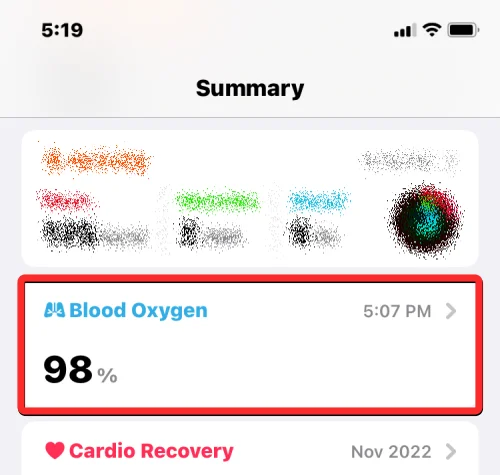
Inside Health, check if you can spot the Blood Oxygen section inside the “Summary” screen.

In case you cannot find such a section, you can access it by first tapping on the Browse tab at the bottom right corner.

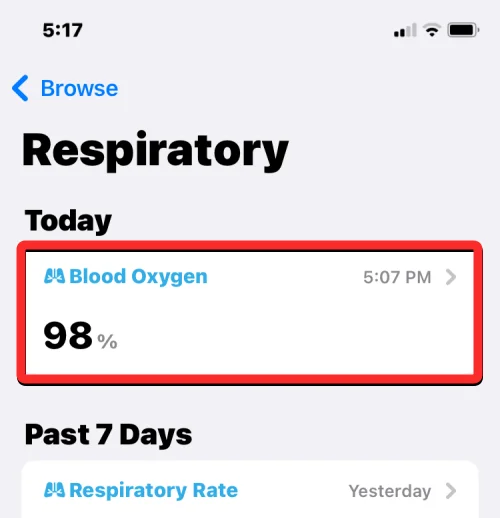
On the Browse screen, select Respiratory under “Health Categories”.

In the screen that loads up next, select Blood Oxygen. If this section isn’t visible at the top, scroll downwards to a previous date to find it.

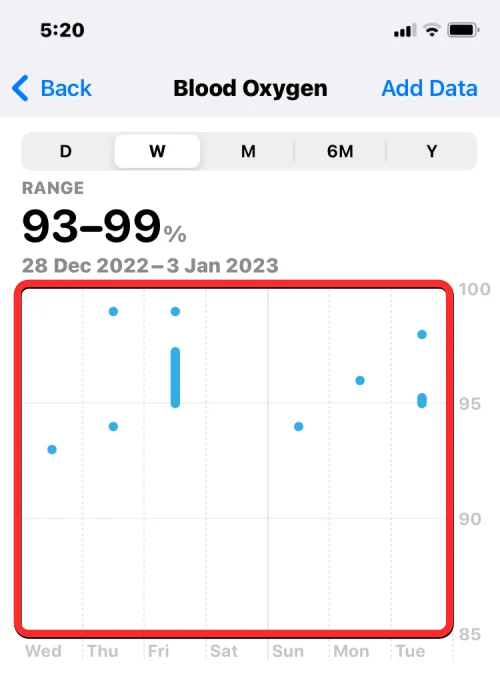
The Blood Oxygen screen will now load up showing all your previous readings from the past week in graphic format.

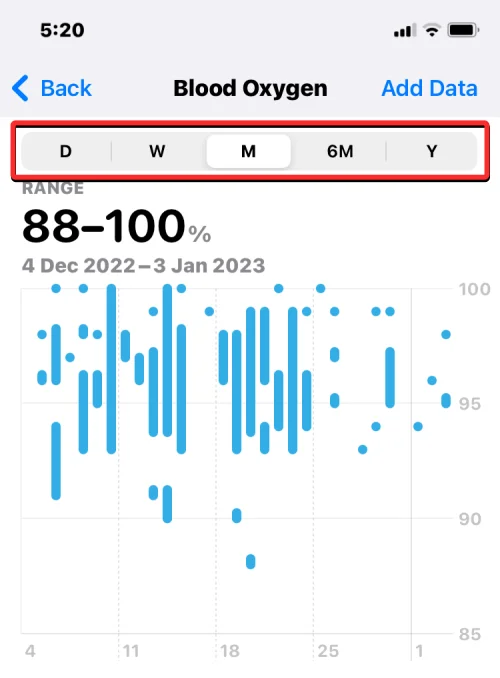
You can tap on the D, M, 6M, and Y tabs at the top to look for your period readings for a single day, the last 30 days, the last 6 months, or the last year.

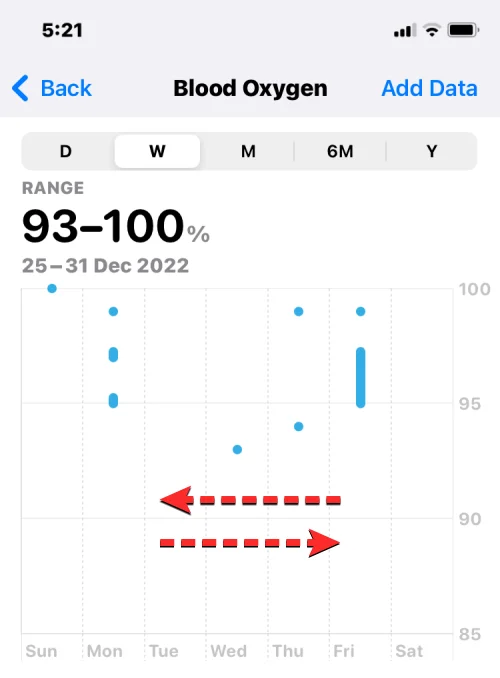
You can also swipe left-right on the graph to switch to the next sheet which may show readings from the previous or next day, week, month, or year depending on the tap that’s selected at the top.

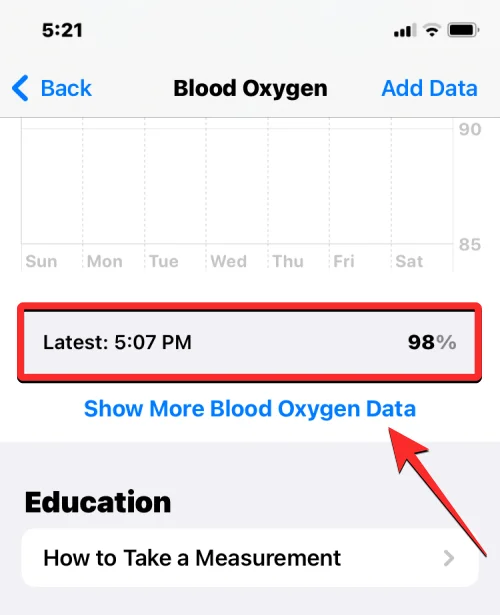
Underneath the Blood Oxygen graph, you should see the “Latest” box that tells you your last recorded blood oxygen reading from your watch. If you wish to get more info on your previous readings, tap on Show More Blood Oxygen Data below the “Latest” box.

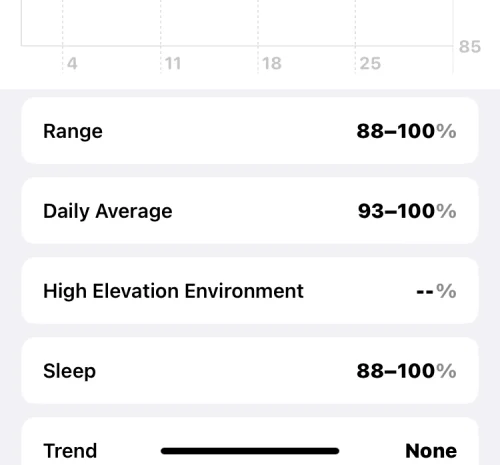
In the screen that appears next, you’ll see a similar graph at the top followed by more detailed info including your current Blood Oxygen range, your daily average, at high elevation environments, during sleep, and trends. This info may change depending on the period you choose using the tabs at the top.

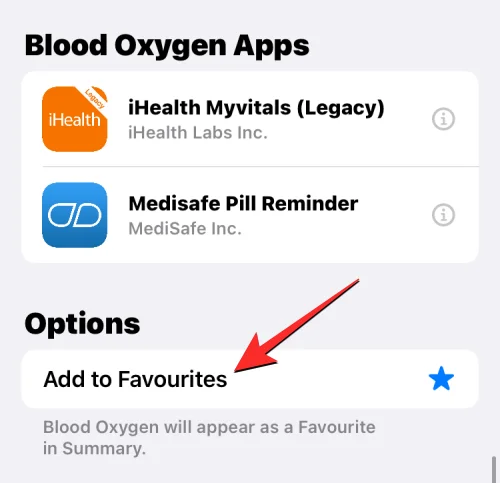
If you wish to add the Blood Oxygen info to the Summary screen inside the Health app, go back to the previous screen, scroll down and tap on Add to Favorites. When you do that, you’ll see a blue star on the right to indicate that this info has been added to your favorites.

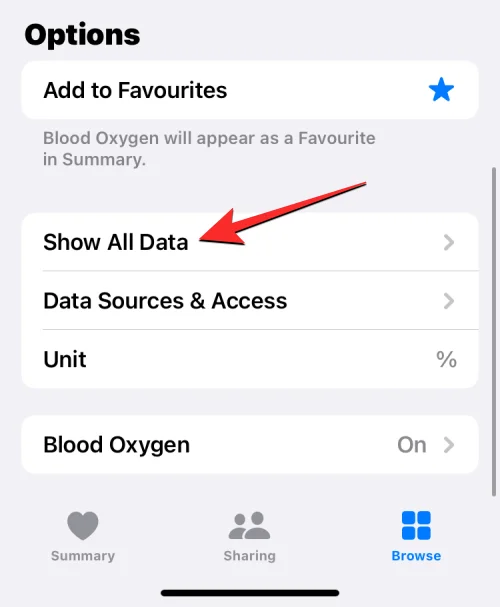
To check all of your previous Blood Oxygen readings in chronological order, tap on Show All Data at the bottom of the Blood Oxygen screen.

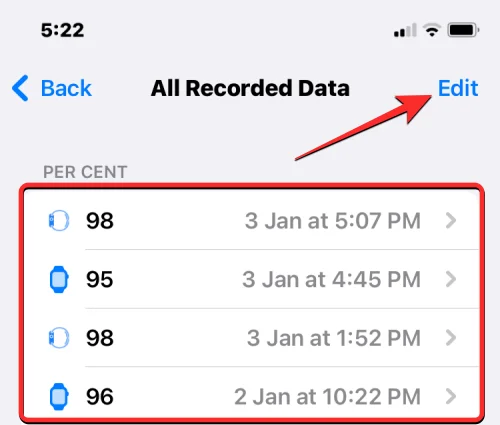
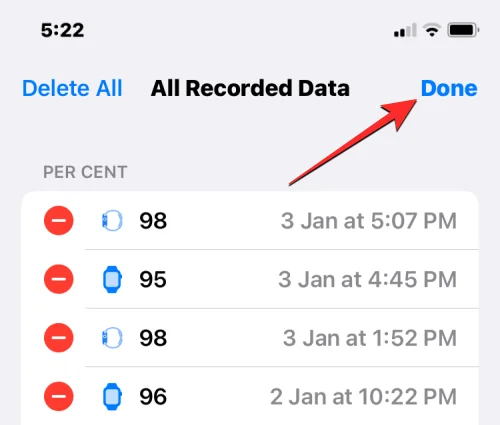
You’ll now arrive at the All recorded Data screen which shows you a list of your previous Blood Oxygen readings in the order of new to old. From here, you can choose to delete a few readings that you think are irrelevant by tapping on Edit at the top right corner.

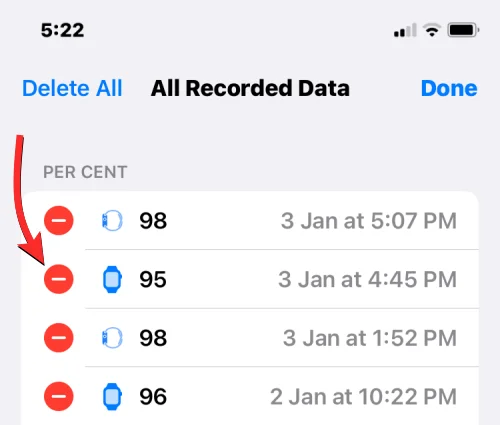
When the screen goes into Edit mode, tap on the red-colored minus icon on the left side of an unwanted reading.

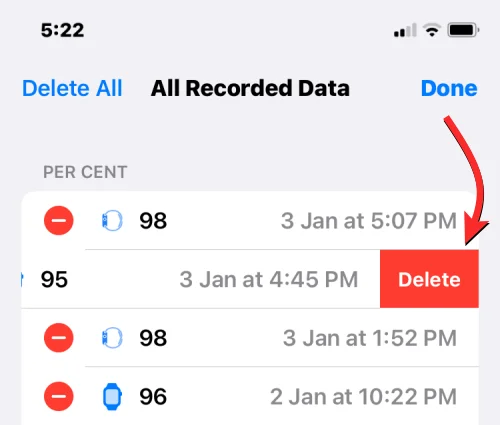
To confirm the deletion, tap on Delete on the reading’s right-hand side.

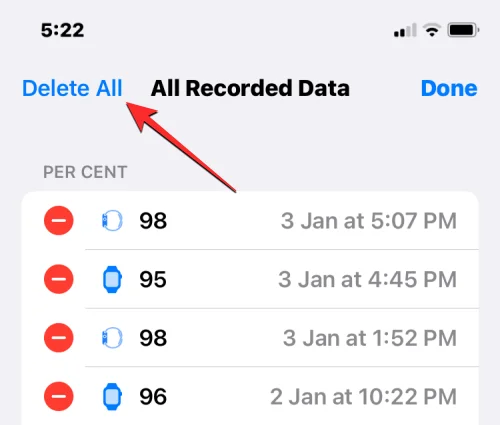
This should delete the selected reading from the Health If you want to start from scratch and remove all of your previous Blood Oxygen readings, tap on Delete All at the top left corner.

When you’re done deleting unwanted recordings, tap on Done at the top right corner to save changes.

Apple Watch is unable to measure blood oxygen levels. Why?

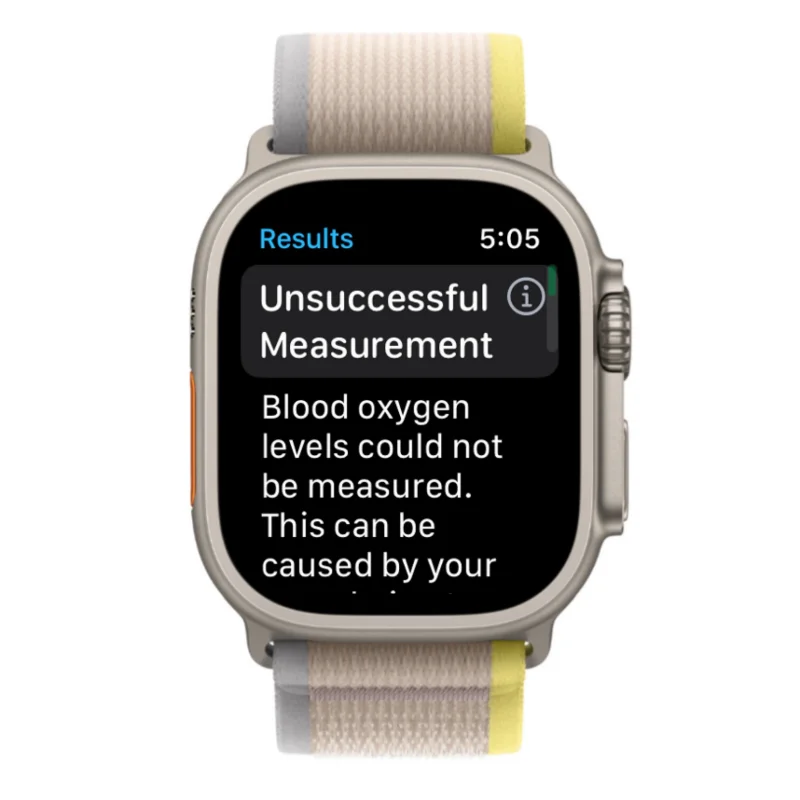
In most cases and for the majority of people, the Apple Watch will be able to accurately and successfully get a blood oxygen measurement. However, there are some factors that may contribute to an unsuccessful reading when using the Blood Oxygen app on an Apple Watch. These include:
- A blood oxygen reading is depending on skin perfusion which is the amount of blood that’s flowing through your skin. This may differ from person to person and can also change depending on the environment you’re in. For instance, if you’re out in a cold region, your wrist will have lower skin perfusion which may impact blood oxygen measurements.
- If your heart rate exceeds 150 bpm even when you’re resting, the Blood Oxygen will show unsuccessful reading alerts. When this happens, you can take a reading again when your heart rate isn’t this high.
- When you’re moving or if your arm is in motion, you won’t be able to get any blood oxygen measurement as your arms need to be rested for the measurement to take place.
- Regardless of whether your watch is taking an on-demand measurement or is recording your blood oxygen in the background, you won’t get a successful reading if your arms are left hanging on your side or you’re clinching your fists. For the measurement to work, your arms should be rested on a table or your lap with your palm open flat and facing downwards.
- If you have a tattoo or there have been permanent or temporary changes on your skin, it may prevent the watch’s sensor from reading your blood oxygen from underneath your skin. Because of this, you may get unsuccessful measurements when using the Blood Oxygen app.
- Since Blood Oxygen measurements are developed for people aged 18 or higher, you may get inaccurate or unsuccessful readings if you take readings from children.
That’s all you need to know about measuring Blood Oxygen on an Apple Watch.
RELATED




![Как да настроите стрийма си в OBS за първи път [2023]](https://blog-cdn.webtech360.com/resources3/r1/image-2871-0914194552890.webp "Как да настроите стрийма си в OBS за първи път [2023]")
![Как да номерирате редове, абзаци и изречения в MS Word [2023]](https://blog-cdn.webtech360.com/resources3/r1/image-1945-0914194336960.webp "Как да номерирате редове, абзаци и изречения в MS Word [2023]")