Mobile phones these days can store kind-of an infinite number of contacts on your iPhone which can be good if you meet new people every day and save their contact info in your address book. Over time, however, this can prove to be a problem as you may find it hard to view and search contacts that can be more significant than others. If you have a ton of contacts that you no longer reach out to or if they’re no longer reachable with their old contact address, you can delete them from your iPhone to de-clutter your contacts list.
In this post, we’ll explain all the ways you can delete contacts from your iPhone.
How to delete an individual contact on iPhone
If you wish to delete a certain contact from your iPhone, iOS lets you do that in a couple of ways. You can delete single contacts from your device using either the Contacts app or the Phone app on iOS.
Method #1: From the Contacts screen
The easiest way to remove a contact from your iPhone is by accessing your contacts list on the Contacts app or Phone app. You can access your contacts list by opening the Contacts app on your iPhone.
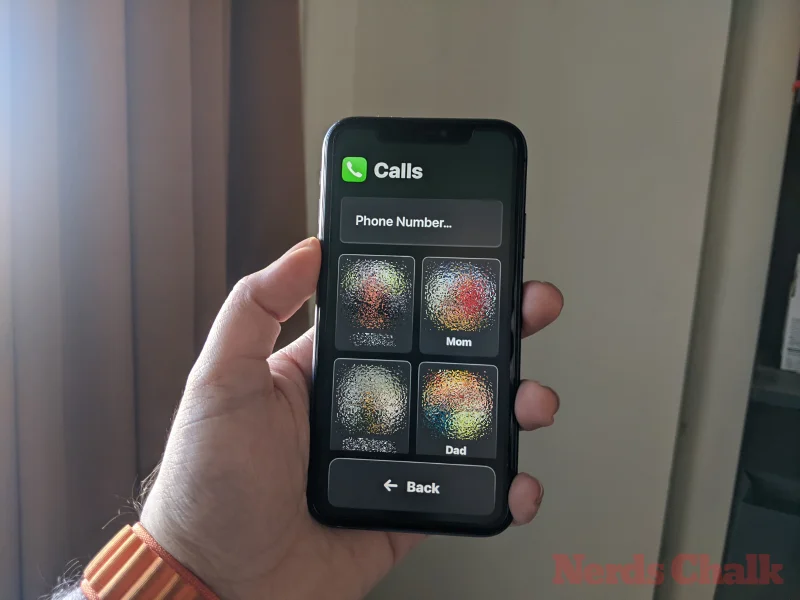
You can also get to this screen by opening the Phone app on your device.

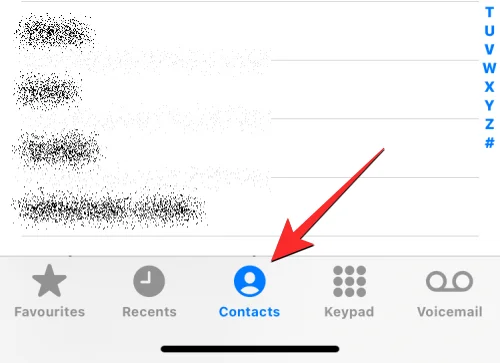
When the Phone app opens, tap on the Contacts tab at the bottom.

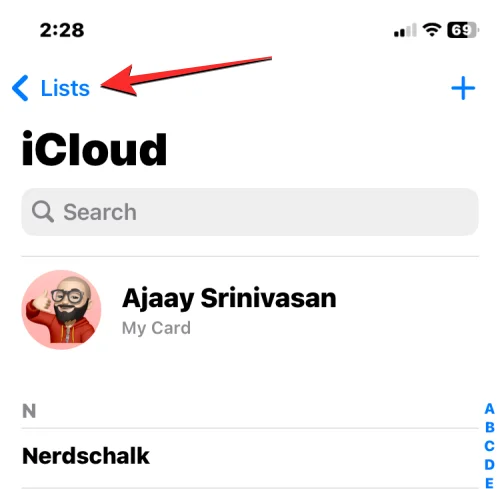
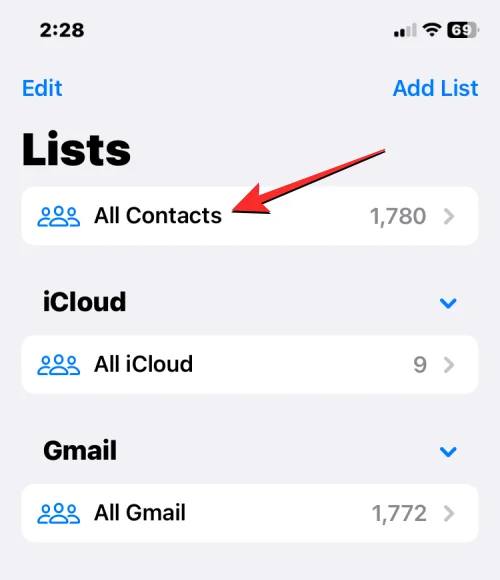
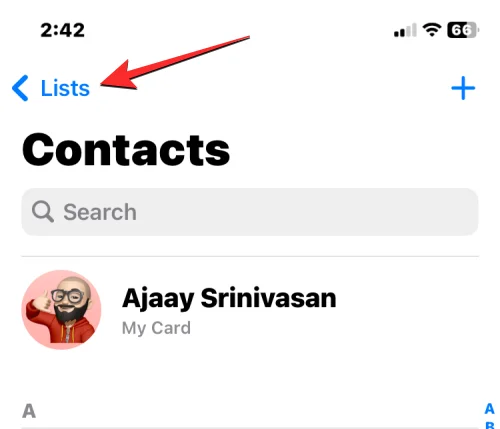
In the Contacts screen, you need to make sure you’re viewing all of your contacts. Otherwise, the contact you wish to delete won’t show up on this screen. To make sure you’re viewing all contacts, tap on Lists at the top left corner of the screen.

Inside Lists, select All Contacts.

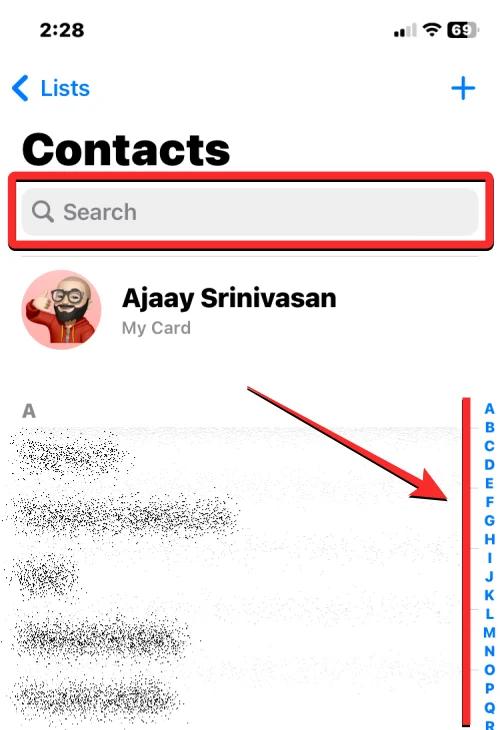
You will now see all the contacts from various accounts on this screen. From here, locate the contact you want to delete from this list using the letter scroller on the right or the search bar at the top.

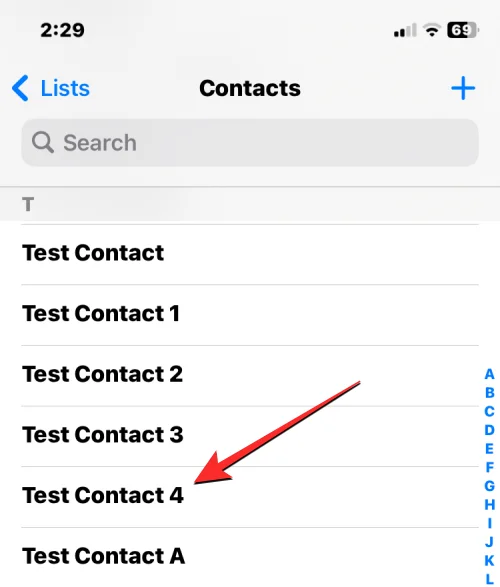
When you locate the contact you want to delete, tap and hold on it.

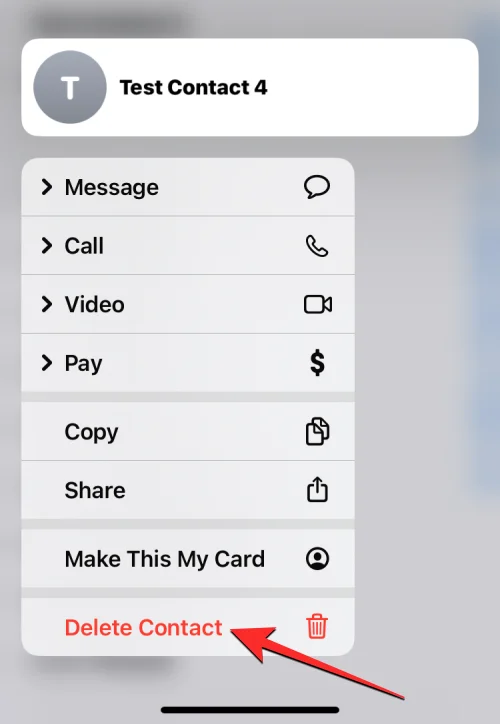
In the overflow menu that appears, select Delete Contact.

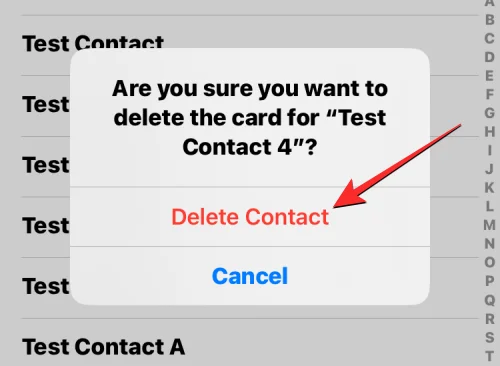
You will now see a prompt on the screen asking you to confirm your action. Here, tap on Delete Contact to remove the selected contact from your iPhone.

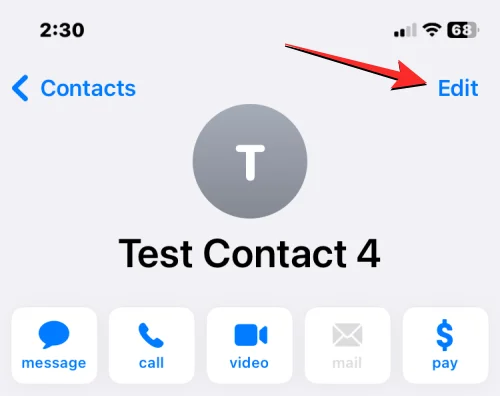
You can also delete a contact from this screen by opening it. When the contact’s details open up, tap on Edit at the top right corner.

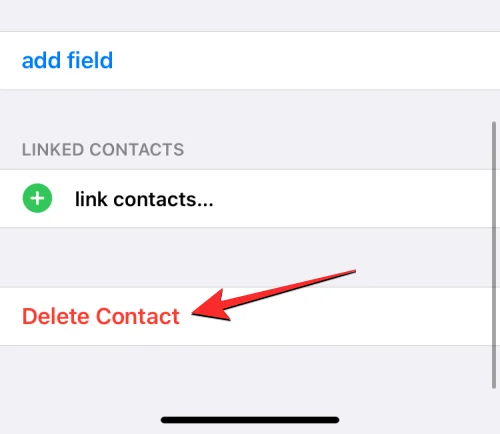
On the next screen, scroll down and tap on Delete Contact at the bottom.

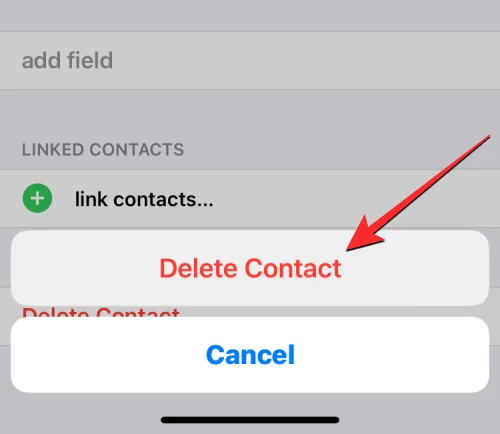
In the prompt that appears below, select Delete Contact to confirm the action.

The selected contact will be deleted from your iPhone.
Related: How to use Photo Cutout on iPhone
Method #2: From the Favorites/Recents screen
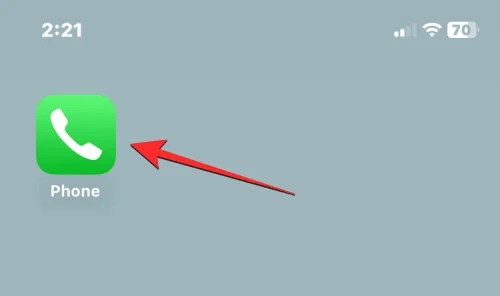
If you recently made or received calls from someone on your iPhone, you can delete their contact from the Recents or Favorites screen inside the Phone app. For this, open the Phone app on your iPhone.

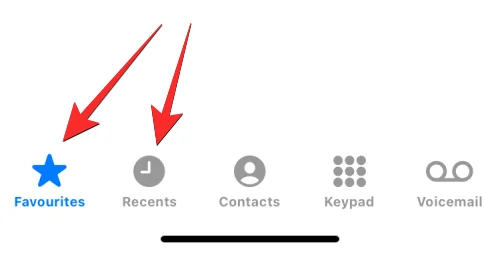
Inside Phone, tap on the Favorites tab or Recents tab from the bottom.

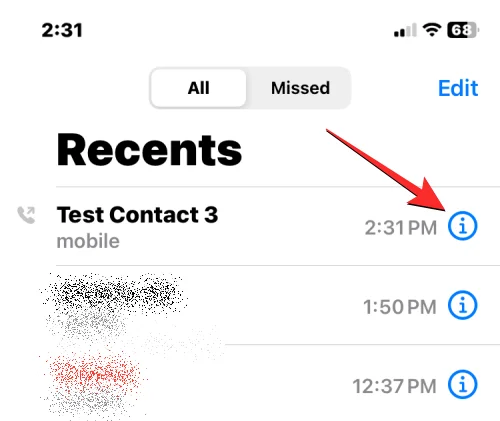
When you arrive on the Favorites or Recents screen, locate the contact you want to delete. When you find the contact, tap on the i icon on its right-hand side.

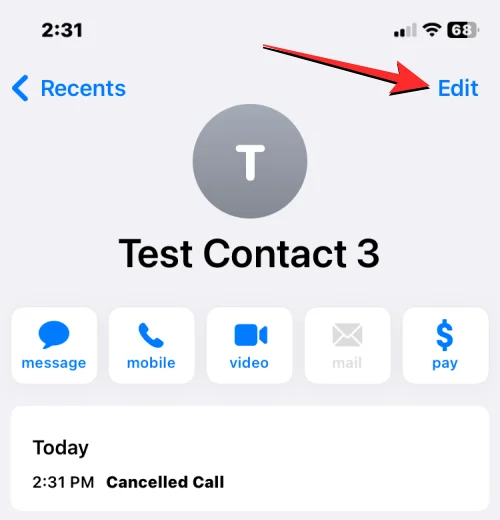
This will open the contact’s details on the next screen. Here, tap on Edit.

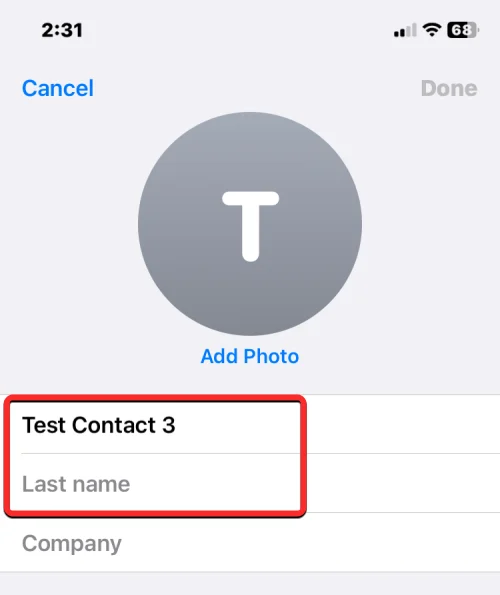
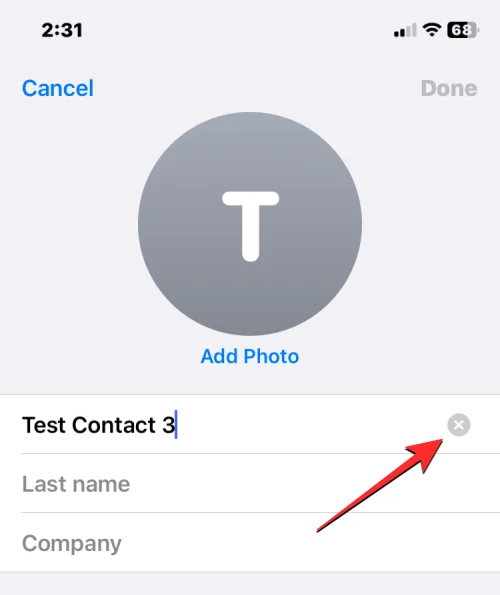
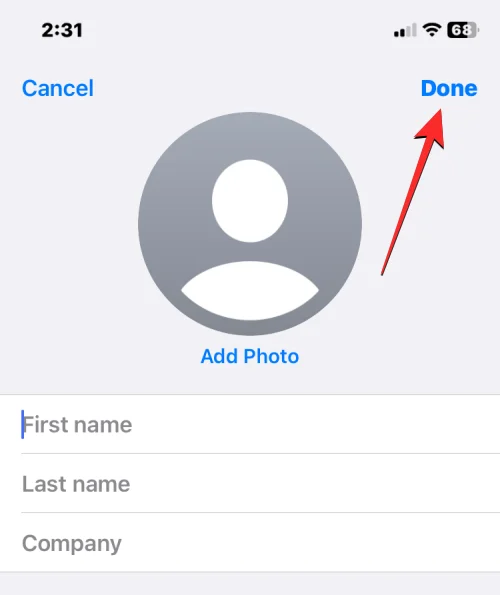
Now, clear the First Name and Last Name sections of the contact. You can empty other sections if there are any that’s filled up.

An easy way to do it is by selecting either of the text fields and then tapping on the x icon on the right.

When all sections are empty, tap on Done at the top right corner.

The selected contact will now be removed from your iPhone since the phone number is nameless.
Related: How to get Pixel Pals on iPhone 14 Pro and Pro Max
How to delete multiple contacts from an iPhone
iOS doesn’t allow you to delete more than one contact simultaneously on your iPhone. You cannot use the Phone app or Contacts app to remove multiple contacts. This action can only be natively done from iCloud.com or by using one of the third-party apps that offer you this functionality.
Method #1: Using iCloud.com
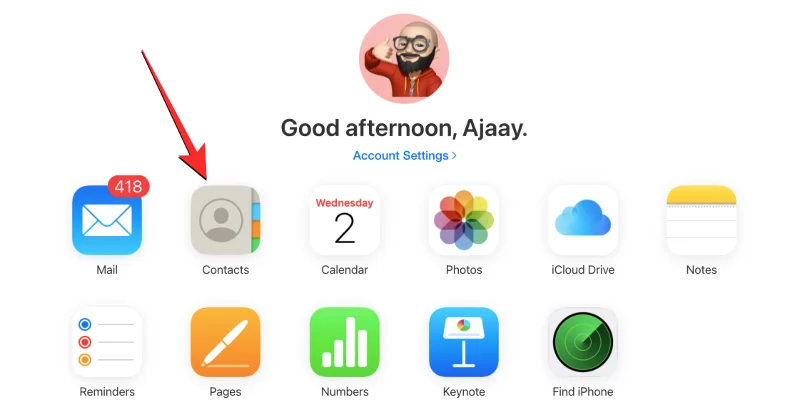
If you have more than one contact you wish to delete from your iPhone, you’ll need to use a computer and go to iCloud.com using Safari or any other web browser. Inside iCloud.com, sign in with your Apple ID password to access your iCloud account.
Once you’re signed in, select Contacts.

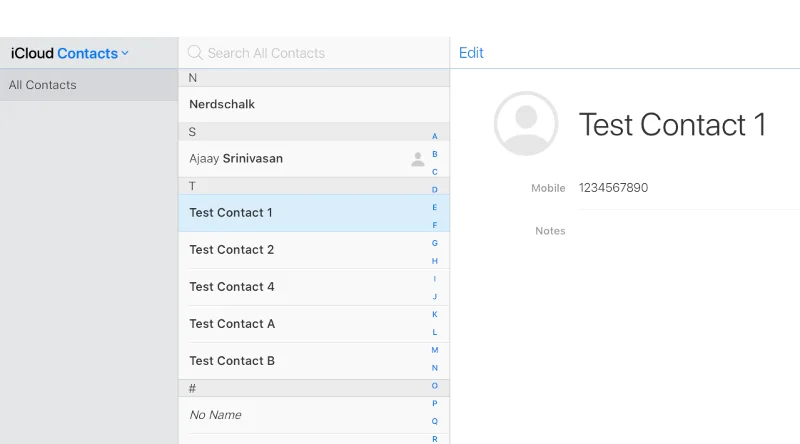
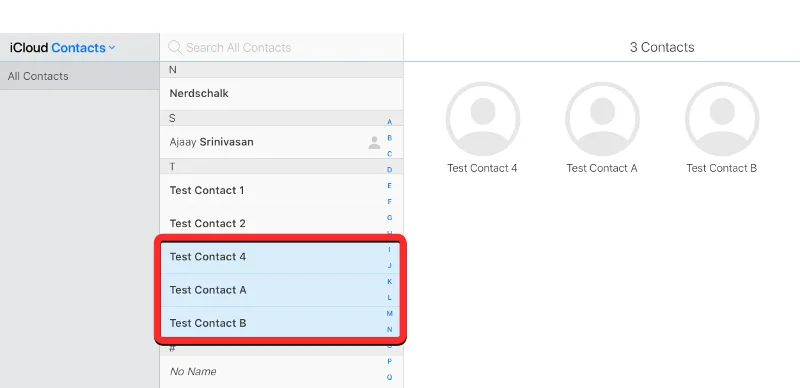
When the contacts in your account load up, select the ones you want to delete by holding the Command key (on Mac) or Ctrl key (on Windows) and then click on the contacts to select them.

You can also select a continuous bunch of contacts using the Shift key. When you select multiple contacts, they will be highlighted in blue.

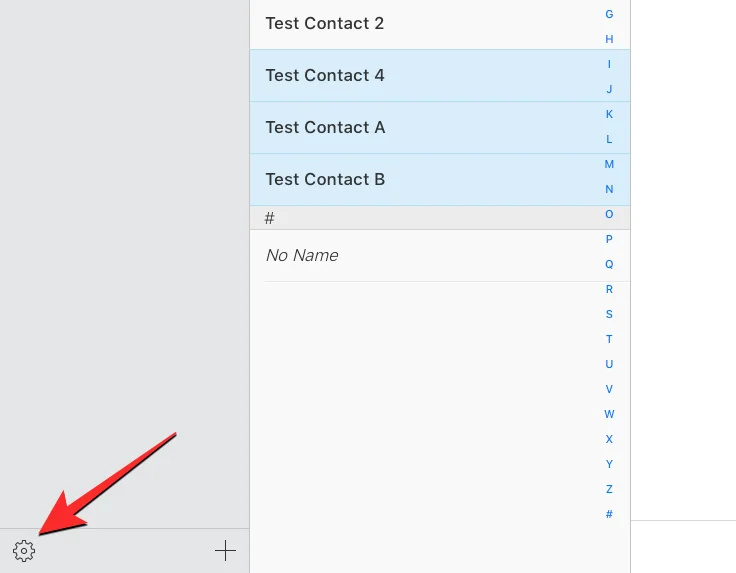
After you’re done selecting the contacts you want to delete, click on the cogwheel icon at the bottom left corner.

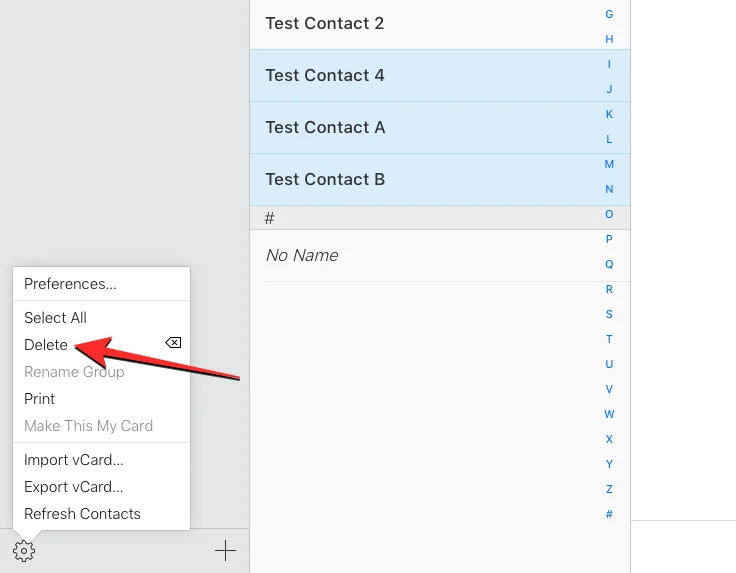
When an overflow menu appears, select Delete from the list of options.

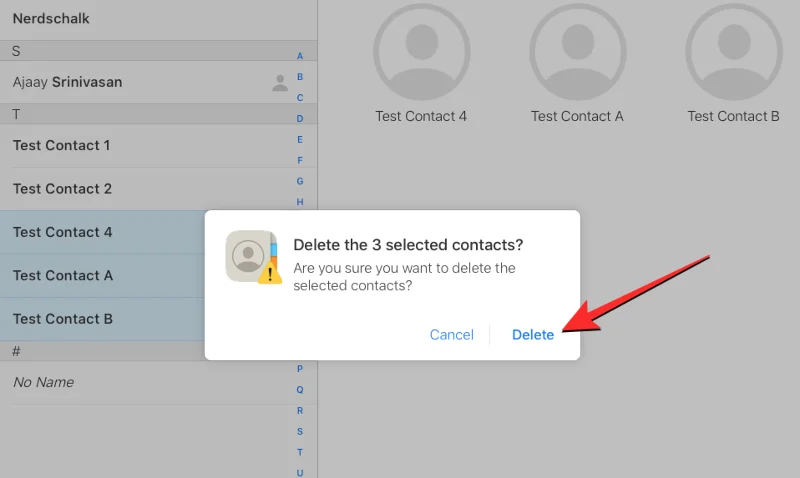
You’ll be prompted to confirm the action. To proceed with the deletion, click on Delete.

The selected contacts will be removed from iCloud as well as from your iPhone.
Method #2: Using the Delete Contacts+ app
Since you cannot delete multiple contacts on your iPhone using the native Contacts app, the only way to do it on your device without accessing iCloud is by using a third-party app. There are a bunch of apps that offer this functionality on an iPhone but these two apps (Delete Contacts+ and Groups) are trusted and have been rated highly by several users on the App Store. In this instance, we’ll be using Delete Contacts+ but the process should look more or less the same even on the Groups app.
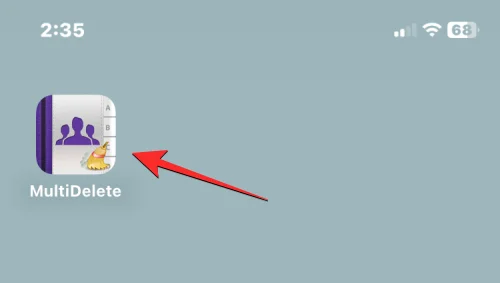
To get started, open the Delete Contacts+ app on your iPhone (which for some reason has renamed itself to MultiDelete after having installed the app).

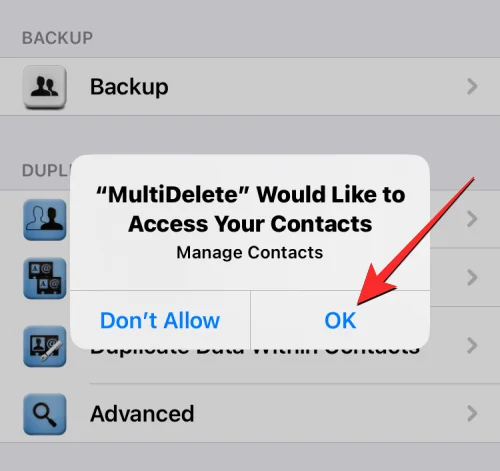
When the app opens, you will be prompted to share contacts access to the app. To proceed, tap on OK.

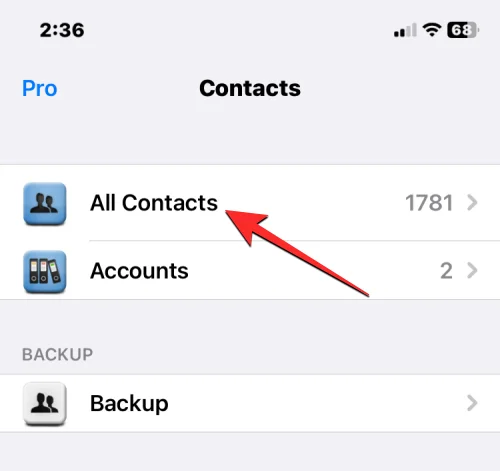
Now, tap on All Contacts at the top.

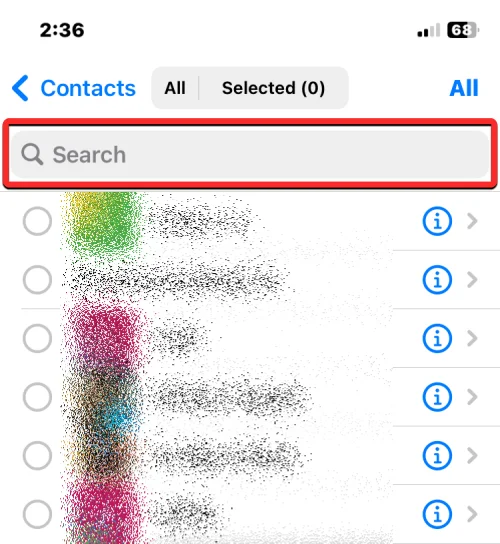
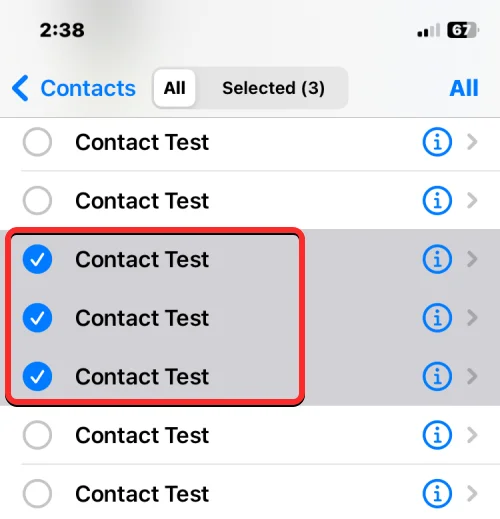
The next screen will show you a list of all the contacts that are saved on your iPhone. You can locate the contacts you want to delete by scrolling through this list or by using the search bar at the top.

When you locate the contacts you want to delete, tap on them to select. You can choose any number of contacts from this list to delete.

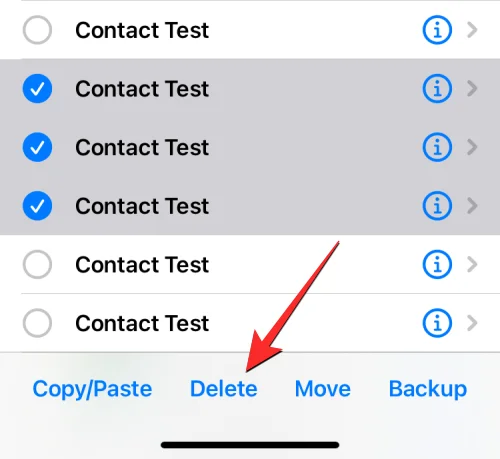
After you have made your selection, tap on Delete at the bottom.

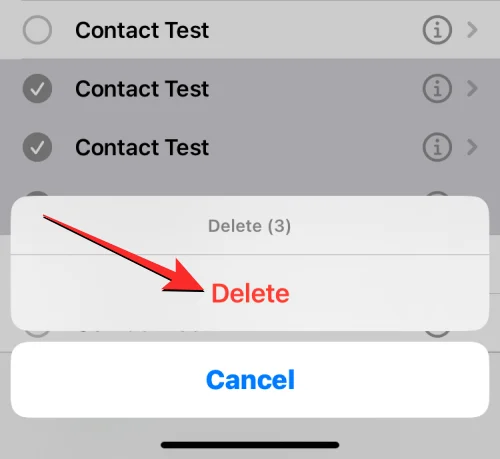
In the prompt that appears, select Delete to confirm your action.

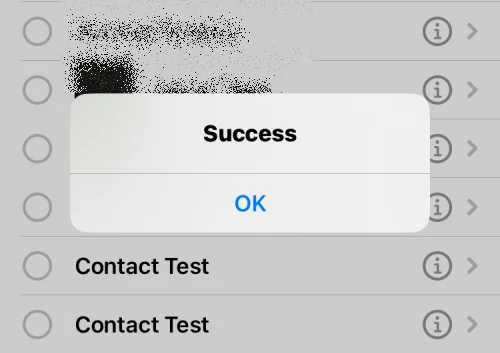
When the selected contacts are deleted from your iPhone, you should see the “Success” banner on the screen.

This method will delete multiple contacts from your iPhone but these contacts may still be stored inside your iCloud account.
How to delete duplicate contacts on iPhone
When you’re dealing with multiple accounts, chances are that your contacts list has accumulated a ton of info over the years. You may also have duplicate contacts that you may never have noticed. Fortunately, on iOS 16, your iPhone can detect duplicate contact cards on iCloud or any other list automatically and suggest you merge them if you wish to.
▶︎ How to Remove Duplicate Contacts on iPhone
To delete duplicate contacts from your iPhone, open the Contacts app.

When the app opens, tap on Lists at the top left corner.

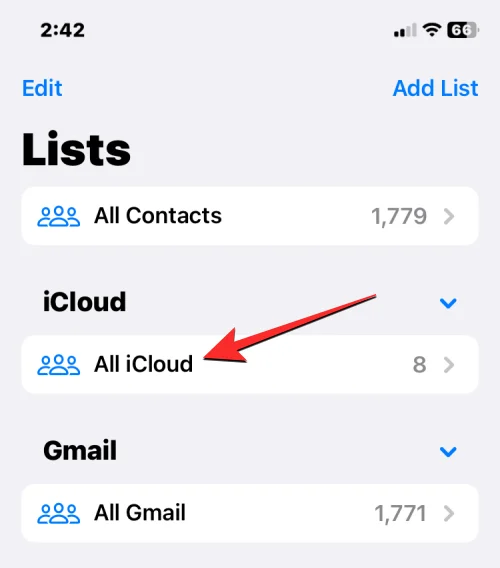
In the Lists screen, select All iCloud or All iPhone. iOS may not be able to detect or remove duplicates from lists created by third-party accounts like Gmail.

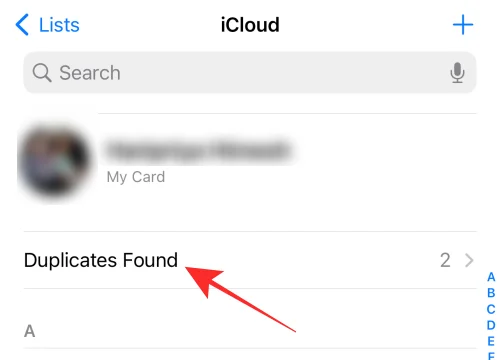
When the iCloud or iPhone list opens, you may see a “Duplicates Found” banner at the top if you have any duplicate contacts. To delete these contacts or merge them, tap on Duplicates Found.

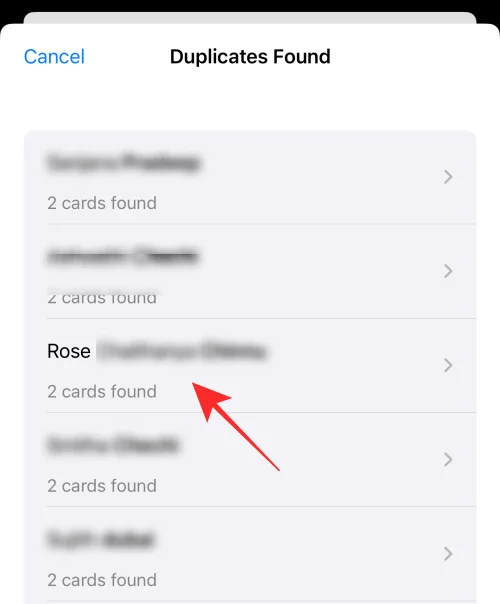
In the Duplicates Found menu that appears, tap on any one of the listed contacts to view their details.

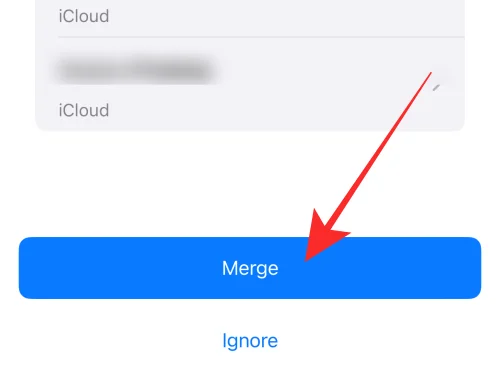
You can then delete the duplicate contact by merging the info into a single contact. For that, tap on Merge at the bottom.

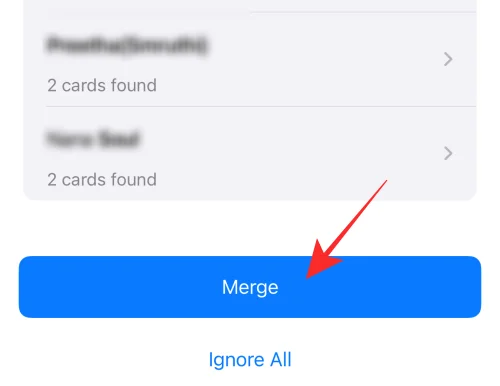
You can repeat the above step for other contacts you wish to merge. To delete all duplicate contacts, tap on Merge at the bottom of the screen where you see all of your duplicate contacts.

When you do that, iOS will merge all details from a contact into a single card and delete the rest of the cards from your iPhone.
How to delete all iCloud contacts from your iPhone
If you have saved your contacts across multiple lists and don’t want the contacts you saved on the iCloud to be stored on your iPhone, you can delete them at any time. Having iCloud contacts makes it easy for you to choose which contacts get synced across your Apple devices and give you control over what your contacts list looks like.
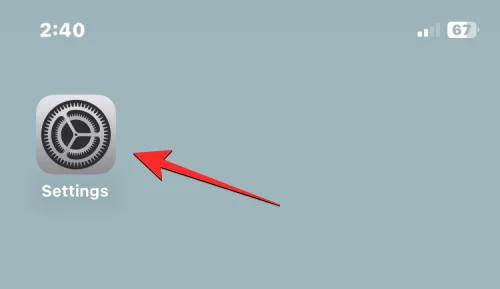
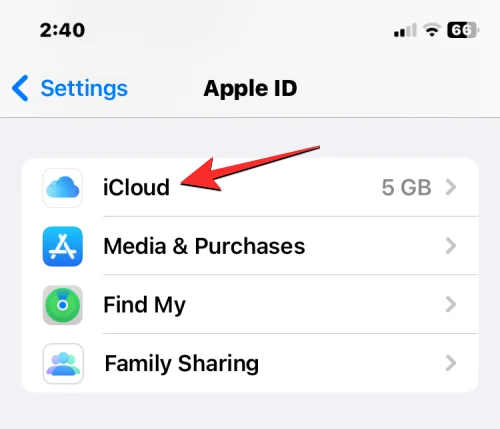
If you have contacts saved from other accounts and you don’t want to keep the ones synced from iCloud, you can delete the latter by first opening the Settings app on your iPhone.

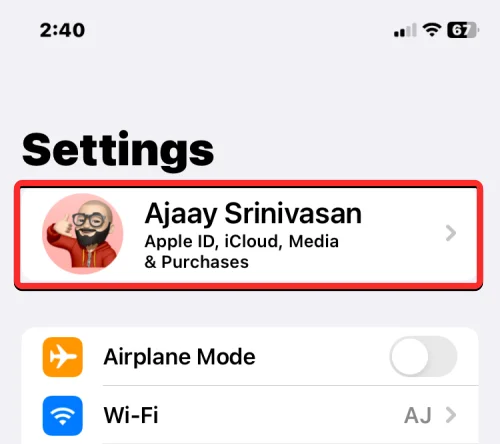
Inside Settings, tap on your Apple ID card at the top.

When the Apple ID screen appears, select iCloud.

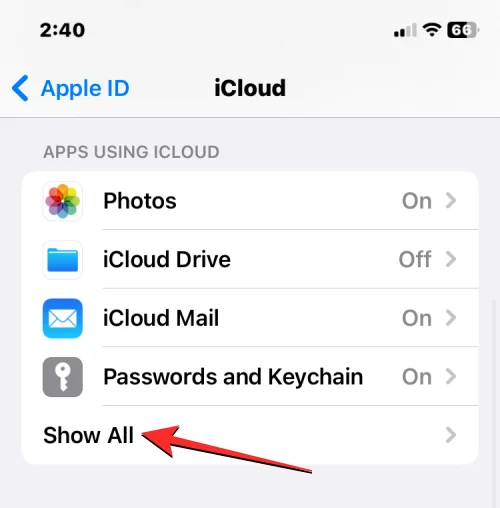
On the next screen, tap on Show All under “Apps using iCloud”.

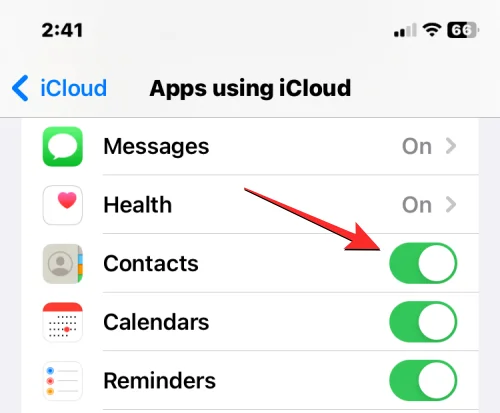
Inside the Apps using iCloud screen, turn off the Contacts toggle.

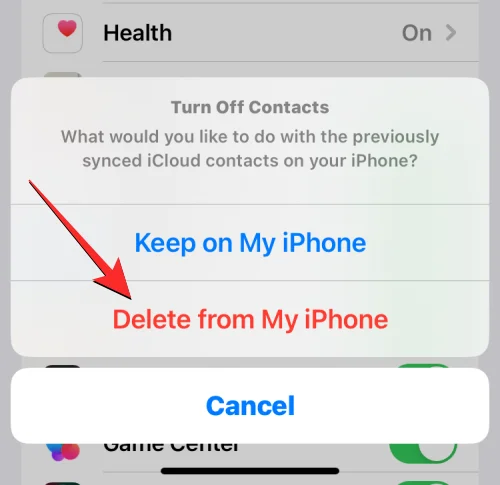
You will now see a prompt at the bottom asking you to decide whether or not to keep the contacts you synced with iCloud. Since you’re here to delete your iCloud contacts from your phone, select Delete from My iPhone.

This action will delete the iCloud contacts from your current iPhone but these contacts will remain on iCloud as well as on other Apple devices where you’ve synced contacts with iCloud.
How to delete all contacts from Gmail or other accounts on iPhone
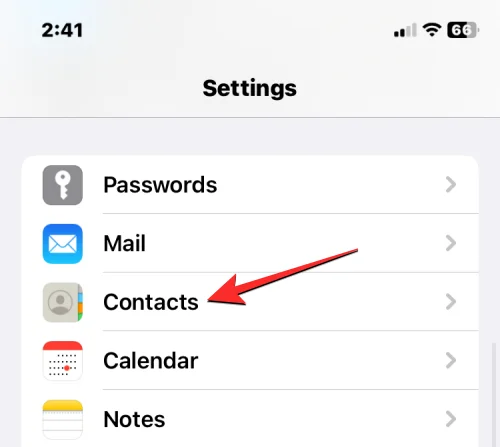
iOS allows you to import contacts that you saved from your Gmail account or other third-party accounts that you’ve added to your iPhone. At any time, however, you can delete all of the contacts you’ve imported from Gmail or other services. For that, open the Settings app on your iPhone.

Inside Settings, scroll down and select Contacts.

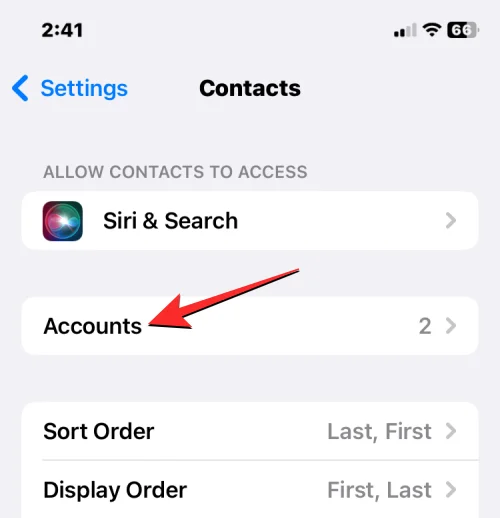
On the next screen, tap on Accounts.

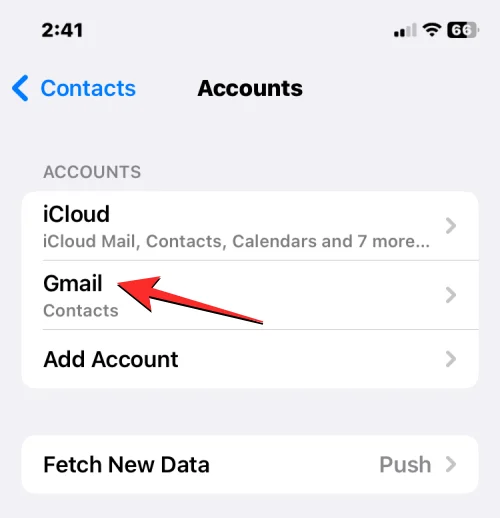
In the Accounts screen, select Gmail or the account from which you wish to delete contacts.

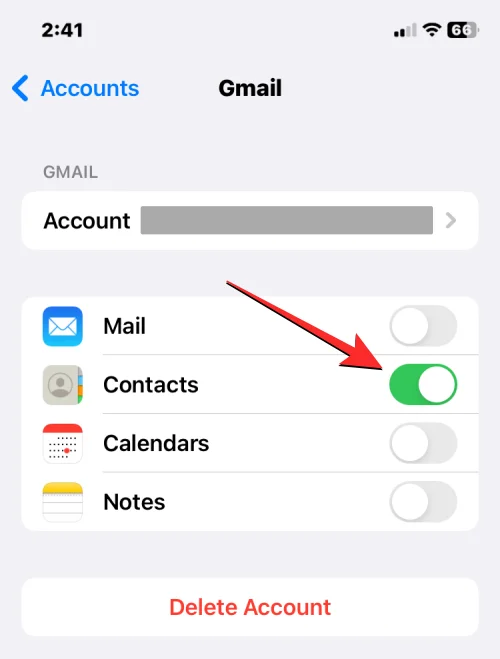
Here, turn off the Contacts toggle.

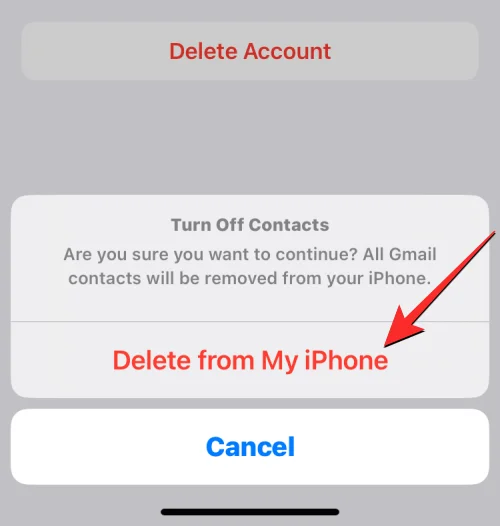
iOS will now prompt you to confirm your action. To confirm, tap on Delete from My iPhone.

All contacts that were saved from Gmail or the selected account will now be removed from your iPhone.
How to hide contacts in lists without deleting them
In case you don’t wish to delete contacts from your iPhone but only want to hide ones from a specific list, you can do that by selecting a list to view its contacts instead of viewing your entire contacts list on the iPhone. To view contacts from a specific list, open the Contacts app on your iPhone.

When the app opens, tap on Lists at the top left corner.

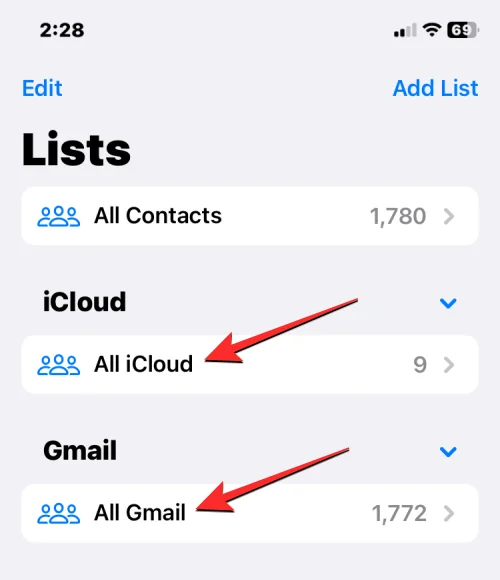
You’ll see all the lists from different accounts you’ve added contacts. From here, you can choose a list you want to view contacts. If you have multiple iCloud or Gmail accounts, select an account you wish to delete contacts from. If you have only one account from iCloud or Gmail or want to view contacts from all of your iCloud or Gmail accounts, choose All iCloud or All Gmail from this screen. You may see more contact lists on this screen if you have added any from other third-party accounts.

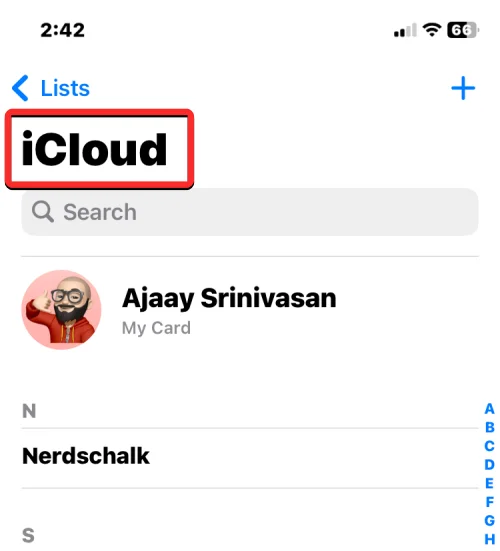
Once you select your preferred list, you’ll see contacts from that list on the next screen.

This way, you can avoid deleting contacts from an account entirely and easily switch between different lists inside the Contacts app at any time.
That’s all you need to know about deleting contacts on an iPhone.
RELATED

![Как да настроите стрийма си в OBS за първи път [2023]](https://blog-cdn.webtech360.com/resources3/r1/image-2871-0914194552890.webp "Как да настроите стрийма си в OBS за първи път [2023]")
![Как да номерирате редове, абзаци и изречения в MS Word [2023]](https://blog-cdn.webtech360.com/resources3/r1/image-1945-0914194336960.webp "Как да номерирате редове, абзаци и изречения в MS Word [2023]")