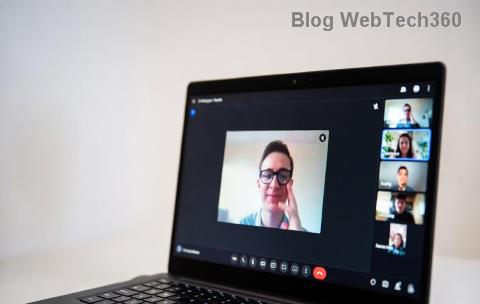
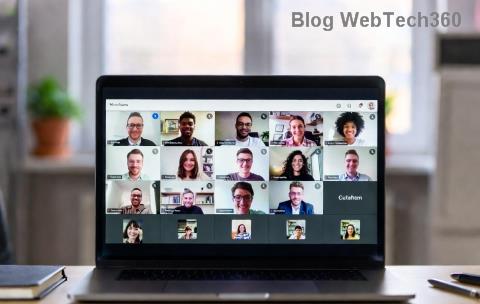
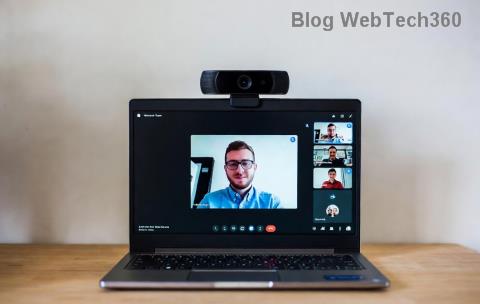
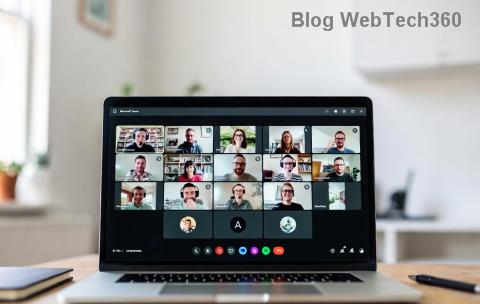
Ever joined a Microsoft Teams meeting feeling uninspired by your plain backdrop? 😎 Changing your Microsoft Teams background image is a game-changer—it hides clutter, adds personality, and impresses colleagues. Whether you're prepping for a big presentation or casual catch-up, this guide delivers exact steps to customize your look effortlessly. Stick around for desktop, mobile, pro tips, and fixes to nail it every time!
Why Bother Changing Your Microsoft Teams Background Image? Quick Wins
- ✨ Professional polish: Blur distractions or showcase branded images.
- 🎉 Fun vibes: Virtual beaches, offices, or holidays keep energy high.
- 🔒 Privacy boost: Hide messy rooms instantly.
- 📱 Device flexibility: Works on Windows, Mac, iOS, Android, and web.
Ready? Let's dive into the steps. Pro tip: Test in a solo meeting first! 🚀
Step-by-Step: Change Microsoft Teams Background Image Before a Meeting (Desktop App)
The easiest way? Tweak settings pre-call. Here's how on the latest Microsoft Teams desktop app:
- 🔧 Open Microsoft Teams and click your profile picture (top right) → Settings.
- 📱 Go to Devices tab.
- 🖼️ Under Background effects, browse defaults like blurs or offices—or hit Add new for customs (more later).
- ✅ Select your fave and Preview it. Apply and done!
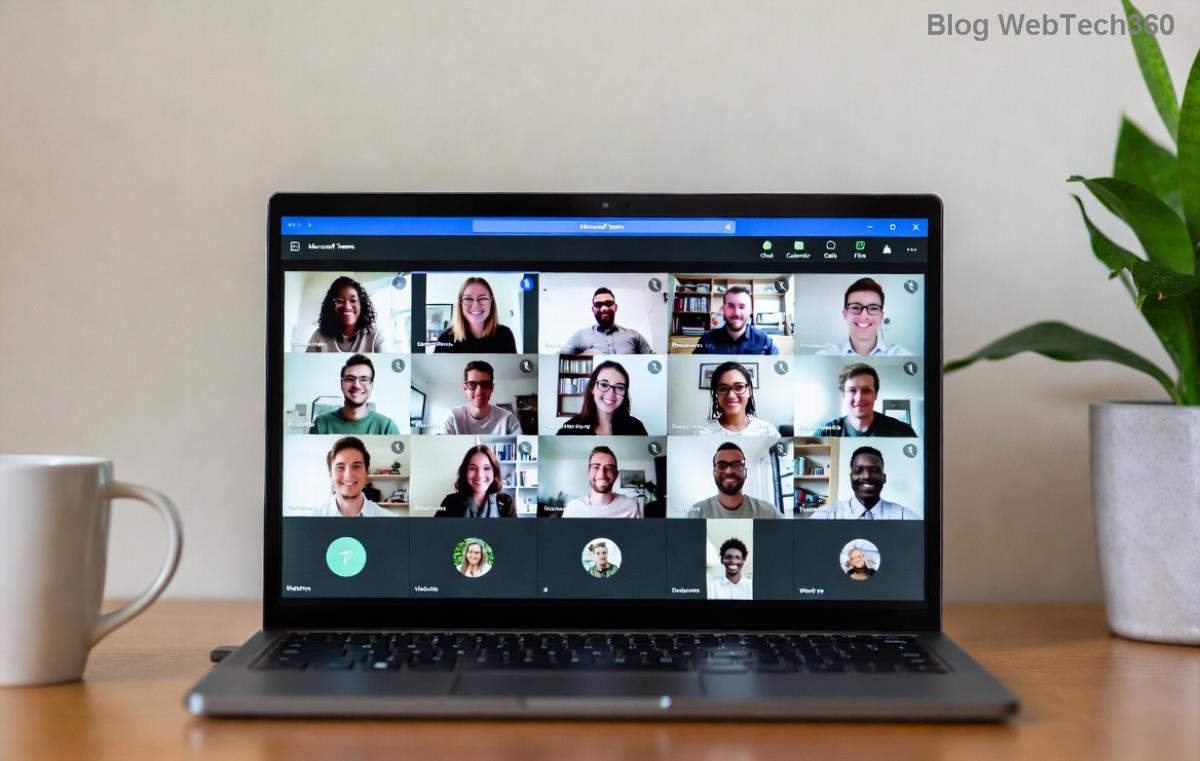
This sets your default for all future calls. Sweet, right? Now, for live tweaks...
Change Microsoft Teams Background Image During a Meeting (Desktop)
- 🎥 In a meeting, click the three dots (More actions) → Show background effects.
- 🖼️ Scroll options: Blurs for quick privacy, images for flair.
- ✨ Pick one—live preview shows real-time magic.
- ✅ Apply and wow your team!
Bonus: None reverts to your real background. Seamless! 👍
Go Mobile: Customize Teams Background on iOS/Android
No desktop? No problem. Mobile app mirrors desktop ease:
| Step |
iOS/Android Action |
| 1️⃣ Pre-Meeting |
Profile icon → Settings → Appearance & accessibility → Background effects |
| 2️⃣ During Call |
Three dots → Show background effects → Swipe & tap |
| 3️⃣ Preview & Apply |
Select → Preview → Apply & turn on video |
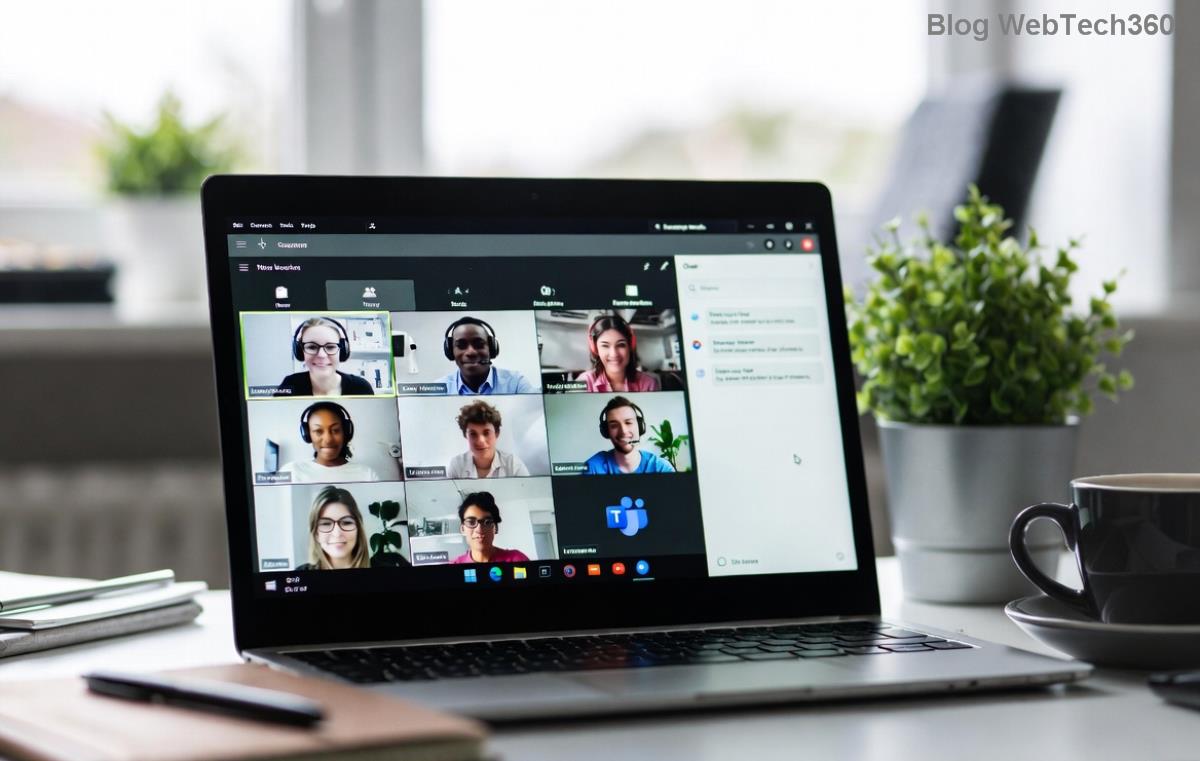
Mobile limits uploads slightly (PNG/JPG under 3MB), but defaults rock. Pro move: Landscape mode for best preview! 📲
Web Browser? Change Teams Background Image Online
Teams web (teams.microsoft.com) supports it too—no install needed:
- 🖥️ Join via browser → More actions → Show background effects.
- 🖼️ Choose from gallery (blurs/images).
- ✅ Apply. Note: Customs need desktop upload first.
Chrome/Edge work best. Quick for one-offs! 🌐
Level Up: Upload Custom Microsoft Teams Background Image
Want your logo, vacation pic, or abstract art? 👨🎨
- 💾 Desktop only: Prep image (1920x1080 ideal, JPG/PNG <4MB).
- 📂 In Background settings → Add new → Select file.
- ✅ Preview & save. It auto-syncs across devices!
Tip: Free sites like Unsplash offer royalty-free gems. Avoid busy patterns—they distract. ⭐
For official deets, check Microsoft Support.
🚨 Common Pitfalls & Fixes When Changing Teams Background
- ❌ No effects option? Update Teams app or check admin policies (IT might restrict).
- ❌ Glitchy preview? Restart app, good lighting helps AI magic.
- ❌ Custom won't upload? Resize image, try JPG.
- ✅ Speed hack: Pin favorites for one-tap access.
Still stuck? Toggle video off/on. 99% fixed! 💪
Bonus Pro Tips to Wow in Every Teams Meeting
- 🌅 Theme match: Holiday backgrounds for festive fun.
- 👥 Team sync: Share customs via chat.
- 🎨 Blur power: Best for low-light privacy.
- 🔄 Switch mid-call: Impress with seamless changes.
Master these, and your meetings level up instantly. What's your go-to background? Experiment now—you'll love the vibe shift!
Wrap-Up: Your Microsoft Teams Background Makeover Awaits
Congrats—you're now a Teams background pro! From quick blurs to custom uploads, these steps work across devices with zero fuss. Dive back for refreshes or share with your crew. Next meeting, steal the show. You've got this! 🎉