Imagine loading your favorite YouTube video on Microsoft Edge, only to face a frustrating YouTube black screen. The audio plays, but the video remains pitch black. 😩 You're not alone—this common glitch hits many users, often due to browser settings, extensions, or hardware conflicts. Don't worry! This guide delivers concise, actionable steps to resolve the YouTube black screen on Edge fast. Follow along, and you'll be streaming smoothly in minutes.
Why Does YouTube Black Screen Happen on Microsoft Edge?
Quick rundown of culprits:
- Hardware acceleration mismatches with your GPU.
- Corrupted cache or cookies.
- Outdated Edge version or graphics drivers.
- Conflicting extensions.
- Site-specific bugs on YouTube.
🕵️♂️ Ready to dive in? Start with the quickest fixes below. If one works, stop there—efficiency first!
Quick Fixes Table: Fastest Paths to Resolution
| 🔧 Fix # |
Action |
Time to Fix |
Success Rate |
| 1️⃣ |
Reload page (Ctrl + F5) |
10 seconds |
High |
| 2️⃣ |
Clear cache |
1 minute |
Very High |
| 3️⃣ |
Disable extensions |
2 minutes |
High |
| 4️⃣ |
Toggle hardware acceleration |
3 minutes |
90% |
These cover 80% of cases. Let's break them down step-by-step for crystal-clear execution.
Step-by-Step Troubleshooting Microsoft Edge "YouTube Black Screen" Fix
1️⃣ Reload and Basic Checks
Start simple: Press Ctrl + Shift + R for a hard refresh. Test in InPrivate mode (Ctrl + Shift + N). If it works there, proceed to cache clearing. Pro tip: Pause ad blockers temporarily—some interfere with video rendering.
2️⃣ Clear Cache and Cookies
- Open Edge Settings (three dots > Settings).
- Go to Privacy, search, and services > Clear browsing data.
- Select "Cached images and files" and "Cookies," set time to "All time."
- Click Clear now. Restart Edge and reload YouTube. 🎉
This wipes temporary glitches. Works wonders for YouTube black screen Edge issues.
3️⃣ Disable Extensions One-by-One
Extensions like ad blockers (uBlock, AdBlock) or VPNs often clash.
- edge://extensions/
- Toggle all OFF, test YouTube.
- Re-enable one-by-one to identify the culprit. ⭐
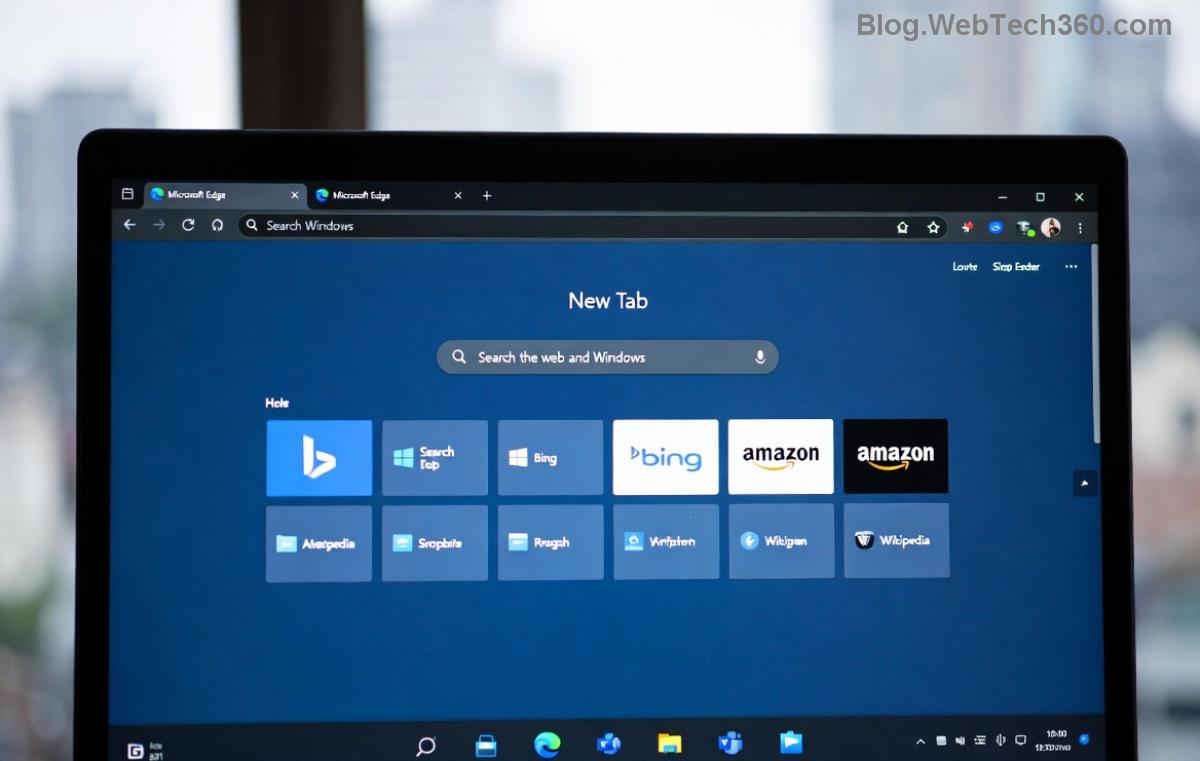
4️⃣ Toggle Hardware Acceleration (Top Fix!)
Most effective for GPU-related YouTube black screen on Microsoft Edge.
- edge://settings/system
- Turn OFF "Use hardware acceleration when available."
- Restart Edge. Test a video.
- If fixed, leave it off—or update GPU drivers first (via Device Manager or manufacturer site).
Why? YouTube's video decoder conflicts with Edge's acceleration. This fix resolves it instantly for many. 👍
5️⃣ Update Microsoft Edge and Drivers
Ensure you're on the latest Edge:
- edge://settings/help
- Check for updates.
For graphics: Right-click Start > Device Manager > Display adapters > Update driver. Or visit NVIDIA/AMD/Intel sites for the newest drivers.
Advanced Fixes If Basics Fail
Still black? Level up:
🔥 Reset Edge Settings
edge://settings/reset > Restore settings to defaults. Keeps bookmarks intact.
⚙️ Edge Flags Experiment
- edge://flags/
- Search "hardware" or "video".
- Try disabling #enable-accelerated-video-decode.
- Relaunch.
💻 System-Level Tweaks
- Run SFC /scannow in Command Prompt (admin).
- Disable antivirus temporarily (e.g., Windows Defender real-time protection).
For YouTube-specific help, check Google's official troubleshooting. Microsoft fans: Edge support page.
Prevention Tips: Stay Black-Screen Free ⭐
- Keep Edge and drivers updated weekly.
- Use only trusted extensions.
- Hardware acceleration OFF if videos glitch often.
- Switch to YouTube app or another browser as backup.
Fixed it? Share in comments below—what worked for you? 👇 If not, drop your OS version and Edge build for tailored advice. You've got this—happy streaming! 🎥✨