When you try to open one of your Outlook email folders, a strange security alert may sometimes appear on the screen. The pop-up message reads: “This device doesn’t meet the security requirements set by your email administrator.” You’re then prompted to update your settings. Unfortunately, there’s no update button available. There are only two options available: “Dismiss” and “Learn more.”
Fix: This Device Doesn’t Meet the Security Requirements Set by Your Email Administrator
Use Outlook on the Web
If you’re getting this alert when using the Outlook stand-alone app, switch to the webmail and check if you notice any changes. Outlook on the web is rarely affected by the same issues plaguing the desktop app. You can also use different browsers and check if you notice any improvements.
Check Your Security Settings
Make sure you’re using an administrator account on your computer. Disable guest accounts to enhance security. Additionally, change your admin password and set a stronger password that includes capital letters and special characters and numbers. If your IT admin requires you to encrypt your device, enable your encryption software.
Contact your IT admin for more information about the security policies that apply to your mailbox. Most of these security policies should be automatically applied, but some may require you to take action. For more information, go to Microsoft’s Support page.
Remove and Re-Add Your Email Account
Try deleting the problematic email account from Outlook. Keep in mind that all offline cached content associated with your account will be deleted. However, this change only affects the content downloaded and stored on your machine.
- Click on the File menu
- Go to Account settings
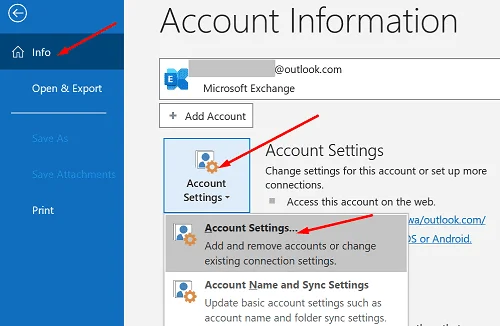
- Select the account you want to remove
- Hit Delete
- Restart your computer
- Relaunch Outlook and add back the account you just deleted
Install the Latest Updates
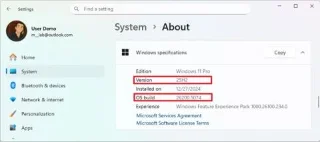
Running outdated software can trigger email security alerts. Update Outlook, Office, and Windows to the latest version and check if you’re still getting the same pop-up message.
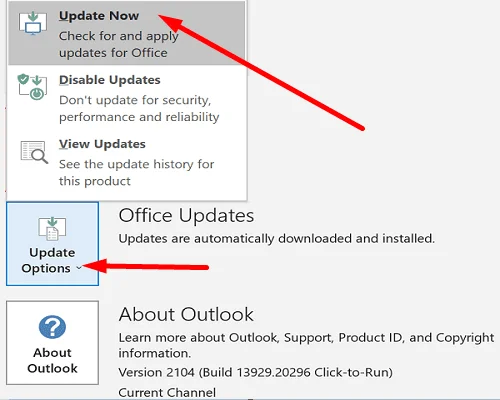
To install the latest Outlook and Office updates, launch Outlook and click on the File menu. Then, select Account, click on Update Options, and hit the Update Now button.

If the security alert persists, go to Settings, select Windows Update, and click on Check for Updates.
Conclusion
If your device doesn’t meet your email administrator’s security requirements, sign in to Outlook on the web. Then, check your security settings. Contact your IT admin for more information on the current security policy. Additionally, remove and re-add your email account. If the alert persists, install the latest Outlook and Windows updates.
Did you manage to solve the problem? Hit the comments below and let us know which solution worked for you.