Windows 11 download free

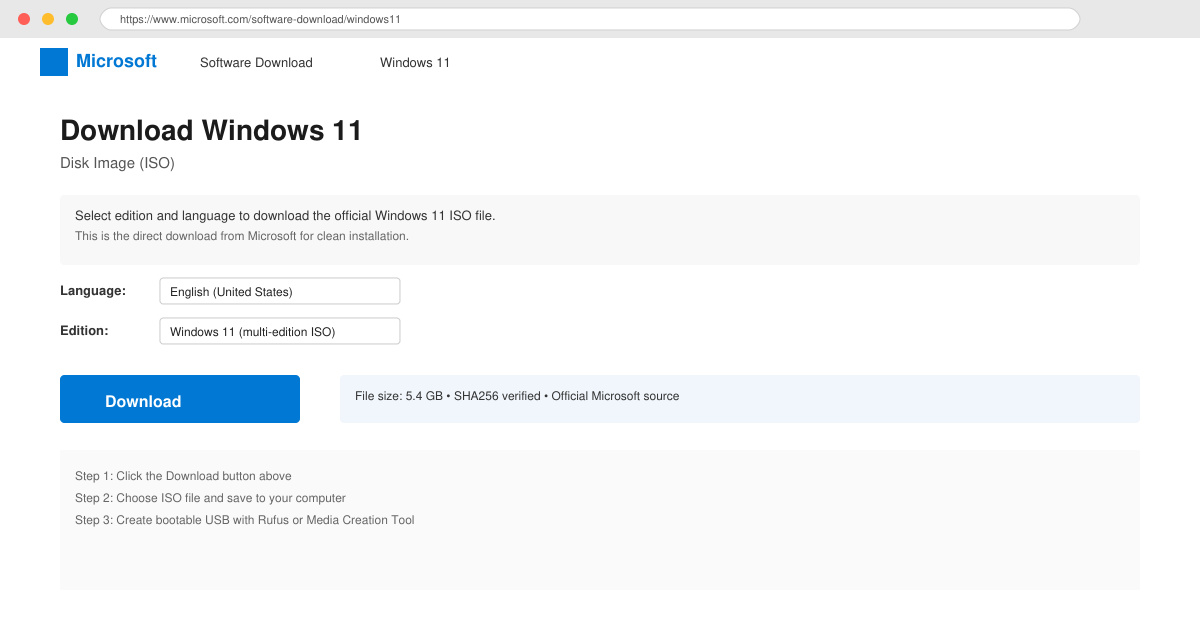
Lær hvordan du laver en Windows 11 download free fra Microsofts officielle kilder. Få den nyeste ISO-fil sikkert og lovligt til din pc.
Hvis Windows 11 kører langsomt, opfører sig ustabilt, eller du blot vil starte forfra, er en ren installation den mest pålidelige måde at nulstille alt på. Det er også den eneste måde at konfigurere en ny enhed med en tom harddisk. I denne vejledning gennemgår jeg trin for trin alle metoder til ren installation af Windows 11, herunder brug af et USB-drev, en ISO-fil, nulstilling af denne pc og download fra clouden, samtidig med at din aktivering forbliver intakt.
I Windows 11 betyder en ren installation at slette din harddisk og installere en ny kopi af operativsystemet, uanset om det er version 25H2 eller 24H2 (eller den kommende version 26H2 ). Denne proces fjerner alt , inklusive brugerdefinerede indstillinger, drivere, apps og personlige filer, hvilket giver din bærbare eller stationære computer en frisk start.
En ren installation er ofte den bedste måde at opgradere til den nyeste version af operativsystemet på kompatibel hardware . Det hjælper med at forhindre installationsfejl og løser eksisterende systemproblemer. Hvis din computer har kørt den samme opsætning i lang tid, kan denne type installation løse problemer med ydeevnenedgang, opstarts- og nedlukningsproblemer, hukommelsesproblemer og app-nedbrud . Det er også den foretrukne metode, når du opgraderer fra en ældre version, f.eks. Windows 10, 8.1 eller 7. Derudover giver denne proces dig mulighed for at fjerne uønsket bloatware , der muligvis er forudinstalleret i din producents standardopsætning.
I modsætning hertil fjerner denne proces ikke operativsystemet fuldstændigt, da den ikke fjerner apps som Microsoft Edge, Microsoft Store og andre indbakke-apps. Hvis du vil fjerne operativsystemet fuldstændigt , skal du tilpasse oplevelsen manuelt.
Vil jeg miste dine filer?
Ja, da en ren installation sletter alt, mister du alle dine personlige filer, apps og indstillinger, medmindre du først sikkerhedskopierer dem. Sådan undgår du at miste vigtige data:
Vil Windows 11 forblive aktiveret?
Ja. Hvis din Windows 10-computer tidligere har været aktiveret, genaktiveres Windows 11 automatisk efter installationen. Du behøver ikke at indtaste en produktnøgle.
Måder at udføre en ren installation på
Microsoft understøtter flere måder at udføre en installation af Windows 11 :
I denne guide vil jeg dække alle trin i installationen af Windows 11 25H2 og version 24H2 på din computer.
Vigtigt: Denne proces sletter alt på din enhed. Det anbefales, at du laver en fuld sikkerhedskopi af din computer, før du fortsætter. Du er blevet advaret. Hvis du oplever problemer under installationen, kan du prøve disse fejlfindingstrin .
Brug af et USB-flashdrev er den nemmeste og mest pålidelige måde at udføre en ren installation af Windows 11. Du kan oprette en bootbar USB-drev ved hjælp af Media Creation Tool, kommandoprompten, Rufus eller andre tredjepartsværktøjer .
Hvis du vælger denne metode, skal du også sikre dig, at din computer kan starte fra et USB-flashdrev . Dette kræver ændring af UEFI-indstillingerne (også kendt som BIOS) . Da hver computer er forskellig, skal du tjekke producentens supportwebsted for specifikke trin til at få adgang til og justere disse indstillinger.
Fra og med Windows 11 24H2 har Microsoft opdateret Windows-installationsoplevelsen med et nyt design . Selvom det meste af processen forbliver den samme, ser nogle trin forskellige ud afhængigt af den version, du installerer. Dette gælder dog kun, hvis du starter fra USB for at starte installationen.
Jeg kan varmt anbefale denne installationsmetode. Selvom det tager lidt længere tid at konfigurere, hjælper det med at minimere potentielle problemer og sikrer, at dit system kører problemfrit efter installationen.
For at udføre en ren installation af Windows 11 fra en USB-nøgle skal du følge disse trin:
Start pc'en med Windows 11 25H2 USB-flashdrevet .
Tryk på en vilkårlig tast for at fortsætte.
Vælg installationssprog og -format.
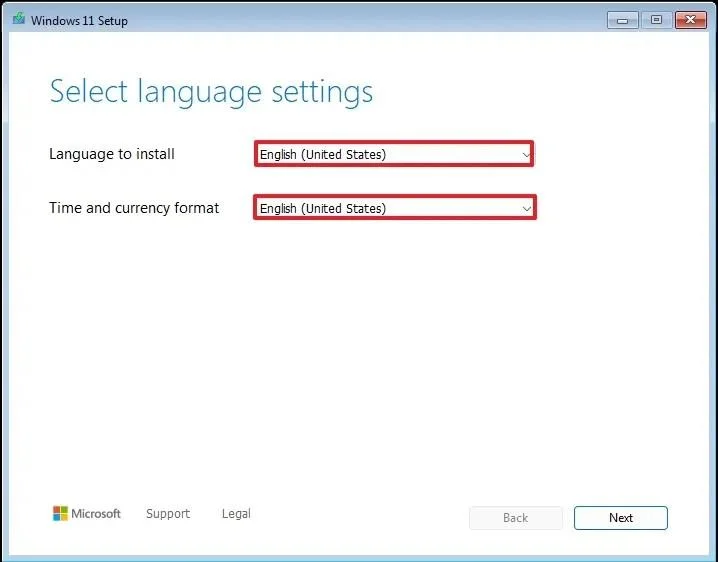
Klik på knappen Næste .
Vælg tastatur og inputmetode.
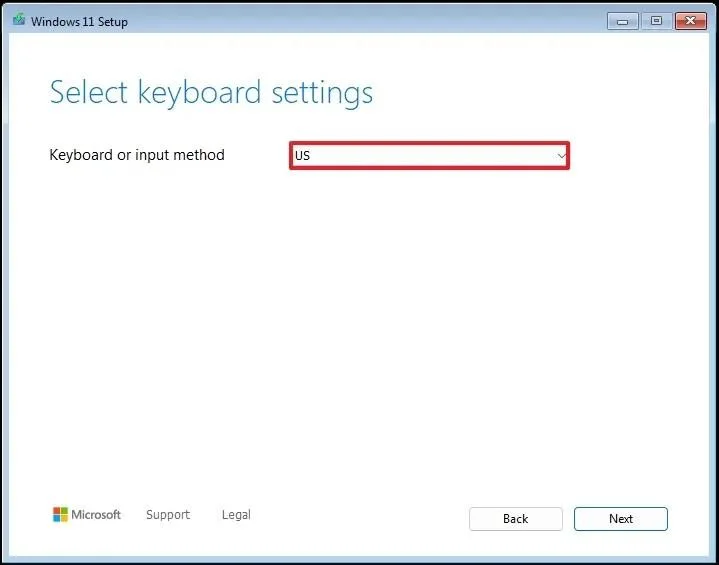
Klik på knappen Næste .
Vælg indstillingen "Installer Windows 11" .
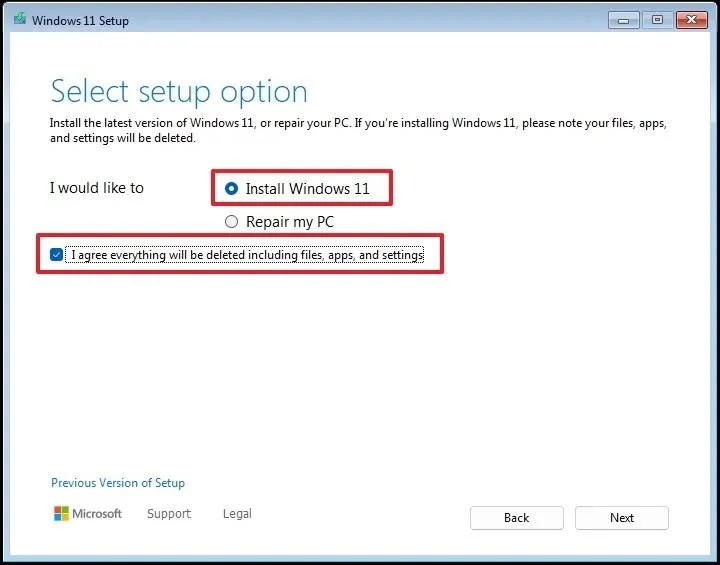
Markér indstillingen "Jeg accepterer, at alt slettes, inklusive filer, apps og indstillinger", for at bekræfte, at denne proces sletter alt på computeren.
Klik på knappen Næste .
Klik på indstillingen "Jeg har ikke en produktnøgle" .
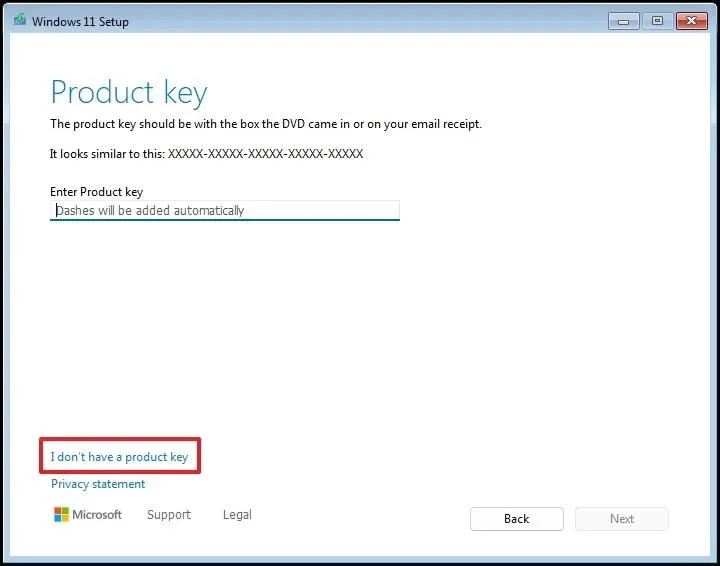
Kort bemærkning: Computeren aktiveres automatisk, når der udføres en geninstallation. Hvis det er en ny computer, skal du angive en produktnøgle. Du kan altid angive produktnøglen til senere aktivering i appen Indstillinger .
Vælg den udgave af “Windows 11”, som din licensnøgle aktiverer (hvis relevant).
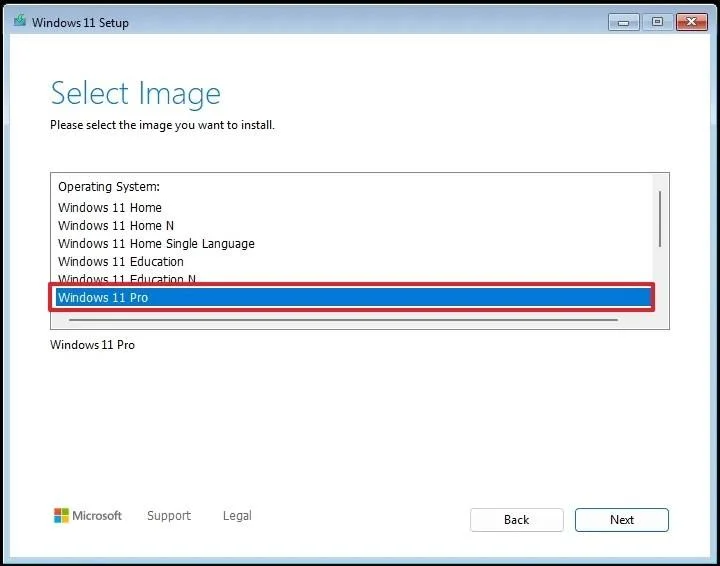
Klik på knappen Næste .
Klik på knappen Accepter
Vælg hver partition på harddisken, hvor du vil installere Windows 11, og klik på knappen Slet . (Normalt er "Drev 0" det drev, der indeholder alle installationsfilerne.)
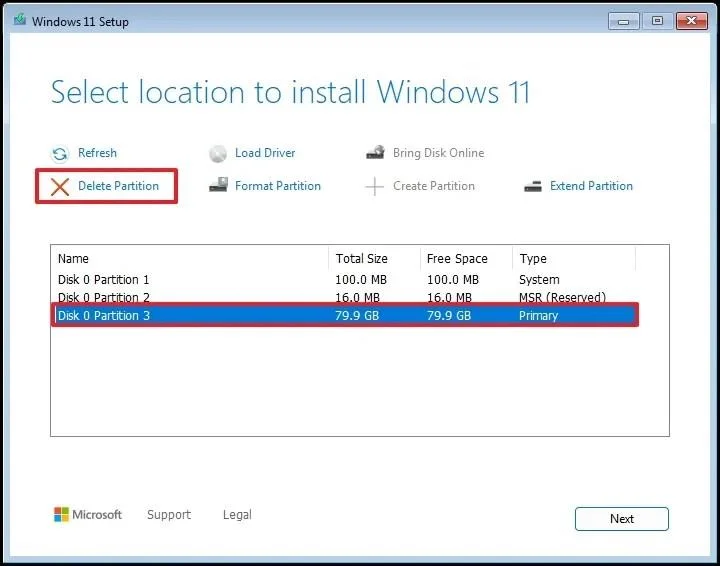
Vælg harddisken (Drev 0 Ikke-allokeret plads) for at installere operativsystemet.
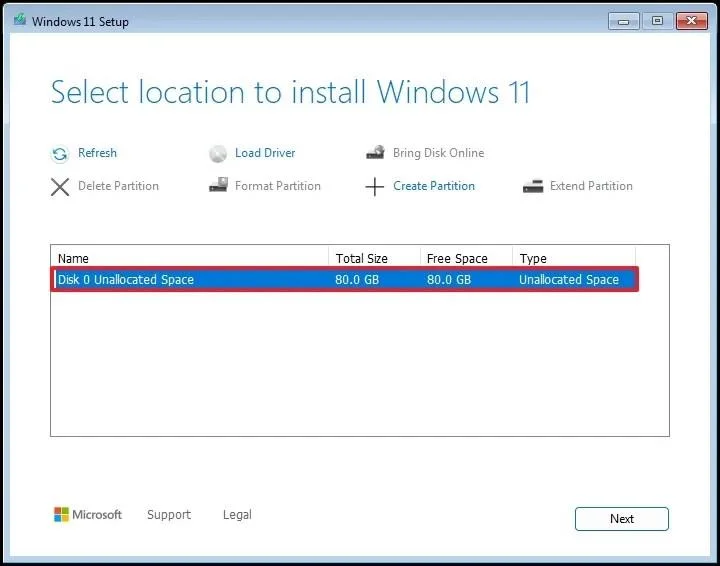
Klik på knappen Næste .
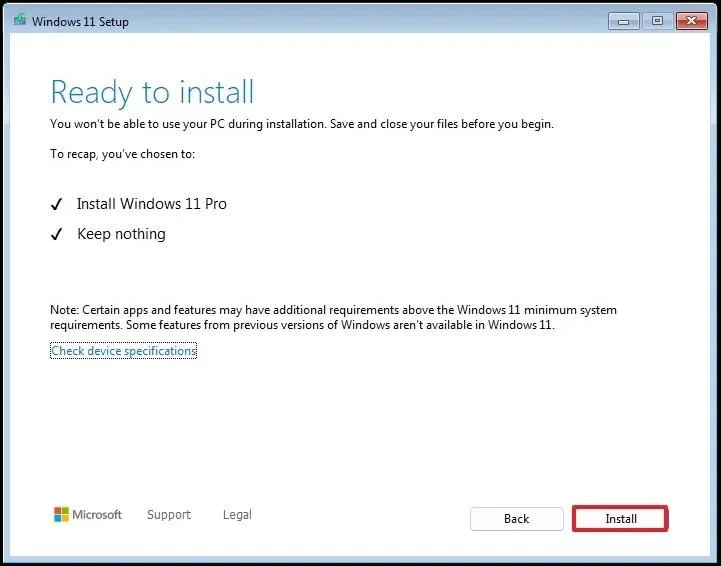
Klik på knappen Installer .
Vælg din regionsindstilling på den første side af den indbyggede version (OOBE) efter installationen.
Kort bemærkning: Microsoft foretager altid ændringer og tester nye måder at fuldføre den indledende opsætning på. Derfor kan nogle af de følgende trin vises i en anden rækkefølge, og du kan støde på yderligere skærmbilleder.
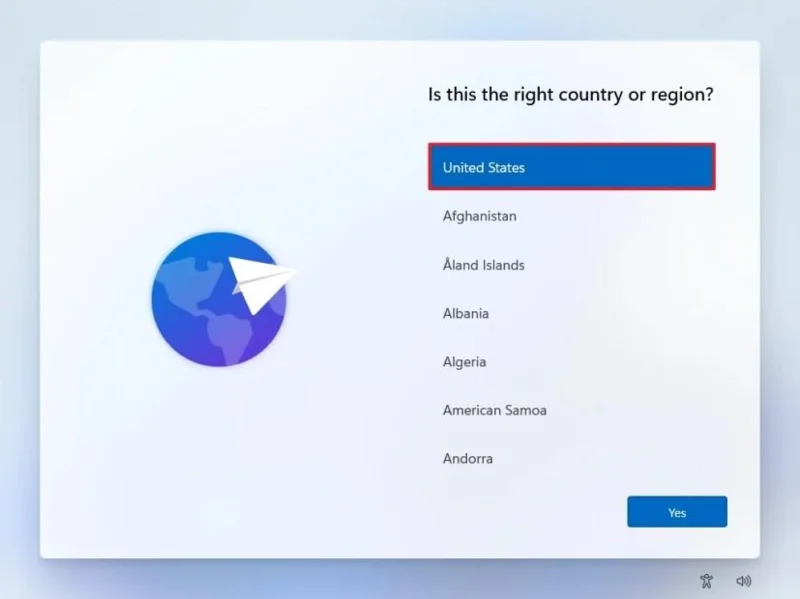
Klik på knappen Ja .
Vælg din indstilling for tastaturlayout.
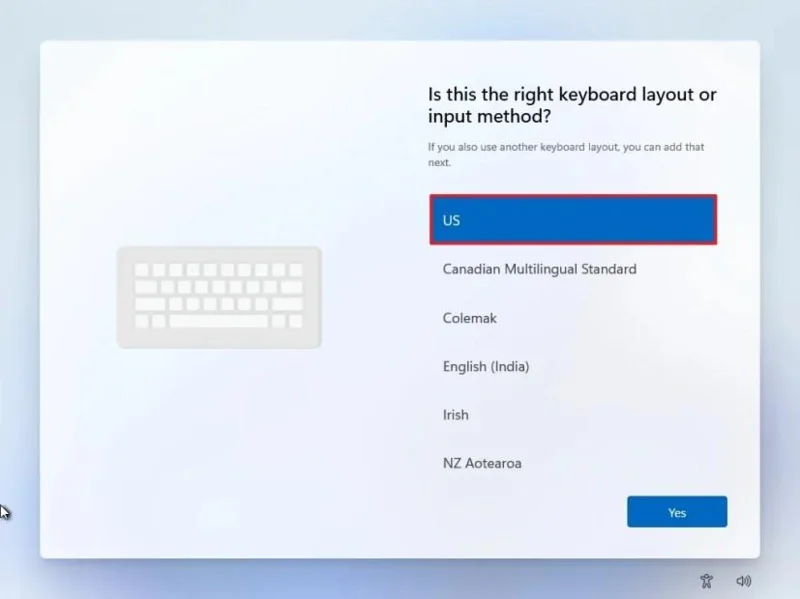
Klik på knappen Ja .
Klik på knappen Spring over , hvis du ikke har brug for at konfigurere et andet layout.
Computeren opretter automatisk forbindelse til netværket via en Ethernet- forbindelse. Du skal konfigurere forbindelsen manuelt på en trådløs forbindelse (en sikkerhedsnøgle kan være påkrævet).
(Valgfrit) Bekræft et navn til computeren.
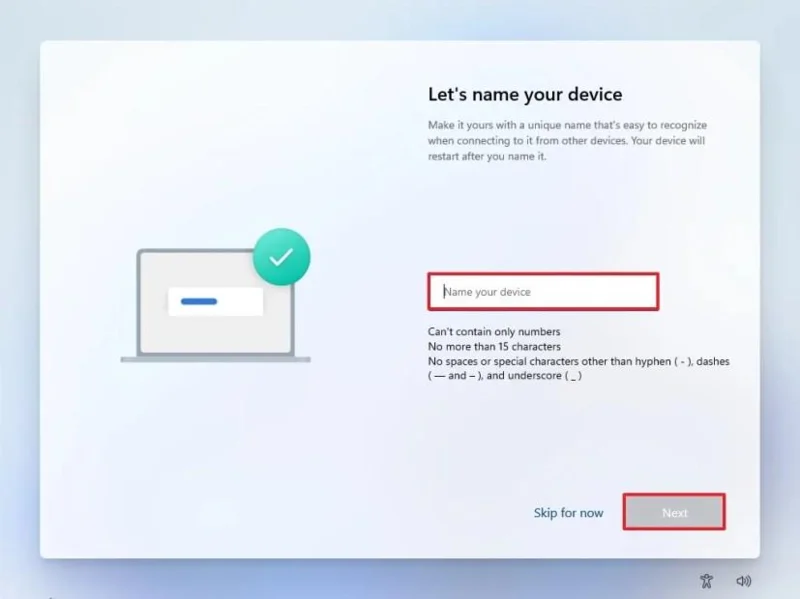
Kort bemærkning: Dette er et valgfrit trin, men det anbefales kraftigt at angive et navn for at gøre det nemmere at identificere enheden på netværket, på din Microsoft-konto og når du gendanner din computer fra en sikkerhedskopi. Når dette trin er gennemført, genstarter installationen også for at anvende det nye navn, men den starter, hvor du slap, for at fortsætte med indstillingerne.
Klik på knappen Næste . (Enheden genstarter automatisk.)
Vælg indstillingen "Opsætning til personlig brug" i Windows 11 Pro. Denne indstilling er ikke tilgængelig for "Home" -udgaven.
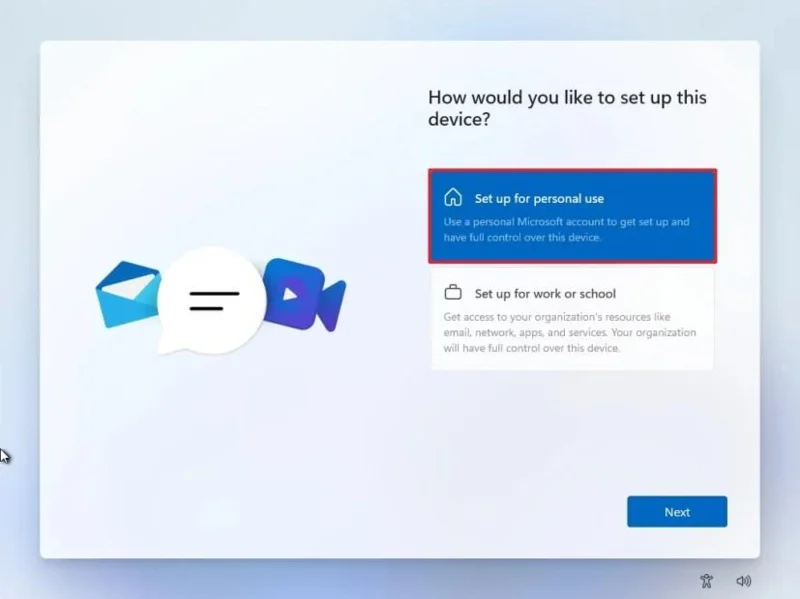
Hurtigt tip: Brug indstillingen "Opsætning til arbejde eller skole" til at springe Microsoft-kontoen over og oprette en lokal konto.
Klik på knappen Næste .
Klik på knappen Log ind .
Bekræft din Microsoft-kontos e-mailadresse for at oprette en Windows 11-konto.
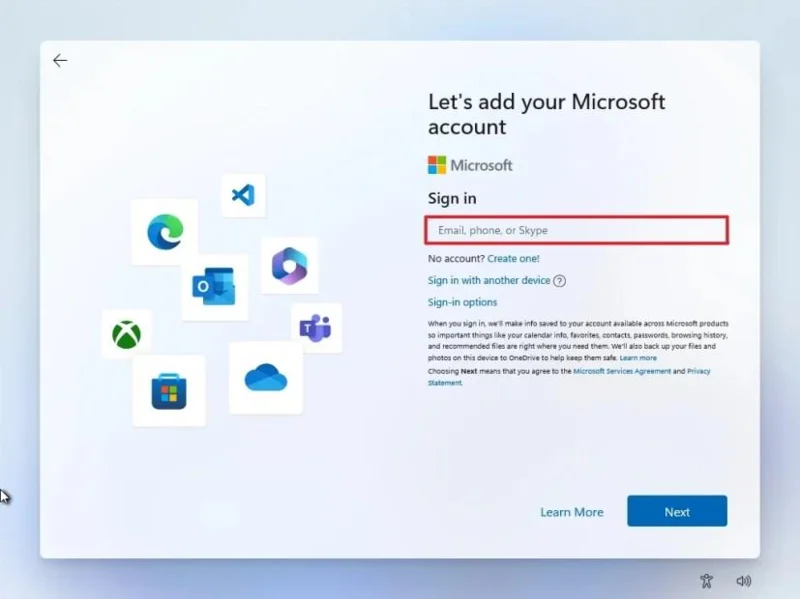
Klik på knappen Næste .
Bekræft adgangskoden til din Microsoft-konto.
Klik på knappen Næste .
Klik på knappen Opret pinkode .
Opret en ny firecifret Windows Hello PIN-kode.
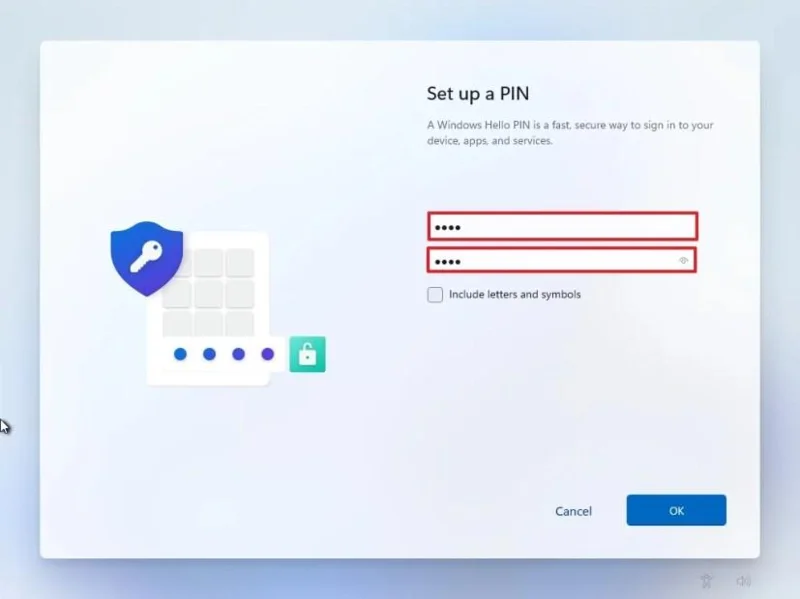
Klik på OK -knappen.
Slå til eller fra for hver privatlivsindstilling for at vælge den, der passer bedst til din situation.
Klik på knappen Næste .
Klik på knappen Næste igen.
Klik på knappen Accepter .
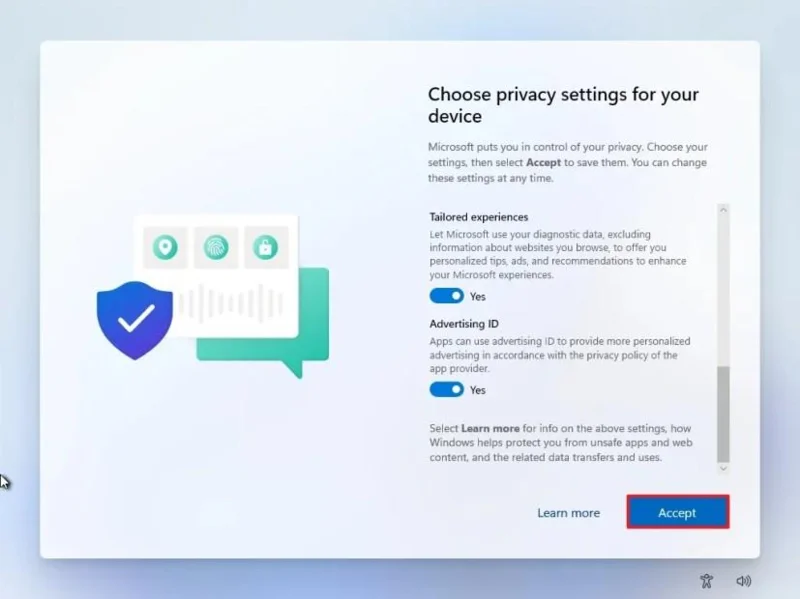
Klik på indstillingen Flere muligheder .
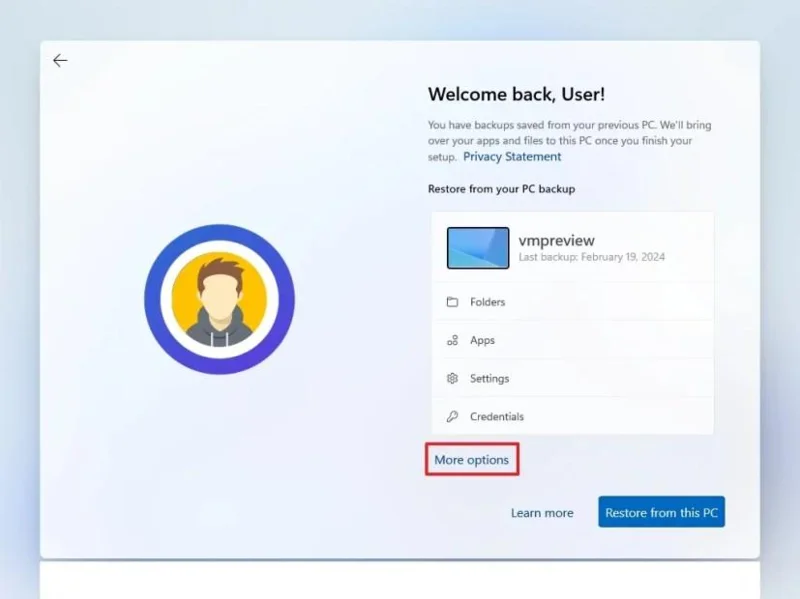
Hurtigt tip: Du kan også klikke på knappen "Gendan fra denne pc" for at gendanne dine filer, apps, indstillinger og legitimationsoplysninger fra den systembackup, der er tilgængelig på din OneDrive-konto. Du kan få mere at vide om Windows Backup-appen i denne vejledning .
Klik på indstillingen "Opsæt som en ny pc" .
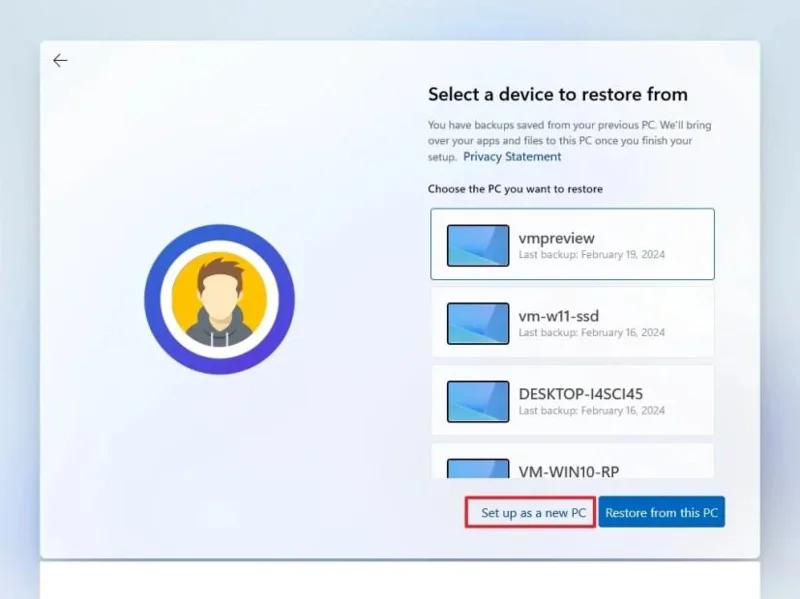
Klik på "Opsæt som en ny pc" igen.
(Valgfrit) På siden "Lad os tilpasse din oplevelse" skal du vælge en eller flere måder, du planlægger at bruge enheden på, så operativsystemet kan foreslå værktøjer og tjenestetilpasning under denne oplevelse.
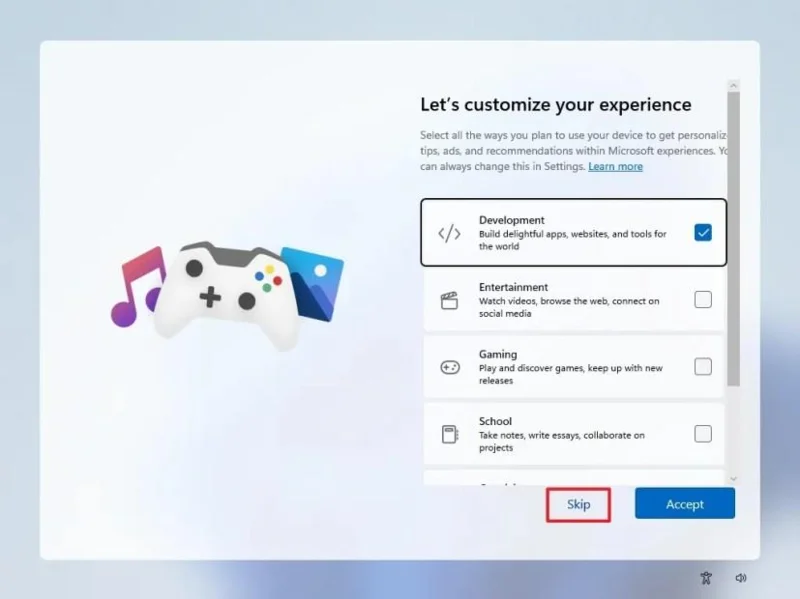
Klik på knappen Accepter for at fortsætte. Eller klik på knappen Spring over for at springe denne del af opsætningen over.
(Valgfrit) Brug koden til at linke din Android-telefon, eller klik på Spring over- funktionen.
(Valgfrit) Brug koden til at downloade OneDrive-appen på din telefon, eller klik på Spring over- funktionen.
Klik på knappen " Ikke nu", hvis du bruger en anden browser end Microsoft Edge.
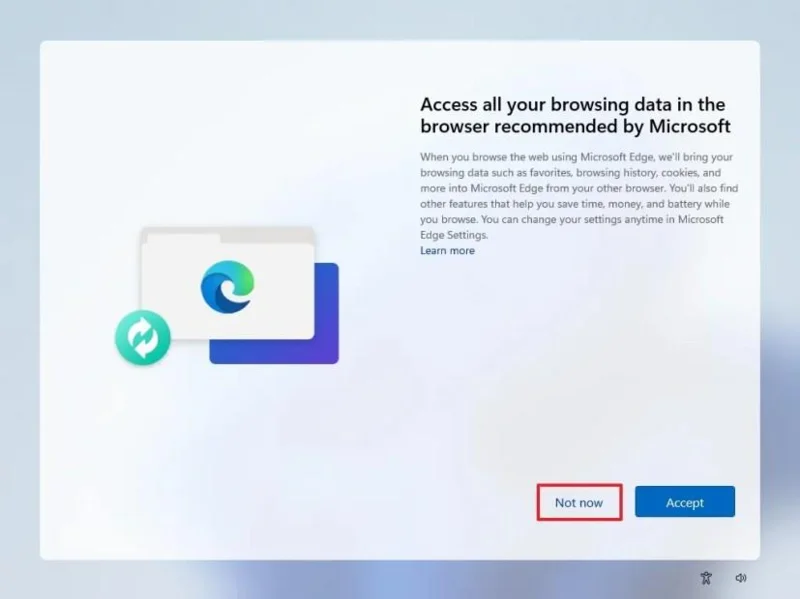
Når du har gennemført trinnene, vil Windows 11 25H2 afslutte den rene installation på computeren.
Alternativt kan du montere ISO-filen i Stifinder for at starte en ren installation eller en opgradering på stedet på en enhed, hvor operativsystemet allerede er installeret.
For at rengøre Windows 11 med en ISO-fil skal du følge disse trin:
Vælg Windows 11 -indstillingen under afsnittet "Download Windows 11-diskbillede (ISO)".
Klik på knappen Download .
Vælg installationssproget.
Klik på knappen Bekræft .
Klik på knappen Download for at gemme Windows 11 ISO-filen på enheden.
Højreklik på ISO-filen, og vælg " Monter" -indstillingen.
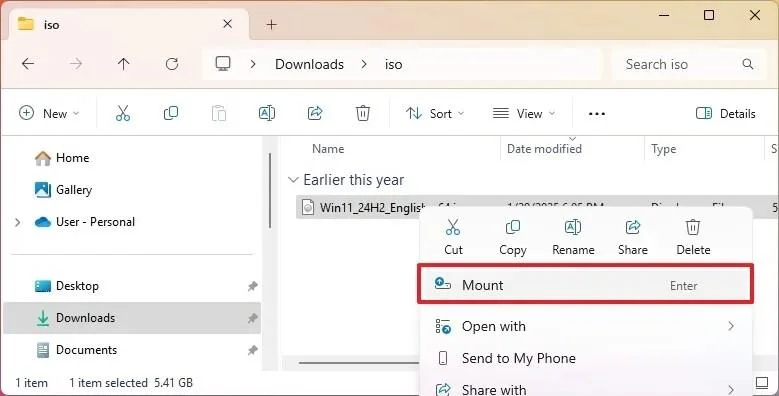
[/tbx] Hurtigt tip: Hvis indstillingen ikke er tilgængelig, skal du vælge menuen "Åbn med " og derefter vælge "Windows Stifinder" .[/tbx]
Vælg det virtuelle drev i venstre navigationsrude.
Dobbeltklik på filen Setup.exe for at starte installationen af Windows 11.
(Valgfrit) Klik på indstillingen "Skift, hvordan Windows-installationsprogrammet downloader opdateringer" .
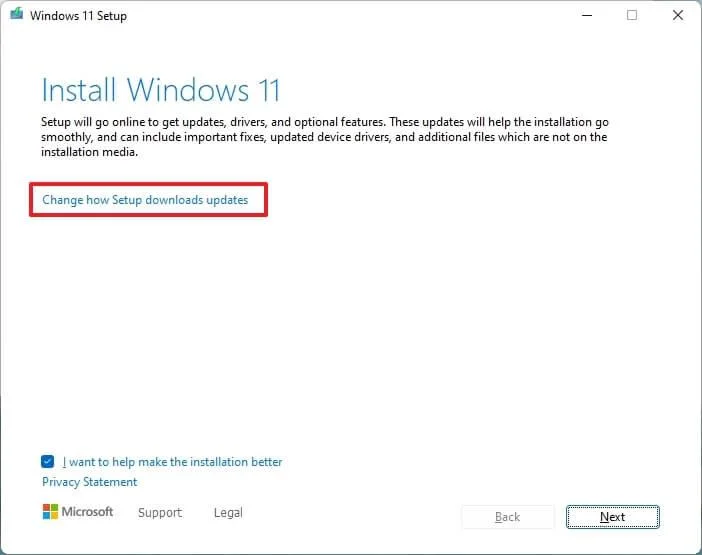
Vælg indstillingen "Ikke lige nu" .
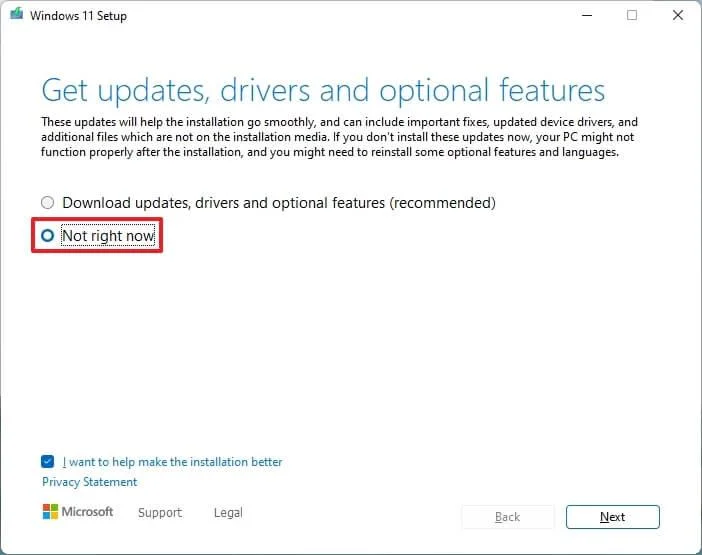
Klik på knappen Næste .
Klik på knappen Accepter for at acceptere vilkårene.
Klik på indstillingen "Skift, hvad der skal beholdes" .
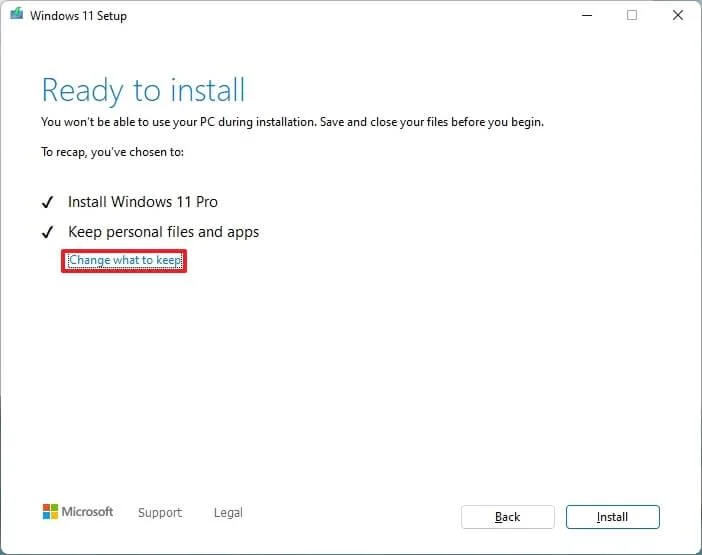
Vælg indstillingen Intet .
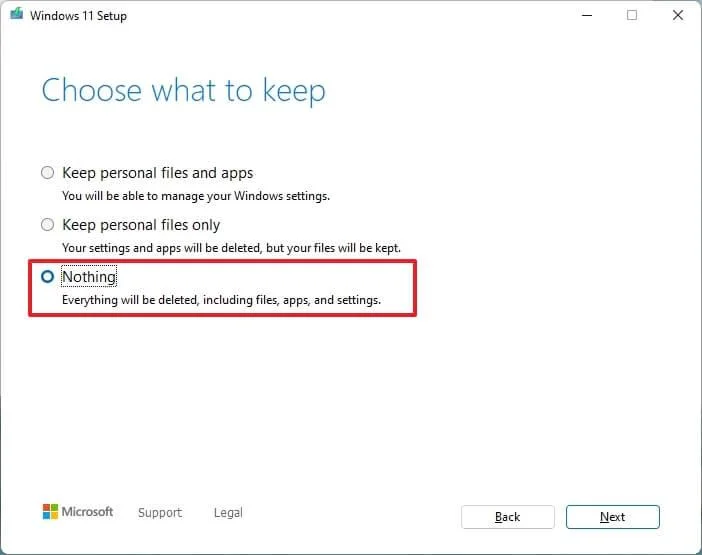
Klik på knappen Næste .
Klik på knappen Installer .
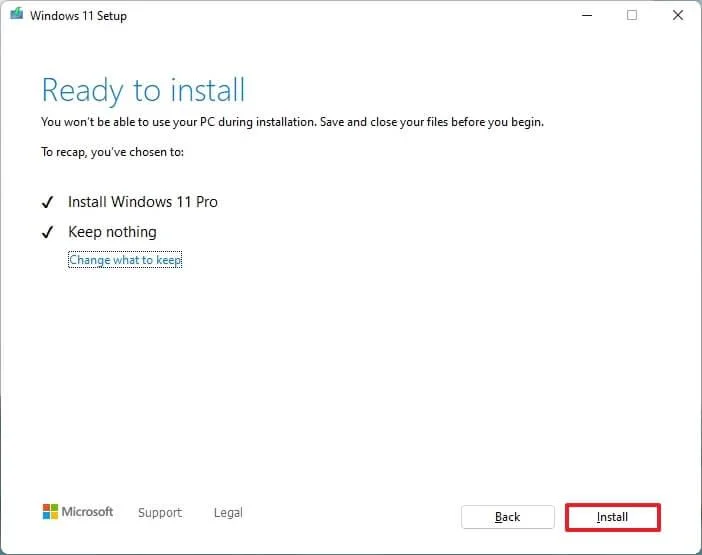
Klik på knappen Næste .
Vælg din regionsindstilling på den første side af den indbyggede version (OOBE) efter installationen.
Klik på knappen Ja .
Vælg din indstilling for tastaturlayout.
Klik på knappen Ja .
Klik på knappen Spring over , hvis du ikke har brug for at konfigurere et andet layout.
Computeren opretter automatisk forbindelse til netværket via en Ethernet- forbindelse. Du skal konfigurere forbindelsen manuelt på en trådløs forbindelse (en sikkerhedsnøgle kan være påkrævet).
(Valgfrit) Bekræft et navn til computeren.
Kort bemærkning: Dette er et valgfrit trin, men det anbefales kraftigt at angive et navn for at gøre det nemmere at identificere enheden på netværket, på din Microsoft-konto og når du gendanner din computer fra en sikkerhedskopi. Derudover genstarter opsætningen efter dette trin for at anvende det nye navn, og den fortsætter, hvor du slap, for at fortsætte med indstillingerne.
Klik på knappen Næste . (Enheden genstarter automatisk.)
Vælg indstillingen "Opsætning til personlig brug" i Windows 11 Pro. Denne indstilling er ikke tilgængelig for "Home" -udgaven.
Hurtigt tip: Brug indstillingen "Opsætning til arbejde eller skole" til at springe Microsoft-kontoen over og oprette en lokal konto.
Klik på knappen Næste .
Klik på knappen Log ind .
Bekræft din Microsoft-kontos e-mailadresse for at oprette en Windows 11-konto.
Klik på knappen Næste .
Bekræft adgangskoden til din Microsoft-konto.
Klik på knappen Næste .
Klik på knappen Opret pinkode .
Opret en ny firecifret Windows Hello PIN-kode.
Klik på OK -knappen.
Slå til eller fra for hver privatlivsindstilling for at vælge den, der passer bedst til din situation.
Klik på knappen Næste .
Klik på knappen Næste igen.
Klik på knappen Accepter .
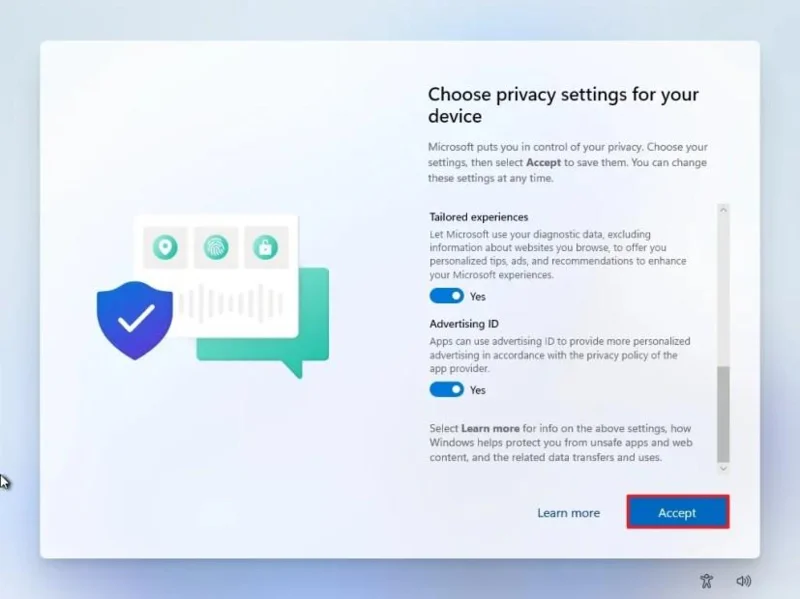
Klik på indstillingen Flere muligheder .
Hurtigt tip: Du kan også klikke på knappen "Gendan fra denne pc" for at gendanne dine filer, apps, indstillinger og legitimationsoplysninger fra den systembackup, der er tilgængelig på din OneDrive-konto. Du kan få mere at vide om Windows Backup-appen i denne vejledning .
Klik på indstillingen "Opsæt som en ny pc" .
Klik på "Opsæt som en ny pc" igen.
(Valgfrit) På siden "Lad os tilpasse din oplevelse" skal du vælge en eller flere måder, du planlægger at bruge enheden på, så operativsystemet kan foreslå værktøjer og tjenestetilpasning under denne oplevelse.
Klik på knappen Accepter for at fortsætte. Eller klik på knappen Spring over for at springe denne del af opsætningen over.
(Valgfrit) Brug koden til at forbinde din Android-telefon, eller klik på "Spring over" .
(Valgfrit) Brug koden til at downloade OneDrive-appen på din telefon, eller klik på "Spring over" .
Klik på knappen " Ikke nu", hvis du bruger en anden browser end Microsoft Edge.
Når du har gennemført trinnene, begynder den rene installationsproces, ligesom du bruger Media Creation Tools eller et USB-flashdrev til at opgradere systemet.
Gendannelsesindstillingerne giver en alternativ måde at geninstallere en ny kopi af Windows 11. I modsætning til at bruge Media Creation Tool, en bootbar USB-nøgle eller en ISO-fil, er denne metode kun tilgængelig, hvis din computer allerede kører Windows 11.
Hvis du opgraderer fra Windows 10, 8.1 eller 7, skal du i stedet bruge et USB-installationsprogram eller en ISO-fil. Gendannelsesfunktionen er ikke tilgængelig for disse versioner.
For at rengøre Windows 11 med funktionen "Nulstil denne pc" med lokalt image, skal du følge disse trin:
Åbn Indstillinger .
Klik på System .
Klik på Gendannelse i højre side.
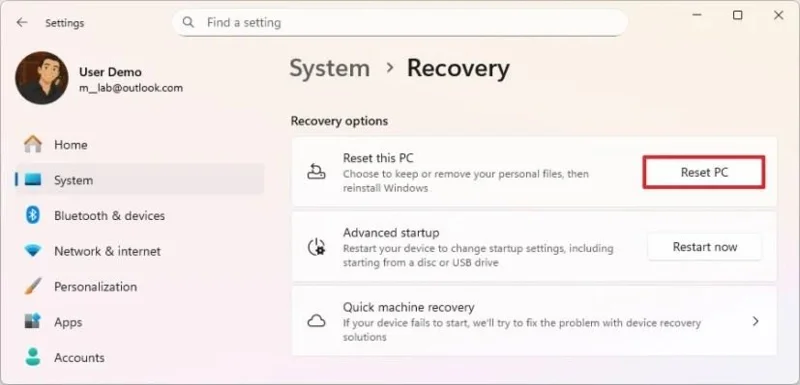
Click the Reset PC button in the “Reset this PC” setting under the “Recovery options” section.
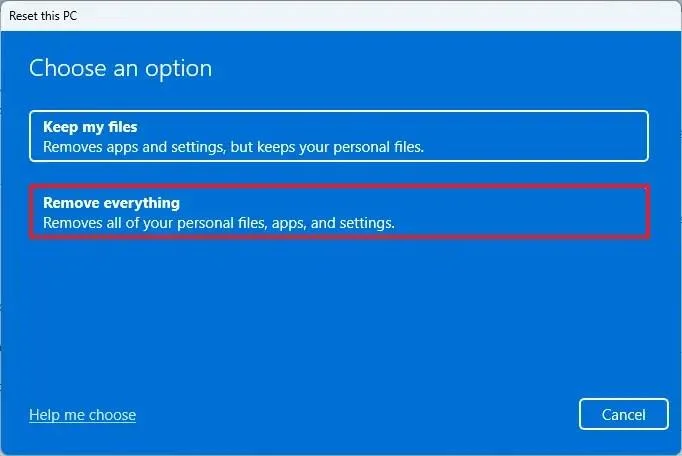
Click the Remove everything option to perform a fresh install of Windows 11.
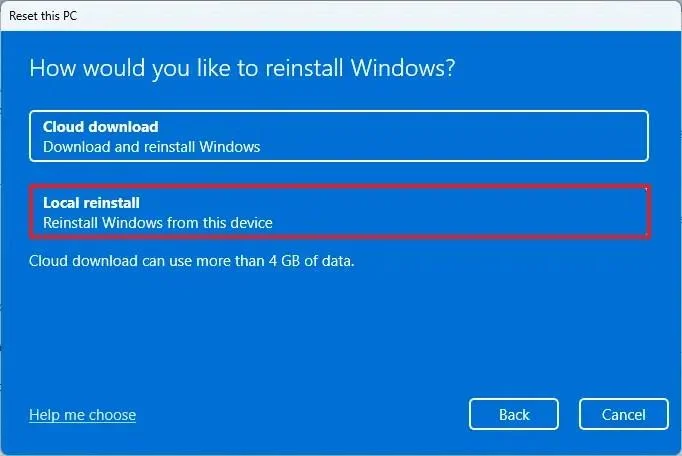
Click the Local reinstall option.
(Optional) Click the Change settings option.
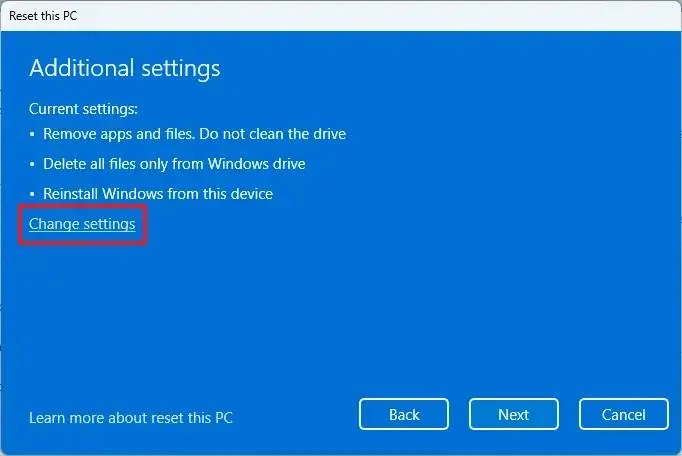
Configure the reinstallation options:
Clean data: If set to No (recommended), the setup will quickly delete files, apps, and settings without securely wiping the drive. If set to Yes, Windows will thoroughly erase the drive before reinstalling the operating system, which takes longer but ensures that all data is completely removed.
Delete files from all drives: If set to No (recommended), only the installation drive (usually the C: drive) will be erased. If set to Yes, all drives on the device will be wiped, so be sure to back up any important data before choosing this option.
Download Windows: If set to No (recommended), Windows will use the local installation files already on your device. If set to Yes, the setup will download the latest version of Windows 11 from the cloud, ensuring you get the most up-to-date installation.
Click the Confirm button.
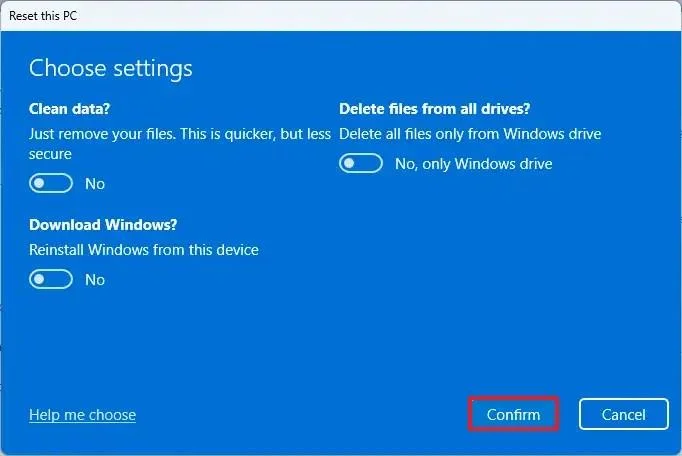
Click the Next button.
Click the Reset button.
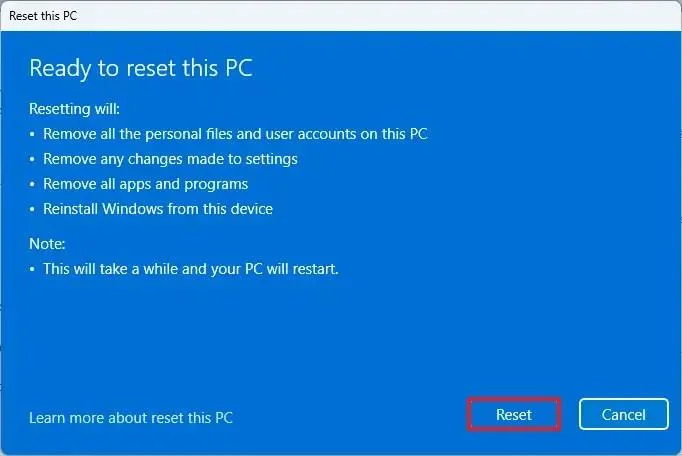
Click the Next button.
Choose your region setting on the first page of the out-of-the-box experience (OOBE) after the installation.
Click the Yes button.
Select your keyboard layout setting.
Click the Yes button.
Click the Skip button if you do not need to configure a second layout.
The computer will automatically connect to the network using an Ethernet connection. You must set up the connection manually on a wireless connection (a security key may be required).
(Optional) Confirm a name for the computer.
Quick note: This is an optional step, but it’s highly recommended to set a name to make it easier to identify the device in the network, on your Microsoft account, and when restoring your computer from backup. Additionally, after completing this step, the setup will restart to apply the new name, and it’ll resume where you left off to continue with the settings.
Click the Next button. (The device will restart automatically.)
Select the “Set up for personal use” option for Windows 11 Pro. This option is not available for the “Home” edition.
Quick tip: Use the “Set up for work or school” option to skip the Microsoft account and create a local account.
Click the Next button.
Click the Sign in button.
Confirm your Microsoft account email to create a Windows 11 account.
Click the Next button.
Confirm your Microsoft account password.
Click the Next button.
Click the Create PIN button.
Create a new four-digit Windows Hello PIN.
Click the OK button.
Turn on or off the toggle switch for each privacy setting to confirm the one that best suits your situation.
Click the Next button.
Click the Next button again.
Click the Accept button.
Click the More options setting.
Quick tip: You can also click the “Restore from this PC” button to restore your files, apps, settings, and credentials from the system backup available in your OneDrive account. You can learn more about the Windows Backup app in this guide.
Click the “Set up as a new PC” option.
Click the “Set up as a new PC” option again.
(Optional) On the “Let’s customize your experience” page, select one or more ways you plan to use the device to allow the operating system to suggest tools and service customization during this experience.
Click the Accept button to continue. Or click the Skip button to skip this part of the setup.
(Optional) Use the code to link your Android phone, or click the “Skip” option.
(Optional) Use the code to download the OneDrive app on your phone or click the Skip option.
Click the “Not now” button if you will be using a browser other than Microsoft Edge.
Once you complete the steps, the recovery feature will automatically start and reinstall Windows 11 from a local copy of the setup image stored on your computer.
If you have a computer from a major brand such as HP, Dell, or Acer, this process will restore it to factory settings. That means it will reinstall all the software, drivers, and tools that came with it when you first bought it.
However, if you don’t want to restore the factory setup and prefer a clean Windows 11 install, you have another option. Instead of using the local image, select the “Cloud Download” option. I’ll show you how to do that in the steps below.
The Reset this PC feature includes the “Cloud Download” option, which lets you reinstall Windows 11 with a clean installation, removing apps, files, and settings, just like the local reinstall option. The key difference is that this option downloads fresh installation files directly from Microsoft’s servers, rather than using existing files.
This option is useful when the local installation files are corrupted or if you want a cleaner setup without the manufacturer’s preinstalled software and settings. However, keep in mind that:
To perform a clean installation of Windows 11 with the “Cloud Download” option, use these steps:
Open Settings.
Click on System.
Click on Recovery on the right side.
Click the Reset PC button in the “Reset this PC” setting under the “Recovery options” section.
Click the Remove everything option to perform a fresh install of Windows 11.
Click the Cloud reinstall option.
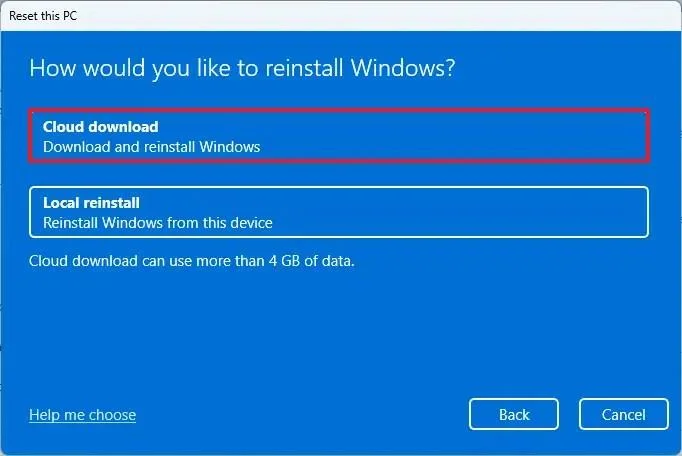
(Optional) Click the Change settings option.
Configure the reinstallation options:
Clean data: If set to No (recommended), the setup will quickly delete files, apps, and settings without securely wiping the drive. If set to Yes, Windows will thoroughly erase the drive before reinstalling the operating system, which takes longer but ensures that all data is completely removed.
Delete files from all drives: If set to No (recommended), only the installation drive (usually the C: drive) will be erased. If set to Yes, all drives on the device will be wiped, so be sure to back up any important data before choosing this option.
Download Windows: If set to No (recommended), Windows will use the local installation files already on your device. If set to Yes, the setup will download the latest version of Windows 11 from the cloud, ensuring you get the most up-to-date installation.
Click the Confirm button.
Click the Next button.
Click the Reset button.
Click the Next button.
Choose your region setting on the first page of the out-of-the-box experience (OOBE) after the installation.
Click the Yes button.
Select your keyboard layout setting.
Click the Yes button.
Click the Skip button if you do not need to configure a second layout.
The computer will automatically connect to the network using an Ethernet connection. You must set up the connection manually on a wireless connection (a security key may be required).
(Optional) Confirm a name for the computer.
Quick note: This is an optional step, but it’s highly recommended to set a name to make it easier to identify the device in the network, on your Microsoft account, and when restoring your computer from backup. Also, after completing this step, the setup will restart to apply the new name, but it’ll start where you left off to continue with the settings.
Click the Next button. (The device will restart automatically.)
Select the “Set up for personal use” option for Windows 11 Pro. This option is not available for the “Home” edition.
Quick tip: Use the “Set up for work or school” option to skip the Microsoft account and create a local account.
Click the Next button.
Click the Sign in button.
Confirm your Microsoft account email to create a Windows 11 account.
Click the Next button.
Confirm your Microsoft account password.
Click the Next button.
Click the Create PIN button.
Create a new four-digit Windows Hello PIN.
Click the OK button.
Turn the toggle switch for each privacy setting to confirm the option that best suits your situation.
Click the Next button.
Click the Next button again.
Click the Accept button.
Click the More options setting.
Quick tip: You can also click the “Restore from this PC” button to restore your files, apps, settings, and credentials from the system backup available in your OneDrive account. You can learn more about the Windows Backup app in this guide.
Click the “Set up as a new PC” option.
Click the “Set up as a new PC” option again.
(Optional) On the “Let’s customize your experience” page, select one or more ways you plan to use the device to allow the operating system to suggest tools and service customization during this experience.
Click the Accept button to continue. Or click the Skip button to skip this part of the setup.
(Optional) Use the code to link your Android phone, or click the “Skip” option.
(Optional) Use the code to download the OneDrive app on your phone or click the “Skip” option.
Click the “Not now” button if you will be using a browser other than Microsoft Edge.
After you complete the steps, the feature will reset the computer by erasing and reinstalling a fresh copy of Windows 11 downloaded from the cloud.
If your computer doesn’t boot, you can use the Windows Recovery Environment (WinRE) to access the same Reset this PC option. This allows you to reinstall Windows 11 even when the system won’t start normally.
However, WinRE can only reinstall the same version of Windows on your device. To upgrade to the latest version, you’ll need to use a USB flash drive, the Media Creation Tool, or an ISO file.
To clean install Windows 11 from WinRE, use these steps:
Power on the device.
Immediately after the Power-On Self-Test (POST), press the Power button again to shut down.
Repeat steps 1 and 2 twice, and in the third restart, the operating system should enter the Windows Recovery Environment (Windows RE).
Quick note: Windows 11 has multiple ways to open the Advanced startup settings. You can use these alternative options if you are unable to access the recovery environment.
Click the Advanced options button.
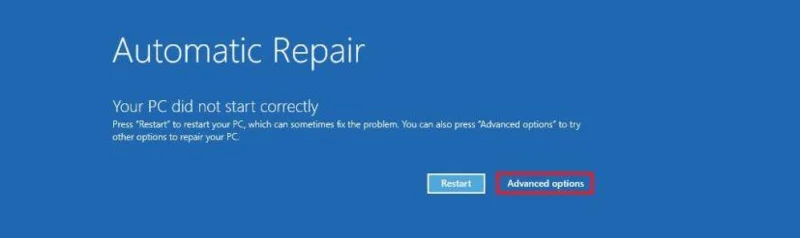
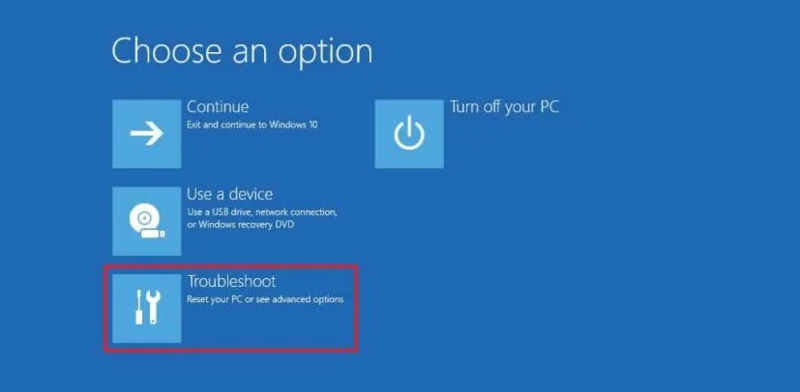
Click on Troubleshoot.
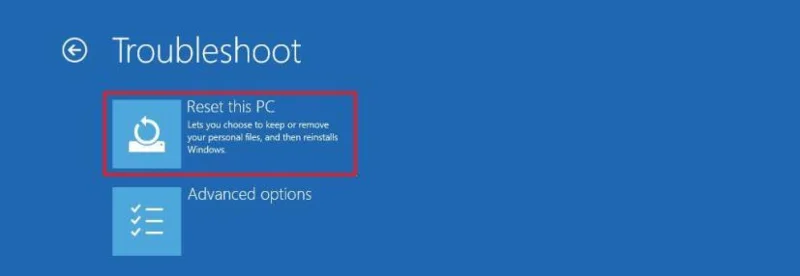
Click the Reset this PC option.
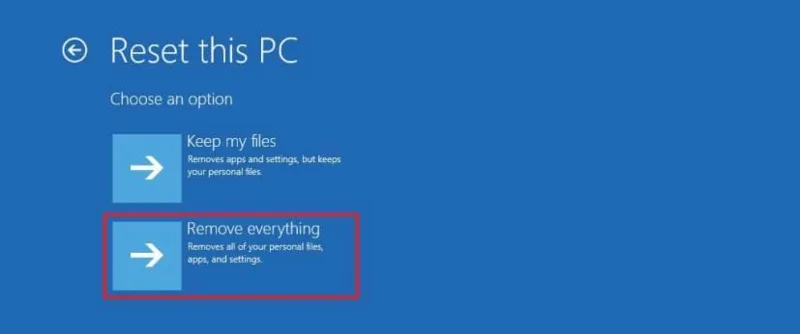
Select the Remove everything option.
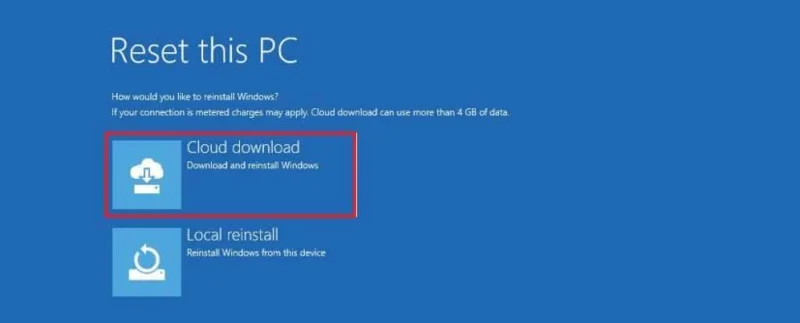
Click Cloud Download or Local Reinstall to continue:
Cloud Download – Downloads a fresh copy of Windows 11 from Microsoft’s servers and performs a clean installation. This option ensures you receive the latest files, but it requires an internet connection.
Local Reinstall – Uses the existing installation files on your computer to reinstall Windows 11. This option is faster and doesn’t require an internet connection, but it may not work if the local files are corrupted.
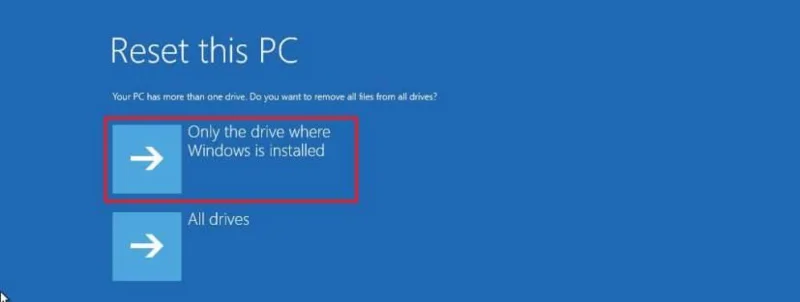
Select the “Only the drive where Windows is installed” option. (The All drives option will delete the data on all drives. This option is usually recommended only when you have to decommission the device.)
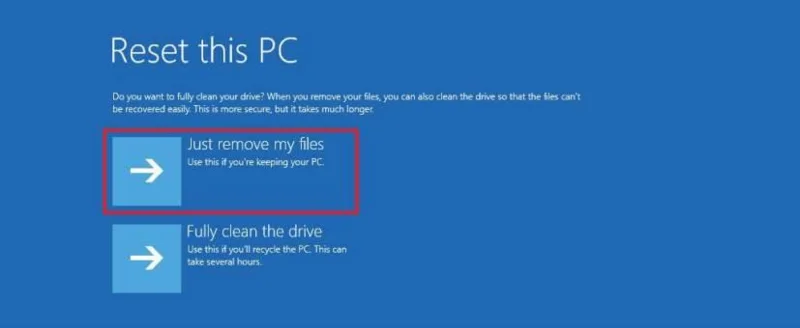
Select the “Just remove my files” or “Full clean the drive” option.
Just remove my files – Quickly deletes all files from the drive, but doesn’t securely erase them. This is faster but less secure.
Fully clean the drive – Erases everything and securely wipes the drive, which can take several hours. This option is best if you’re giving away or selling your device to ensure no data can be recovered.
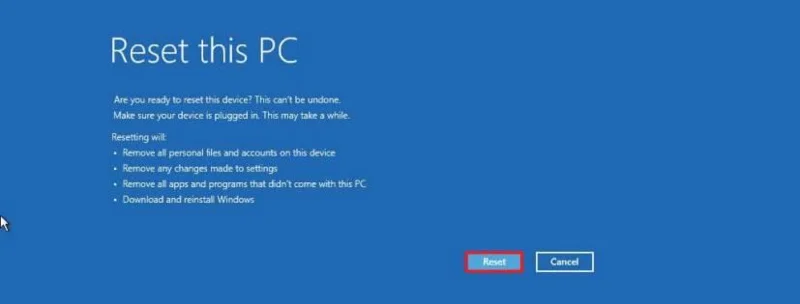
Click the Reset button.
Click the Next button.
Choose your region setting on the first page of the out-of-the-box experience (OOBE) after the installation.
Click the Yes button.
Select your keyboard layout setting.
Click the Yes button.
Click the Skip button if you do not need to configure a second layout.
The computer will automatically connect to the network using an Ethernet connection. You must set up the connection manually on a wireless connection (a security key may be required).
(Optional) Confirm a name for the computer.
Quick note: This is an optional step, but it’s highly recommended to set a name to make it easier to identify the device in the network, on your Microsoft account, and when restoring your computer from backup. Additionally, after completing this step, the setup will restart to apply the new name and resume where you left off to continue configuring the settings.
Click the Next button. (The device will restart automatically.)
Select the “Set up for personal use” option for Windows 11 Pro. This option is not available for the “Home” edition.
Quick tip: Use the “Set up for work or school” option to skip the Microsoft account and create a local account.
Click the Next button.
Click the Sign in button.
Confirm your Microsoft account email to create a Windows 11 account.
Click the Next button.
Confirm your Microsoft account password.
Click the Next button.
Click the Create PIN button.
Create a new four-digit Windows Hello PIN.
Click the OK button.
Turn the toggle switch for each privacy setting to confirm the option that best suits your situation.
Click the Next button.
Click the Next button again.
Click the Accept button.
Click the More options setting.
Quick tip: You can also click the “Restore from this PC” button to restore your files, apps, settings, and credentials from the system backup available in your OneDrive account. You can learn more about the Windows Backup app in this guide.
Click the “Set up as a new PC” option.
Click the “Set up as a new PC” option again.
(Optional) On the “Let’s customize your experience” page, select one or more ways you plan to use the device to allow the operating system to suggest tools and service customization during this experience.
Click the Accept button to continue. Or click the Skip button to skip this part of the setup.
(Optional) Use the code to link your Android phone, or click the “Skip” option.
(Optional) Use the code to download the OneDrive app on your phone, or click the “Skip” option.
Click the “Not now” button if you will be using a browser other than Microsoft Edge.
Once you complete the steps, Windows 11 will reinstall, resolving the existing problems. The completion time will depend on your computer hardware configuration and the selected reset configuration.
The Media Creation Tool no longer includes an option to perform a clean installation or in-place upgrade. You can only use the tool to create bootable media for installation using a USB flash drive or ISO file.
If you want to proceed with the Media Creation Tool, you can create an installation media and launch the setup from the USB flash drive.
To use the Media Creation Tool to create a bootable USB install media and proceed with the Windows 11 setup, use these steps:
Click the Download Now button under the “Create Windows 11 installation media” section.
Double-click the MediaCrationToolW11.exe file to launch the tool.
Click the Accept button.
Click the Next button.
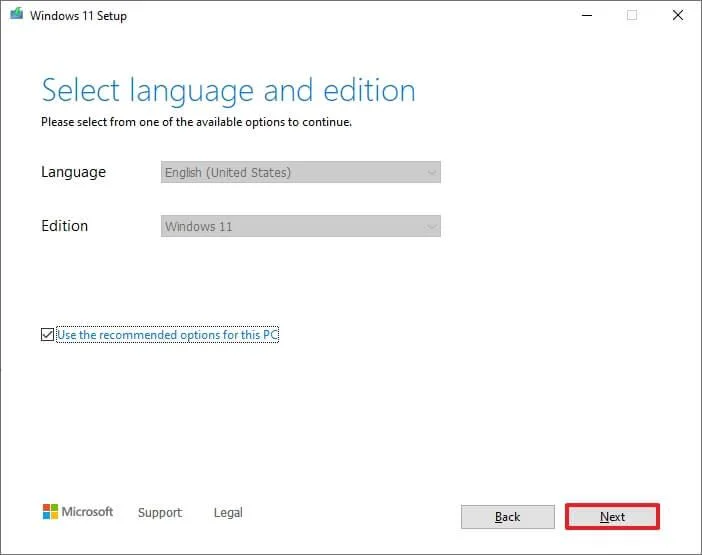
Quick note: If you create a Windows 11 USB for another device, you can also clear the “Use the recommended options for this PC” option to select the correct language, architecture, and edition.
Select the USB flash drive option.
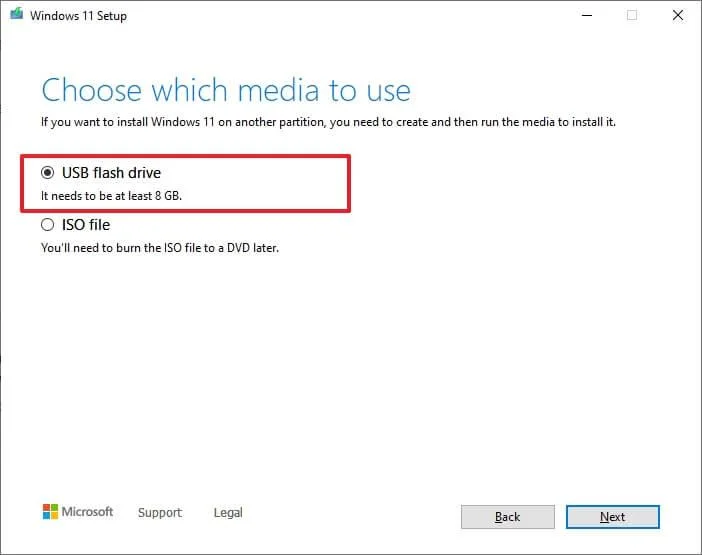
Click the Next button.
Select the USB flash drive from the list, but ensure it has no important files, as this process will erase everything on it.
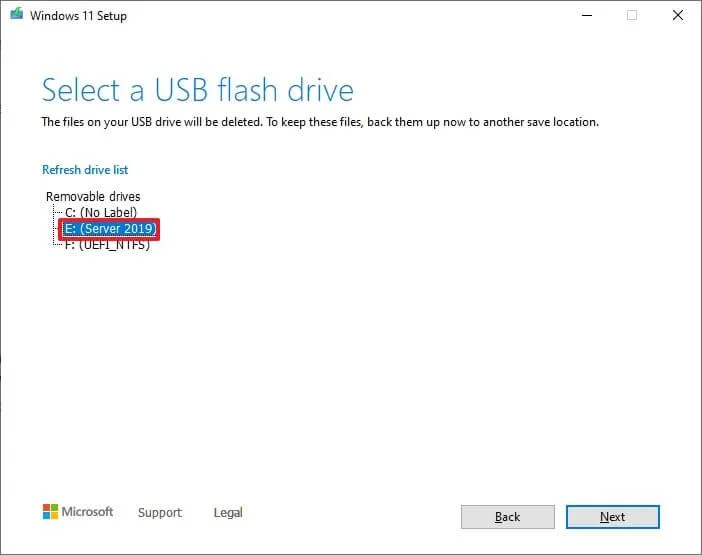
Click the Next button.
Click the Finish button.
Open the installation media with File Explorer.
Double-click the Setup.exe file to begin the Windows 11 installation.
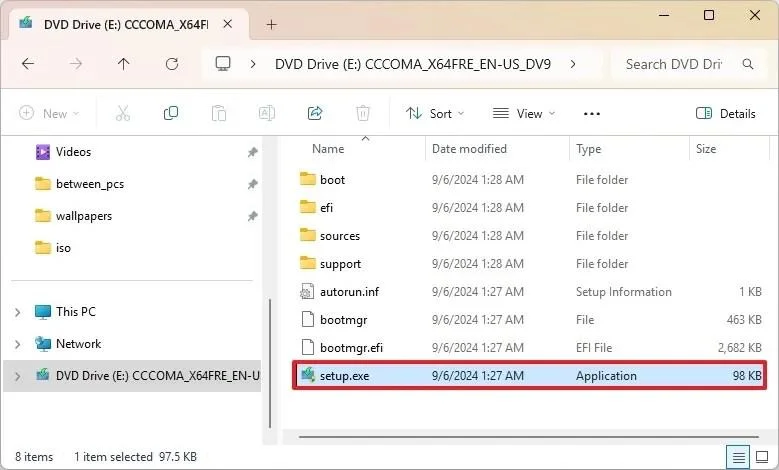
(Optional) Click the “Change how Windows Setup downloads updates” option.
Select the “Not right now” option.
Click the Next button.
Click the Accept button to agree to the terms.
Click the “Change what to keep” option.
Select the Nothing option.
Click the Next button.
Klik på knappen Installer .
Klik på knappen Næste .
Vælg din regionsindstilling på den første side af den indbyggede version (OOBE) efter installationen.
Klik på knappen Ja .
Vælg din indstilling for tastaturlayout.
Klik på knappen Ja .
Klik på knappen Spring over , hvis du ikke har brug for at konfigurere et andet layout.
Computeren opretter automatisk forbindelse til netværket via en Ethernet- forbindelse. Du skal konfigurere forbindelsen manuelt på en trådløs forbindelse (en sikkerhedsnøgle kan være påkrævet).
(Valgfrit) Bekræft et navn til computeren.
Kort bemærkning: Dette er et valgfrit trin, men det anbefales kraftigt at angive et navn for at gøre det nemmere at identificere enheden på netværket, på din Microsoft-konto og når du gendanner din computer fra en sikkerhedskopi. Derudover genstarter opsætningen efter dette trin for at anvende det nye navn, og den fortsætter, hvor du slap, for at fortsætte med indstillingerne.
Klik på knappen Næste . (Enheden genstarter automatisk.)
Vælg indstillingen "Opsætning til personlig brug" i Windows 11 Pro. Denne indstilling er ikke tilgængelig for "Home" -udgaven.
Hurtigt tip: Brug indstillingen "Opsætning til arbejde eller skole" til at springe Microsoft-kontoen over og oprette en lokal konto.
Klik på knappen Næste .
Klik på knappen Log ind .
Bekræft din Microsoft-kontos e-mailadresse for at oprette en Windows 11-konto.
Klik på knappen Næste .
Bekræft adgangskoden til din Microsoft-konto.
Klik på knappen Næste .
Klik på knappen Opret pinkode .
Opret en ny firecifret Windows Hello PIN-kode.
Klik på OK -knappen.
Drej på til/fra-knappen for hver privatlivsindstilling for at bekræfte den indstilling, der passer bedst til din situation.
Klik på knappen Næste .
Klik på knappen Næste igen.
Klik på knappen Accepter .
Klik på indstillingen Flere muligheder .
Hurtigt tip: Du kan også klikke på knappen "Gendan fra denne pc" for at gendanne dine filer, apps, indstillinger og legitimationsoplysninger fra den systembackup, der er tilgængelig på din OneDrive-konto. Du kan få mere at vide om Windows Backup-appen i denne vejledning .
Klik på indstillingen "Opsæt som en ny pc" .
Klik på "Opsæt som en ny pc" igen.
(Valgfrit) På siden "Lad os tilpasse din oplevelse" skal du vælge en eller flere måder, du planlægger at bruge enheden på, så operativsystemet kan foreslå værktøjer og tjenestetilpasning under denne oplevelse.
Klik på knappen Accepter for at fortsætte. Eller klik på knappen Spring over for at springe denne del af opsætningen over.
(Valgfrit) Brug koden til at forbinde din Android-telefon, eller klik på "Spring over" .
(Valgfrit) Brug koden til at downloade OneDrive-appen på din telefon, eller klik på "Spring over" .
Klik på knappen " Ikke nu", hvis du bruger en anden browser end Microsoft Edge.
Efter en ren installation vil din Windows 11-pc køre hurtigere, med færre fejl og mindre rod. Husk at sikkerhedskopiere dine filer, geninstallere vigtige apps og tilpasse dine privatlivsindstillinger.
Hvilken installationsmetode fungerede bedst for dig (USB, ISO eller Cloud Download)? Fortæl mig det i kommentarerne.
Her er en liste over almindelige spørgsmål og svar om processen til at udføre en ren installation af operativsystemet.
Hvad skal jeg gøre, hvis min computer ikke starter fra USB-drevet?
Hvis enheden ikke starter fra USB-bootmediet, skal du konfigurere UEFI (BIOS) og ændre opstartsrækkefølgen til at starte fra USB. Nogle enheder har også en opstartsmenu, som du kan åbne under opstart ved hjælp af en funktion eller ESC-tasten, så du kan starte enheden fra et USB-bootdrev.
Hvis computeren er konfigureret til at starte fra USB, men du ikke kan få adgang til installationsprogrammet, er installationsmediet eller USB-flashdrevet sandsynligvis beskadiget. I dette tilfælde kan du genskabe det bootbare medie ved hjælp af et andet flashdrev.
Hvordan kan jeg sikre mig, at alle data er fuldstændigt slettet, før jeg installerer Windows 11?
For at sikre, at dataene slettes fuldstændigt, skal du omformatere drevet. Du behøver ikke noget specialværktøj. Den nemmeste måde at gøre dette på er ved at bruge en af mulighederne under "Nulstil denne pc" og vælge "Rengør data" . Hvis du bruger et USB-bootmedie, skal du efter sletning af partitionen oprette en ny partition med hele pladsen og derefter bruge "Formater partition" .
Er der nogen risici forbundet med at lave en ren installation af Windows 11?
Ja, når du udfører en ren installation, slettes alt på harddisken. Det betyder, at hvis du ikke opretter en sikkerhedskopi af dine filer , kan du ikke gendanne dem, medmindre du bruger en cloud-lagringstjeneste.
Du kan ikke fortryde processen. Når du starter installationen, sletter installationsprogrammet alle eksisterende filer. Den eneste måde at gendanne filer på er at bruge en fuld sikkerhedskopi, som du muligvis har oprettet, før du fortsætter med disse trin.
Hvordan nulstiller jeg TPM'en efter en ren installation af Windows 11?
Normalt behøver du ikke at nulstille TPM-chippen (Trusted Platform Module) i computerens firmware. Faktisk aktiverer systemet kryptering automatisk under installationen, og Windows Hello-oplysningerne gemmes automatisk i TPM'en.
Hvad er forskellen på en ren installation og en opgradering?
En ren installation fjerner alt fra din harddisk (apps, filer, indstillinger og drivere), før du geninstallerer Windows 11, hvilket giver dig et helt nyt system. En opgradering bevarer dine filer og apps, mens du installerer en nyere version af Windows. En ren installation foretrækkes, hvis du ønsker maksimal stabilitet eller for at løse dybe systemproblemer.
Kan jeg udføre en ren installation af Windows 11 uden at miste aktiveringen?
Ja. Hvis Windows 11 (eller Windows 10) tidligere har været aktiveret på din enhed, genaktiveres den automatisk, når du opretter forbindelse til internettet efter geninstallationen. Du behøver ikke at indtaste din produktnøgle igen.
Har jeg brug for en produktnøgle til en ren installation?
Kun hvis enheden aldrig har været aktiveret med Windows 10 eller 11 før. Ellers vil din digitale licens, der er gemt på Microsofts servere, automatisk genaktivere systemet.
Kan jeg lave en ren installation uden et USB-drev?
Ja. Du kan geninstallere Windows 11 ved hjælp af funktionen "Nulstil denne pc" eller ved at montere ISO-filen i Stifinder. Brug af et bootbart USB-drev er dog stadig den mest pålidelige og universelle metode.
Er det samme som at bruge "Nulstil denne pc" som en ren installation?
Nej, baseret på brugeroplevelse gendanner den ofte fra det eksisterende image og kan bevare producentens overdrevne indhold eller uløste problemer, hvilket gør en ny installation via USB eller ISO at foretrække.
Hvad er forskellen på lokal geninstallation og cloud-download?
En lokal geninstallation bruger de installationsfiler, der allerede findes på din computer, til at geninstallere Windows 11. Det er hurtigere, men kan genbruge beskadigede filer. På den anden side henter cloud-downloadfunktionen det seneste image direkte fra Microsofts servere. Det er langsommere, men sikrer en renere og mere opdateret installation.
Skal jeg slette alle partitioner under opsætningen?
Du behøver kun at slette partitioner fra det drev, hvor operativsystemet skal installeres (normalt drev 0). Sletning af alle partitioner sikrer en fuldstændig ren installation, men sørg for at du har sikkerhedskopieret dine filer først.
Hvad sker der, hvis jeg springer en produktnøgle over?
Du kan springe indtastningen af produktnøglen over under installationen. Windows 11 installeres og kører, men du skal aktivere det senere for at få adgang til alle tilpasningsmuligheder (f.eks. ændringer af baggrund og tema). Hvis du allerede har en digital licens, sker aktiveringen automatisk efter installationen.
Hvor lang tid tager en ren installation af Windows 11?
Selve installationen tager normalt mellem 20 og 45 minutter, afhængigt af din lagringshastighed og systemets ydeevne. Fuldførelse af den medfølgende opsætning (OOBE) tager yderligere 5 til 10 minutter.
Kan jeg bruge en Windows 10-produktnøgle til at aktivere Windows 11?
Ja. Windows 10 og Windows 11 deler den samme aktiveringsinfrastruktur. Du kan indtaste en Windows 10-nøgle under eller efter installationen for at aktivere Windows 11.
Løser en ren installation ydeevneproblemer eller malwareinfektioner?
Ja. En ren installation fjerner beskadigede systemfiler, problemer med registreringsdatabasen, malware og uønskede programmer. Det er ofte den bedste måde at gendanne fuld systemydelse og stabilitet.
Skal jeg geninstallere drivere efter en ren installation?
Windows 11 registrerer og installerer automatisk de fleste drivere. Det anbefales dog at downloade specifikke hardwaredrivere (grafik, chipset, Wi-Fi, Bluetooth) fra producentens supportwebsted efter installationen for at opnå den bedste ydeevne.
Kan jeg reninstallere en ældre version som 23H2 eller 24H2?
Ja, så længe du har ISO-filen til den specifikke version. Det anbefales dog at installere den seneste tilgængelige udgivelse (f.eks. version 25H2) for at sikre bedre sikkerhed og kompatibilitet.
Kan jeg skifte fra Windows 10 til Windows 11 ved hjælp af en ren installation?
Absolut. At udføre en ren installation fra Windows 10 til Windows 11 er ofte den bedste opgraderingsmetode, især hvis din nuværende installation har stabilitetsproblemer eller har ophobet sig rod over tid.
Skal jeg bruge tredjeparts debloat-værktøjer efter installation af Windows 11?
Det kan du, men du bør ikke. Selvom det er fristende, kan brugen af debloat-værktøjer eller tunge scripts forårsage fremtidige opdaterings- eller stabilitetsproblemer.
Hvad sker der med mine Microsoft 365 (Office)- og OneDrive-data efter en ren installation?
Du behøver generelt ikke at deaktivere Office eller OneDrive før en ren installation. Dit abonnement forbliver intakt, og OneDrive-data forbliver i skyen – du skal blot geninstallere og logge ind.
Skal jeg lave en ren installation, når jeg opgraderer til Windows 11, eller kan jeg bare opgradere på stedet?
Det behøver du ikke. En opgradering på stedet fungerer for mange brugere. En ren installation anbefales dog ofte for at opnå den bedste ydeevne, færre resterende problemer og minimal "bagage fra ældre installationer".
Hvilken metode bruger du? Har du spørgsmål? Fortæl mig det i kommentarerne.
Lær hvordan du laver en Windows 11 download free fra Microsofts officielle kilder. Få den nyeste ISO-fil sikkert og lovligt til din pc.
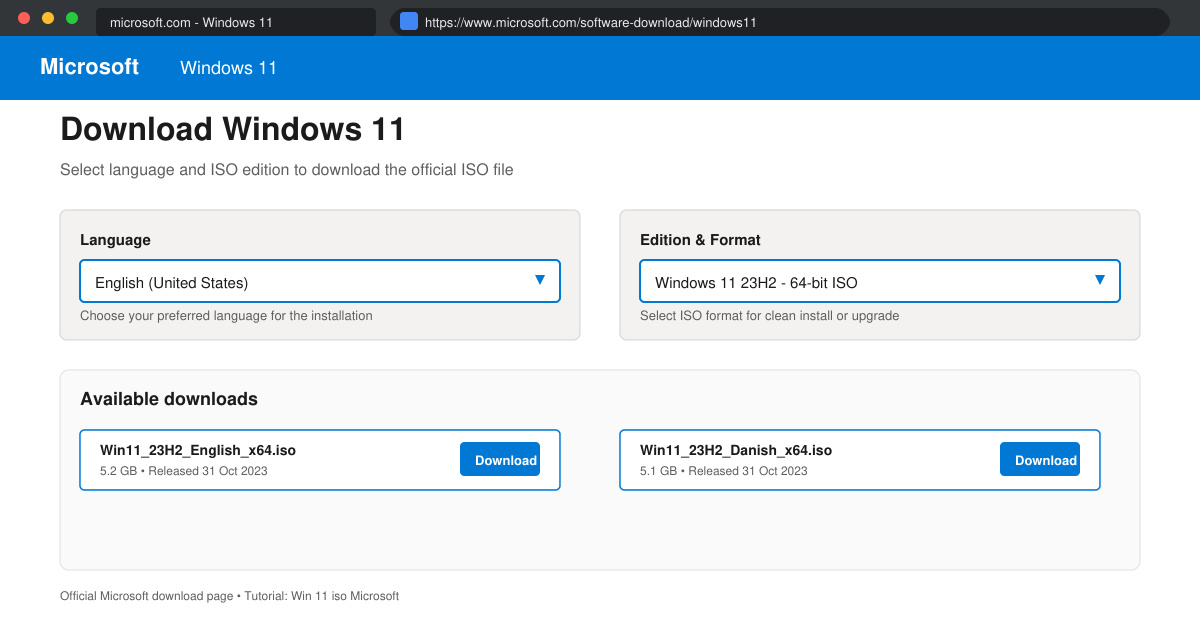
Få en sikker Windows 11 23h2 download direkte fra Microsoft og opgrader din pc med de nyeste funktioner og sikkerhedsforbedringer.
Iso win 11 download giver dig den officielle Windows 11 ISO direkte fra Microsoft. Følg vores præcise trin og hent filen sikkert til ren installation eller USB-boot.
Win 11 iso Microsoft giver dig den officielle Windows 11 ISO-fil direkte fra Microsoft. Følg denne guide og download den sikre installationsfil på få minutter.
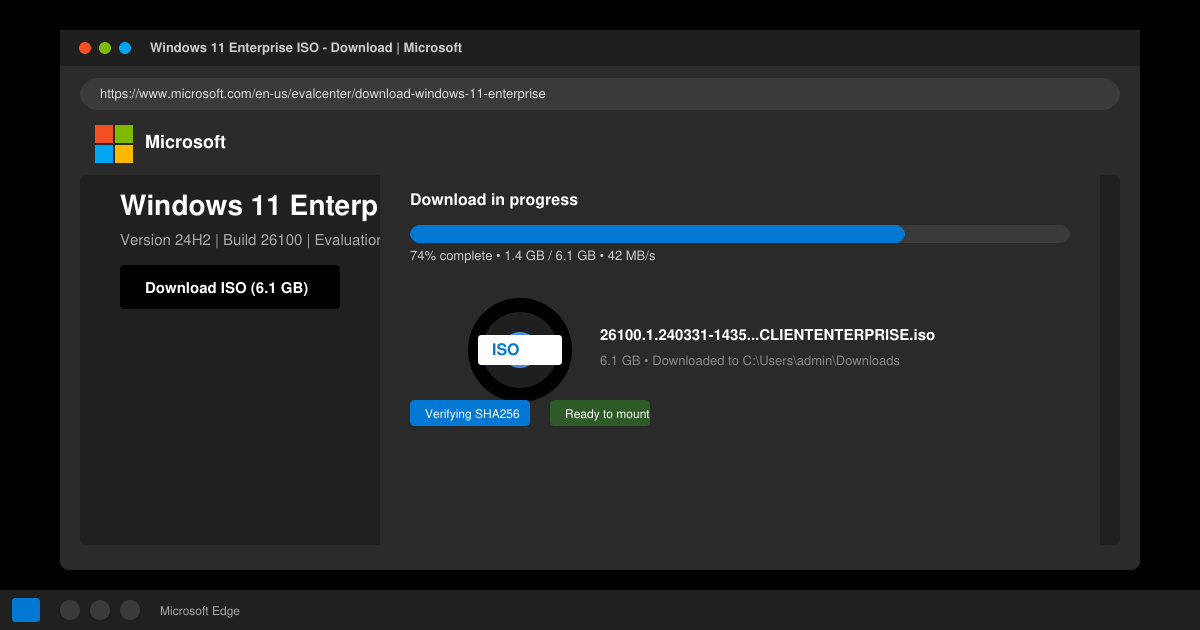
Lær hvordan du downloader Windows 11 enterprise iso fra officielle kilder. Få en trin-for-trin vejledning til at hente ISO-filen til virksomhedsbrug.
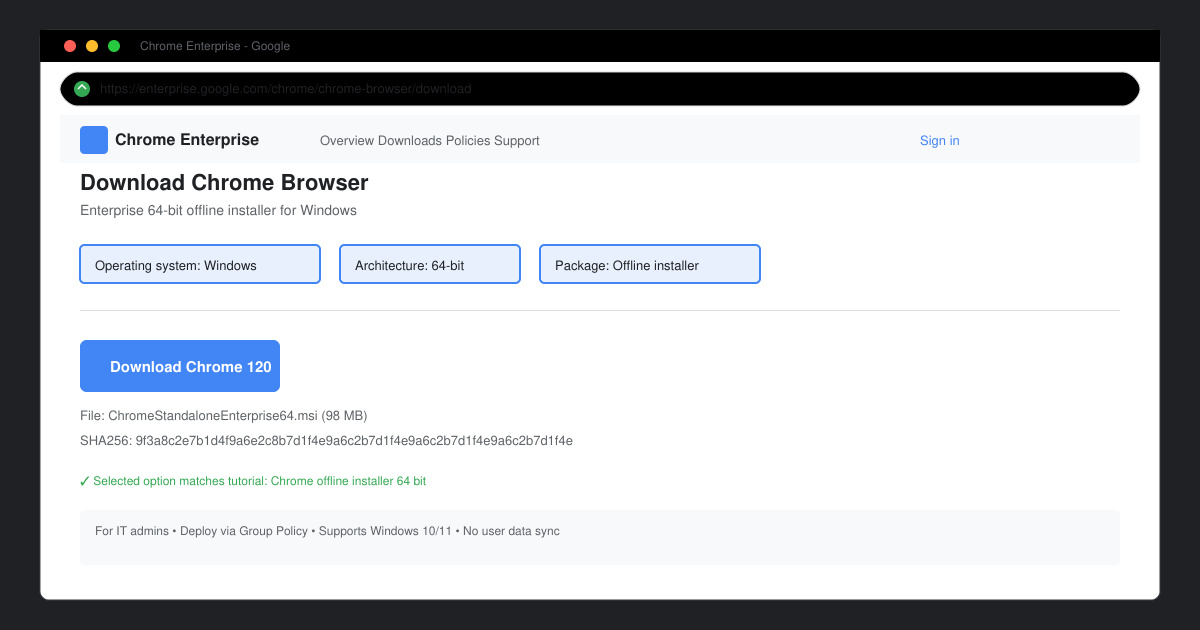
Chrome offline installer 64 bit giver dig mulighed for at installere Google Chrome uden internetforbindelse. Download den officielle 64-bit version til Windows og installer på flere maskiner.
Download Google Chrome Windows 7 64 bits og installer den sidste kompatible version på din Windows 7 64-bit computer med denne detaljerede guide.
Find sikker vejledning til Windows 11 pro download iso 64 bit Google drive. Lær hvorfor officielle Microsoft-kilder er det bedste valg og undgå risici med uofficielle links.
Brug Windows 11 download assistant til at opgradere din pc til Windows 11 hurtigt og sikkert. Følg vores detaljerede guide med trin-for-trin instruktioner.
Cap cut pro PC lader dig redigere videoer professionelt direkte på computeren. Få den fulde guide til download, installation og brug af CapCut Pro på PC.