- To fix the printer spooler on Windows 11, open Services, select and open the “Print Spooler” service properties, and stop the service. Then open the “printers” folder and delete its contents. Finally, start the “Print Spooler” service again.
- Another way to repair the print spooler, open Command Prompt (admin) and run the “net stop spooler,” “del /Q /F /S “%systemroot%\System32\Spool\Printers\*.*,”” and “net start spooler” commands.
On Windows 11, you can fix the printer spooler in at least two ways, and in this guide, you will learn how. It can be annoying when trying to print a document and it gets stuck, and trying to cancel the printing, the job will stay in the deleting state forever.
Usually, this problem can occur because of issues with the “print spooler,” which is a service that analyzes and handles the interaction between the computer and printer. Although it’s rare, the print spooler can sometimes stop working, even after restarting the devices.
If you can’t print due to this issue, on Windows 11, you can reset the print spooler using the Services console or Command Prompt to resolve the problem.
This guide will teach you the steps to fix the print spooler on Windows 11.
Fix print spooler on Windows 11 from Services
To fix the print spooler on Windows 11, use these steps:
-
Open Start on Windows 11.
-
Search for services.msc and click the top result to open the Services console.
-
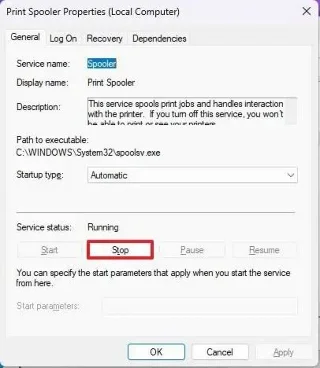
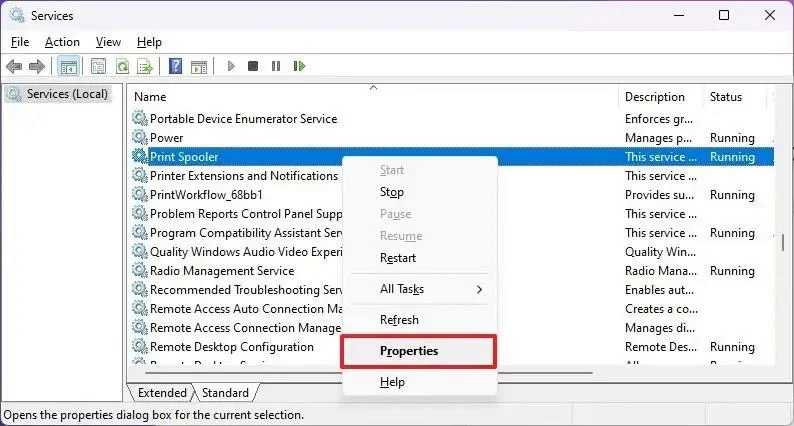
Right-click the Print Spooler service and select the Properties option.
-
Click the General tab.
-
Click the Stop button.

-
Use the “Windows key + R” keyboard shortcut to open the Run command.
-
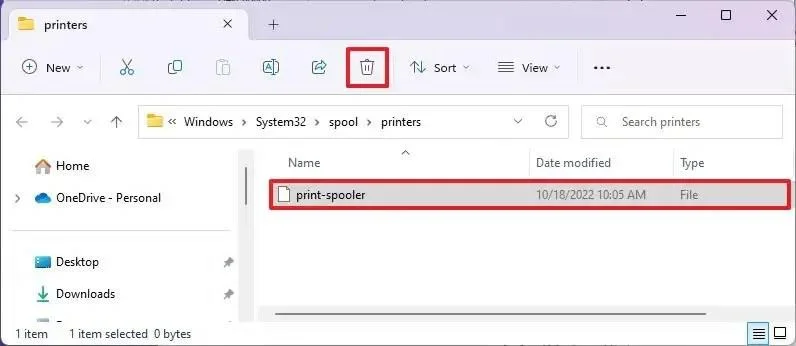
Type the following path to the printers folder and press Enter:
C:\Windows\System32\spool\printers
-
Click the Continue button (if applicable).
-
Select everything in the “printers” folder (Ctrl + A keyboard shortcut) and hit the Delete button to remove the contents.

-
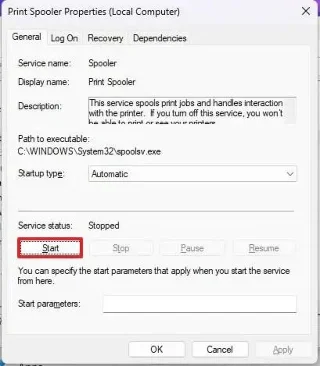
On the “Printer Spooler Properties” page, click the General tab.
-
Click the Start button to restart the service.

-
Click the OK button.
Once you complete the steps, Windows 11 should be able to send the job and the printer to print it.
Fix print spooler on Windows 11 from Command Prompt
To fix print spooler problems from Command Prompt on Windows 11, use these steps:
-
Open Start.
-
Search for Command Prompt, right-click the top result, and select the Run as Administrator option.
-
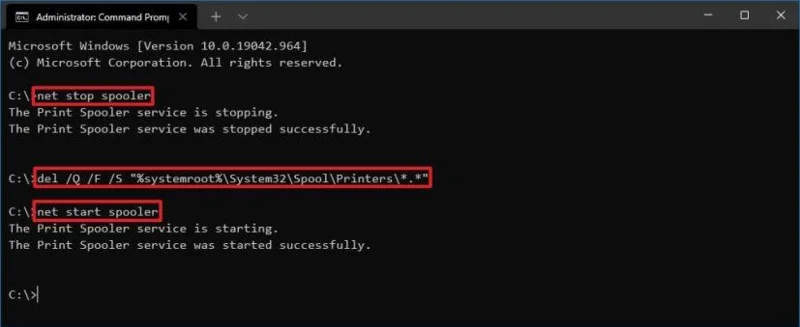
Type the following commands (one line at a time) to stop the print spooler, delete the printers folder content, restart the printer spooler, and press Enter:
net stop spooler del /Q /F /S "%systemroot%\System32\Spool\Printers\*.*" net start spooler

After you complete the steps, sending a print job from Windows 11 to the printer should work.