How to enable new Taskbar for touch on Windows 11

Microsoft is bringing back the redesigned Taskbar interfaced optimized for touch-enabled devices on Windows 11 build 25193, but it’s only available as a hidden feature. The new interface is being developed for tablets and 2-in-1 devices, and it offers two states (collapsed and expanded) to give users more screen space while providing quick access to your apps and features.

The “collapsed” state provides a minimal version of the Taskbar that hides all the icons except those essential elements from the system tray (such as time, battery, volume, and network). The collapsed state offers more space and prevents you from accidentally invoking actions when holding a tablet. Also, it includes a gripper to make it evident that you can swipe up to bring up the “expanded” state.

How to enable new Taskbar for touch on Windows 11

Taskbar collapsed (Source: Microsoft)

The “expanded” state provides the regular experience but is optimized for touch-enabled devices with bigger icons. You can easily switch between the two states by swiping up and down on the bottom of your device.

How to enable new Taskbar for touch on Windows 11

Taskbar expanded (Source: Microsoft)

If you want to get hands-on with the new dialog interface, you can use a third-party tool known as “ViVeTool” created by Rafael Rivera and Lucas on GitHub to enable the new experience on your computer.

This guide will teach you the steps to enable the new Taskbar experience optimized for touch-enabled screens on Windows 11.

Enable touch-optimized Taskbar on Windows 11

To enable the new Taskbar optimized for tablets on Windows 11, use these steps:

  1. Open GitHub website.

  2. Download the ViveTool-vx.x.x.zip file to enable the touch-optimized Taskbar.

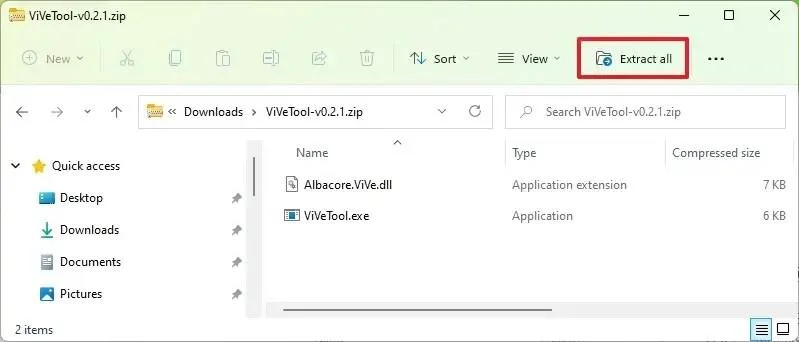
  3. Double-click the zip folder to open it with File Explorer.

  4. Click the Extract all button.

    How to enable new Taskbar for touch on Windows 11

  5. Click the Extract button.

  6. Copy the path to the folder.

  7. Open Start.

  8. Search for Command Prompt, right-click the top result, and select the Run as administrator option.

  9. Type the following command to navigate to the Vivetool folder and press Enter:

    Cd C:\FOLDER\PATH\ViveTool-v0.3.1

    In the command, change the path to the folder with your path.

  10. Type the following command to enable the new Taskbar designed for touch-enabled devices on Windows 11 and press Enter:

    Vivetool /enable /id:26008830

  11. Restart the computer.

  12. Open Settings.

  13. Click on Personalization.

  14. Click the Taskbar tab.

  15. Click the Taskbar behaviors setting.

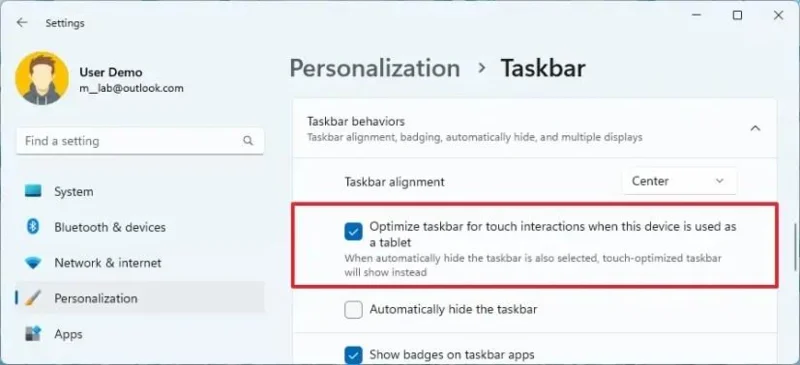
  16. Check the “Optimize taskbar for touch interactions when the device is used as a tablet” option.

    How to enable new Taskbar for touch on Windows 11

Once you complete the steps, if you are using a tablet or laptop with a touch-enabled display, you will be able to interact with the new Taskbar experience.

If you don’t have Windows 11 build 25193, you need to enroll in the Dev Channel using the “Windows Insider Program” settings from the “Windows Update” section. Once you enroll the device in the program, you can download build 25193 from the “Windows Update” settings by clicking the Check for Updates button, and then you can follow the steps outlined above.

If you change your mind, you can revert the changes with the same instructions, but on step No. 10, make sure to use the vivetool /disable /id:26008830 command and then restart the device.

Update September 9, 2022: Starting on build 25197, Windows 11 enables the touch-optimized version of the Taskbar, which means you no longer need to use these instructions.

Leave a Comment

6 начина за деактивиране на антивирусната програма за сигурност на Windows в Windows 11

6 начина за деактивиране на антивирусната програма за сигурност на Windows в Windows 11

Windows 11, подобно на предишните версии, се предлага предварително с Windows Security – вграден антивирус, който защитава компютъра ви още от самото начало. Преди известен като Windows Defender, Windows Securit…

Как да промените приоритета в диспечера на задачите в Windows 11

Как да промените приоритета в диспечера на задачите в Windows 11

Всеки компютър има ограничено количество ресурси, които може да изразходва за процеси и програми. В зависимост от програмата, Windows автоматично определя каква част от ограничението на вашата система...

Как да правите скрийншотове с превъртане в Windows 11 [2023]

Как да правите скрийншотове с превъртане в Windows 11 [2023]

Как да правите скрийншотове с превъртане в Windows 11 [2023]

Как да проверите използваното пространство на Android от компютър с Windows чрез MTP

Как да проверите използваното пространство на Android от компютър с Windows чрез MTP

Паметта на Android не е каквато беше преди. В днешно време слотовете за разширяване на паметта вече не са модерни и сте принудени да се ограничите до капацитета за съхранение, който предлага вашият телефон. Това прави живота по-различен…

Режим „Бог“ в Windows 11 или 10: Какво е това, защо и как да го използваме

Режим „Бог“ в Windows 11 или 10: Какво е това, защо и как да го използваме

Измина повече от година, откакто Windows 11 беше пуснат за първи път за обществеността. Оттогава операционната система измина дълъг път и получи значителни подобрения през последните няколко месеца. Въпреки това, едно голямо оплакване...

Какви са опциите за използване на устройства в Windows 11 и как да ги използвате

Какви са опциите за използване на устройства в Windows 11 и как да ги използвате

Какво е важно да знаете Опциите за използване на устройства ви позволяват да кажете на Microsoft и Windows 11 как искате да използвате компютъра си. Предложения, препоръки и съвети след това се подбират според вашите сценарии на употреба според…

Как да изтеглите изображения за тапети на Windows Spotlight на вашия компютър

Как да изтеглите изображения за тапети на Windows Spotlight на вашия компютър

Какво е важно да знаете Достъп до скритата папка „Assets“ на Windows Spotlight, като отидете на %LocalAppdata%\Packages\Microsoft.Windows.ContentDeliveryManager_cw5n1h2txyewy/LocalState/Assets във File Exp…

How to enable new Auto Color Management (ACM) feature on Windows 11

How to enable new Auto Color Management (ACM) feature on Windows 11

To enable Auto Color Management (ACM) for SDR displays on Windows 11, open Command Prompt (admin) and run vivetool /enable /id:36371531

How to clone Windows 11 HDD to SSD with Macrium Reflect

How to clone Windows 11 HDD to SSD with Macrium Reflect

To clone HDD to SSD on Windows 11, open Macrium Reflect, choose the drive and click Clone this disk, choose destination, and clone drive.

How to enable new Taskbar for touch on Windows 11

How to enable new Taskbar for touch on Windows 11

To enable touch-optimized Taskbar on Windows 11, launch the ViveTool command tool and run the Vivetool /enable /id:26008830 command.