How to enable new open Search on hover option on Windows 11
To enable open Search on hover on Windows 11, open Command Prompt (admin) and run the vivetool /enable /id:43572857,43572692 command.
On Windows 11 build 23435, you can enable an early preview of a new option that allows you to decide whether the Search experience should open on hover from the Taskbar, and in this guide, you will learn how.
Microsoft is experimenting with a new option (via @PhantomOfEarth) that will open the Search experience as you hover over the search elements in the Taskbar. Although this is a subtle change, it’ll save users an extra click to access the interface. The feature is still under development, and it’s hidden from the main installation. However, if the company decides to roll out this change, it’ll probably become the default option, as it should improve discoverability.
If you want to get hands-on with the new open Search on hover, you can use a third-party tool called “ViveTool,” created by Rafael Rivera and Lucas on GitHub, to enable the option on your computer.
This guide will teach you the steps to turn on this new feature on Windows 11.
Enable new open Search on hover option on Windows 11
To enable the open Search on hover option on Windows 11, use these steps:
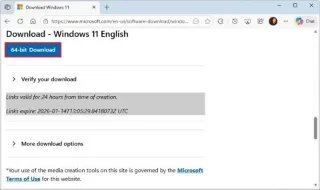
Download the ViveTool-vx.x.x.zip file to enable the new Snap Layout improvements.
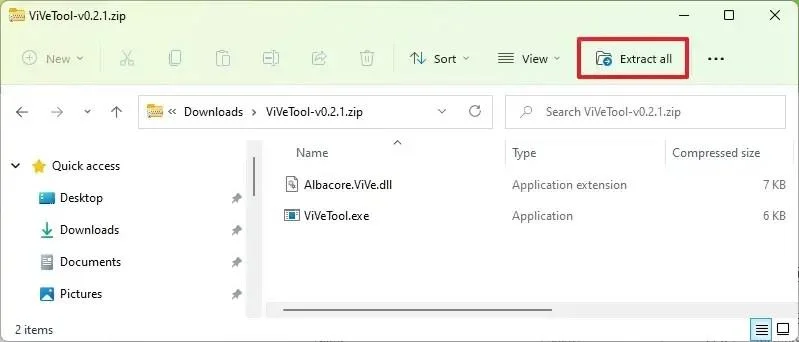
Double-click the zip folder to open it with File Explorer.
Click the Extract all button.

Click the Extract button.
Copy the path to the folder.
Open Start.
Search for Command Prompt, right-click the top result, and select the Run as administrator option.
Type the following command to navigate to the ViveTool folder and press Enter:
cd c:\folder\path\ViveTool-v0.x.x
In the command, remember to change the path to the folder with your path.
Type the following command to enable the Snap Layouts suggestions and press Enter:
vivetool /enable /id:43572857,43572692
Restart the computer.
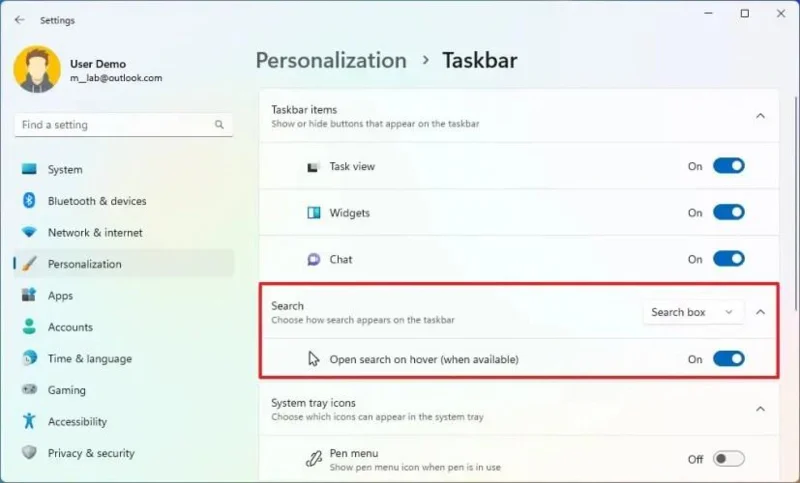
Once you complete the steps, the next time you open the Taskbar settings page, you will notice that the “Search” feature will no longer belong to the “Taskbar items” settings, and it’ll include a new “Open search on hover (when applicable)” toggle switch that allows you to enable or disable the feature.

Taskbar settings open Search on hover
If you change your mind, you can revert the changes with the same instructions, but on step 10, make sure to use the vivetool /disable /id:43572857,43572692 command and then restart the computer.
To enable open Search on hover on Windows 11, open Command Prompt (admin) and run the vivetool /enable /id:43572857,43572692 command.
To enable File Explorer header design on Windows 11, open Command Prompt (admin) and run vivetool /enable /id:40950262,41076133 command.
To enable Auto Color Management (ACM) for SDR displays on Windows 11, open Command Prompt (admin) and run vivetool /enable /id:36371531
To clone HDD to SSD on Windows 11, open Macrium Reflect, choose the drive and click Clone this disk, choose destination, and clone drive.
To enable touch-optimized Taskbar on Windows 11, launch the ViveTool command tool and run the Vivetool /enable /id:26008830 command.
To fix print spooler on Windows 11, on Services, stop the Print Spooler service, delete the contents from printers and start service again
Имате проблеми с грешката Valorant Vanguard TPM 2.0 на Windows 11? Това ръководство стъпка по стъпка ви помага да решите проблема бързо и сигурно, за да можете да се върнете към мачовете си без разочарование. Актуализирано с най-новите корекции.
Открийте как да настроите Miracast на Windows 11 за безпроблемно споделяне на екрана. Това ръководство стъпка по стъпка обхваща изискванията, настройката и отстраняването на неизправности, за да подобрите изживяването си с безжичния дисплей.
Открийте подробно ръководство за настройване на фонове за няколко монитора в Windows 11. Персонализирайте лесно настройката си за два или три екрана и повишете производителността си.
Имате проблеми с грешката „прекъсната връзка 0x80072efe“? Открийте доказани, стъпка по стъпка решения, за да възстановите бързо и лесно актуализациите на Windows, Microsoft Store и онлайн връзките си. Не се изискват технически познания!
Открийте как да използвате ефективно вградените инструменти за отстраняване на неизправности в Windows 11. Ръководство стъпка по стъпка за разрешаване на често срещани проблеми с компютъра, като мрежови проблеми, проблеми със звука и други, за по-плавно изживяване.
Открийте безопасни, законни методи за активиране на Windows 11 Pro без продуктов ключ. Научете подробни ръководства, съвети за отстраняване на неизправности и защо официалното активиране е важно за вашия компютър.
Имате проблеми с грешката в библиотеката 0x800700c1 в Windows 11? Открийте доказани стъпки за отстраняване на неизправности, за да разрешите този досаден проблем и да възстановите библиотеките си, без да губите данни.
Имате проблеми с грешките на Windows 11 HDMI 2.1 4K 120Hz? Открийте доказани решения, за да възстановите ултрависоките честоти на опресняване, да премахнете черните екрани и да оптимизирате вашата конфигурация за безпроблемно 4K игри и възпроизвеждане на видео.
Открийте как да активирате хибернация в Windows 11 Home Edition без усилие. Това подробно ръководство ще ви преведе през стъпките за активиране на тази функция за пестене на енергия и оптимизиране на вашия лаптоп.
Имате проблеми с излъчването на Game Bar, което не е налично? Открийте доказани решения, за да стартирате отново стрийминг на Xbox Game Bar в Windows. Поетапно отстраняване на неизправности за безпроблемно споделяне на игра.